


 Use Request time off on your home page’s time-off card or in My profile → Time off. The request uses a policy assigned to you, such as annual leave, and shows the effect on your balance before you send it.
Send your request
1
Choose the policy
Open Request time off and choose the leave you need. If it is missing, ask your manager to
check which policies apply to you and who can request them.
2
Choose the dates
Set the start and end date. For part of a day, turn All day off and enter the times. Leave
booked in whole days only has no All day switch. Check This request and the balance
shown.
3
Complete any extra fields
Add an optional note. Your workplace may also ask for a payment choice or a substitute. See
Arranging cover if a colleague needs to confirm.
4
Submit
Choose Request time off. Check whether the result is Pending approval or Approved.
If the dates do not work
The form marks existing bookings and public holidays, and can warn about team cover. Your policy can limit how much leave you request. Choose different dates or ask your manager about a balance or policy that looks wrong. Your submitted request appears in My profile → Time off. Approval depends on your workplace’s rules; sending the request does not always approve it. For later changes, use Changing or cancelling time off.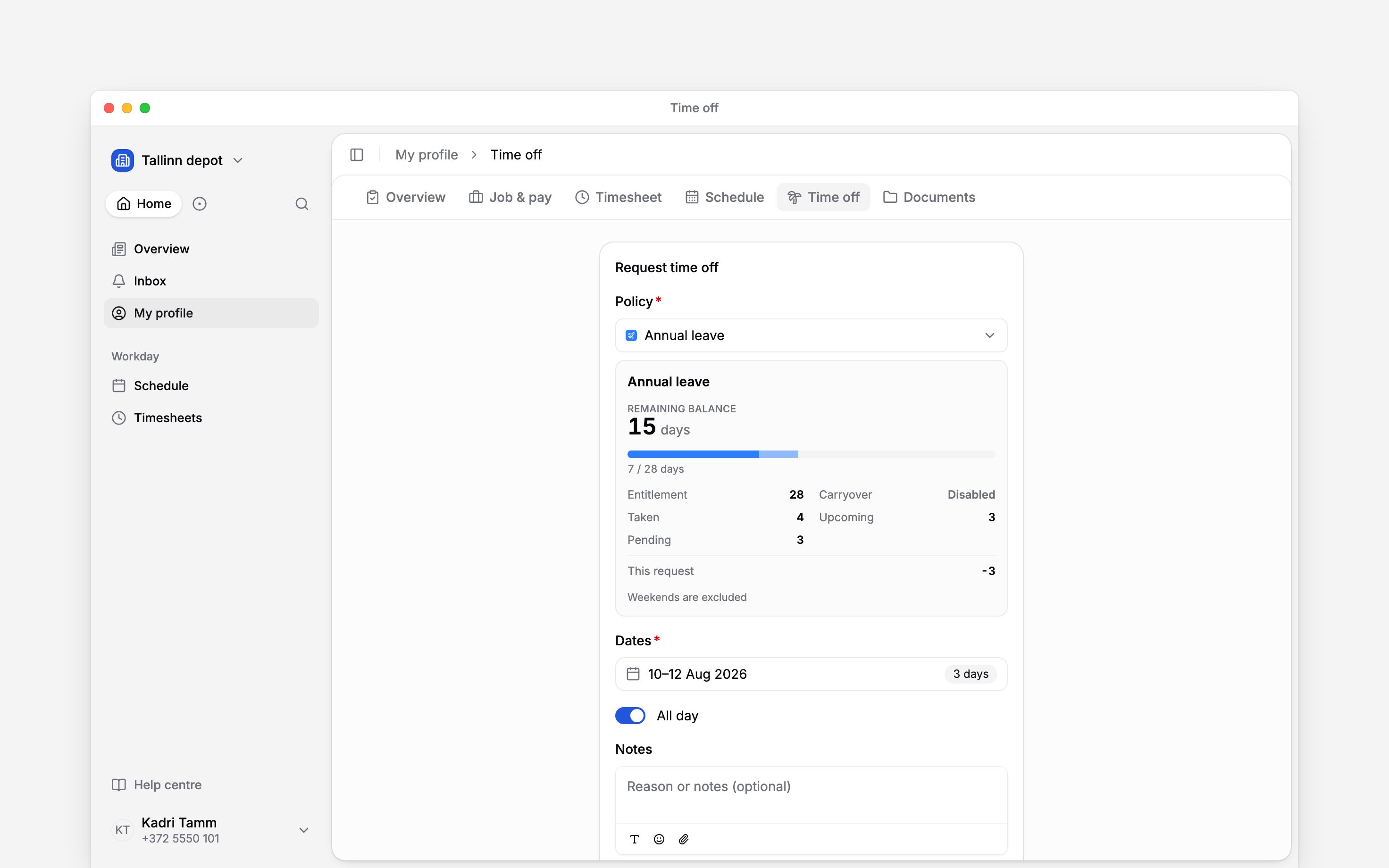
Next
Your time-off balance
See what is available before choosing dates.
Change or cancel time off
Find the action available for your request.
Still need help?
Contact support
Email the Begin team and we’ll get back to you.
Ask Begin AI
Open the AI assistant and get instant answers based on these docs.