


 Open Settings → Preferences to choose how Begin looks and behaves for you. On a phone, open More → Profile & settings → Preferences. Your choices do not change a colleague’s interface or the workspace’s regional defaults.
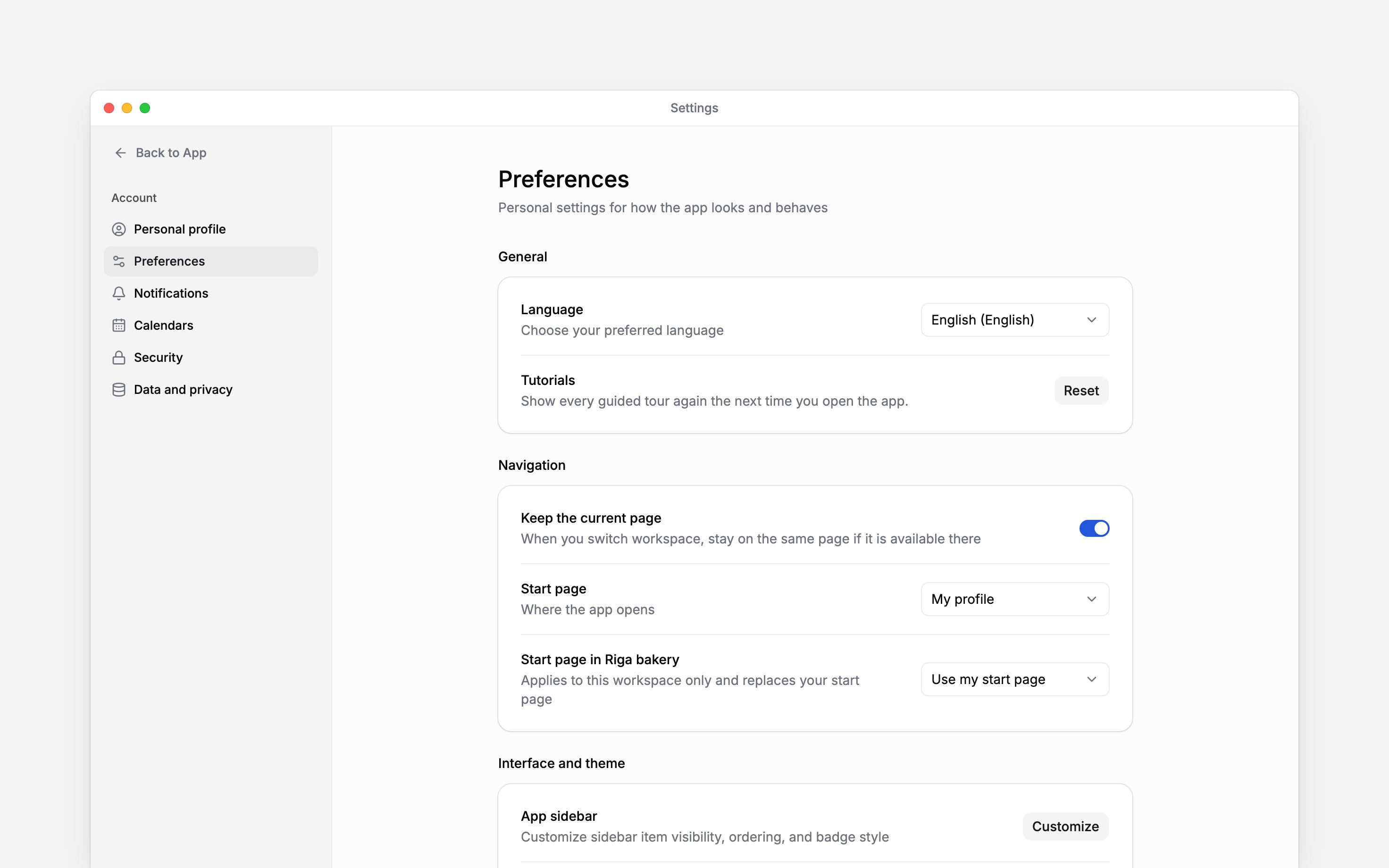
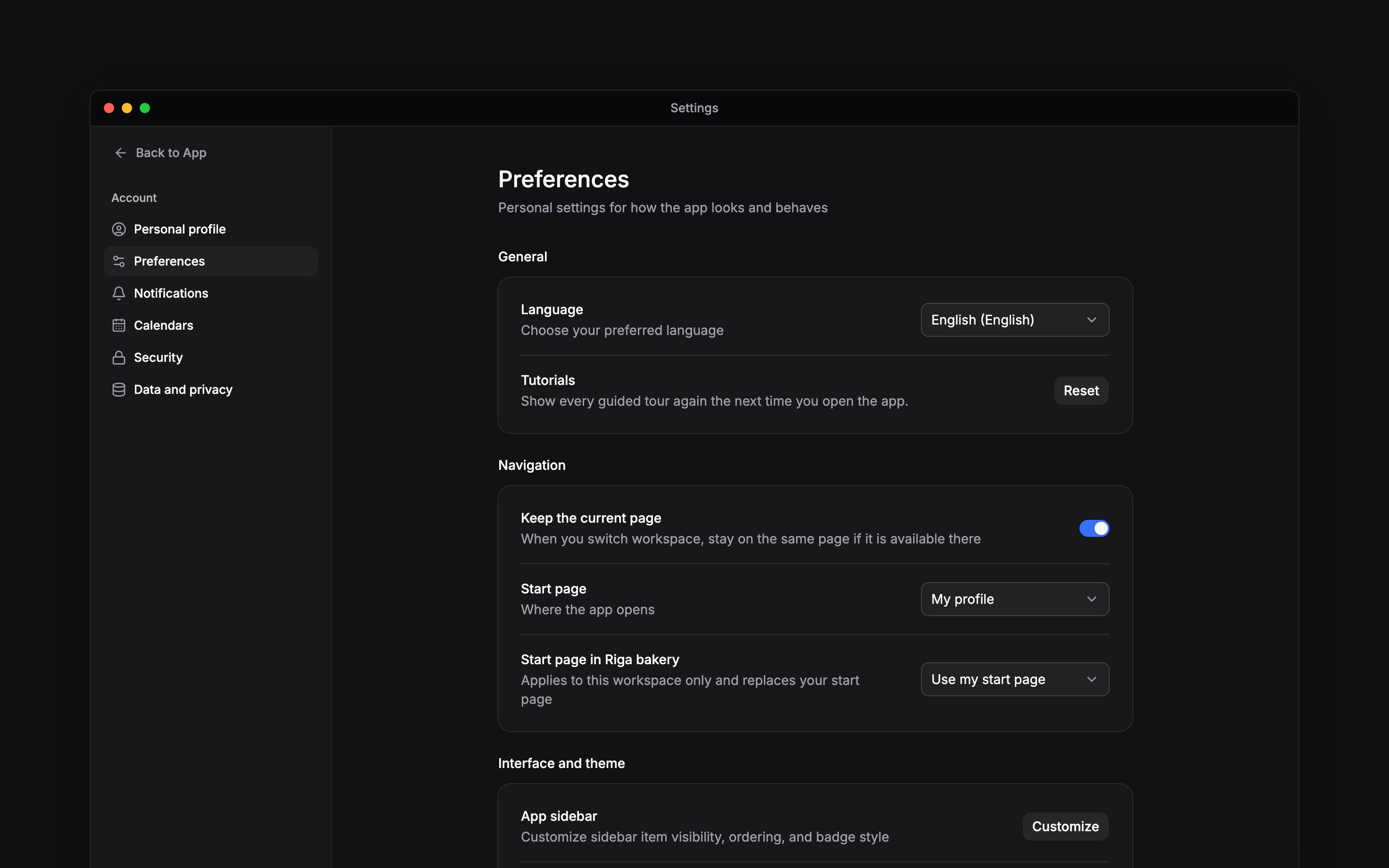
Choose your language and start page
Select Language to switch the interface. Your employer’s workspace language can differ from your personal choice. Dates follow the language you choose, in its own order and month names: English reads day first, as in 14 Feb 2026, and Estonian as 14. veebr 2026. Choose the page you want Begin to open by default. For example, start with your schedule when you want to check your next shift. Only pages you can access appear as choices. If you work in several workspaces, you can set a different start page for the current workspace. Set that override to follow your default when you want one choice everywhere. The option to keep your current page while switching workspaces appears when you have more than one workspace.Make the interface comfortable
Use the sidebar customisation control to show, hide or reorder navigation items you can access. Hiding a page does not remove your permission to use it. Adjust the theme, colour scheme, text size and contrast for readability. Pointer cursors and interface sounds are personal choices. Smileys to emoji turns a typed:) or <3 into 🙂 or ❤️ as you write a message, post, comment or note; documents and Begin AI instructions keep what you type; it is on by default, and turning it off leaves :fire: shortcodes and the emoji button working. Hide labels in mobile navigation changes the navigation text on small screens.
Choose Reset beside Tutorials to show the guided tours again the next time you open the app. This does not reset your work or other preferences.
Automatic clocking at work
In the Begin app on your phone, Preferences also carries Automatic clocking at work when your workplace offers it. It lets your phone notice when you reach or leave work, then clock you in or out or ask you first. In a browser, including on a computer, the same item shows whether automatic clocking is on or off and says to change it in the Begin app on your phone. See Automatic clocking for how to turn it on and what the phone watches.Hide contact details on your screen
Turn on Hide my contact details to keep your phone number and email off your own account card in the sidebar and mobile menu. This is useful when sharing your screen.This switch does not hide your contact details from your employer or other people’s records. It
does not delete your email or phone number or change how you sign in.
Next
Update your personal profile
Update the details held by your account.
Connect your calendar
Connect your work to your calendar.
Still need help?
Contact support
Email the Begin team and we’ll get back to you.
Ask Begin AI
Open the AI assistant and get instant answers based on these docs.