


 The Begin app for iPhone and Android is the same Begin you use in a browser, plus the things only a phone can do: notifications that reach you when the app is closed, your location when you clock in, and a running timer on your lock screen. Everything else works the same way in the browser on your phone.
Get it
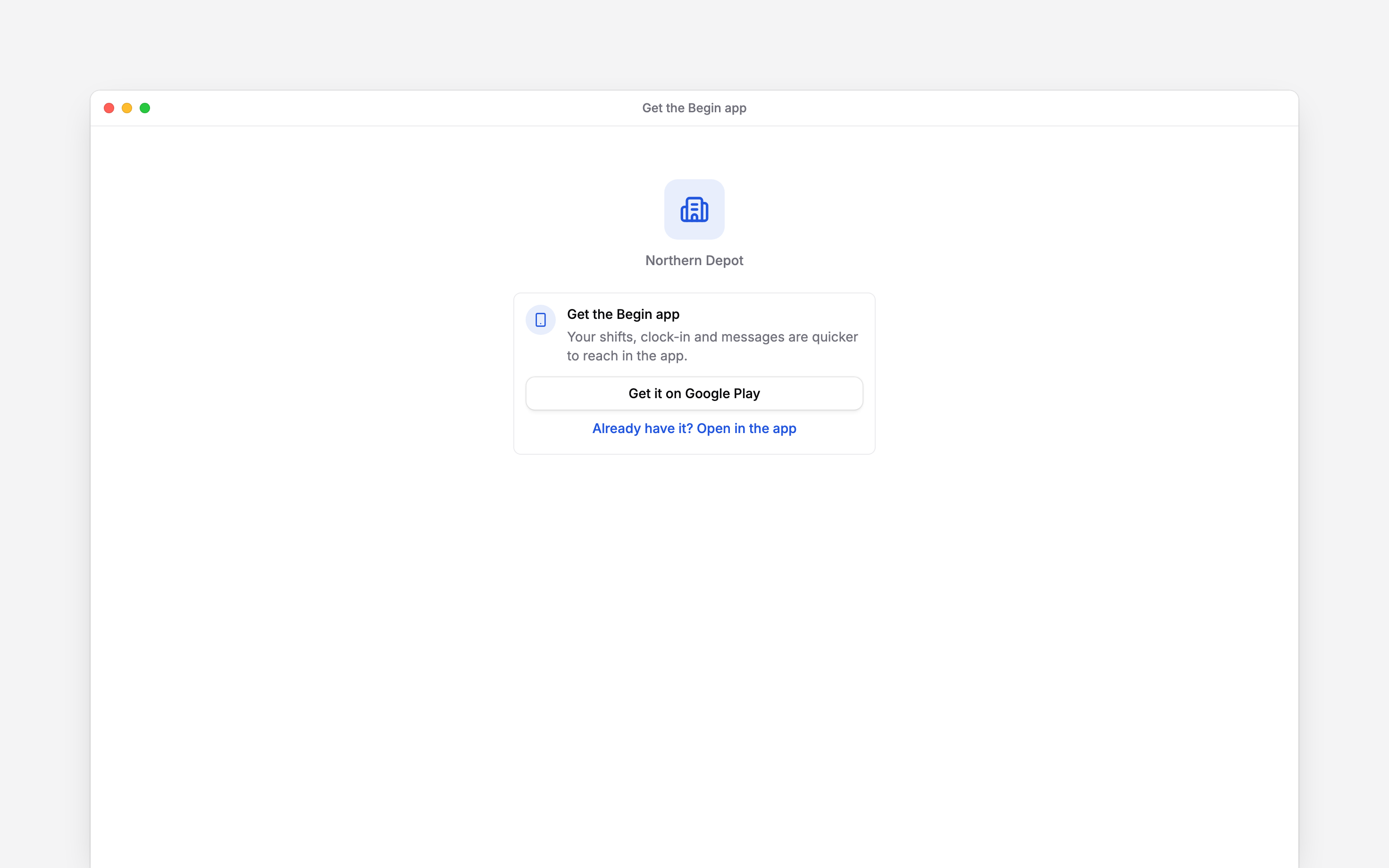
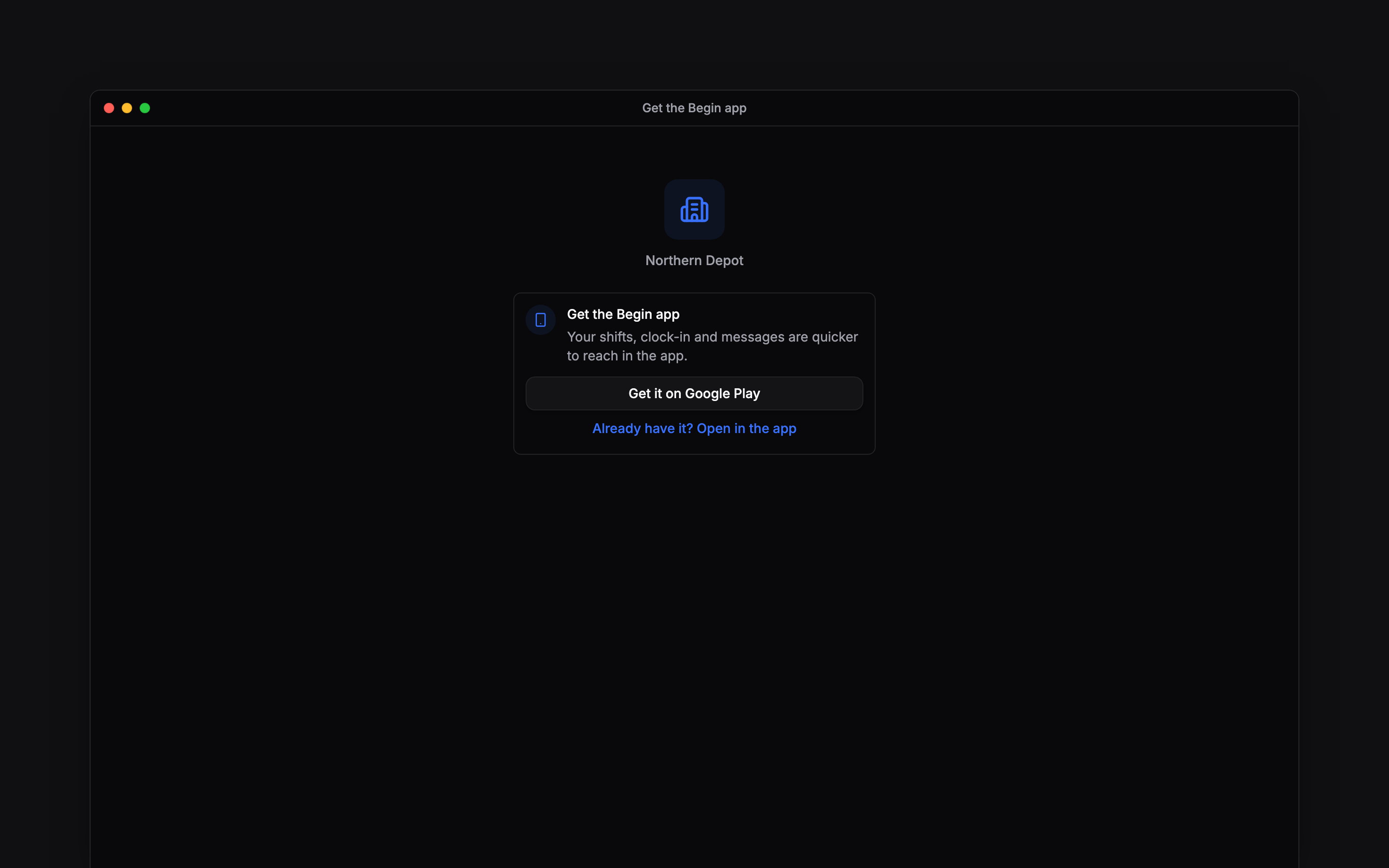
Begin is on the App Store for iPhone and on Google Play for Android. When you open your invitation on a phone, the page offers Get the Begin app with the right store for your phone, and Already have it? Open in the app once it is installed. Sign in the same way as in a browser: your email address or phone number, then the six-digit code. Once you are in, the app’s tabs are Home, Schedule, Timesheet, Messages and More. The app keeps itself up to date. Most changes arrive on their own the next time you open it; now and then the store has a newer version to install. When your installed version is too old, the app shows Update required once you have signed in: tap Update now to go to the store, or Later to carry on until you next open the app. A very old version opens on Update required with no Later: install the update to keep using the app. On an iPhone too old for the current app, the screen offers Open in browser instead, and Begin keeps working in the phone’s browser.What the app asks for, and why
Notifications. The first time you open the app signed in, your phone asks whether Begin may send notifications. Allow it: this is how a new shift, a message or an open shift reaches you when the app is closed, and some alerts carry a button, such as Clock in on Starting work?. Choose which alerts arrive under More → Profile & settings → Notifications → Mobile app; the master switch there is Enable mobile app notifications. If you said no to the phone, turn Begin’s notifications back on in your phone’s settings. Location. The app asks for your location only when clocking needs it. If your workplace requires a location on each clock-in, the phone asks when you press the button and records the position of that one punch. Automatic clocking asks for Always instead, so it can notice you arriving with the app closed. Follow Clocking in and out for manual punches and Automatic clocking for background location. Camera, microphone and photos. Only when you attach a photo, video or voice message in Messages.If Clock in in the browser says Clocking from a browser is turned off, your workplace’s
clocking policy wants the app or a terminal instead. The dialog names the methods you can use.
While you are on the clock
When you are clocked in, the app puts your timer where you can see it without opening it: on the lock screen on iPhone, including the Dynamic Island on phones that have one, and as a notification on Android. It shows the workplace and when you started, such as Tallinn office · Started 15:52.Next
Clocking in and out
Start your timer and record breaks.
Notifications
Choose which messages interrupt you, and when.
Still need help?
Contact support
Email the Begin team and we’ll get back to you.
Ask Begin AI
Open the AI assistant and get instant answers based on these docs.