


 Read company announcements in Home on a phone or Overview on a computer. Posts stay in the feed so you can return to them after a notification has been read.
Find the update
1
Open your home page
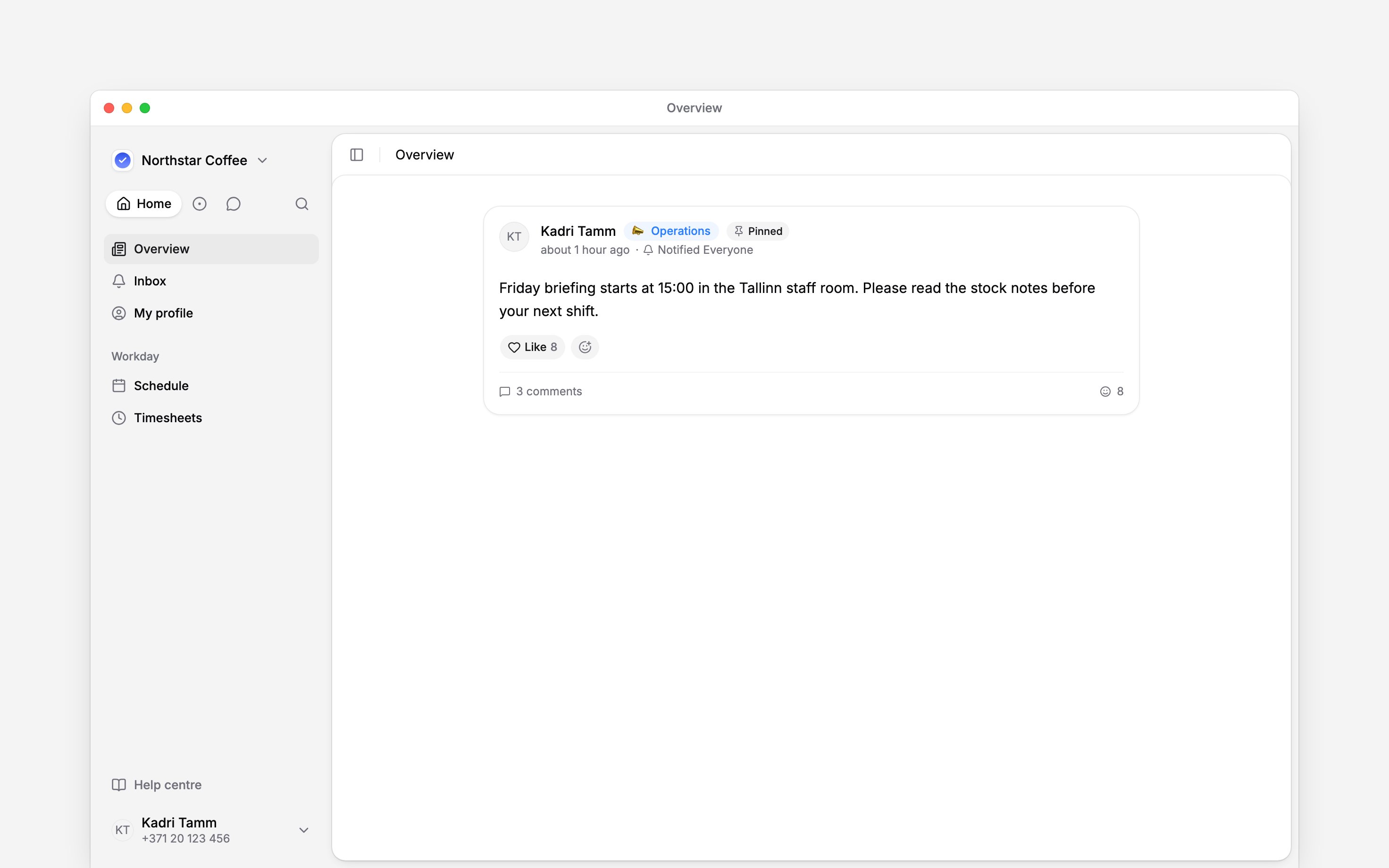
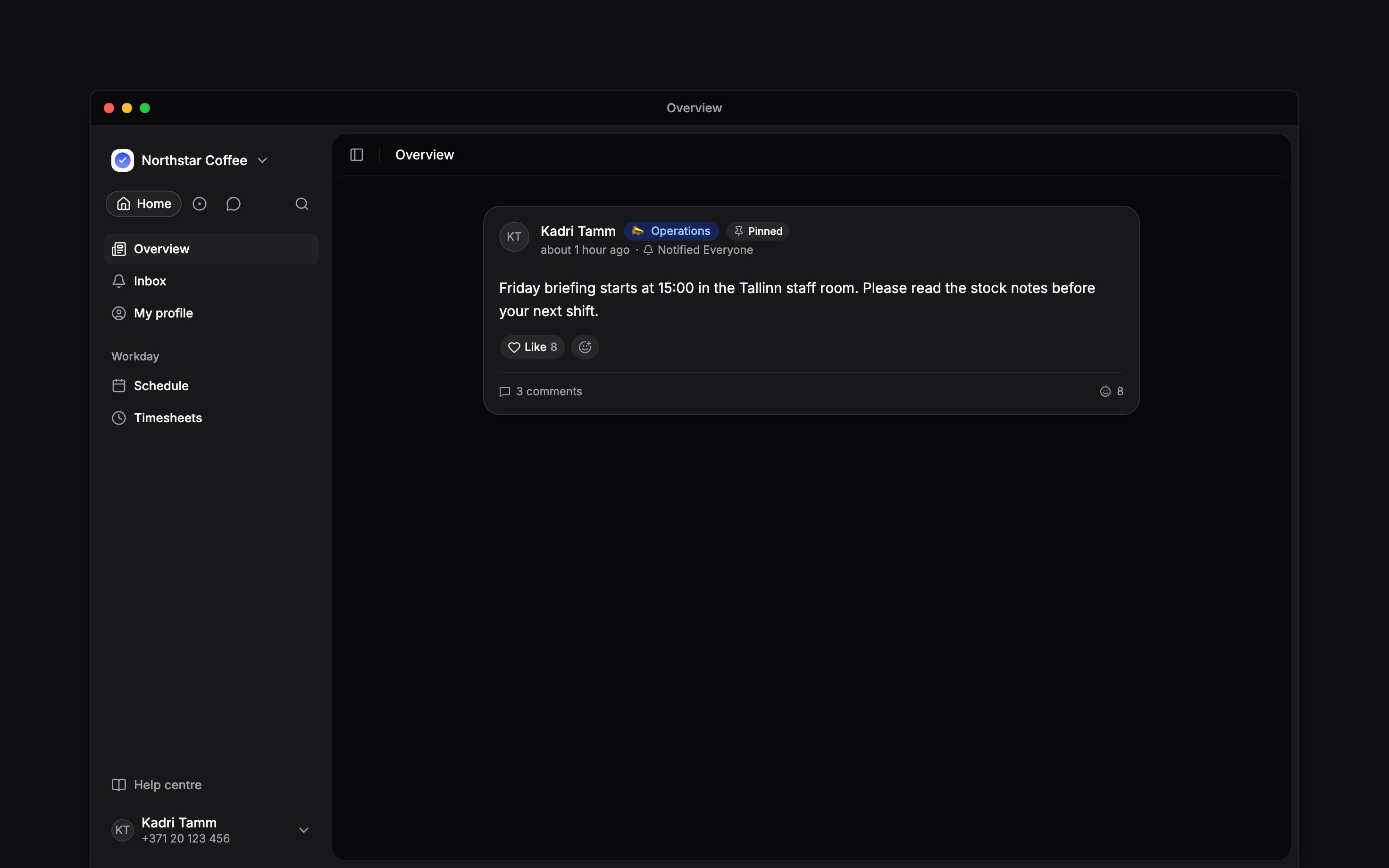
On a phone, choose Home in the bottom navigation. On a computer, choose Overview.
2
Read the feed
Pinned posts appear first. Choose a category to narrow the feed, then return to all posts when
you have finished. Once you have scrolled down, choose Home or Overview again to jump
back to the top.
3
Open the discussion
Open a post’s comments to read the full conversation and replies. On a phone, use the back arrow
to return to the feed.
Reply where the update lives
Add a comment when your question concerns the post. Reply to an existing comment to keep your answer with its question. Use a reaction when a short acknowledgement is enough; select your own reaction again to remove it. A comment can include an image or an emoji, and typing@ lets you pick someone to mention. A link in a comment shows a preview, which you can remove with ✕ before sending or hide later by editing the comment. Check the audience before posting personal information. Comments are part of the shared post, not a private message to its author.
Follow attachments and requests
Open an attachment or linked document to read it. Document access still applies: a link in a post does not grant access to a restricted file. Answer a poll or attendance question using the post’s own controls. Reading, reacting or commenting does not submit either response. See Polls and events. Your employee role normally lets you read, comment and react. Ask a manager to publish an announcement or change a post you did not write.Next
Polls and events
Vote and respond to invitations.
Team chat
Start a separate conversation with a colleague.
Still need help?
Contact support
Email the Begin team and we’ll get back to you.
Ask Begin AI
Open the AI assistant and get instant answers based on these docs.