


 When you ask Begin AI to change something, your role still decides whether you can do it. Keep Manually approve selected when you want to check every proposed change before it runs.
Check the proposed change
1
Describe your own change
Name the date, time and record, such as your time-off request. AI can only offer actions that
your role permits.
2
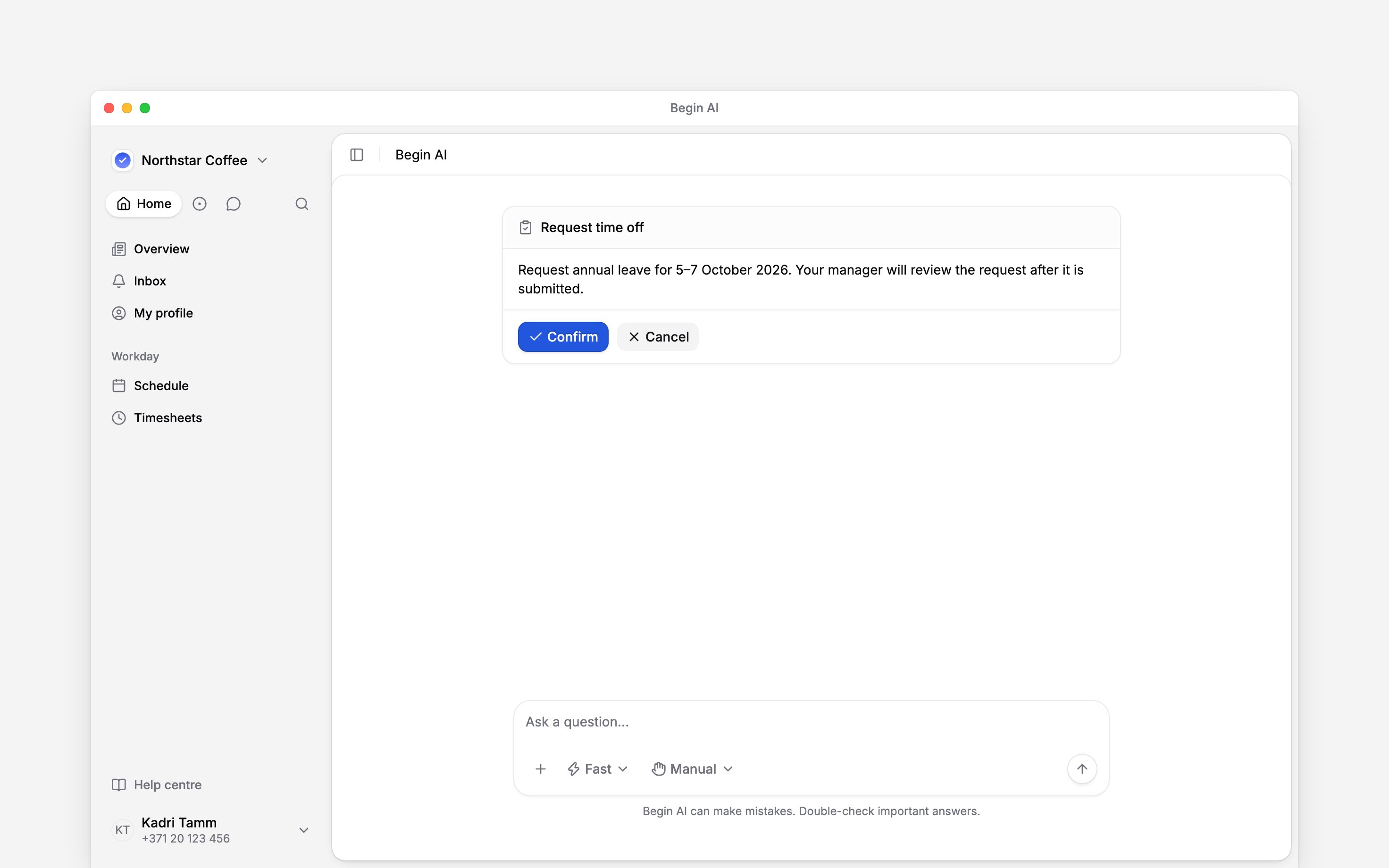
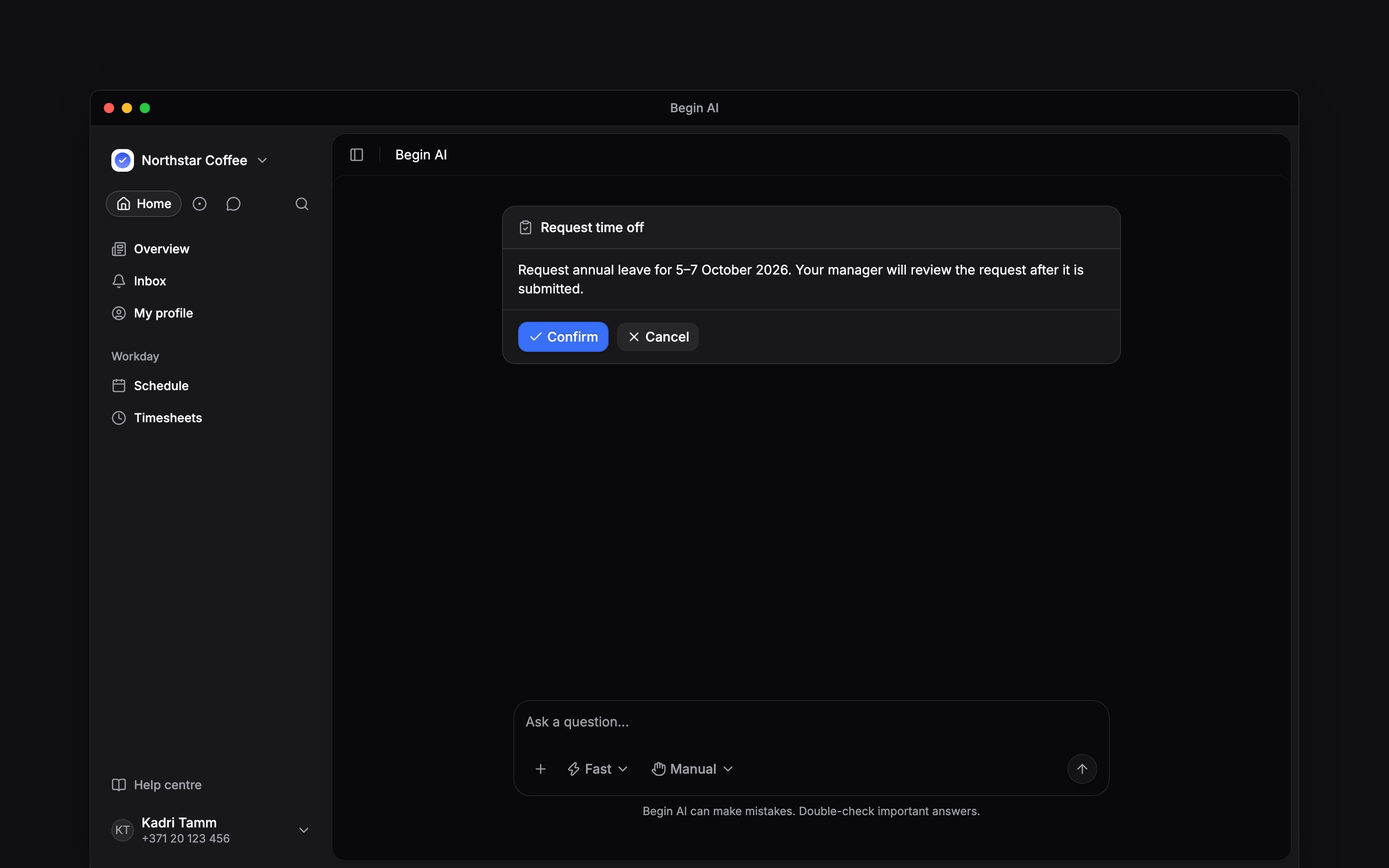
Read the confirmation card
Check the person, dates, times and the action itself. Confirming the wrong dates changes the
wrong work.
3
Confirm or cancel
Choose Confirm when the preview is correct, or Cancel and ask for a corrected proposal.
Wait for the result before assuming it succeeded.
4
Check the record
Open the relevant page in Begin to check the saved result or request status.
Choose when it asks first
Open Approval mode in the composer.
The choice applies to that chat, except in a loop’s follow-up conversation. New chats start with your last choice. Cards already waiting are not automatically accepted when you change the mode. A follow-up conversation is shared, so the choice you make there is your own: it covers only the changes you ask for, everyone else keeps theirs, and it becomes your default for new chats instead of staying with the conversation.
Keep approval meanings separate
Your AI confirmation authorises the assistant to perform an action. It is not your manager’s approval of a time-off or timesheet request. If the saved request is pending, it still needs the normal review.Approval mode never adds permission. It cannot let an employee publish shifts, change pay or
approve someone else’s request.
Next
Asking about your work
Read information before changing it.
Begin MCP
Understand external-client access and confirmation.
Still need help?
Contact support
Email the Begin team and we’ll get back to you.
Ask Begin AI
Open the AI assistant and get instant answers based on these docs.