


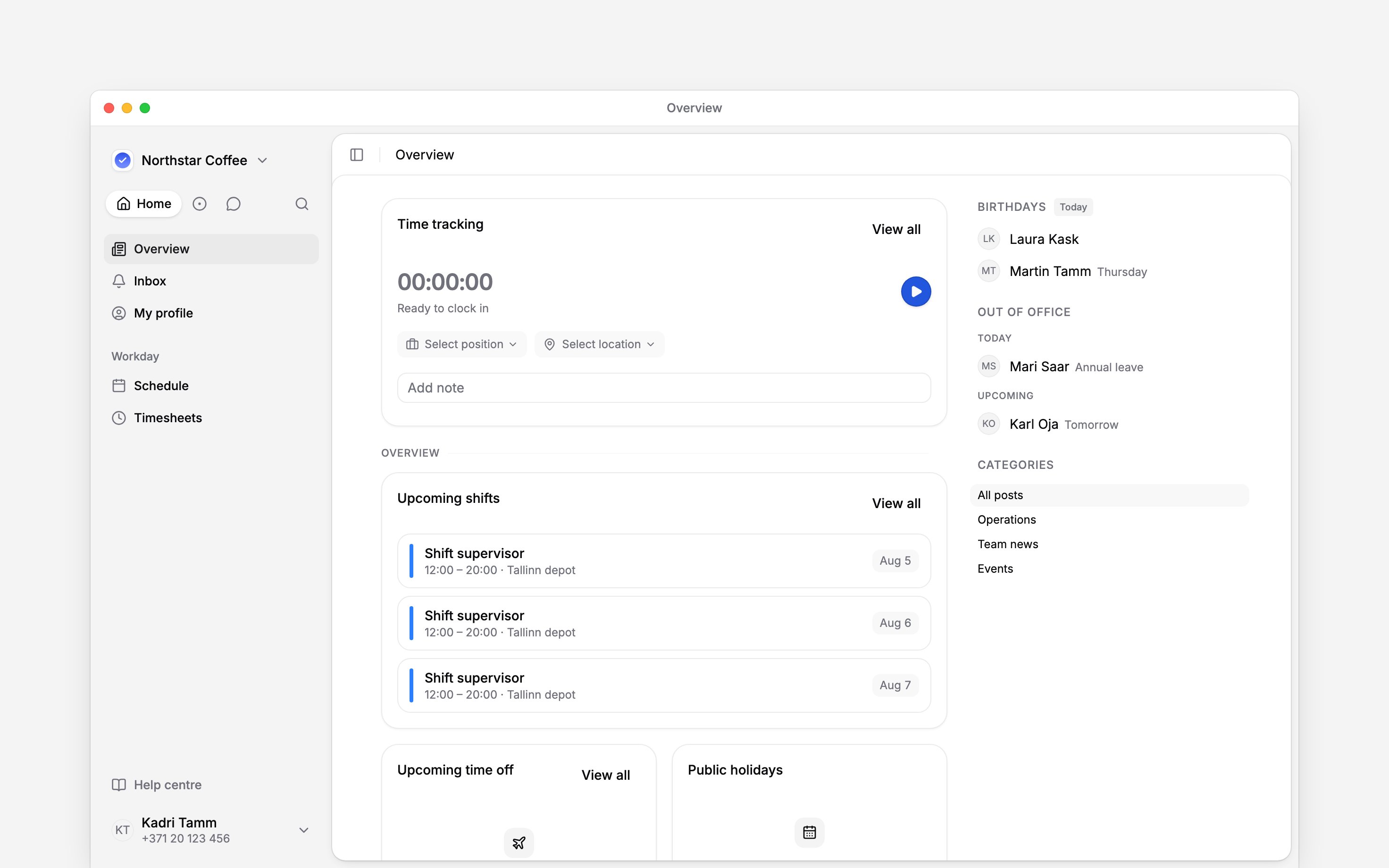
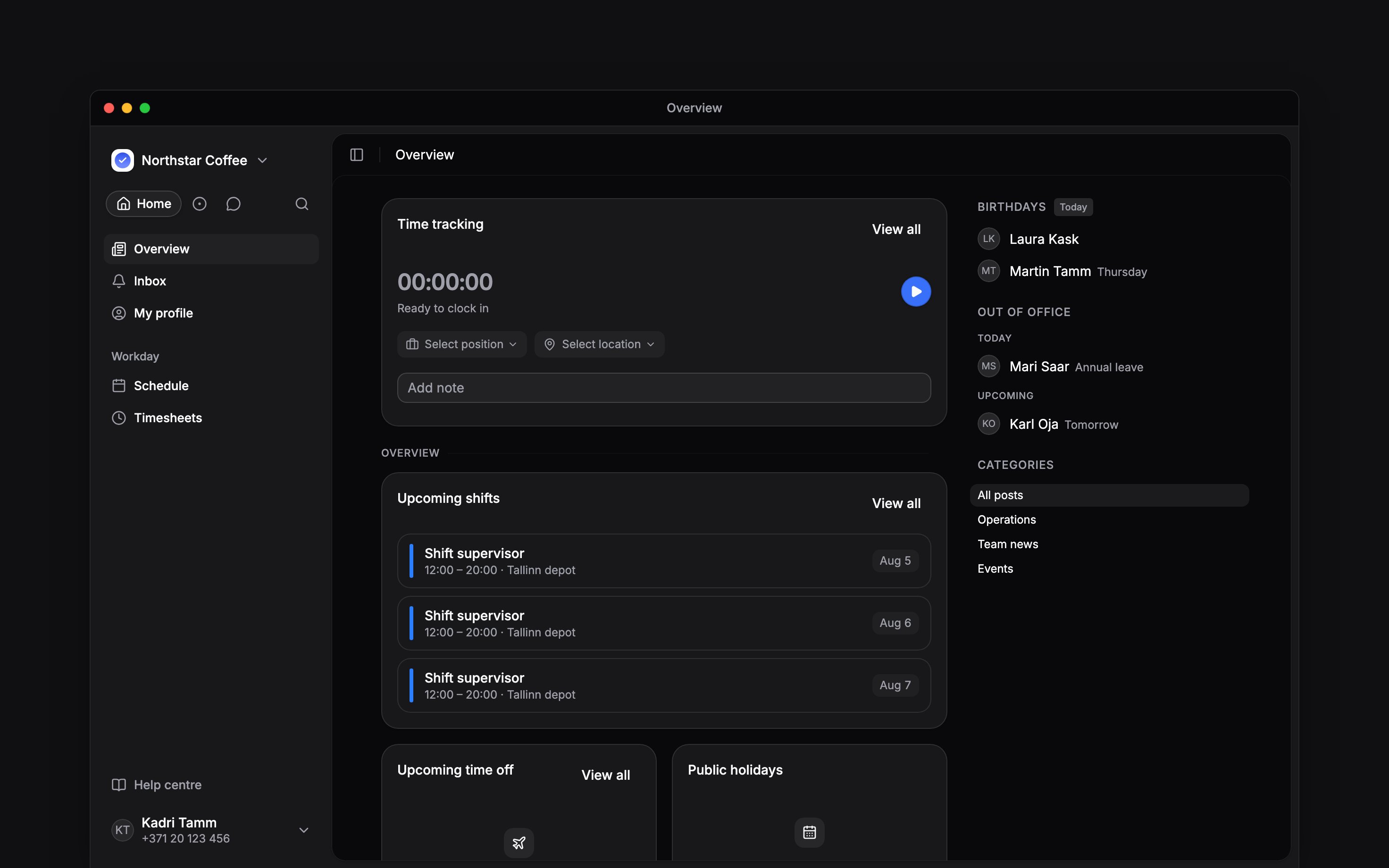
 Start with the job you need to do. On your phone, the main tabs keep daily work close; More opens the remaining pages. On a computer, use the sidebar. What you can open depends on your role and the features your employer uses.
Find the page for your task
Search when you cannot find it
On your phone, choose More → Search. On a computer, press Cmd / Ctrl + K. Type the page, person, document or action you need, then select a result you can access. Help centre articles that match appear last, under Help centre, and open here in a new tab. If a page or action is missing, check that you selected the right workspace. Ask your manager about access or features your team does not use. Hiding a navigation item in your preferences is separate from losing permission to open it.Keep each workplace separate
Use the workspace menu to switch employers if you belong to more than one. Check its name before requesting leave or recording time. Your shifts, hours and employment records belong to the selected workspace; your account’s sign-in details follow you between them. For your account name, photo and sign-in details, use More → Profile & settings → Personal profile on your phone, or Settings → Personal profile on a computer. Choose Preferences in the same menu for your language. For the information your employer holds about you, open My profile.Next
Viewing your shifts
Find when and where you are working.
My profile
Find your employment details, documents and leave.
Still need help?
Contact support
Email the Begin team and we’ll get back to you.
Ask Begin AI
Open the AI assistant and get instant answers based on these docs.