


 On a phone, open More → Profile & settings → Notifications. If this opens a submenu, choose Notifications again. On a computer, open Settings → Notifications. Inbox, Email and Mobile app have separate controls: turning off an email notification does not turn off its inbox copy.
Choose what reaches you
1
Open a channel
Choose Inbox, Email or Mobile app on the notification-settings page.
2
Choose the updates
Keep the channel enabled, then switch individual notifications or whole sections on or off. The
options depend on the channel and your access.
3
Check the result
Changes save as you make them. Return to the overview to see which channels are enabled.
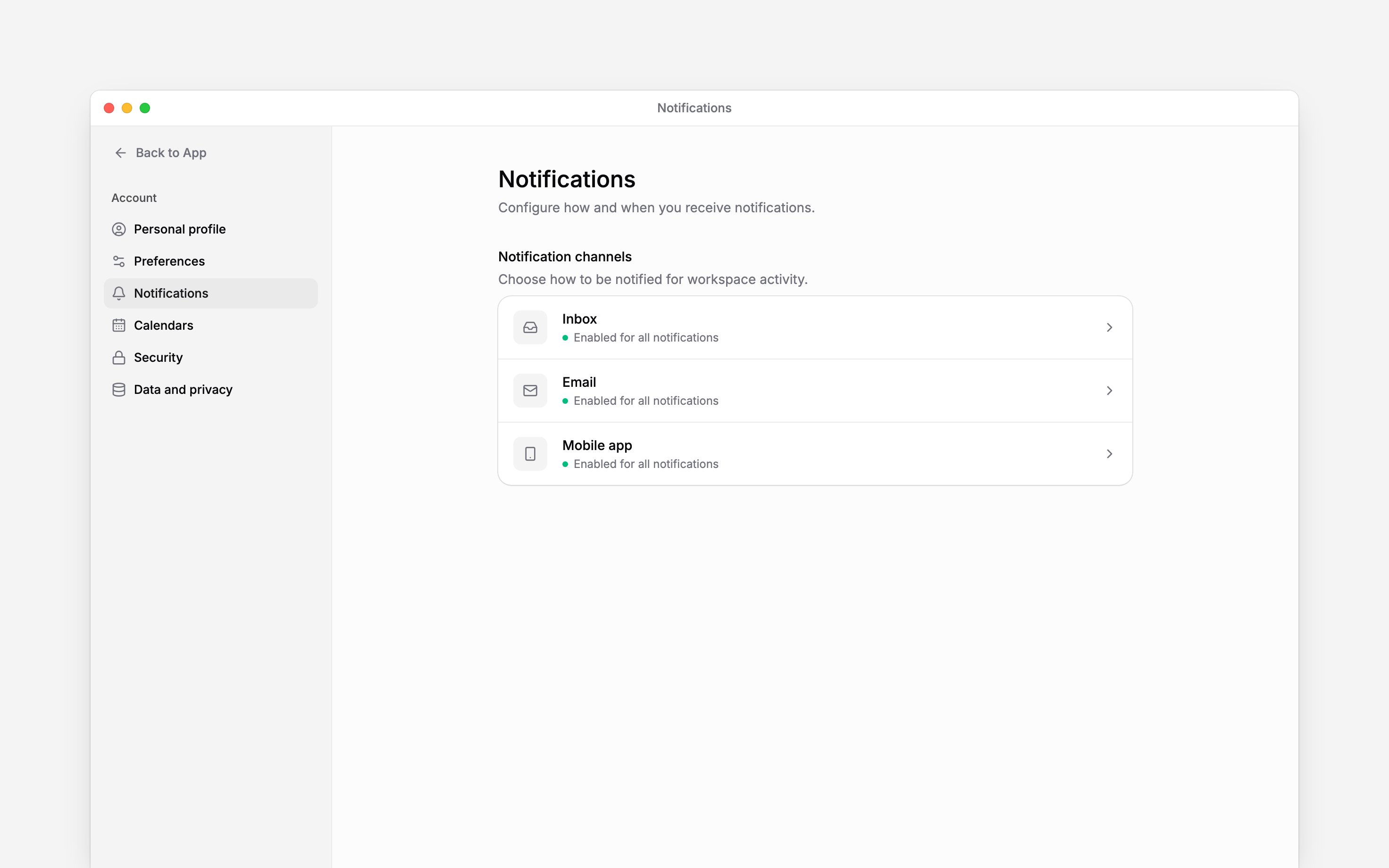
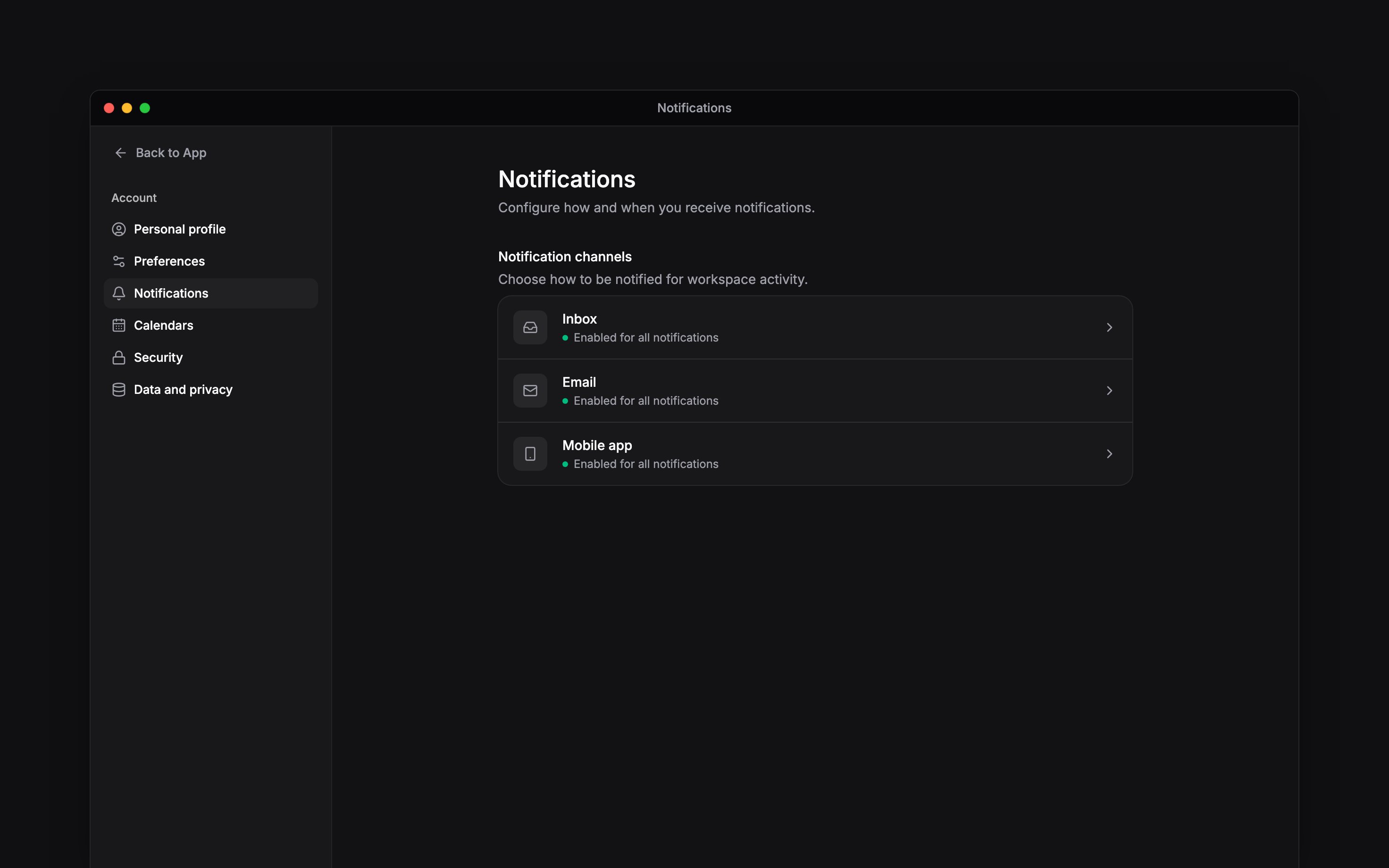
Each channel has its own settings page.
Choose when your phone notifies you
Under Mobile app, enable the delivery schedule and choose days and a time window. The window uses your workspace’s timezone. Outside it, push is silenced; inbox and email delivery continue. The same page holds reminder timing. Beside Forgot to clock in, choose when Begin reminds you to clock in: up to 30 minutes before a shift starts, at its start, or 5 or 15 minutes after. The timing follows each shift’s own start, so a 09:00 shift and a 17:00 shift are each reminded at the right time. Choose the delay beside Forgot to clock out, or turn on Unscheduled clock-ins and choose how long you can stay clocked in without a scheduled shift end before Begin reminds you.Take a break
Use Pause notifications on the Mobile app page to silence push until a chosen time. Select a preset or Custom… for your own end time. Alerts resume automatically; choose Resume to end the pause early. Vacation do not disturb on the overview mutes push and email while you are on approved leave. Notifications still collect in your inbox.Clear old read items
Under Inbox, set Auto-delete read items to After 7 days, After 30 days, After 90 days or Never. The default is Never. Cleanup uses the item’s age, not the time you read it, and runs daily. It keeps unread items, data-deletion requests, unanswered open-shift offers that have not expired, and an offer a colleague took until that shift has started. Finish any response an item asks for before relying on automatic cleanup.Next
Inbox overview
Read and act on the updates sent to you.
Managing your inbox
Clear items yourself or set one aside for later.
Still need help?
Contact support
Email the Begin team and we’ll get back to you.
Ask Begin AI
Open the AI assistant and get instant answers based on these docs.