


 Your manager adds you to Begin and sends an invitation to your email address. Use this invitation to join the workspace. A starter-details link or document-signing link is a separate step and does not give you app access. For future visits, sign in with a code sent to your email or phone, or with a passkey. There is no password to remember.
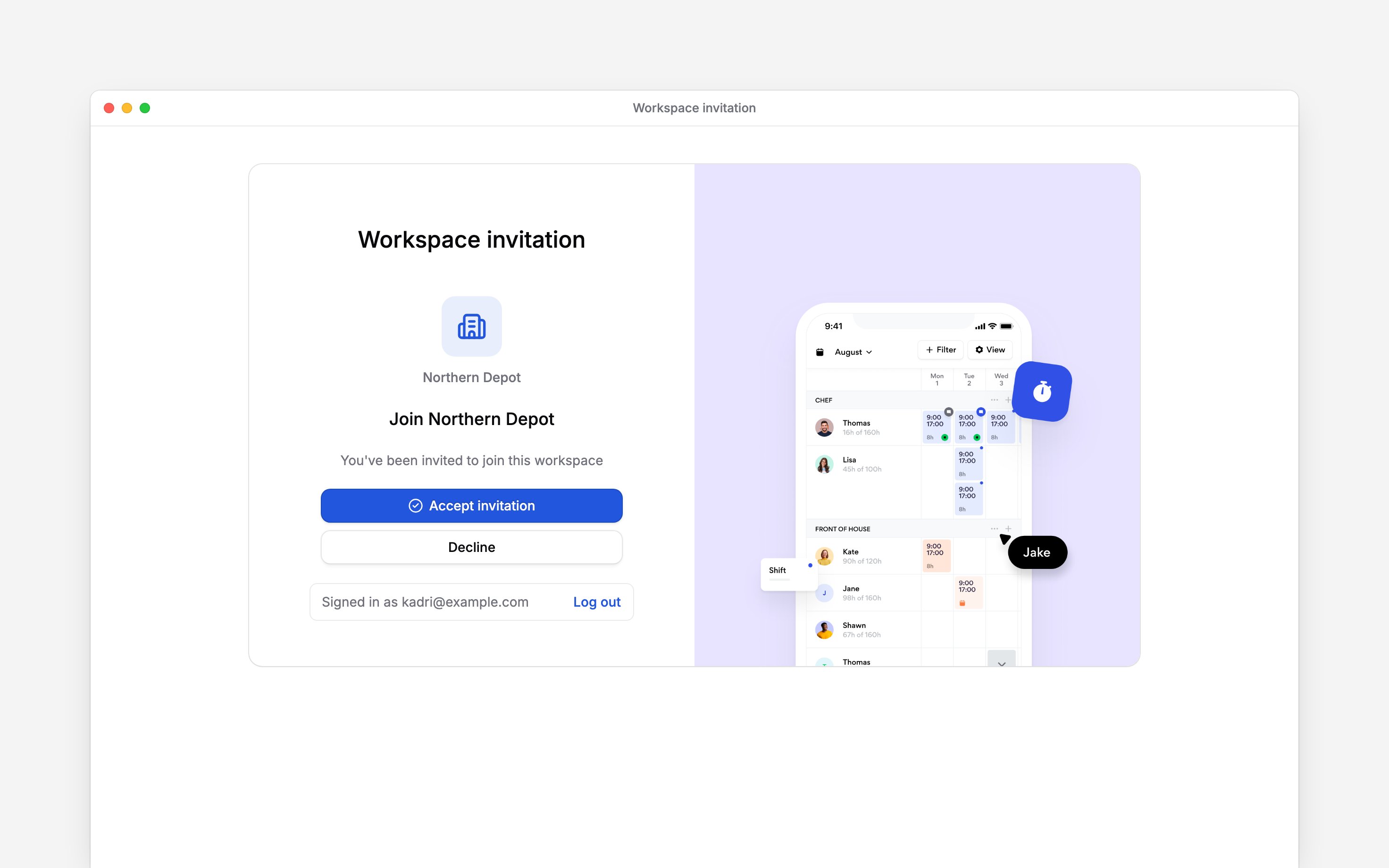
Accept the invitation
1
Open the invitation
The email is headed You’re invited to join your workspace. Your manager may instead send you
the same link in a chat.
2
Press Accept invitation
Opening the link shows the invitation without signing you in. Press Accept invitation to
continue. If you are new to Begin, this starts your account setup. If you already have an
account, sign in with the invited email address, then accept the invitation. If Signed in as
shows the wrong account, choose Log out first.
3
Complete your profile
A new account asks for First name, Last name and Phone number. The phone number is
for sign-in only and is not shown to your employer. A photo is optional. Tick the terms and
press Continue. Saving your profile also accepts the invitation.
4
Set up a passkey, or not yet
A passkey signs you in with your fingerprint, face or device PIN. Set up passkey does it
now; Maybe later skips it. Either way, continue into your workspace.
Signing in from now on
Enter your email address or phone number and press Continue. Begin sends a six-digit code; type it and press Verify. If it does not arrive, Send again is under the code box. The button under Or continue with switches between email and phone, and Sign in with passkey uses a passkey you have set up.Begin signs you in by code or passkey only. There is no password, and no Google or Apple sign-in.
If the link does not work
An invitation lasts seven days. After that the page says Invitation expired: ask your manager to resend it. A resent invitation replaces the old one, so use the newest email. Invitation already used means you have already joined. Sign in with the same email address and you are in. Already signed in with the account that joined, press Open workspace to go straight to that workspace. Invitation revoked means your manager withdrew it. Ask them if you think that is a mistake. Signed in as means you opened the link on a different Begin account: log out and sign in on the invited address. A demo invitation can join the account you already have instead. Signed out, press I already have a Begin account and sign in; signed in, the page names the workspace and offers to join it with this account. Press Email me a code, type the code sent to the invited address, and press Join the demo. The code lasts 10 minutes. If you signed in without using the link, Begin still finds an invitation sent to your email address and shows Accept invitation on its own. You do not need to go back to the email.A second workspace
One Begin account can belong to several workspaces. Accept the new invitation while signed in, and it joins the same account. To move between them, open the workspace name at the top of the sidebar and choose Switch workspace; the same menu lists Pending invitations you have not answered yet. Your name, photo and sign-in details follow you to every workspace. Your job, shifts and hours belong to each workspace separately.Next
Finding your way
Find your shifts, hours, messages and employee profile.
Mobile app
Notifications, clocking and where to get the app.
Still need help?
Contact support
Email the Begin team and we’ll get back to you.
Ask Begin AI
Open the AI assistant and get instant answers based on these docs.