


 Open My profile → Overview to check the information your employer holds about you in the current workspace. On your phone, find My profile under More. These details are separate from your account’s photo and sign-in contacts.
Change the right section
1
Open your profile
Check the workspace name, then open My profile → Overview.
2
Choose the card
Choose Edit beside Personal information, Contact information or Banking
information.
3
Save the correction
Update the details and choose Save. Check the card shows your new information.
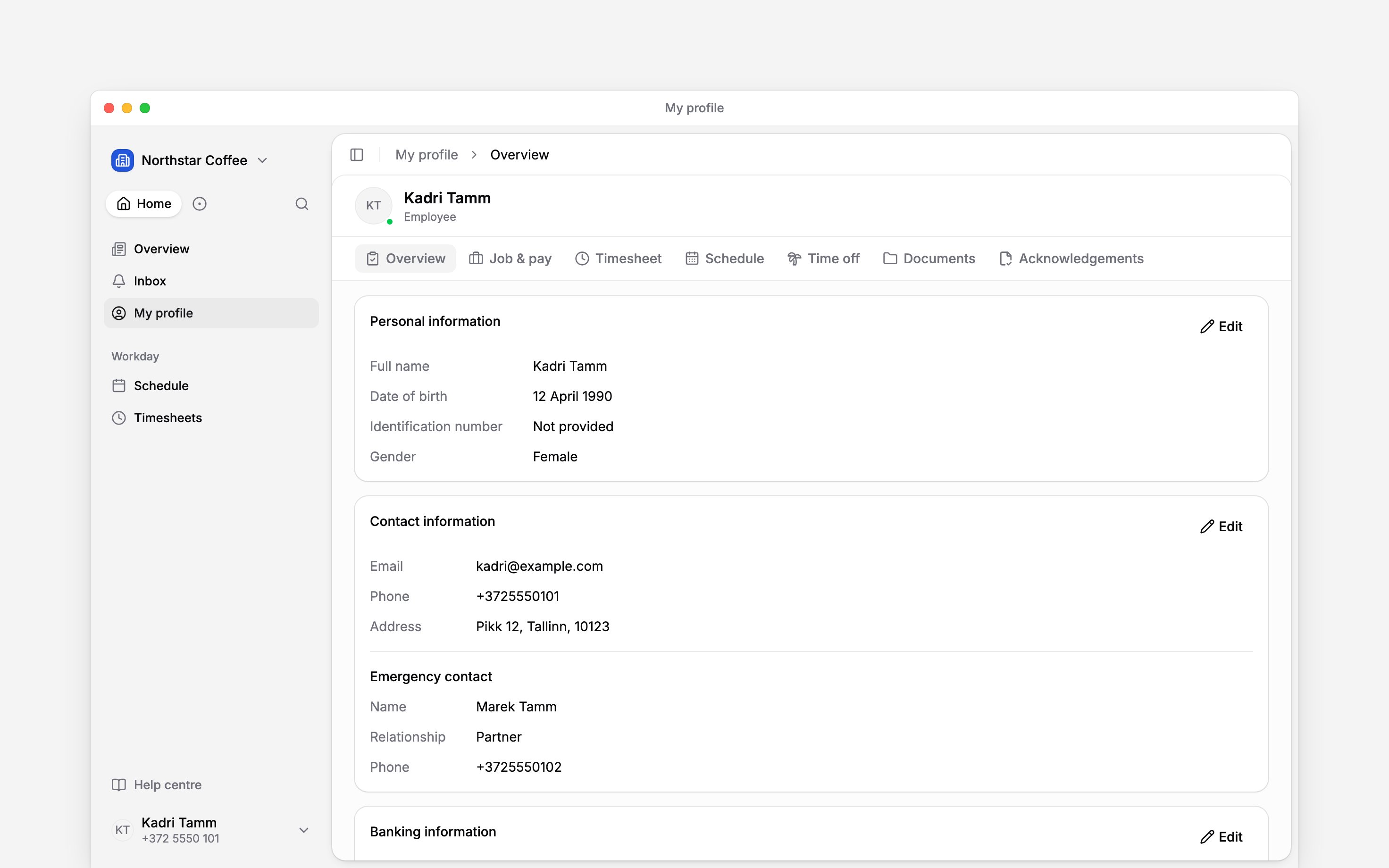
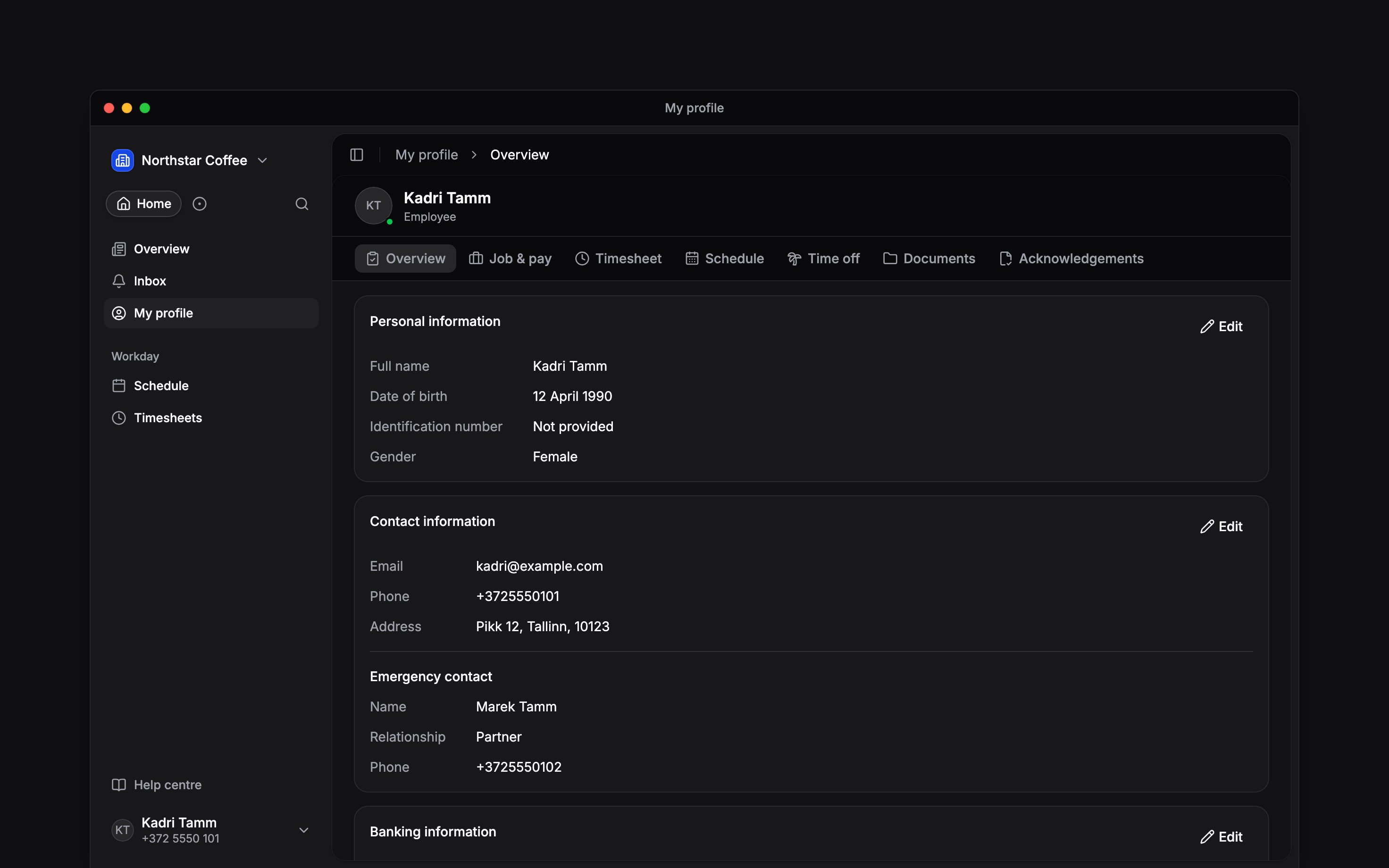
If a card has no Edit action, your role does not allow you to change that section. Ask your
manager to update it.
Know which details your employer controls
Your manager maintains your job, pay, reporting manager, positions, departments and locations. Check Job & pay when the question is about employment terms. Additional fields set up by your employer can appear on your profile. Ask your manager to correct any you cannot edit.Keep sign-in details separate
Changing the email or phone in Contact information changes your workplace contact record. To change your account name, photo or verified sign-in contacts, open More → Profile & settings → Personal profile on your phone, or Settings → Personal profile on a computer. See Updating your account profile. If you work in several workspaces, update employer-held details in each workspace where they changed.Next
Viewing job and pay
Read the employment terms your employer maintains.
Personal profile
Change your account photo and verified sign-in details.
Still need help?
Contact support
Email the Begin team and we’ll get back to you.
Ask Begin AI
Open the AI assistant and get instant answers based on these docs.