


 Use search for something you remember discussing. Use Pins for information the whole conversation should be able to find again, and unread markers for something you personally need to return to.
Search for the discussion
Open the command palette with Cmd / Ctrl + K and type words from the message, channel, conversation or file name. On a phone, choose More → Search. Choose a matching message result to open and highlight it in its conversation or thread. Search respects your access. A private channel you have not joined, or a conversation you do not participate in, is not a way to read someone else’s messages. Deleted messages are not returned. For attachments, open the conversation’s Files tab and use Search files. See Sharing files for file filters and previews.Keep an important message in Pins
1
Choose the message
Open its actions and choose Pin message. Use a message in the main conversation, rather than
an individual thread reply.
2
Find it again
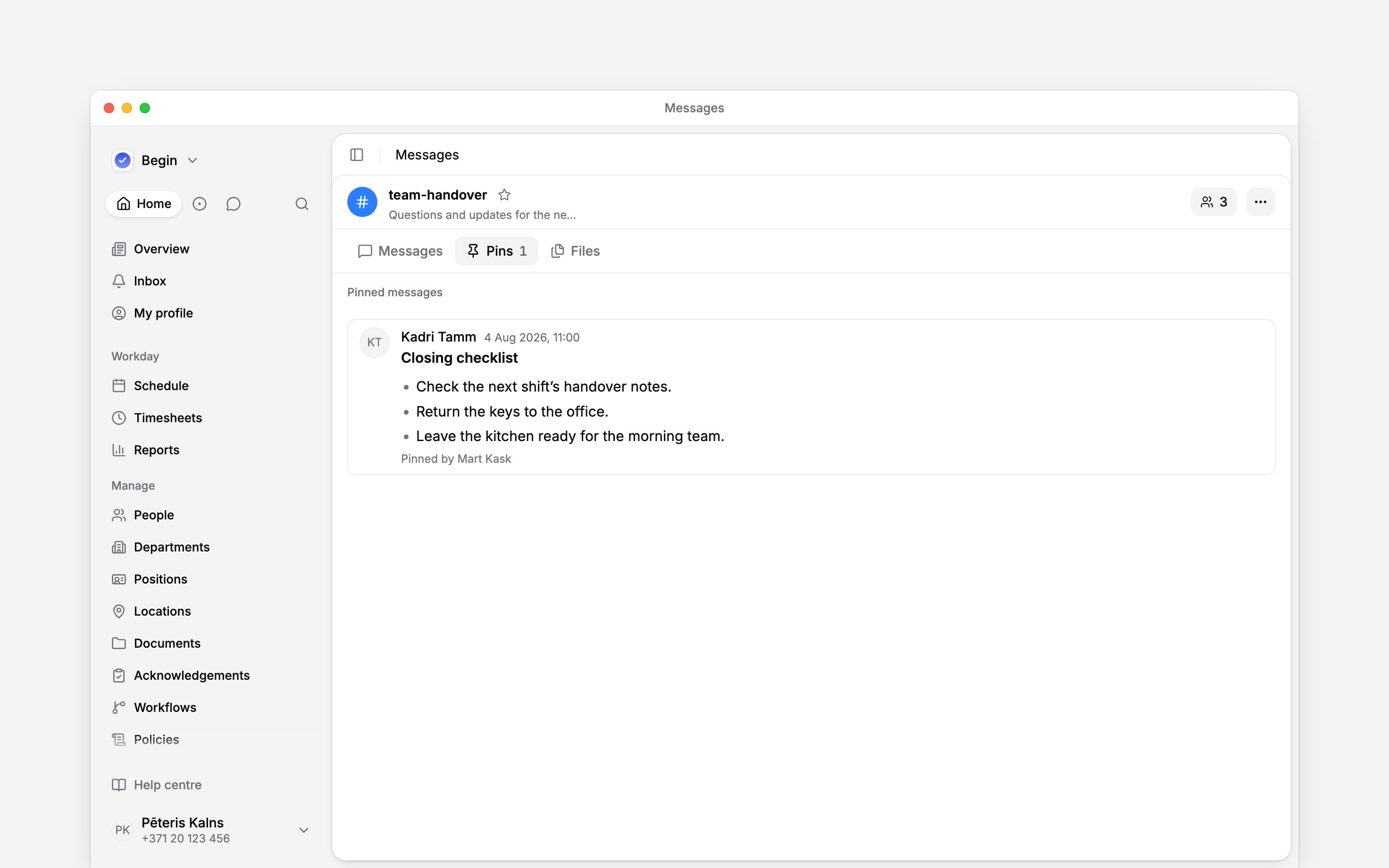
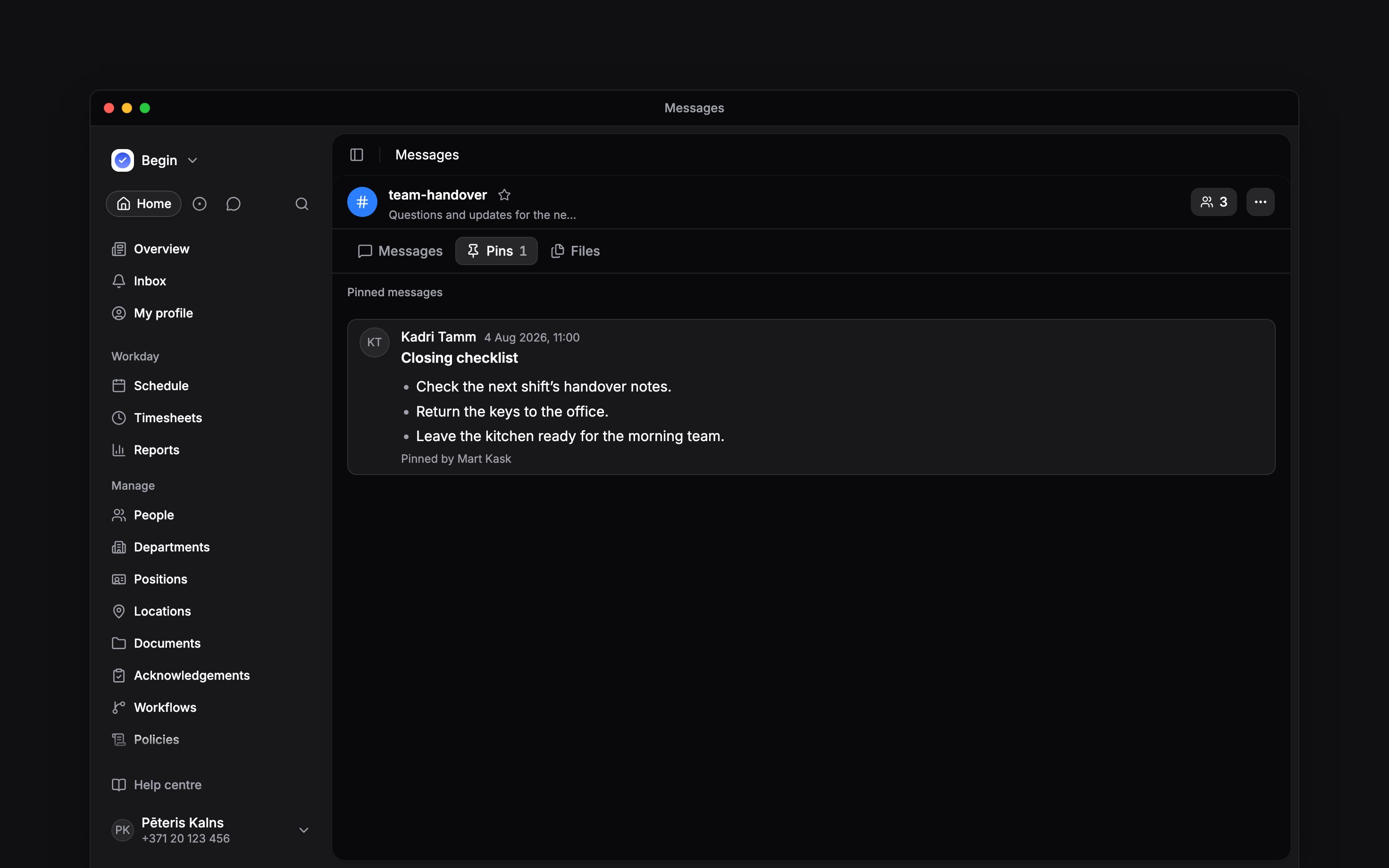
Open Pins at the top of the channel or conversation. The pinned message appears there for
everyone who can read that conversation.
3
Remove an outdated pin
Choose Unpin message when the information is no longer useful. The original message stays in
the conversation.
Leave yourself a reminder
Choose Mark as unread from a channel or conversation’s menu to return to it later. To mark a particular point, open the message’s menu and choose Mark unread from here. Mark as read clears the unread state when you have caught up. Select the star in the channel or conversation header to add it to your favourites. A favourite keeps it close in your navigation. Unlike a pin, it is your own shortcut rather than a shared message collection.Check whether a message was seen
Open Seen by from the message’s actions. Begin shows read receipts when people view the message.A read receipt shows that someone viewed the message. It is not an approval or a promise that they
will act on it. Marking it unread is your reminder, not a recall of what others have seen.
Next
Replies and reactions
Send a message, keep a reply with its question, and correct what you wrote.
Message alerts
Choose which conversations notify you and when mobile alerts can reach you.
Still need help?
Contact support
Email the Begin team and we’ll get back to you.
Ask Begin AI
Open the AI assistant and get instant answers based on these docs.