


 Automatic clocking uses your phone’s arrival at and departure from an employer-configured workplace. You choose whether to enable it; your employer cannot opt your phone in for you.
Beta
Automatic clocking is rolling out gradually and needs a supported Begin mobile app, an eligible
workplace and your employer’s setup. If the option is missing, ask your manager whether it is
available.
Turn it on or off
1
Read the invitation
When the app offers automatic clocking, read what background location is used for. Choose Turn
on to continue, or Not now to leave it off.
2
Allow background location
Your phone asks straight after Turn on. On Android, choose Allow all the time in the
dialog or on the location settings page your phone opens. On iPhone, allow location While
using the app first, then choose Always allow when your phone offers the change. Automatic
clocking needs precise location set that way to detect arrival and departure while the app
is closed. Approximate location is not enough to watch a workplace.
3
Check your setting
Open More → Profile & settings → Preferences, then use Automatic clocking at work. You
can turn it off there at any time. If your phone granted less than Always, the same row says
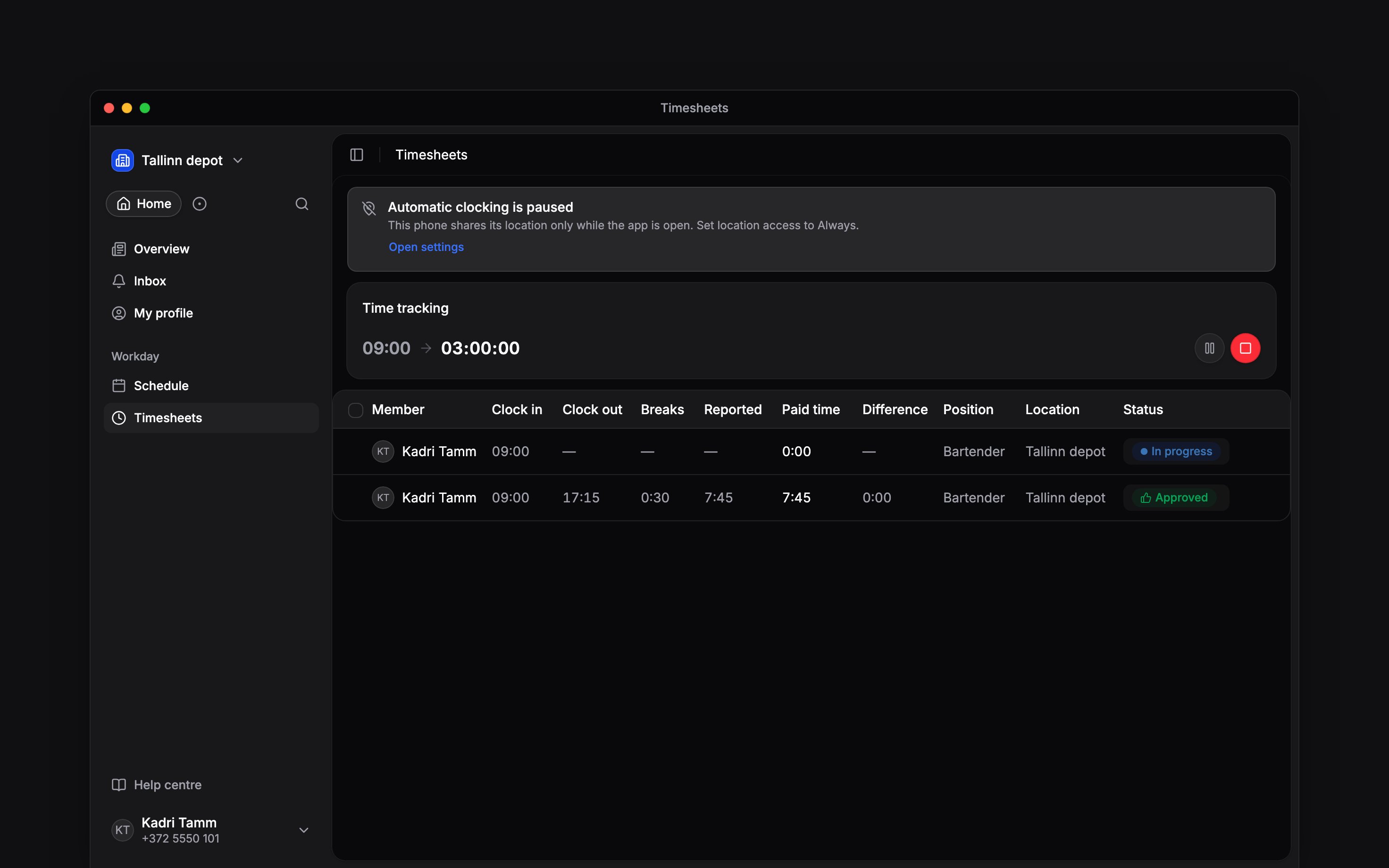
automatic clocking is paused and offers Open settings.
Check what happened
Your workplace may clock you automatically, ask you through a notification, or do nothing for a particular arrival or departure. Its rules can include a waiting period and a scheduled-shift requirement. Crossing the boundary does not promise an immediate punch. Check your timesheet for Automatic punches. If automatic clocking is paused, read the reason in the app and check your phone’s location permission. Your location is recorded with a punch, not as a continuous trail between punches.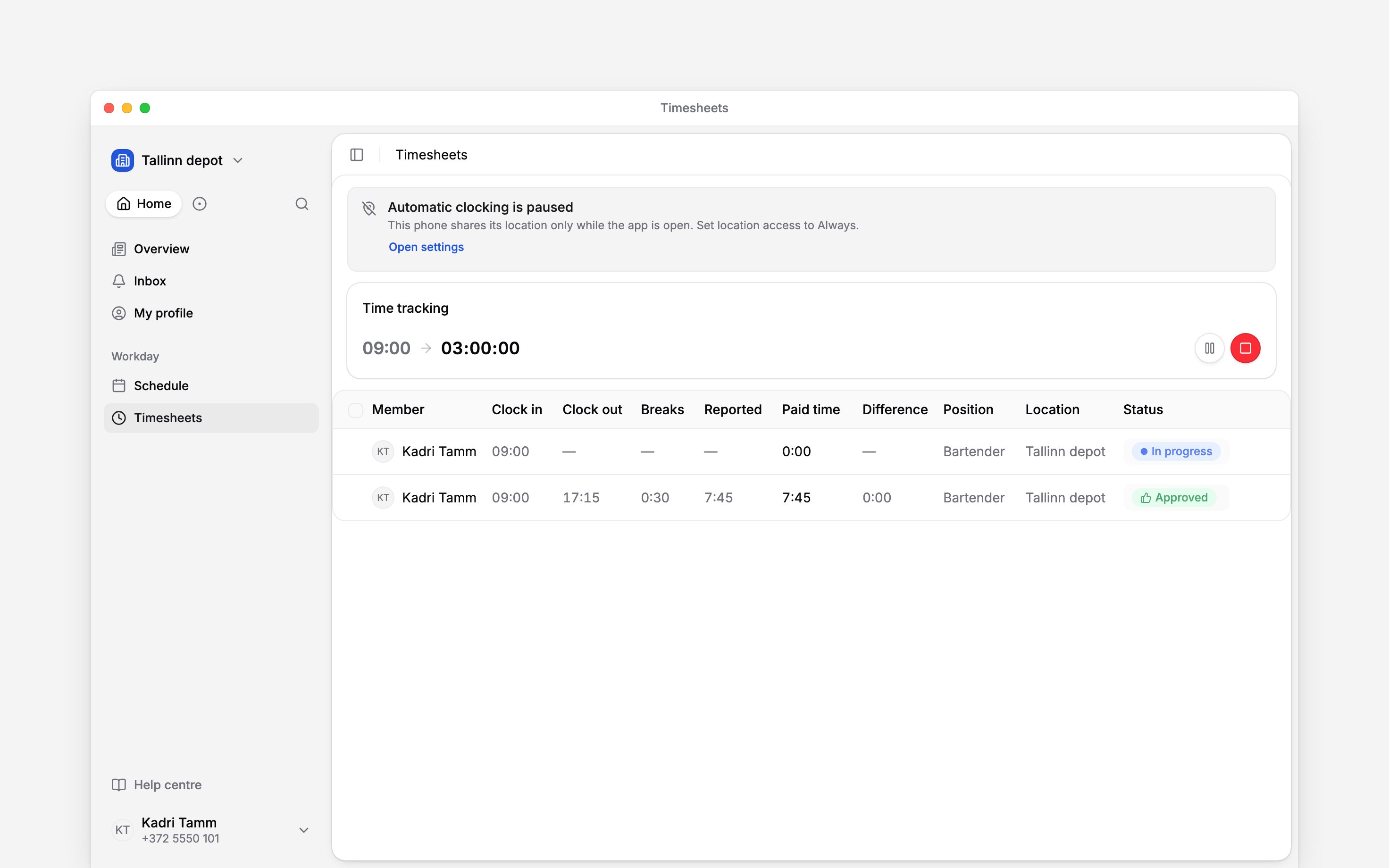
Next
Clock in by hand
Use the allowed manual controls when needed.
Your hours
Check the time that reached your timesheet.
Still need help?
Contact support
Email the Begin team and we’ll get back to you.
Ask Begin AI
Open the AI assistant and get instant answers based on these docs.