


 Keep important updates easy to find by filtering your Inbox and clearing items after you have followed them up. These actions change your notification list, not the work or request behind an item.
Find what needs attention
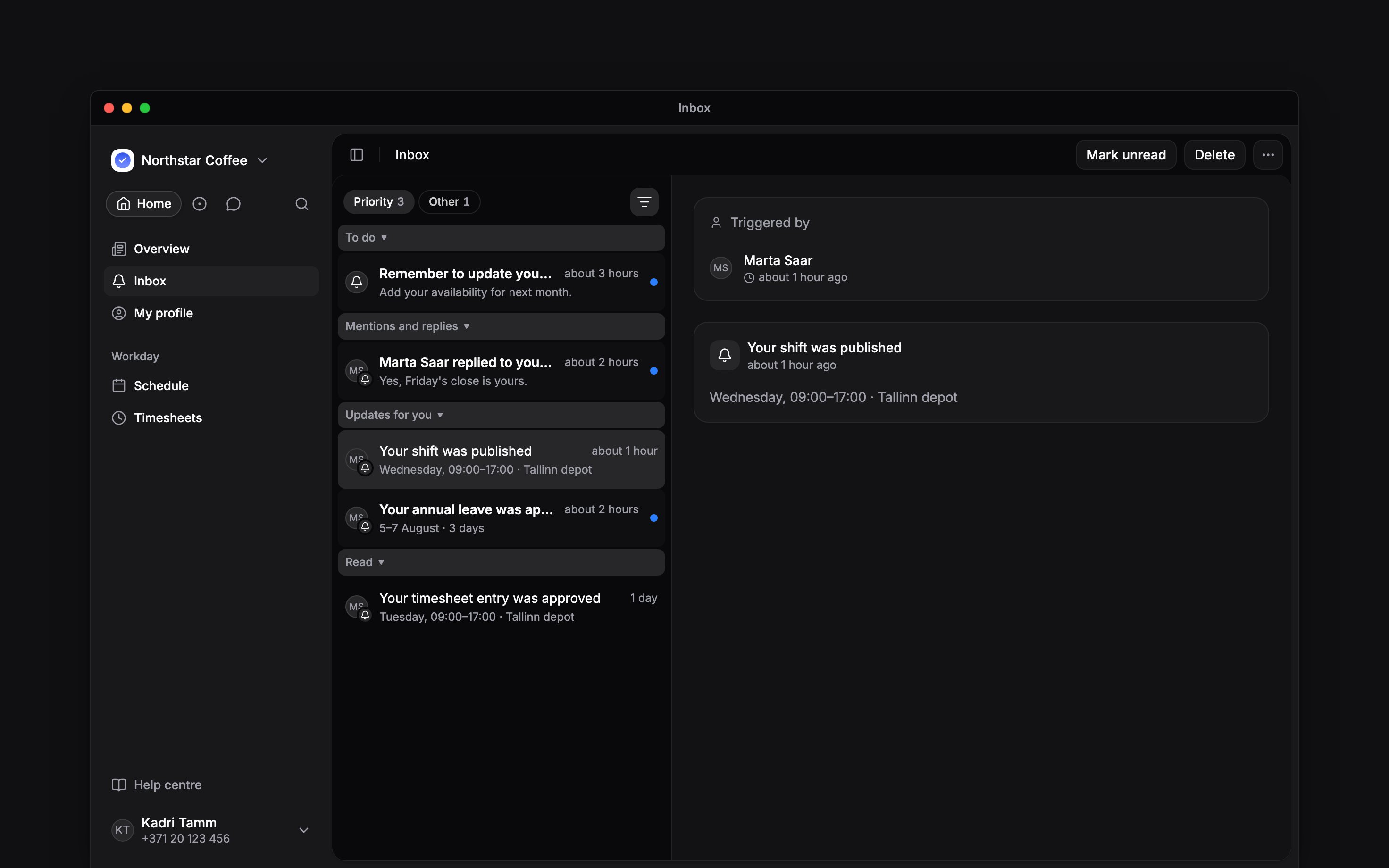
Start on Priority, which holds what needs you or is about you. Other holds news about colleagues, posts and the workspace. Each tab shows how many unread items it holds. Use the filter control above the Inbox list to narrow the open tab, for example to unread items or a notification category. Remove a filter chip, or choose Reset filters, which keeps the tab, to see the wider list again. Available filters depend on the items you have received. Opening an item marks it read. With sections on, it stays where it is until you leave Inbox, switch tab or change a filter, then moves to Read, the last section of each tab. On a computer, use its header button or right-click the row to choose Mark as read or Mark as unread. On a phone, use the item’s available actions.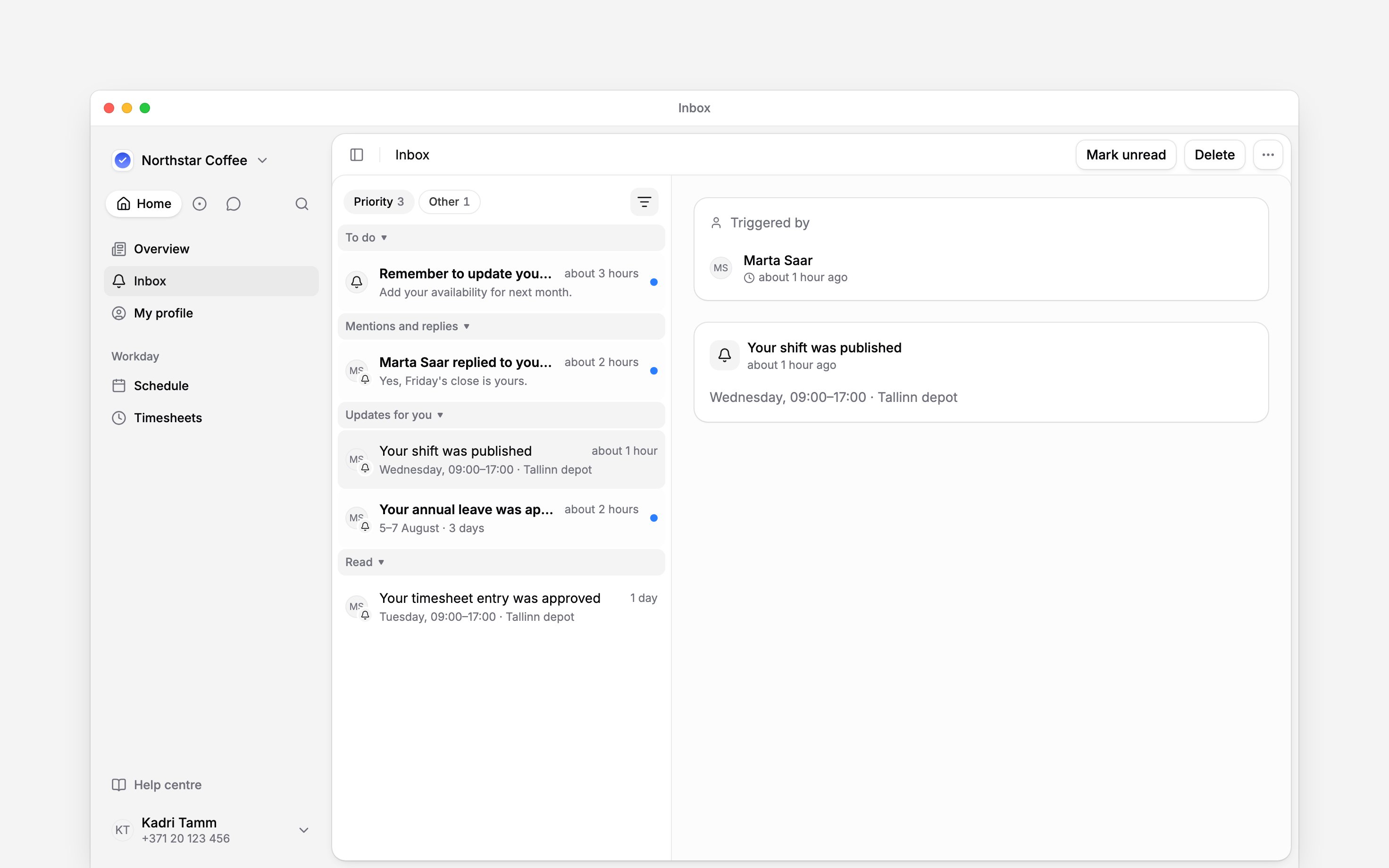
Keep an item for later
On a computer, right-click an item and choose Snooze. Choose a duration or a return time. Tomorrow 9am and Next week use your browser’s timezone; next week means Monday at 09:00. The item leaves the list until that time, then returns unread. Choose Undo in the confirmation message to bring it back immediately.Clear finished updates
Delete a single item from its available actions. The More actions menu beside the Inbox title also offers Mark all read, Delete all read and Delete all. These act across both tabs, including items hidden by filters; deleting everything includes snoozed items. On a computer, hold Cmd or Ctrl while selecting rows, or Shift-click a range, to act on a specific selection. Confirm a bulk deletion, then use Undo while its confirmation remains available if you made a mistake. There is no Trash view. For automatic cleanup, choose Auto-delete read items.Choose how the list is arranged
Select a section’s header to collapse the section, and again to open it. Your device remembers which sections you collapsed. To see each tab as one list, newest first, open More actions and turn off Group by type. It is on by default and saved to your account, so the choice follows you to your other devices and to the phone app. On a computer, the command palette (Cmd / Ctrl + K) offers Show inbox as one list while the sections are on and Group inbox by type while they are off. You can also ask Begin AI to turn it on or off.Next
Reading and responding
Check an update before clearing it.
Notification settings
Set delivery and read-item cleanup.
Still need help?
Contact support
Email the Begin team and we’ll get back to you.
Ask Begin AI
Open the AI assistant and get instant answers based on these docs.