


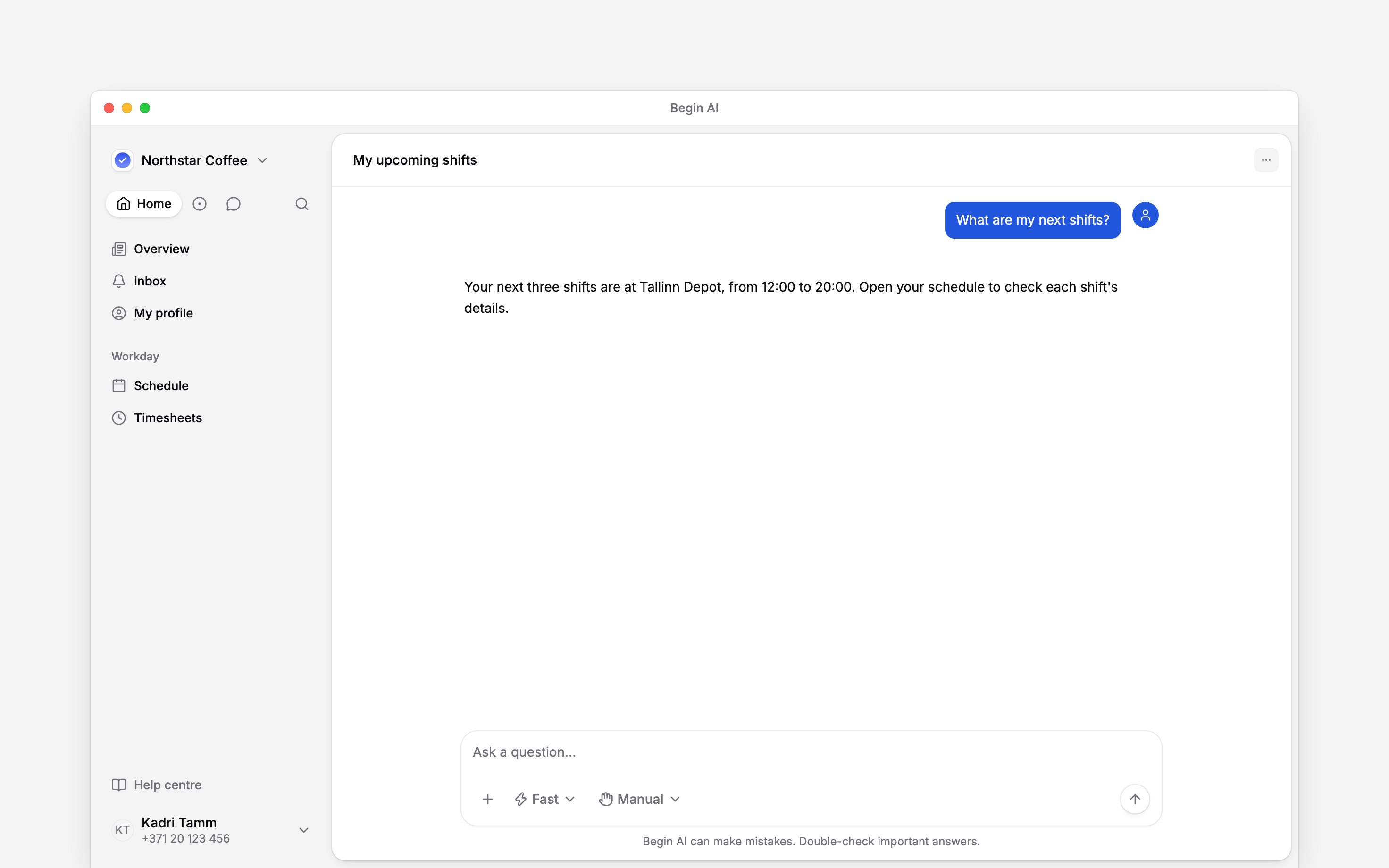
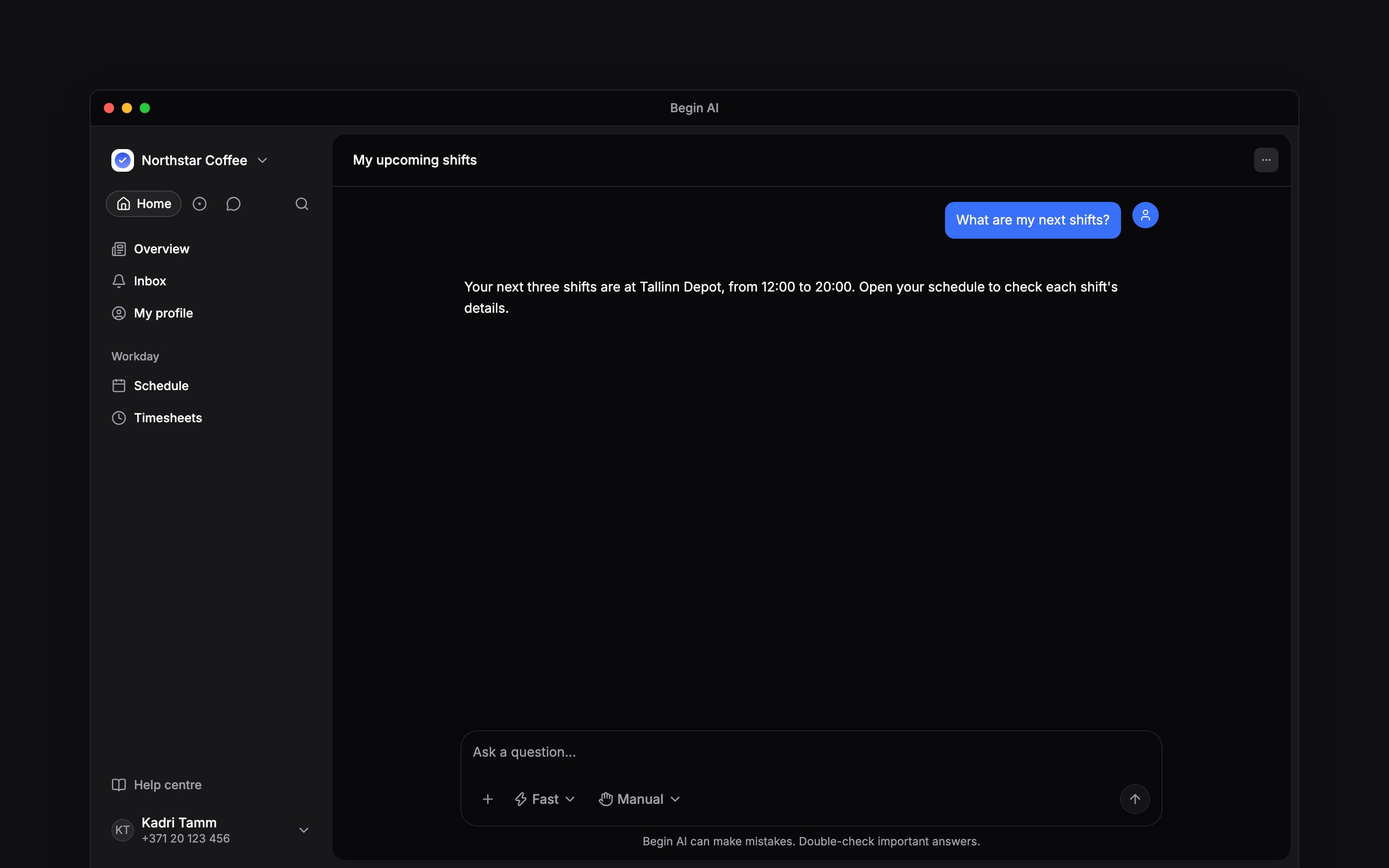
 Ask Begin AI in plain language, using “my” and a date range when you want your own work. Check that you are in the correct workspace before you send.
Ask one clear question
What shifts do I have next week?
How many approved timesheet hours do I have this month?
Get help using Begin
Ask how to request time off or what a schedule label means. Begin AI looks up Begin’s help articles and links to the pages it uses, even with Web access off. Open a link to read the full steps. Articles can cover features your workspace has not enabled. Your role still decides what you can view or change. If Begin AI cannot verify an answer from the help centre, it says so.Check which hours it answered with
Scheduled hours and approved timesheet hours answer different questions. Say approved timesheet hours when you mean completed work that has been approved. A request about the rota can otherwise return scheduled hours. Open your schedule or timesheet when you need to inspect the records behind an answer. Check the dates, workspace and whether the answer covers all the matching records. A partial result is not the complete total.Understand its limits
Begin AI follows your role. It cannot reveal a colleague’s private timesheet because you ask for their name. If it cannot access something, ask your manager about the underlying record. It can help you find available pages and controls, but it does not read or send your chat messages. Use Messages search to find what someone said. Asking for a change is a separate action. Reading help means later changes in that chat need your confirmation. Read Reviewing and confirming before using it to update your work.Next
Reviewing and confirming
Review a change before it runs.
Begin MCP
Use an external assistant with Begin.
Still need help?
Contact support
Email the Begin team and we’ll get back to you.
Ask Begin AI
Open the AI assistant and get instant answers based on these docs.