


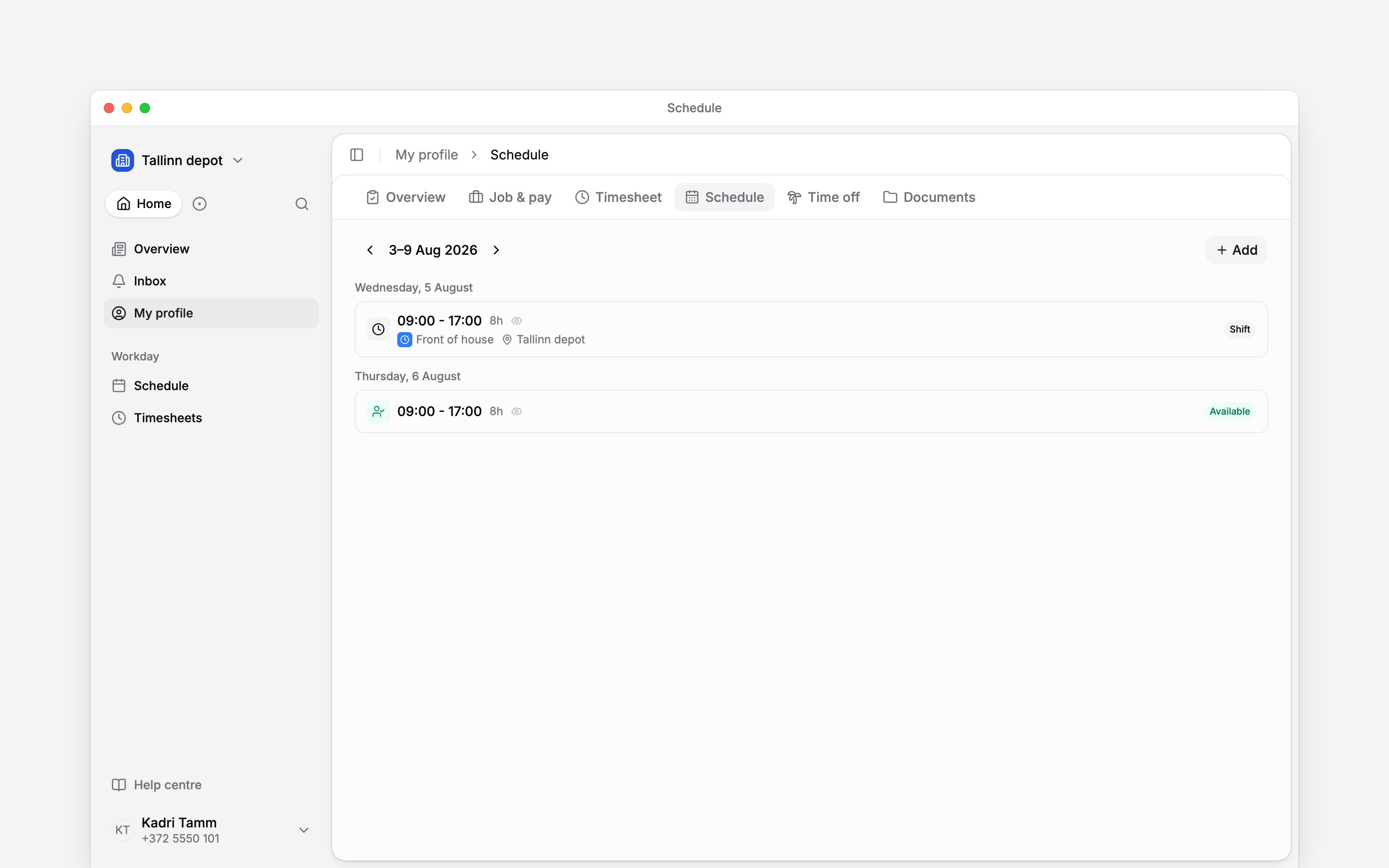
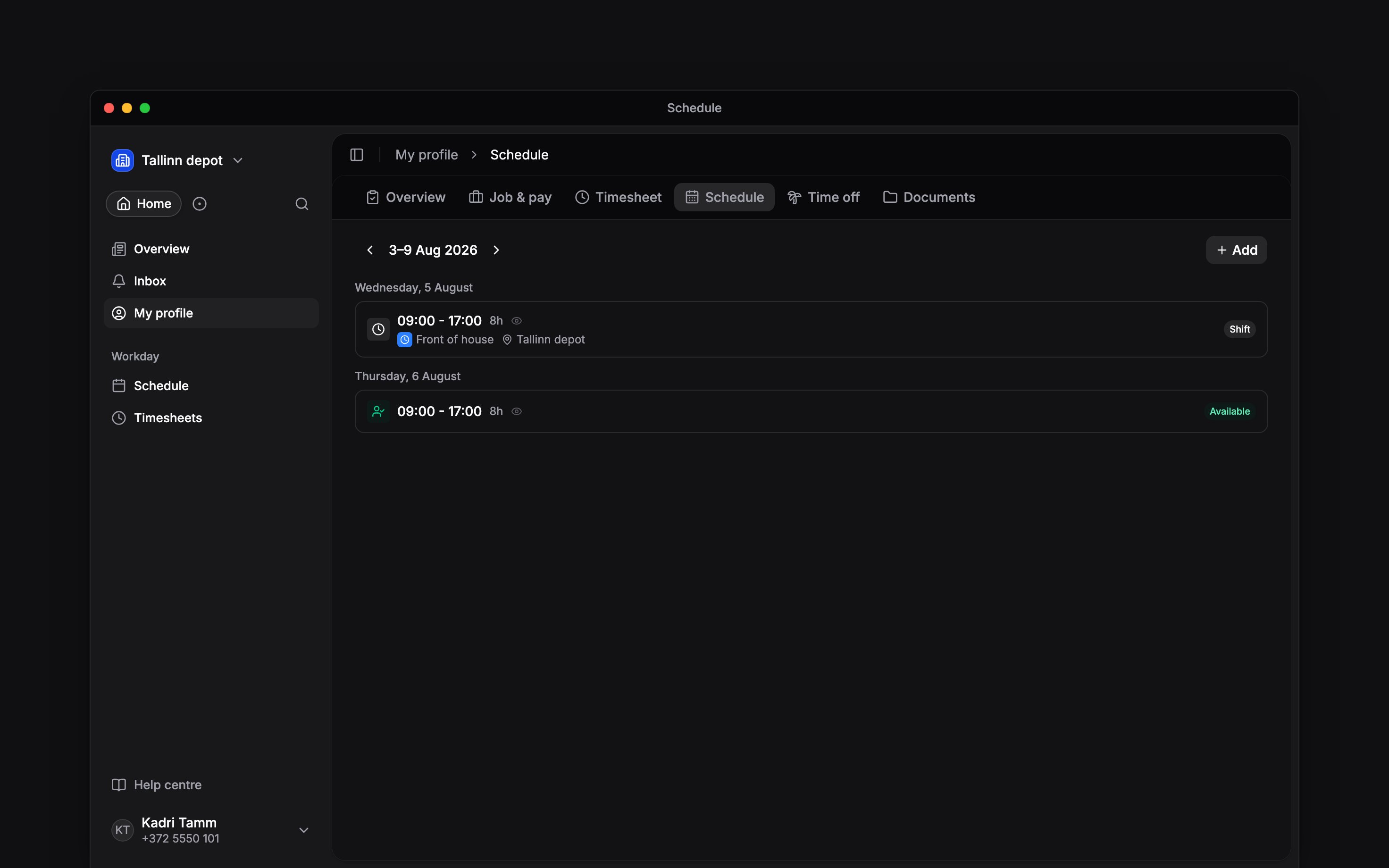
 Use Available and Unavailable on your own schedule to tell your manager when you can work. These blocks help with planning; they do not change an existing shift or book time off.
Add a time window
1
Open your schedule
Open Schedule and find the date on your own row.
2
Add availability
Use Add and choose Available or Unavailable. Check that you are the assignee.
3
Set the window
Choose the dates. Keep All day for whole days, or turn it off and enter the times.
4
Save
Save the block and check that it appears on your row.
Change your plans
Open your own availability block to change its dates or times. Use its actions menu to delete it when it no longer applies. If these actions are missing, ask your manager whether your role allows you to manage availability.Adding Unavailable does not cancel a shift you already have. Contact your manager about that
shift, or request a swap. For leave, request time
off.
Next
Your shifts
Check the time and place of your next shift.
Request time off
Choose the dates and send your request.
Still need help?
Contact support
Email the Begin team and we’ll get back to you.
Ask Begin AI
Open the AI assistant and get instant answers based on these docs.