


 On your phone, open Timesheet to clock in and out. In a browser, open Timesheets. Your home page may also show time-tracking controls. A browser offers clocking only when your workplace allows that method.
Record your work
1
Check the work details
Check the position and location, and the clients if your workplace uses them. They may already
come from your shift. Select any required details before starting.
2
Clock in
Tap Clock in. If asked, allow location access and follow the on-screen location check. Check
that the running timer and Clock out appear.
3
Clock out
When you finish, tap Clock out and complete any confirmation or location check. Check that
the timer stops and the entry appears in your timesheet.
Between starting and finishing
Use break controls when your workplace asks you to record a break. Closing the app does not clock you out; reopen it to check or stop your running timer. You can have only one running entry. If you forgot a punch, correct the time. If a method or location check blocks you, read the clocking guidance before trying again.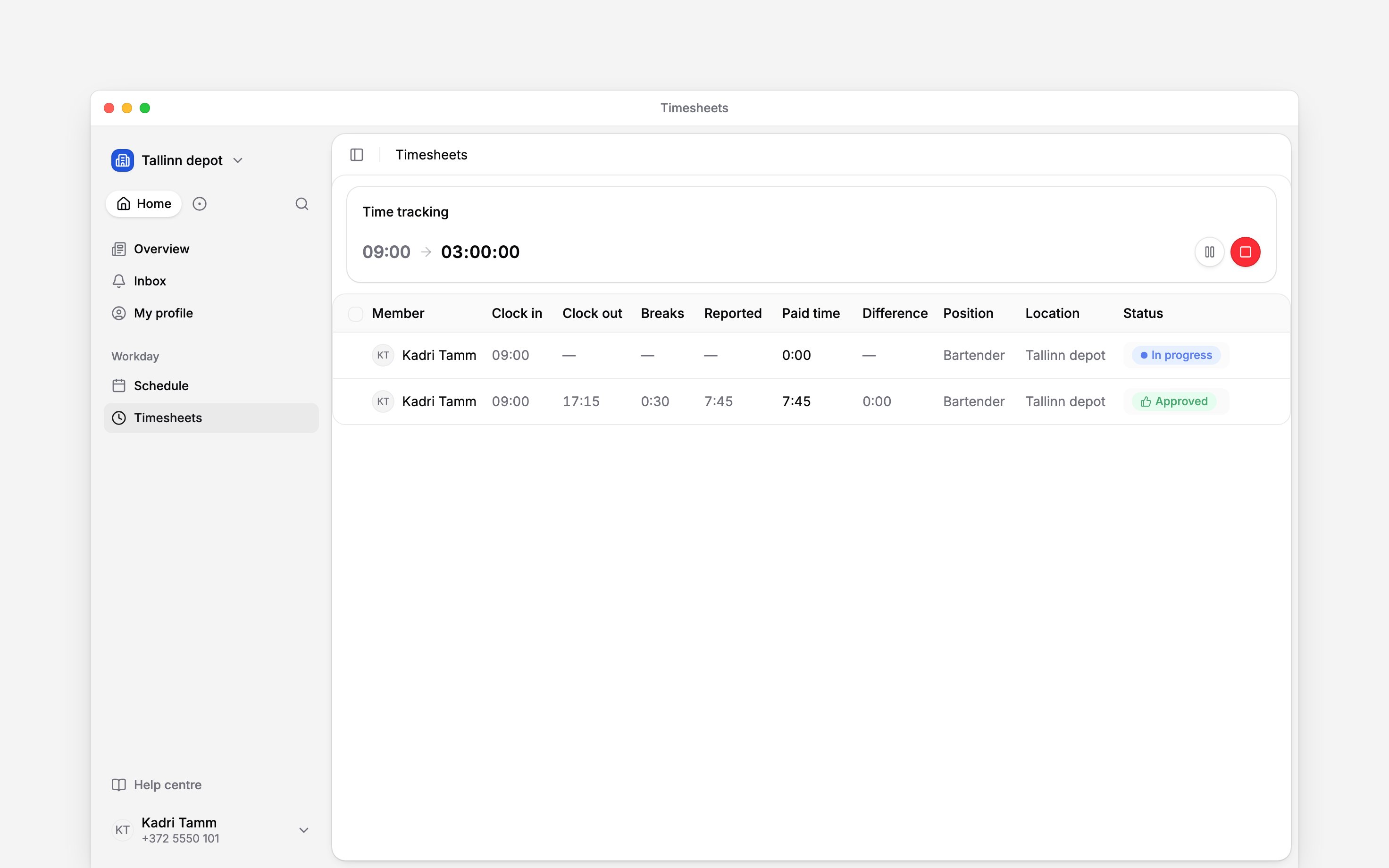
Next
Record a break
Pause and resume the same entry.
Your hours
Check the time that reached your timesheet.
Still need help?
Contact support
Email the Begin team and we’ll get back to you.
Ask Begin AI
Open the AI assistant and get instant answers based on these docs.