


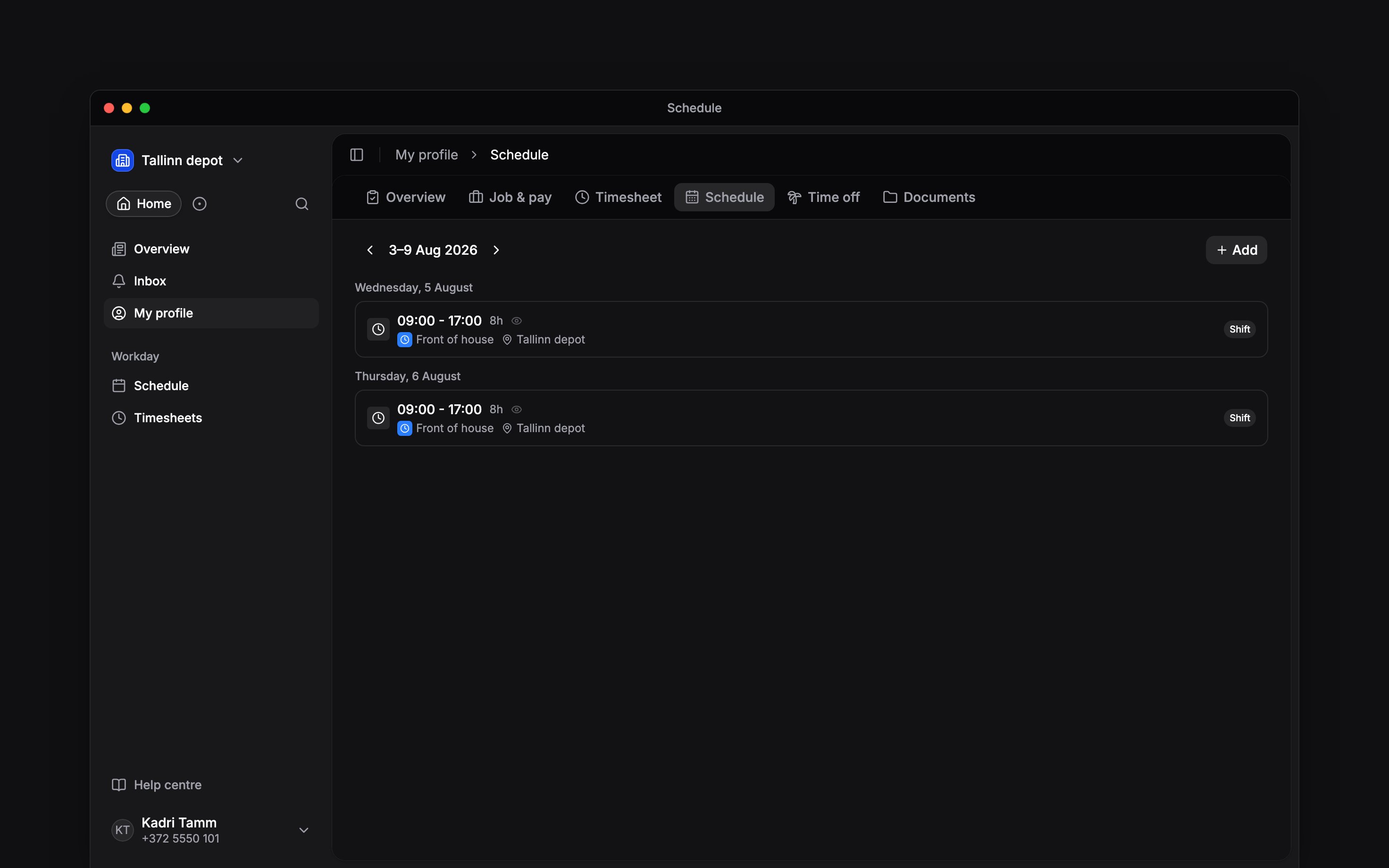
 Check your next shift before travelling to work. On your phone, open Schedule, or use My profile → Schedule for your own week. Your home page also shows Upcoming shifts.
Check a shift
1
Find the date
Move to the week you need. Use Today to return to the current week. On a phone, it floats at
the bottom of the screen once you have moved away.
2
Open your shift
Check its start and end time, position and location. Read any notes before you arrive.
3
Check for changes
Look at the current shift details after a schedule notification. A notification tells you
something changed; the schedule shows the latest arrangement.
If something is missing
You see shifts after your manager publishes them. An empty day does not show an unpublished plan. Ask your manager if you expected a shift there. Your employer decides how much of the team’s schedule you can see. My profile → Schedule is the shorter route when you only need your own shifts. If the time or place is wrong, ask your manager to change the shift.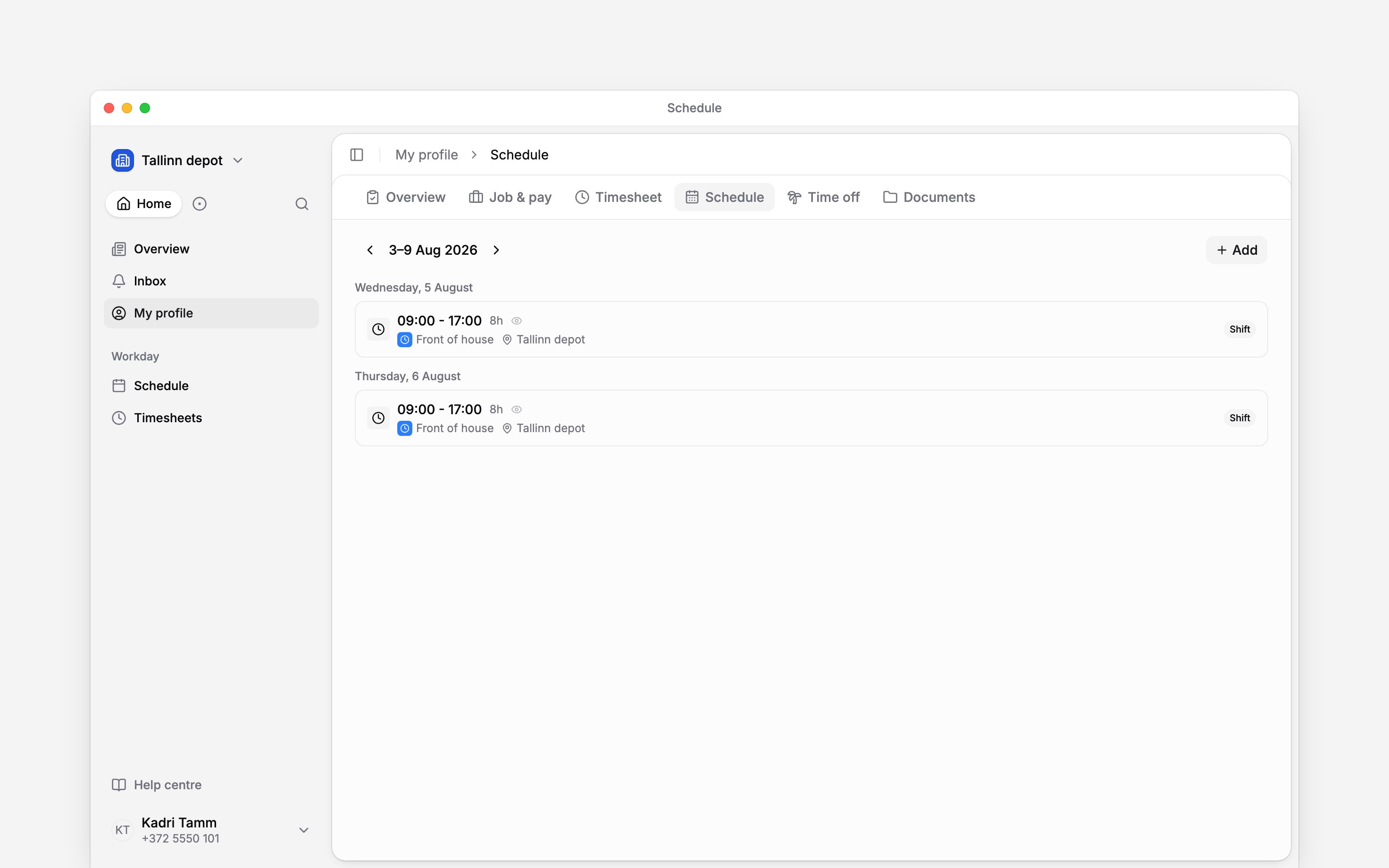
Next
Set your availability
Say when you can or cannot work.
Clock in and out
Record the work you do.
Still need help?
Contact support
Email the Begin team and we’ll get back to you.
Ask Begin AI
Open the AI assistant and get instant answers based on these docs.