


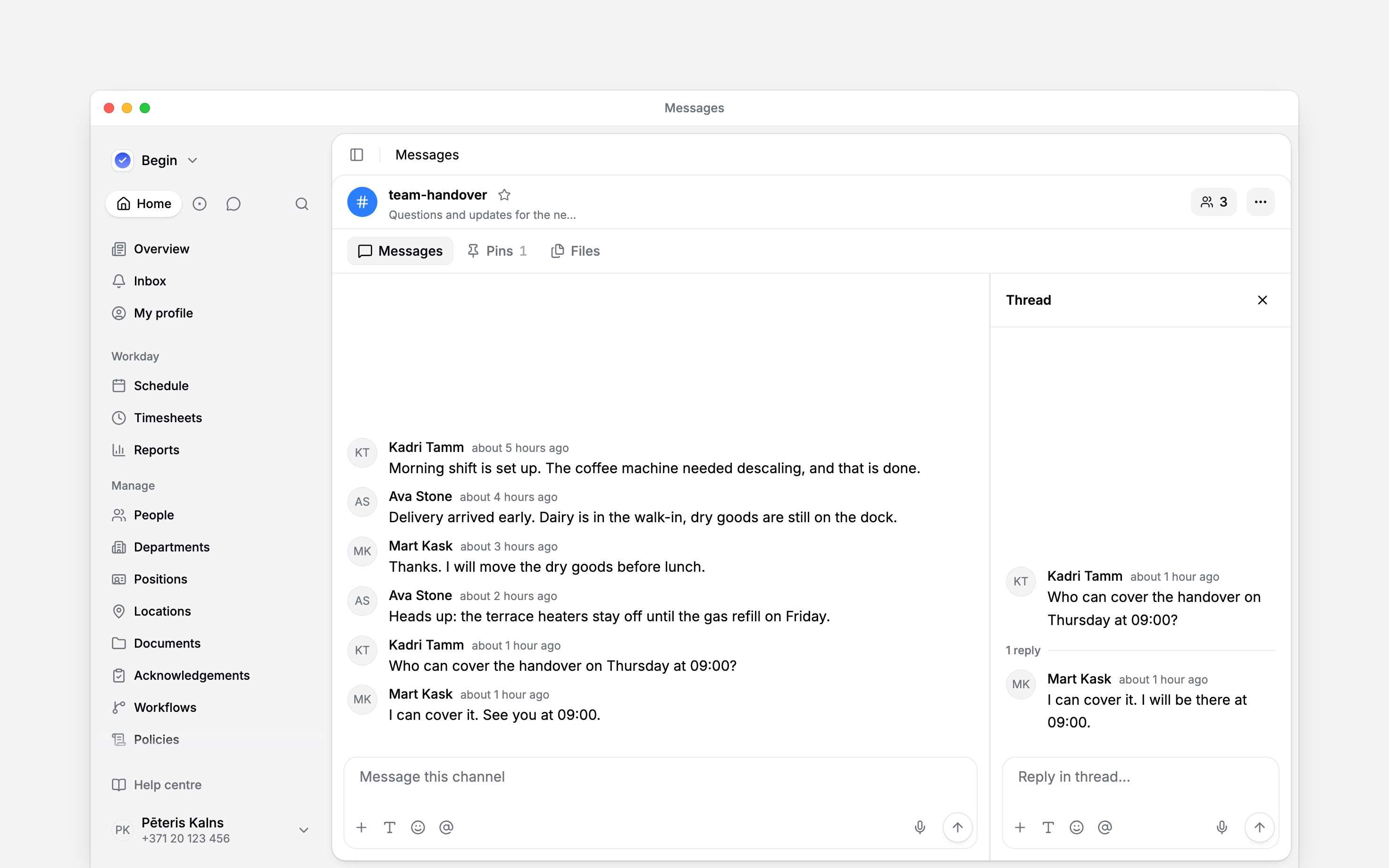
 On a phone, press and hold a message to open its actions. Reply in a thread when your message answers a particular question. Send to the main conversation when you are starting a new topic that everyone there needs to see.
Write and send
Type in the message box. Use Show formatting for emphasis, lists and links, or Add emoji to insert an emoji; typing: and a few letters picks one by name. A link shows its preview, up to three, before you send; choose ✕ to send without them. A message can contain up to 4,000 characters.
On a computer, press Enter to send and Shift + Enter for a new line. On a phone, Enter adds a line; tap the send arrow to send.
An unsent message is saved as a draft for that conversation. Wait for its draft marker before moving away if you need to be sure it has saved. Returning to the conversation restores it. A draft is not a message the team has received.
Keep an answer with its question
1
Choose the original message
On a computer, hover over it or open its menu. On a phone, press and hold the message to open
its actions.
2
Open its thread
Choose Reply in thread.
3
Send the answer
Write in the thread’s message box and send. Your reply appears below the original message, with
newer replies at the bottom.
Get someone’s attention
Type@ or choose Mention someone, then select the person or group from the picker. A selected mention is different from typing a name as plain text.
A mention does not invite anyone into the conversation. Group mentions notify only eligible people
who already belong to it, and personal notification settings still apply.
Correct a message
Open your own message’s menu and choose Edit message. Save the edited text; the message shows (edited). You cannot edit someone else’s words. Delete message appears when your permissions allow it. Confirm only if you intend to remove the message: deletion cannot be undone, and the conversation shows This message was deleted. Your employee role does not normally include message deletion. Archived conversations do not accept new messages or replies. Missing send or edit controls can also mean your role does not allow the action.Next
Sharing files
Share files and recordings, then find them again in the conversation.
Finding messages
Find an earlier message, keep important information in Pins, and return to unread work.
Still need help?
Contact support
Email the Begin team and we’ll get back to you.
Ask Begin AI
Open the AI assistant and get instant answers based on these docs.