


 An Open shift has a time and place but nobody assigned to it. You can take one when your workplace offers this option and your role allows it.
Beta
Open shifts are rolling out gradually. If your workplace does not have them yet, ask your manager
to contact us about enabling them.
You see an open shift once your manager has offered it to you. One they have not sent yet, or sent
to somebody else, is not on your schedule at all.
Take a shift
1
Read the offer
Open the offer in Inbox, under To do, or open the shift itself in the Open shift row
on Schedule, and check the date, hours, position and location.
2
Answer
Choose Accept if you can work it, or Decline if you cannot. The same pair sits inside
the shift under You were offered this shift, and the shift’s menu carries Take this
shift. Whichever you use, the first person to answer gets it.
3
Check the result
If approval is required, wait for Waiting for approval to be decided. Once confirmed, the
shift appears under your name.
If you cannot take it
Someone may have taken it first, the shift may have started, or it may overlap work you already have. A scheduling rule can also block the claim, and so does a shift your manager never offered you. Read the message and speak to your manager if you still want the shift. Declining answers for you only. You can take it later if it is still available. If you have already accepted and cannot work it, ask your manager; there is no employee action to turn your shift back into an open one.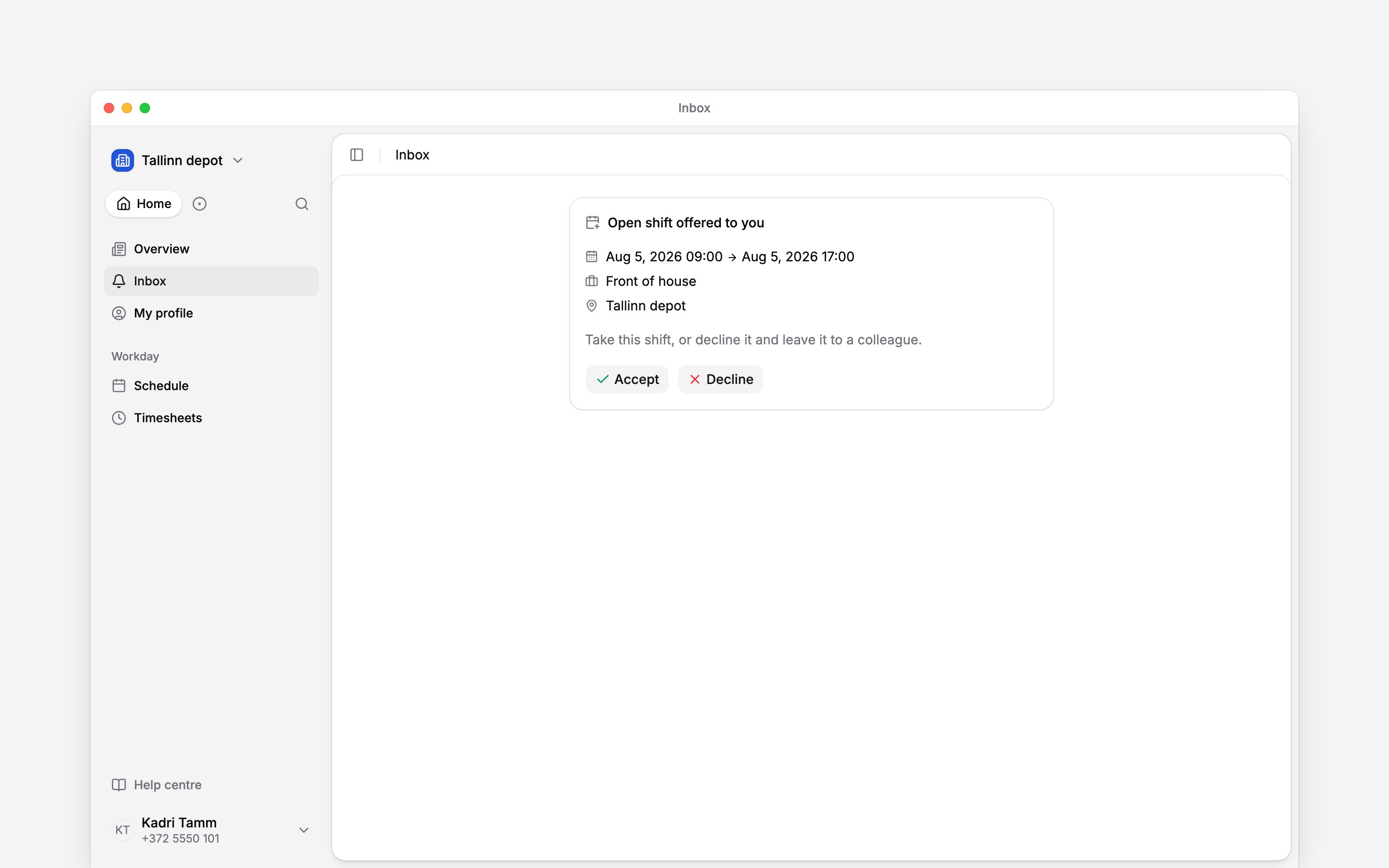
Next
Your shifts
Check the time and place of your next shift.
Swap a shift
Arrange a change to a shift you already hold.
Still need help?
Contact support
Email the Begin team and we’ll get back to you.
Ask Begin AI
Open the AI assistant and get instant answers based on these docs.