


 Connect Horizon to send payroll data and read selected employee and contract details back into Begin. Have your Horizon administrator supply the connection details and the document and pay-type IDs your installation uses.
Your role needs permission to manage integrations to open Settings → Integrations.
Connect Horizon to send payroll data and read selected employee and contract details back into Begin. Have your Horizon administrator supply the connection details and the document and pay-type IDs your installation uses.
Your role needs permission to manage integrations to open Settings → Integrations.
Connect Horizon
1
Create the setup
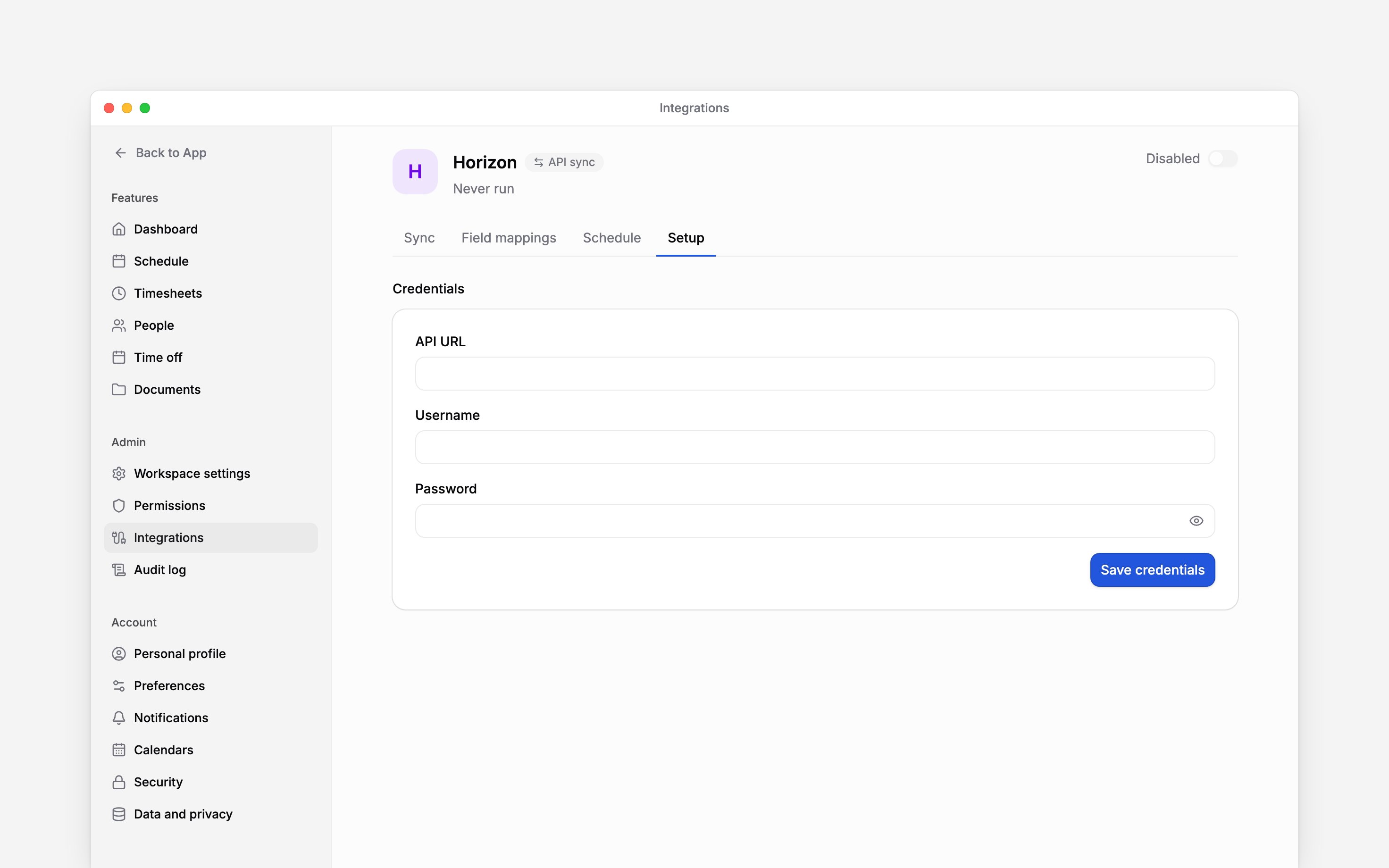
Open Settings → Integrations → Horizon and turn on the header switch. This creates the setup
and opens Setup; the switch stays off until credentials are saved.
2
Save the connection details
Enter API URL, Username and Password, choose Save credentials, then turn the
header switch on.
3
Set the payroll types
In Advanced settings, pick the salary document type for hourly and for monthly-paid people
from the lists Begin loads from your Horizon. If a list does not load, enter the ID your Horizon
administrator gives you. Pay-type IDs are optional; leave them blank unless the document type
does not pre-fill them.
4
Choose the data
Enable the required groups: Hours and pay, Absences, Employee details or
Contracts. Select which imported fields may update Begin.
Match people and absences
Check personal codes in both systems before the first run. An employee must be matched in Horizon before their absence can be sent. In Field mappings, map absence policies to the Horizon document types your payroll team uses. Horizon absence documents carry whole days: partial-day absences are skipped and named in the run’s errors. Leave Include unconfirmed hours off to send approved hours only. Rejected and cancelled hours are always excluded, even when this setting is on. Imports update existing people and imported job records. They preserve job and pay rows created or edited by hand, and do not add everyone held in Horizon to Begin.Check the first result
Run one month from Sync and read the result before enabling automatic runs. Missing salary document types stop the relevant export; a missing type for one pay group can leave only some people processed. If the run reports unverified pay types, ask your Horizon administrator to check the configured IDs. A successful connection alone does not prove that the document types or employee matches are correct. For a person on a summarized overtime period, overtime hours stay at zero until the period ends. In the month it ends, the whole period’s overtime is sent once: in the month’s total, and in the day breakdown on the last day they worked that month, or on the period’s last day if they did not work that month. Send that closing month to pay it.Export hours as a file
If your payroll team imports hours into Horizon by hand instead of over the API, use Horizon hours file in Settings → Integrations. It needs no connection details. Turn it on, choose a month and a Pay type on the Export tab, run it and download the Excel file from the run history. The file follows Horizon’s Darba laika uzskaite import template, with one row per person: their export code, days worked, hours, overtime, night hours and holiday hours, and their name. Payroll fills the template’s other columns in Horizon. Each run covers one pay type, as Horizon imports hourly and salaried time separately. People paid that way get their hours; everyone else is listed with zeros. Begin reads each person’s pay type from the job and pay in force at the end of the month, so a person with neither hourly pay nor a monthly salary gets zeros on both runs. People without an export code come last. Anyone whose hours can’t be calculated is left out of the file and listed in the run details instead. Besides the pay type, a run can choose its data source and whether to subtract unpaid breaks. The file export can’t be scheduled. Set each person’s export code and pay in Begin before the first run.Next
Run the integration
Choose a month, run it and check the result.
Choose an integration
Compare providers and connection methods.
Still need help?
Contact support
Email the Begin team and we’ll get back to you.
Ask Begin AI
Open the AI assistant and get instant answers based on these docs.