


 A shift is one block on one person’s row. You start it by clicking the day you want it on, or from Add in the toolbar, and either way the same form opens. A shift you create stays a , out of the team’s sight, until you publish the period.
Creating shifts needs the Add & edit shifts permission. Someone on an employee role can add
and remove only their own Available and Unavailable blocks. They cannot create shifts, and
they cannot touch anyone else’s row.
Add one
1
Open the period you are filling
Month to lay out several weeks, day for one busy site.
2
Click the empty day in that person's row
The form opens on that person and that date. When you are grouped by position or location, the
cell fills those in too. Add in the toolbar does the same for the period on screen, with you
as the assignee.
3
Set the hours
A new shift runs 09:00 to 17:00. Change either end, or set Duration and the end time
follows.
4
Say what the work is
Position and Location sit under Classification. An assignee who holds exactly one of
each fills both in for you.
5
Create shift
The card appears in the row at once, marked as a draft until you publish. When the assignee is
Open shift, Create more closes and reopens the form for the next one, and the
confirmation counts the run.
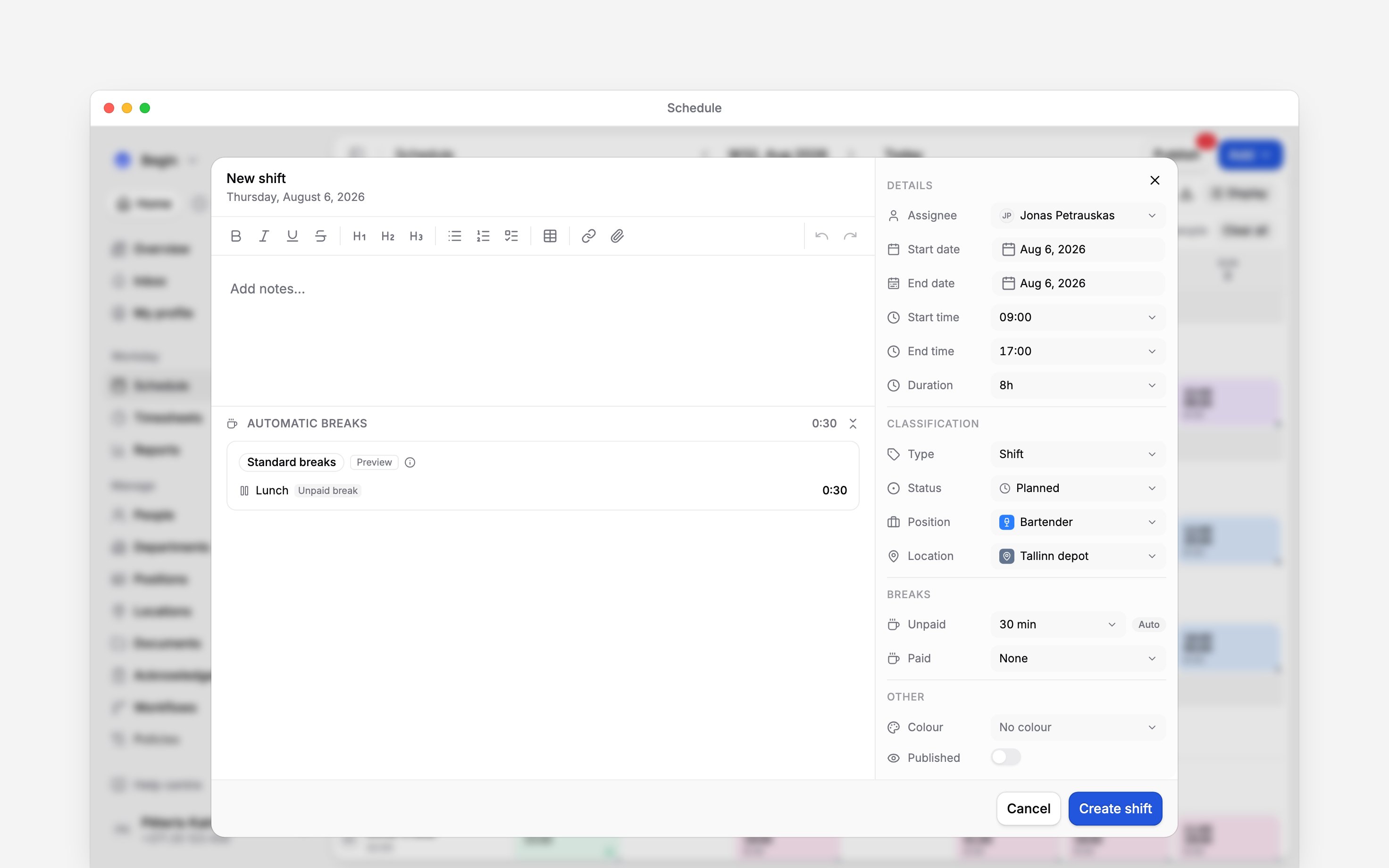
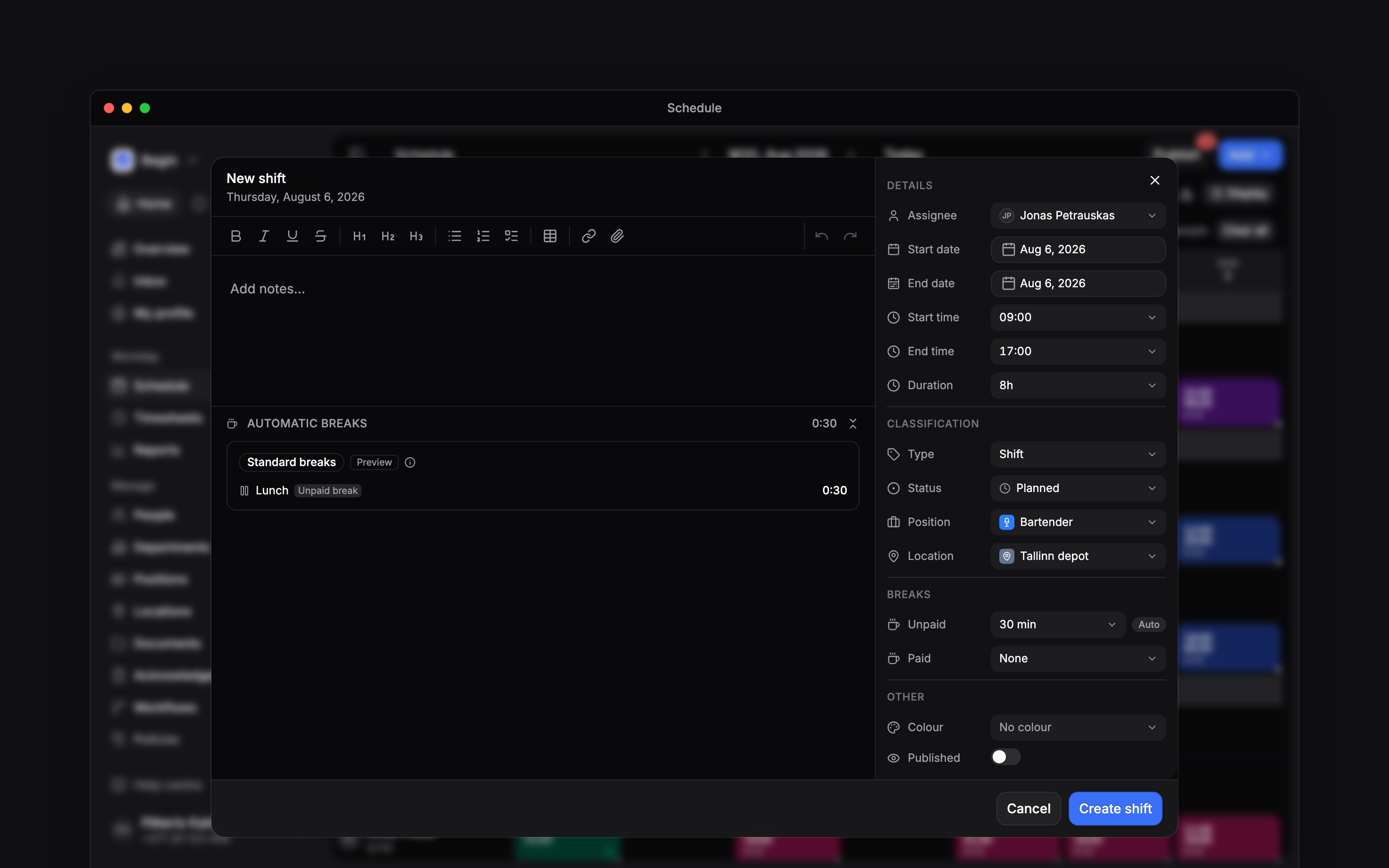
The form opens on the person and day you clicked, and fills in what it can from them
Add a shift for Jonas Petrauskas on Thursday from 09:00 to 17:00.
What the other fields decide
Beta
Beta features roll out gradually. Your workspace may not have them yet.
Add something other than a shift
The Add menu, and a right-click on any empty day, put the other blocks on the same grid. On a day that already holds a shift, right-click the shift (press and hold it on a phone) and open Add for the same list on that day.
Other time joins them once your workspace has a policy for it. A block saved as the wrong kind is not stuck: Type in the form moves it.
Or ask Begin AI:
Mark Mārīte Ozola as unavailable on Friday from 18:00 to 23:00.
Let the breaks fill themselves in
Unpaid and Paid have a section of their own. When a break policy matches the shift, Begin works the minutes out: the Automatic breaks section reads Preview before you save, and names the rule it used. Type your own minutes and the section switches to Manual and stops recalculating. Clear them back to zero and the automatic break comes back. Automatic breaks are worked out again when you change the person, the location, the type or the hours, or move the shift out of Approved, and left alone when you change anything else. Copying, pasting or duplicating a shift, including Copy to next month, keeps its manual breaks as they are. Automatic breaks are worked out again for the person and day the copy lands on, so a copy given to someone else follows their break policy. A shift whose breaks you set by hand keeps them exactly.A shift you have already created saves as you edit it. There is no Save button on the form the
second time you open it: close it and the change is already made.
How do I enter a night shift that ends the next morning?
How do I enter a night shift that ends the next morning?
Set an end time earlier than the start, such as 22:00 to 06:00, and Begin ends the shift the
following day. Duration counts the hours across midnight.
The break policy changed after I saved. Does the shift's break update?
The break policy changed after I saved. Does the shift's break update?
No. A saved shift keeps the break it was given, and its Automatic breaks section says
Policy has changed since these breaks were applied. Recalculate breaks in the section
header applies the current rule.
Next
Templates and rotas
Stop retyping the same shift every week.
Publishing
How a draft period reaches the team.
Still need help?
Contact support
Email the Begin team and we’ll get back to you.
Ask Begin AI
Open the AI assistant and get instant answers based on these docs.