


 A role controls both what someone can do and whose records they can see. Give people the access their work needs, then check that boundary from their profile.
Only someone with permission to manage permissions can change roles in Settings → Permissions.
Administrator has this access by default.
Choose a starting role
To change someone’s role, open their profile, choose Edit, select Role and save. Existing roles may have been customised, so check the actual settings before relying on the defaults above.
Where your workspace has clients, Manager can also add, edit, archive and delete them and manage client fields. Employee sees client names on shifts and time entries, but not the Clients page.
Beta
Clients are rolling out gradually, so your workspace may not have them yet. If the permission grid
has no Clients row, ask us to turn them on.
Adjust a role
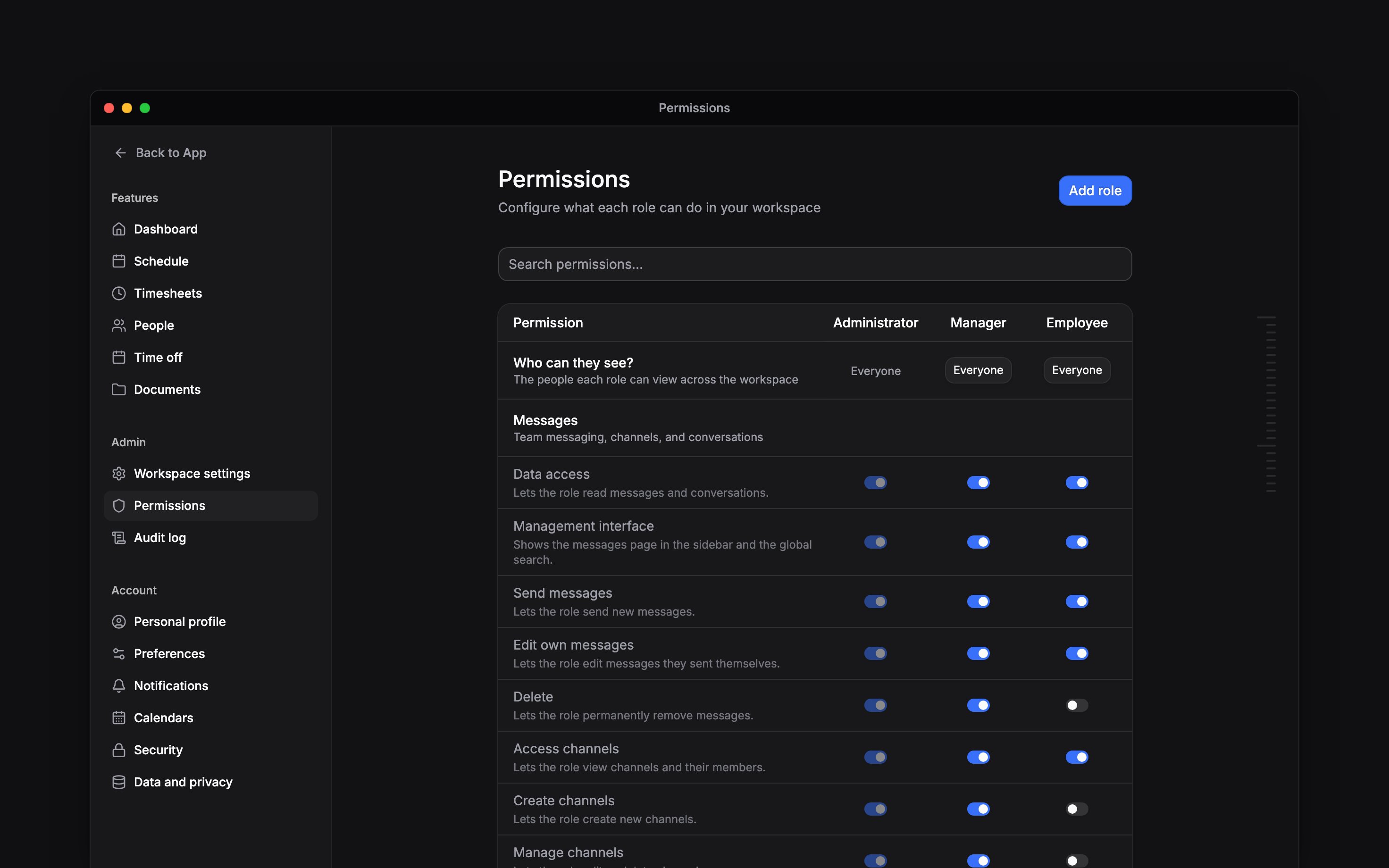
Open Settings → Permissions. Use Add role to copy an existing role, then change its permission toggles. Search the grid to find a permission. Changes apply to everyone holding that role. Administrator permissions are read-only; Manager and Employee can be changed. Use the role’s menu to Rename or Archive it. Move everyone off a role before archiving it; an archived role can no longer be given to anyone. You can also ask Begin AI to turn named toggles on or off for one role. It shows a card naming the role and each toggle it changes, leaves every other toggle as it is, and changes nothing until you confirm. Begin AI can also rename a role, add a role that starts from an existing one, and archive a role nobody holds, each after the same confirmation. Pay and private details have separate read and edit controls: View pay data, Edit pay data, View private details and Edit private details. Permission to edit people does not grant permission to see their salary or banking information, and Deactivate & reactivate is its own toggle. Every role also has Edit own personal information, Edit own contact information and Edit own banking information, on by default, which decide what people can change on their own My profile page. A custom role also inherits invitation permission from the role you copy. Invitations have no separate toggle in this grid, so choose the source role with that access in mind.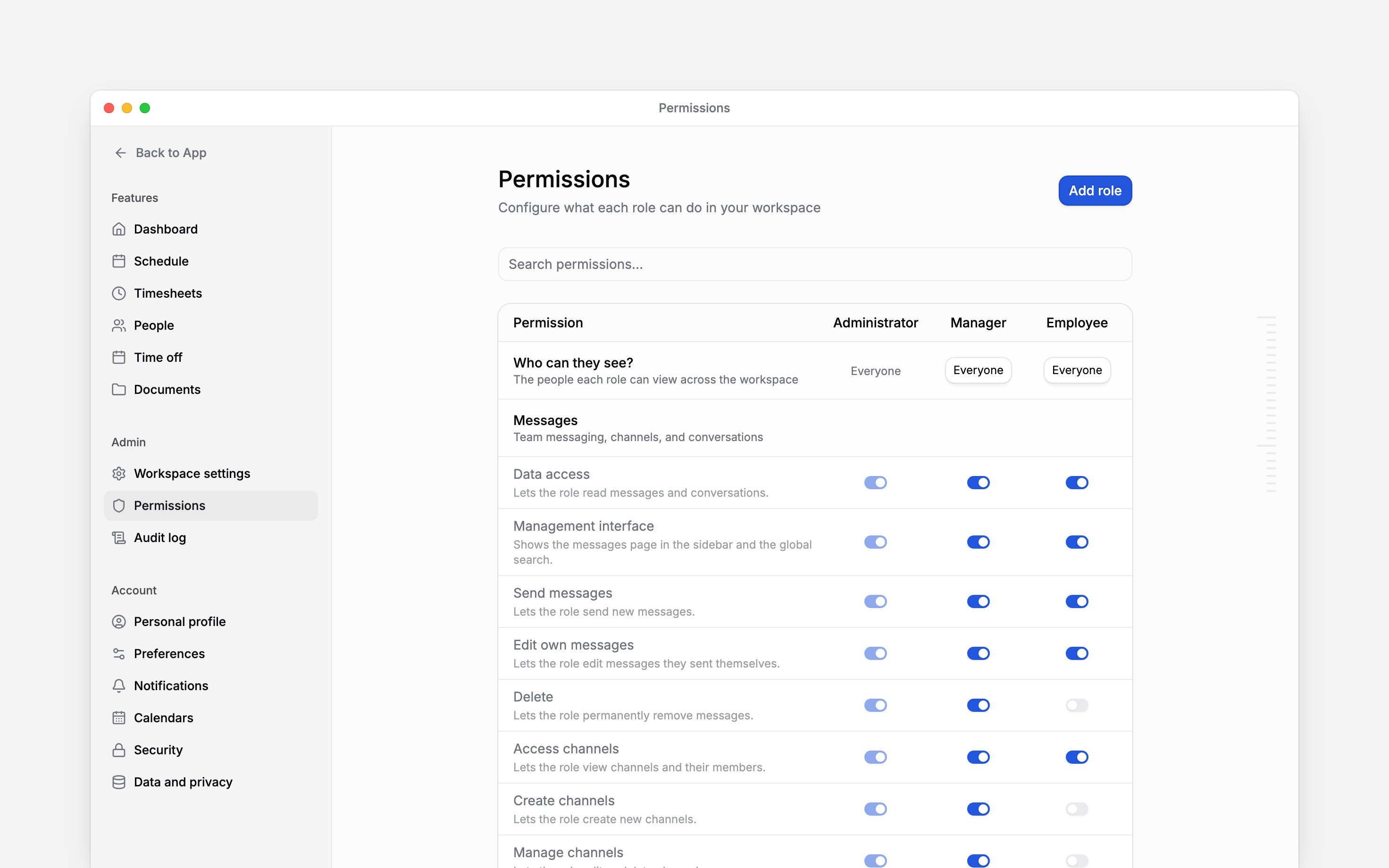
Limit whose records they see
Use Who can they see? to restrict a role to direct reports, people below them in the reporting tree (up to five levels), their locations or departments, or selected locations and departments. Rules add together: matching any rule includes the person. This boundary applies across people data, pay, timesheets, schedules, approval requests, reports and search. A few things are decided by their own audience instead, so the boundary does not narrow them:- Chat.
- Posts, and the people who commented on, reacted to or opened them.
- Who is currently in a shared document.
- Loops, which have their own sharing settings.
- Who can be offered an open shift, so the shift still reaches everyone able to work it.
- The client list: a role reaches every client or none. The work listed on a client still follows the boundary.
- Payroll exports, which include everyone being paid. An export that left people out would leave them unpaid.
Transfer ownership separately
The workspace owner can use Transfer ownership from the target person’s menu. The recipient must be an active member whose role administers the workspace. Assigning the Administrator role by itself does not transfer ownership.You cannot deactivate or delete the workspace owner. Transfer ownership first if that person is
leaving.
Next
Member profiles
Check the details available to your role.
Deactivating and removing people
Take access away when someone leaves.
Still need help?
Contact support
Email the Begin team and we’ll get back to you.
Ask Begin AI
Open the AI assistant and get instant answers based on these docs.