


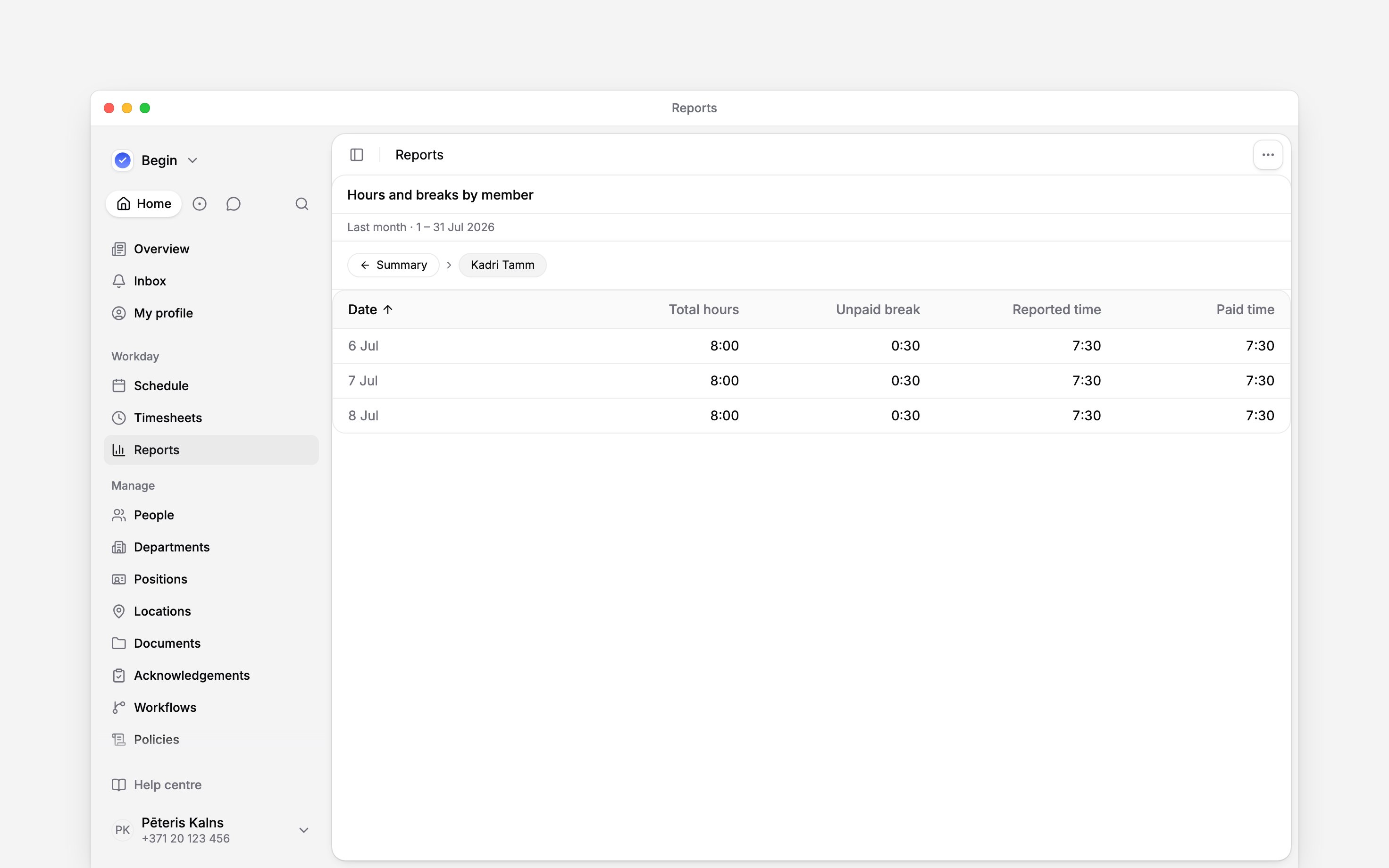
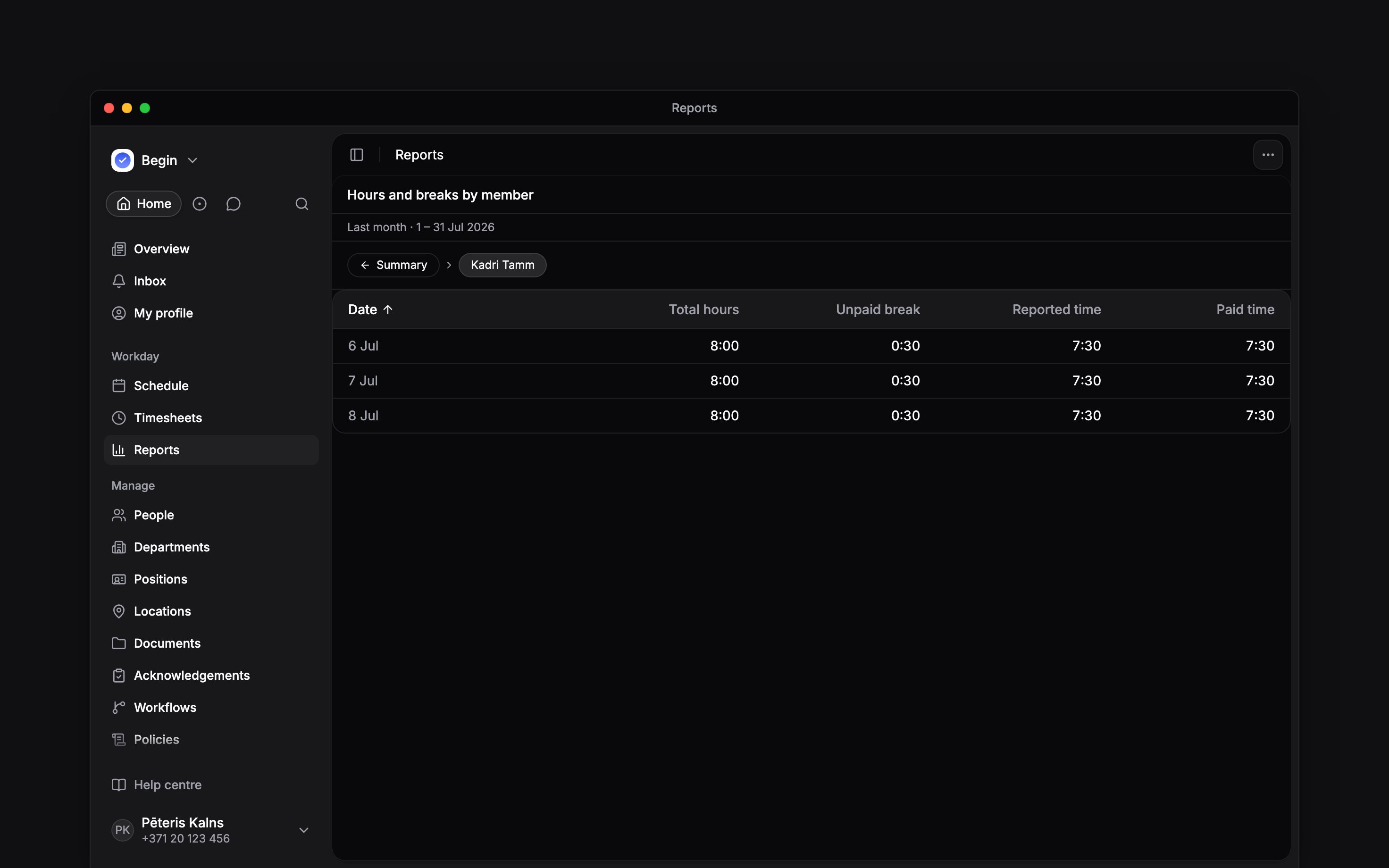
 Click a person’s summary row to see the days behind their total. You can then open a day to inspect the shifts or time entries that contributed to it.
On a computer, right-click a row to see where it leads. The first menu item names the next level: Show days or Show weeks on a person, and Show records on a day or on a row with no day breakdown.
Click a person’s summary row to see the days behind their total. You can then open a day to inspect the shifts or time entries that contributed to it.
On a computer, right-click a row to see where it leads. The first menu item names the next level: Show days or Show weeks on a person, and Show records on a day or on a row with no day breakdown.
Day breakdowns are available on Shifts and Time entries tables grouped by Person.
Other groupings open the underlying records instead.
Follow a total into its records
1
Open a person
Click their row in the summary.
2
Open a day
Choose the date you want to check to see its shifts or time entries.
3
Return to the summary
Use the trail above the table to return to the person or the full summary.
When a breakdown will not open
A breakdown opens for the person you clicked, over the intervals the range tiles into: days up to about a month, then weeks. There is a 10,000-row limit, and other processing limits can apply sooner. If the report says Too wide to open by day, shorten the range or add a filter. An empty cell is not a measured zero. Open Info and read the key at the foot of the panel, opening it if it is closed, to tell a day with no measurement from a zero. Where an ⓘ sits beside a row, it says why that row’s figures were not calculated. A column that only has a value for the whole period, such as a period overtime balance, is named under Not included in the same panel, never on the column. A day’s Norm hours can be negative. On a working day, full-day leave over a shift lowers the day’s norm by the shift’s length, so an 8-hour shift on a 6-hour day reads-2:00. The days add up to the person’s total, except that a total below zero shows as 0:00.
Check overnight work and rounding
A shift is counted once, on the day it starts. Its hours can belong to the start day, the end day, or both, depending on the workspace’s overtime rule. For a shift that runs into a new month under a summarized period, Shift across a month’s end on the overtime policy decides which month counts it. Open the key at the foot of Info, such as Reading the table, and read Days for the rule in use.Each interval is rounded separately. Its displayed hours may not add up to the period total to the
last minute. For someone whose overtime settles over a longer period, their daily over-or-under
figures also need not add up to the final period balance.
Next
Checking report totals
Understand missing figures or a difference between totals.
Downloading a report
Choose between daily summary figures and underlying records.
Still need help?
Contact support
Email the Begin team and we’ll get back to you.
Ask Begin AI
Open the AI assistant and get instant answers based on these docs.