Begin MCP Begin exposes a Model Context Protocol (MCP) server, so you can drive your workspace from the chat tools you already use: Claude on the web or desktop, and ChatGPT. The connection signs in with your Begin account, uses the same permissions as the web app, and is scoped to a single workspace.

What you can do

Once connected, your AI client can list and manage everything you manage in the web app: positions, people, locations, departments, the schedule, and timesheets. Read tools answer immediately. Write tools (create, update, delete, approve) run under your permissions, since authorizing the connection is the consent step.
If your role doesn’t grant a permission in the web app, the same restriction applies through MCP. You’ll see a clear “Permission denied” response on any tool call outside your scope.

Example prompts

Summarize last week's schedule.

Check coverage at a location.

Approve pending timesheets.

Add a new position.

Create shifts for a team.

Connect Claude

The path is the same on Claude on the web (claude.ai) and Claude Desktop.
1

Open the connector setup

In Claude, go to Settings → Connectors → Add custom connector.
2

Paste the connector URL

Use https://api.begin.eu/mcp.
3

Sign in to Begin

Claude opens a browser tab. Use your normal sign-in method: phone OTP, email OTP, passkey, or Google.
4

Approve the consent screen

Confirm the connection to finish.
Custom connectors are available on Claude Free, Pro, Max, Team, and Enterprise. Free is capped at one custom connector. On Team and Enterprise, only Owners can add connectors.

Connect Claude Code

If you use Claude Code in your terminal, register Begin as a remote MCP server with one command.
claude mcp add --transport http begin https://api.begin.eu/mcp
Then run /mcp inside Claude Code to authenticate. Claude Code opens a browser window to sign in to Begin and approve the connection. Subsequent sessions reuse the cached token.

Connect ChatGPT

ChatGPT requires turning on Developer mode before you can create an app.
1

Open Advanced settings

In ChatGPT, click your profile picture and go to Settings → Apps → Advanced settings.
2

Turn on Developer mode

Toggle Developer mode on.
ChatGPT Settings panel with the Developer mode toggle highlighted
3

Click Create app

The button appears next to Advanced settings once Developer mode is on.
4

Enter the connector details

Use https://api.begin.eu/mcp as the MCP server URL, plus a name and short description.
ChatGPT New app dialog with fields for name, description, and MCP server URL
5

Sign in to Begin

In the popup, sign in and approve the consent screen.
Custom apps are available on ChatGPT Pro, Plus, Business, Enterprise, and Education. They aren’t available on Free. On Business, Enterprise, and Education, an admin must enable Developer mode under Workspace Settings → Permissions & Roles → Connected Data.

Workspace pinning

Your MCP connection is pinned to whichever workspace is active the first time your client uses the connection — not at the moment you authorize it. Once pinned, switching workspace in the web app does not change the workspace your MCP client uses. This is intentional, so an automation can’t silently retarget. To operate on a different workspace from an MCP client:
1

Switch your active workspace

In the Begin web app, set the target workspace as active.
2

Revoke the existing connection

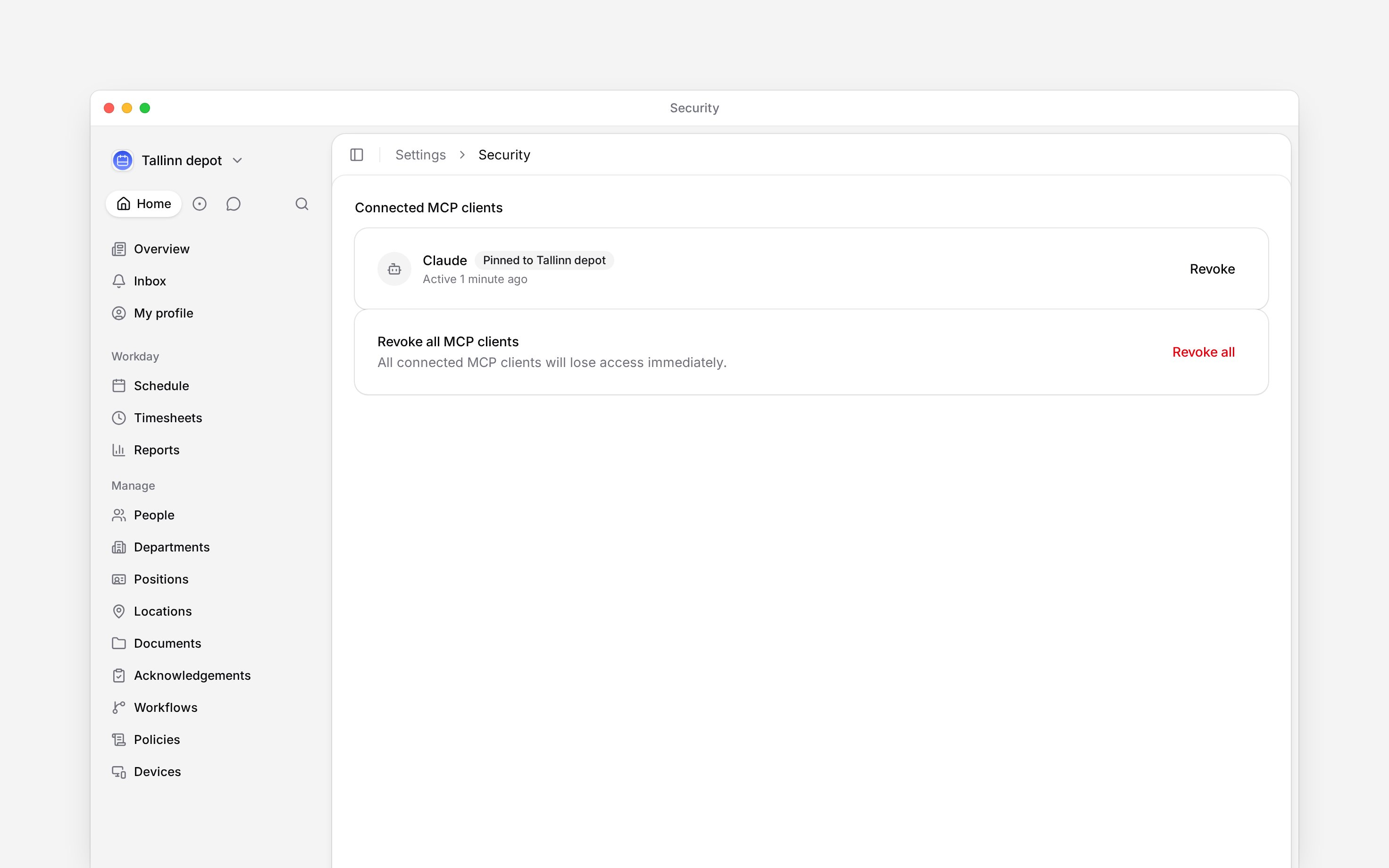
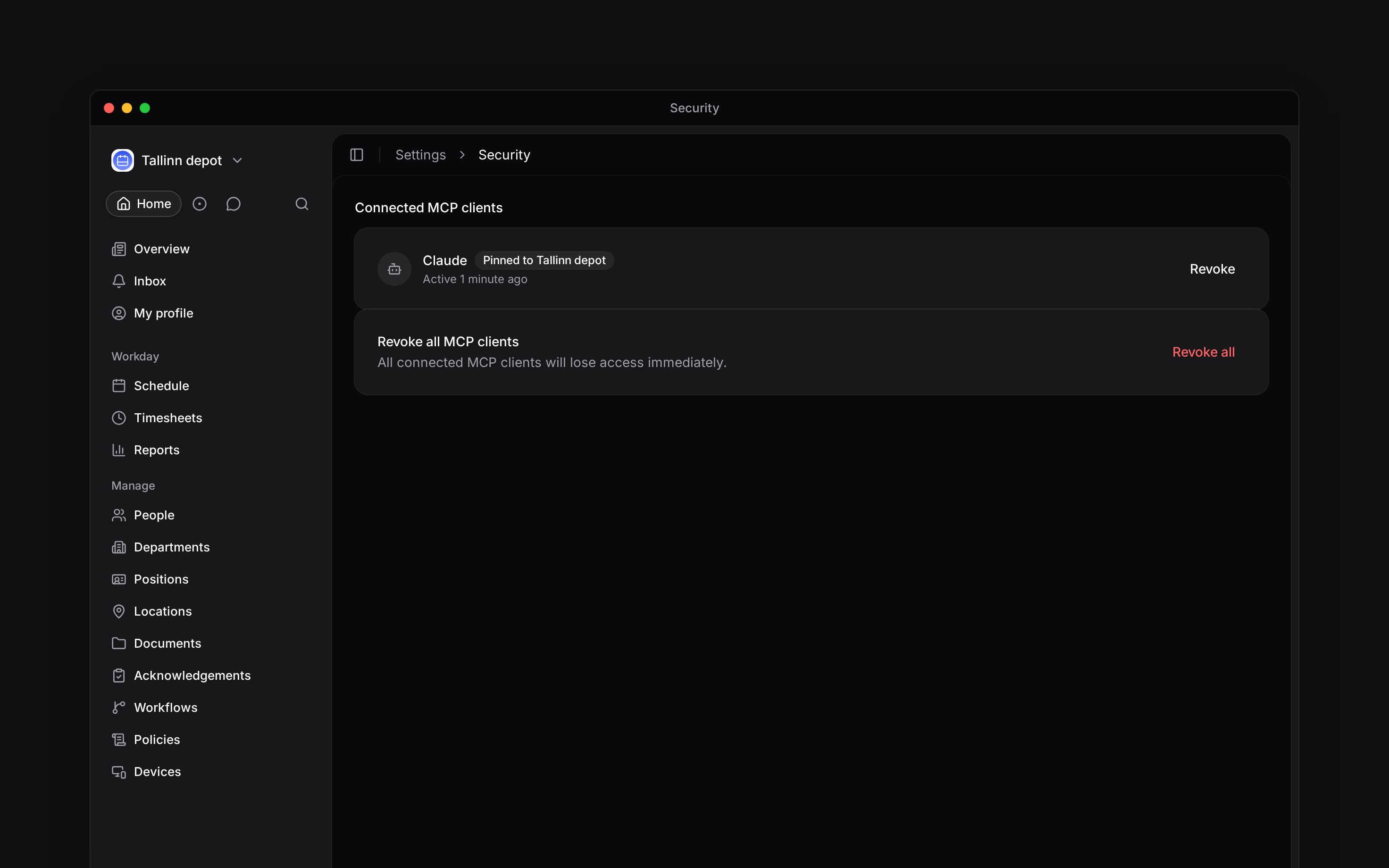
In Settings → Security → Connected MCP clients, revoke the current pin.
3

Reconnect from your MCP client

Your next request pins to the new workspace.
The whoami tool returns the workspace your client is currently pinned to, which is useful to confirm before destructive operations.

Manage connected clients

Settings → Security → Connected MCP clients shows every MCP client you’ve authorized, the workspace each is pinned to, and when each was last active. Revoke a single client or revoke all of them. Once revoked, the next request from that client returns 401 and the user has to reconnect.

Permissions and security

  • Each MCP token grants the same permissions as the user who authorized it. Never more.
  • Connections are scoped to one workspace at a time.
  • Tokens are short-lived (1 hour) with refresh-token rotation; clients refresh them silently.
  • All actions are written to the workspace audit log under your name.