


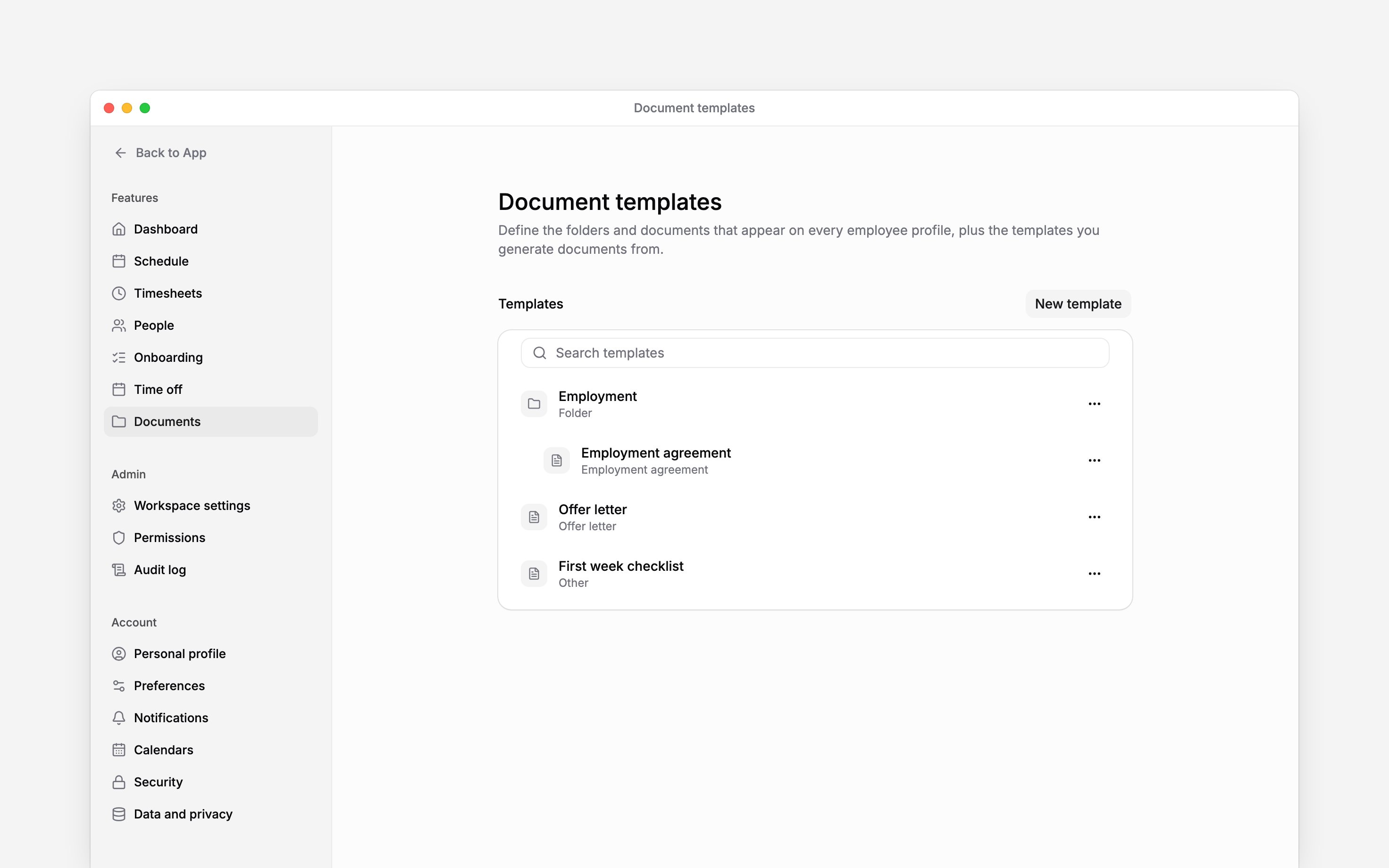
 Use Settings → Document templates to maintain reusable content and folder structures for employee profiles. A template defines the starting content; a person’s generated document is a separate record.
You need permission to manage Document templates settings. By default only administrators have it; a manager needs the Document templates setting added to their role. Being able to upload files or edit people does not grant template-management access.
Use Settings → Document templates to maintain reusable content and folder structures for employee profiles. A template defines the starting content; a person’s generated document is a separate record.
You need permission to manage Document templates settings. By default only administrators have it; a manager needs the Document templates setting added to their role. Being able to upload files or edit people does not grant template-management access.
Create and organise a template
1
Open Settings → Document templates
Choose New template → Add document, or Add folder to organise related templates.
2
Name the template and write its content
Open the document’s editor. In the new-template dialog you can choose Start with example
content, then replace the sample wording with your own. The example employment agreement
includes a clause in which the employee agrees to receive and confirm documents electronically;
keep it if your team sends orders and acknowledgements through Begin.
3
Choose its category
Use a category such as Offer letter, Employment agreement, Policy or Other.
Documents generated from it inherit that category. The category also determines where the
template can be used during onboarding.
4
Check its language
In Edit details, set Language to the language the template is written in. Dates, amounts
and choices in documents generated from it are written in that language. A new template starts
in the workspace’s default language.
5
Finish editing
Content saves as you edit. Use Done to return to the list. Search by template name to find
it again.
Import content and insert variables Beta
Beta
In the editor’s … menu, choose Import for a Word Example content, importing, variable insertion and template testing are part of the contracts
rollout. If these controls are missing, ask us to check whether contracts are enabled. Basic
template and folder management can still be available.
.docx or text-based PDF. Content is inserted at the cursor, so place it where you want the imported text. Review the wording and layout afterwards.
PDF imports use Begin AI. If AI is disabled, use a Word document or write the content directly. PDFs must be no larger than 15 MB and 60 pages, and must contain selectable text. Scanned images cannot be imported as text.
Use Insert variable to place a value from the person, employment record or workspace into the template. Your workspace’s custom profile fields are listed under Custom fields, so a field such as Passport number fills from each person’s profile; archived fields are not listed. Typing {{ in the text opens the same list. Recognised placeholders in imported content become variable chips. Check each variable instead of leaving sample names or pay figures in reusable content. Contracted hours writes the hours with their unit, such as 40 h/week; where your text already names the period, as in “40 hours per week”, use Contracted hours (number), which writes only the number. The number is in each person’s own contracted period, so use it only where everyone the template is for has hours set per that same period.
Number generated documents
Choose … → Edit details, switch on Number documents, and enter a Prefix and the Next number. Each document generated from the template takes the next number, soQCM and 0124 give QCM0124, then QCM0125. Leading zeros you type are kept.
Put the number in the text with the Register number variable. Deleting a document does not free its number. Changing the next number affects only documents generated afterwards, and it must be above the last number the series gave out: Begin refuses a lower one and names the last number under the field.
To number orders by year Beta, choose where the year goes in Year in number and a Separator: R-, before the number, / and 014 give R-2026/014. Switch on Start again at 1 each year to restart the series on 1 January.
With order registers on, the Documents list shows each document’s number in a Number column, and typing a number in the list’s search or in global search finds its document. If you can open the order register, select a number, or choose Show in order register from the document’s actions, to see its line in the register.
Choose who signs Beta
Under Signing in Edit details, add the Authorised signers: the first one listed signs this template’s documents for the employer and fills the Signer’s name and Signer’s position variables, and the next takes over if they leave the workspace. Switch on Employee signs with eID for documents such as a termination notice, so the employee confirms with Smart-ID, Mobile-ID or an ID card instead of typing their name.Keep an order register Beta
Give an HR order template the Order category and number it. Then open Order register, the row under People at the top of Documents, to see every number your series gave out, newest first, with its series, document, person, issue date and state: issued, signed, cancelled once its document is deleted, or erased once the document no longer exists. Filter by series, year, person or state, and choose Export CSV to download what the filters show.Test the result for a person Beta
Testing also needs permission to read people. If you can edit templates but cannot see Test template, ask your administrator to check that access. Private fields, such as bank details and national IDs, also need View private details for the selected person. Without it, the preview leaves those fields out, including whether they are filled or missing. Choose … → Test template, select an Employee and an Effective date. Check Resolved variables, Missing variables and Body preview. The date matters for employment and pay values that change over time. Missing variables identify where information must be supplied. Update the relevant record and check again. Testing previews the result; it does not generate a document or send anything for signing. A template without variables reports that there are none to test.Review changes or remove a template
Choose … → View history to see who changed the content or details. A history entry with a captured version opens a read-only preview. Older entries without a captured version cannot show that content; viewing history does not restore it. Deleting a folder template also deletes its child templates. Existing employee documents created from those templates are not affected. Check onboarding defaults afterwards if they used a removed template. Editing a template does not rewrite an already generated or signed contract. Make the required change to the person’s document or generate a new one, then follow the signing process for that document.Next
Creating and signing contracts
Generate a document from the template.
Setting up onboarding
Choose templates as hiring defaults.
Still need help?
Contact support
Email the Begin team and we’ll get back to you.
Ask Begin AI
Open the AI assistant and get instant answers based on these docs.