


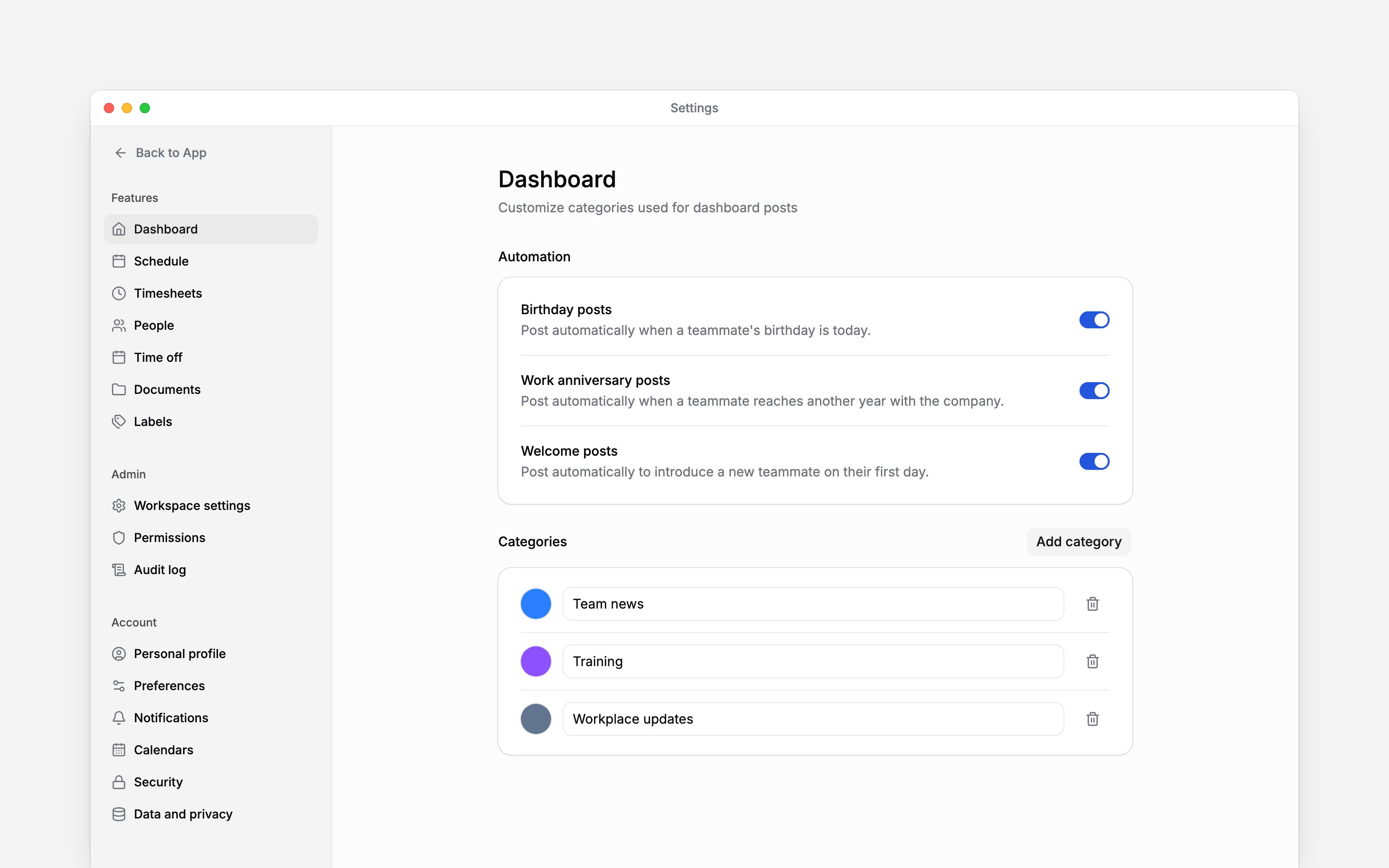
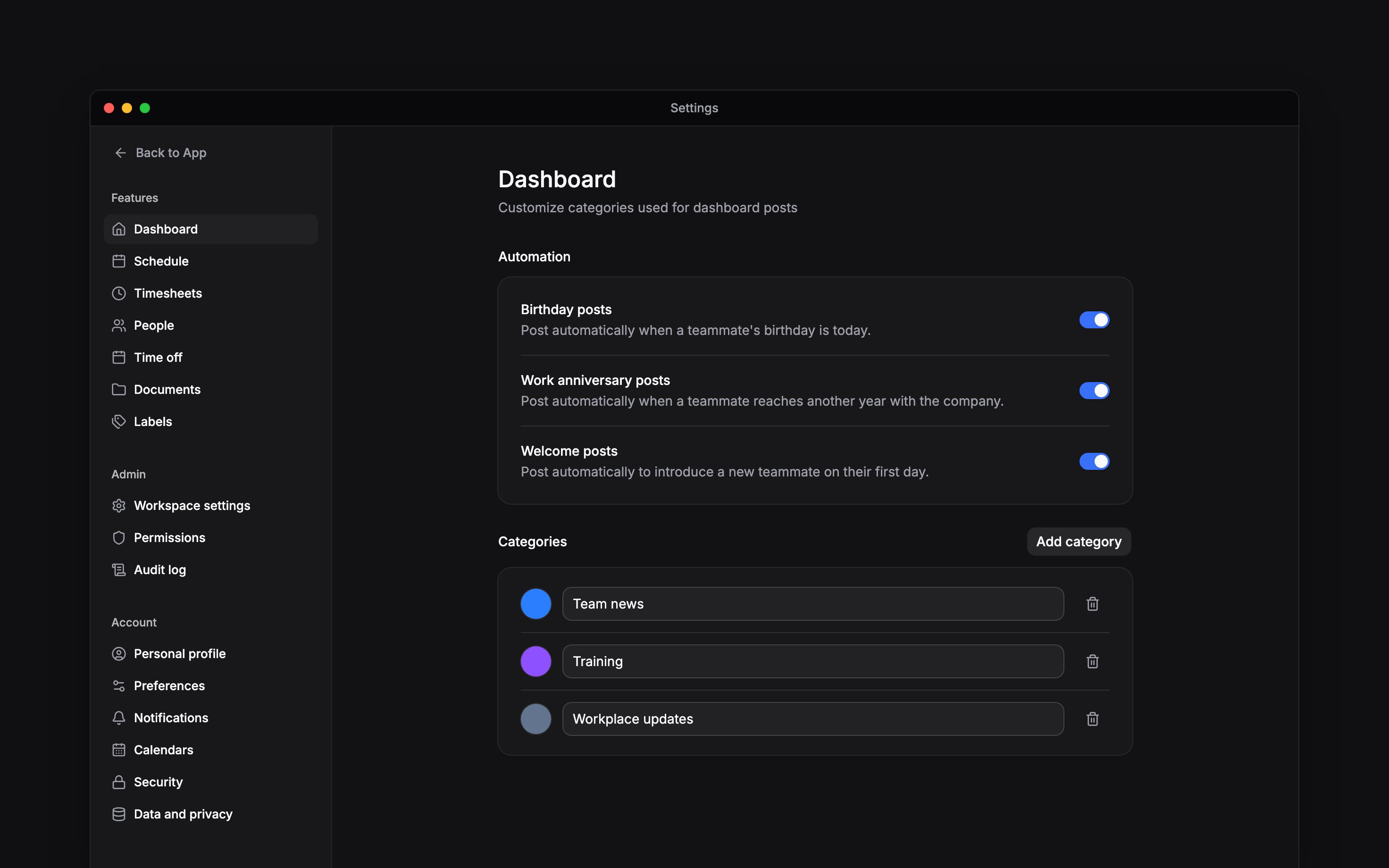
 Use Settings → Dashboard to organise the posts your team reads on Overview and choose which milestones Begin posts automatically. These settings apply to the workspace you have open.
You need access to Dashboard settings. Creating, editing and deleting categories each need
their own post-category permission. If you do not see Automation, your role lacks Manage
workspace settings.
Organise posts by topic
1
Add a category
Under Categories, choose Add category. Begin adds a row named New category.
2
Name and colour it
Replace the name with a topic your team recognises, such as
Team news. Choose the colour
beside it. Edits save automatically; there is no separate Save button.3
Use it on a post
Open Overview, create or edit a post and select the category. Readers can use categories to
narrow the feed.
Choose automatic milestones
Under Automation, set Birthday posts, Work anniversary posts and Welcome posts independently. The switches save as you change them.- Birthday posts use a teammate’s birthday.
- Work anniversary posts mark another year with the company.
- Welcome posts introduce a teammate on their first day.
Next
Publish a post
Choose a category, audience and message.
Notification settings
Choose how you receive updates yourself.
Still need help?
Contact support
Email the Begin team and we’ll get back to you.
Ask Begin AI
Open the AI assistant and get instant answers based on these docs.