


 If you already keep a list of clients, bring it in at once. Import a spreadsheet to add the clients in it, or turn a group of labels into clients, so the work already tagged with each label gets its client too.
Beta
Clients are rolling out gradually, so your workspace may not have them yet. If Clients is
missing from the sidebar, ask us to turn them on.
Import a spreadsheet
1
Open the import
On Clients, open More actions beside Add client and choose Import clients. While
you have no clients yet, Import clients sits in the middle of the page.
2
Choose the file
Pick a CSV or XLSX file of up to 5,000 rows whose first row names its columns. The file is read
in your browser and never stored.
3
Match the columns
Each column fills one client field. Columns named after a field are matched already; set the
rest, or choose Don’t import. One column must fill Name.
4
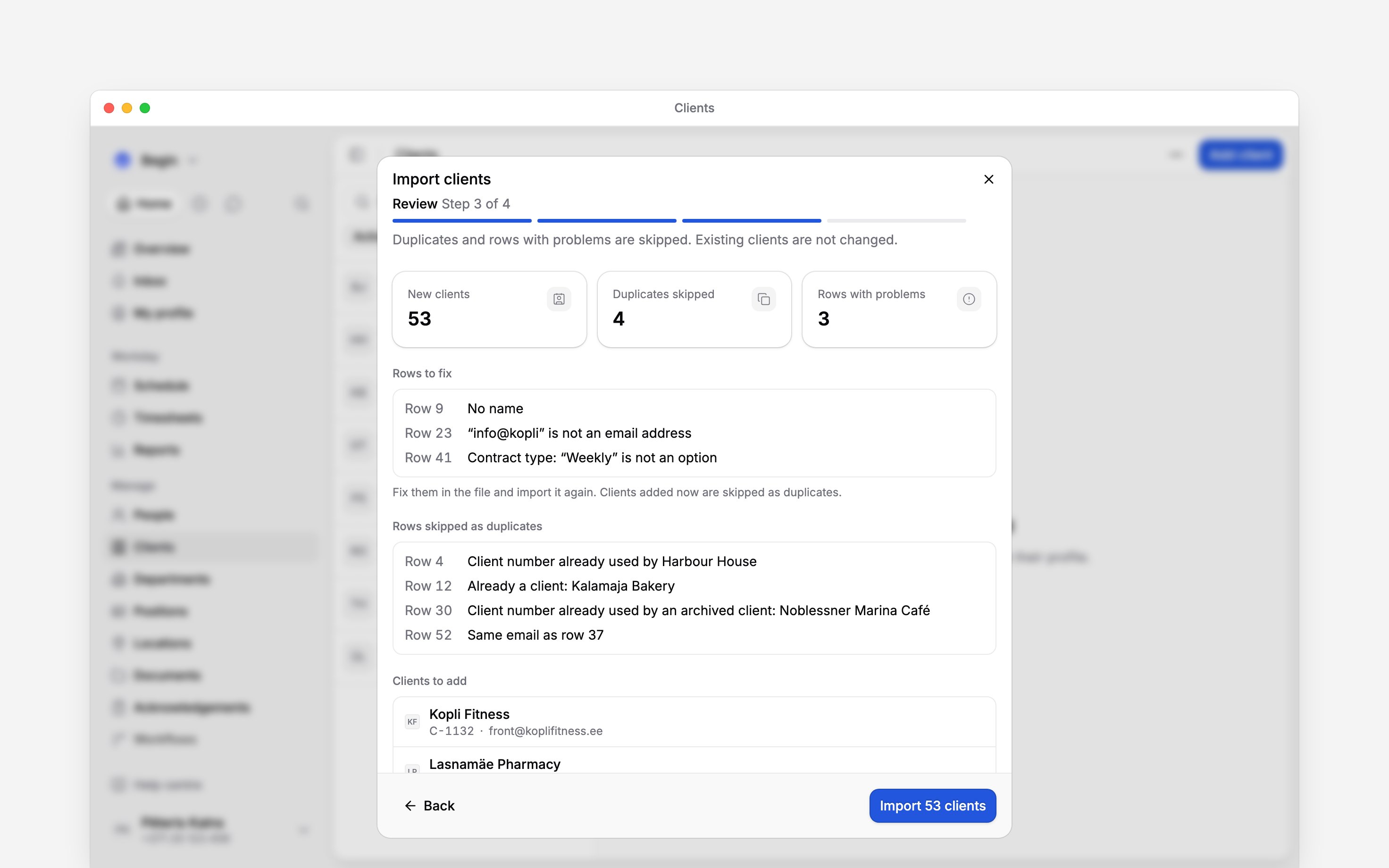
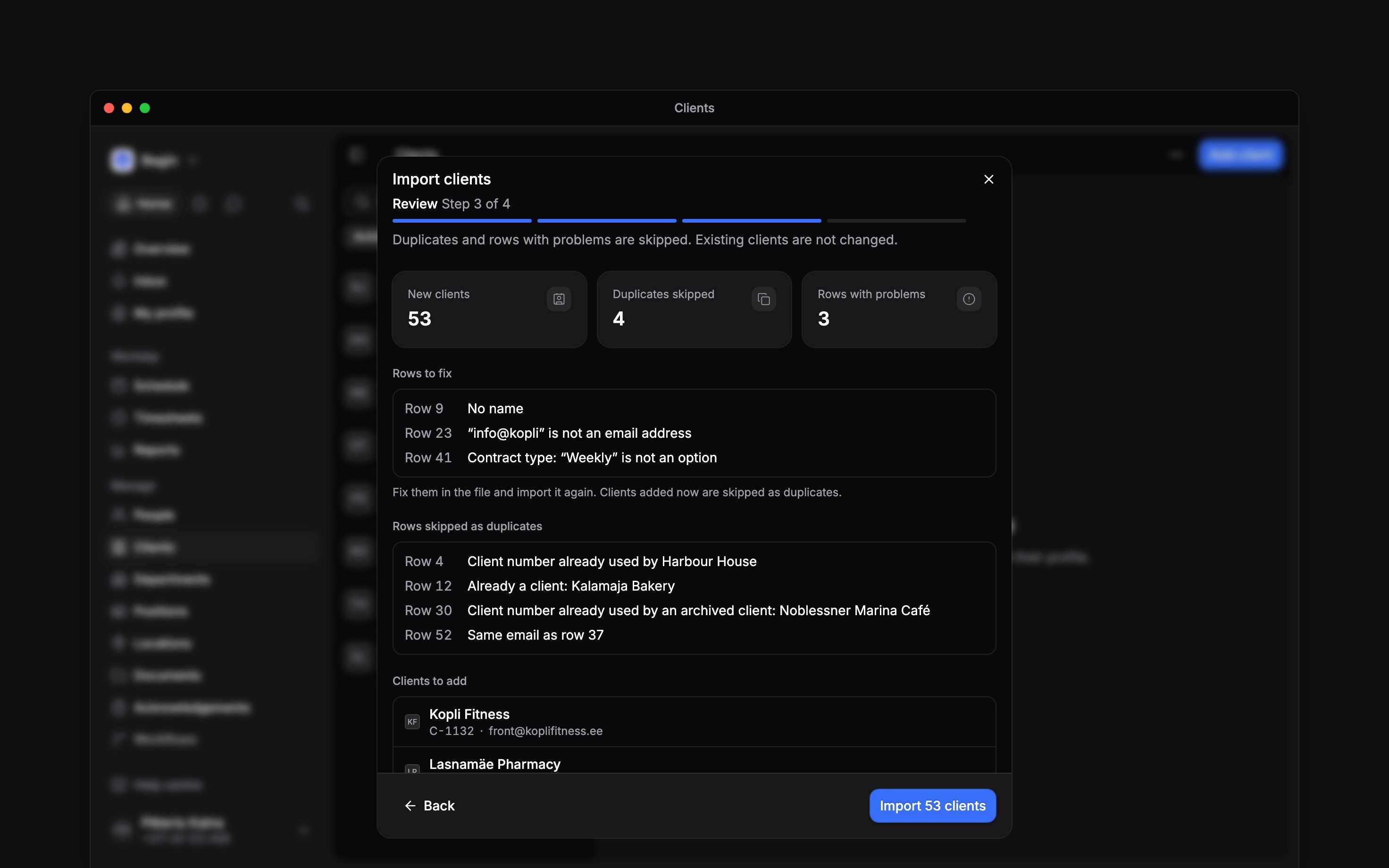
Review the rows
The window counts the New clients, Duplicates skipped and Rows with problems, and
lists the skipped rows with their reasons.
5
Start the import
Select the button that names how many clients it adds, such as Import 53 clients. You can
close the window: the import keeps running, the sidebar shows its progress, and the window says
how many clients were added when it ends.
Every required client field needs a
column, and a value in each row. Leave one unmatched and every row is listed as a problem.
Import the clients in this file.
Turn a label group into clients
If you have been tagging work with a label for each client, convert the group those labels sit in. Each label becomes a client, and every shift, time entry, shift template and shift pattern carrying the label gets that client.1
Open the group's menu
In Settings → Labels, open the group’s menu and choose Convert to clients.
2
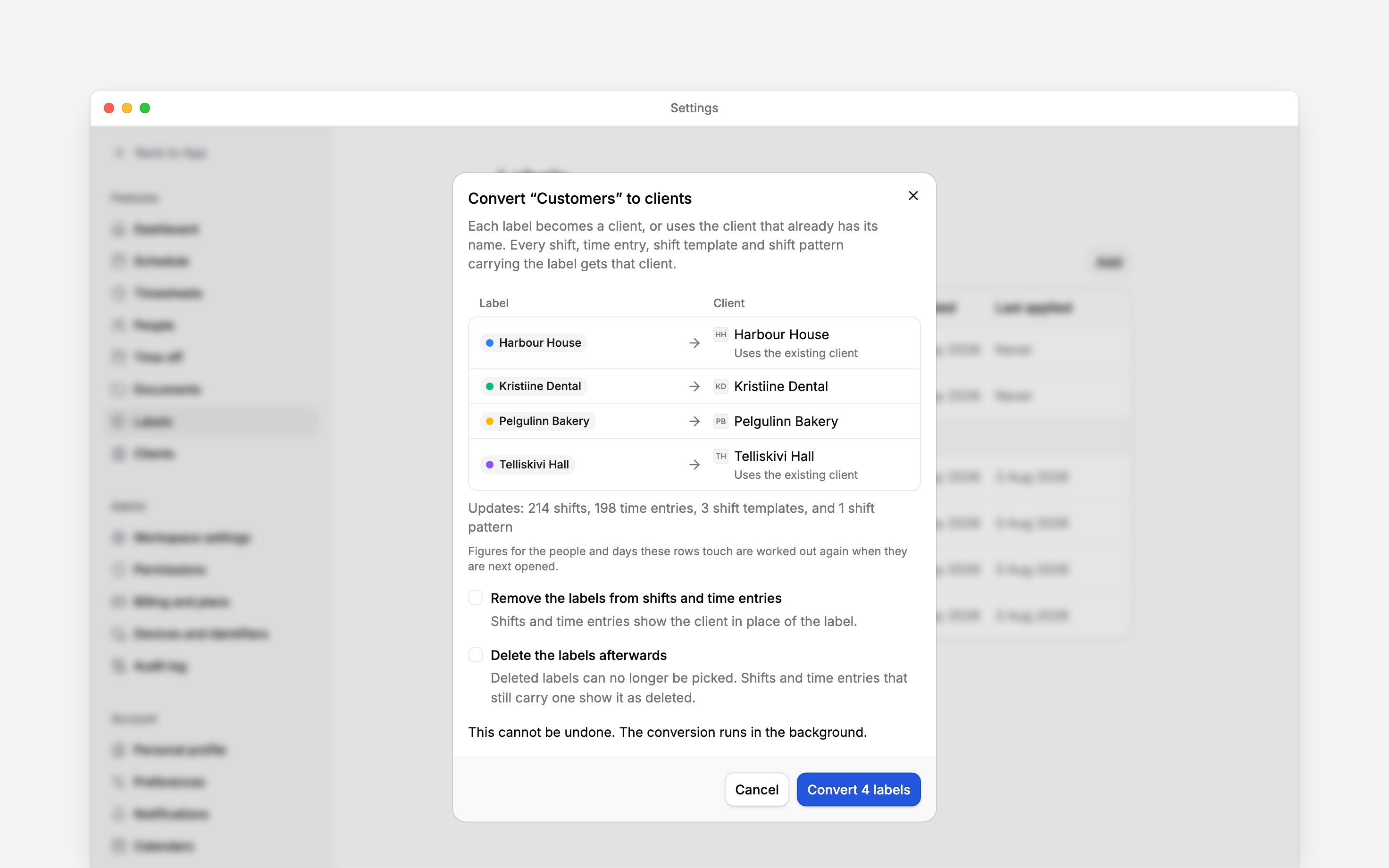
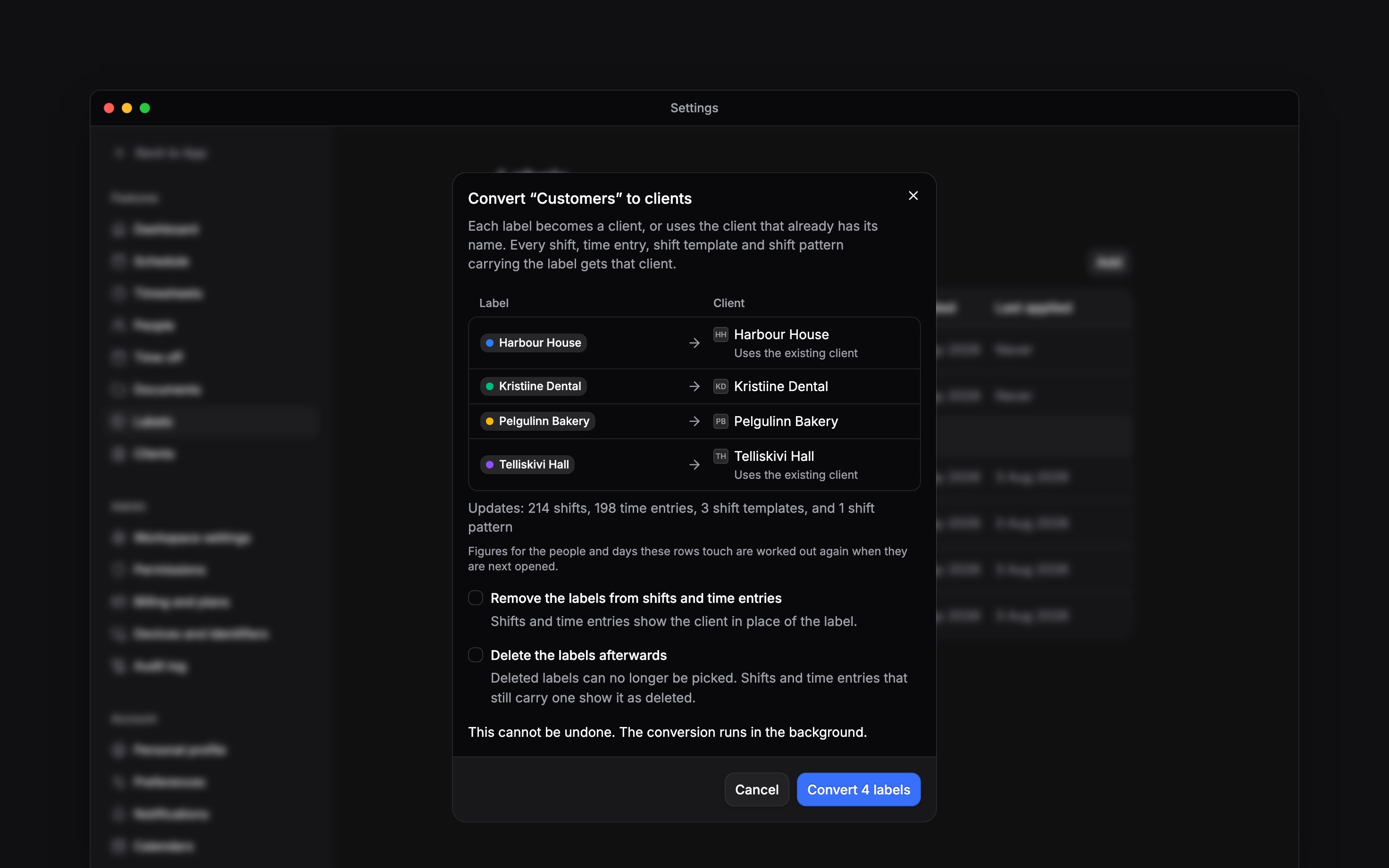
Check what it changes
Each label is listed beside the client it becomes. A label with the name of an active client
uses that client rather than adding another. Below the list, the window counts the work it will
update.
3
Choose what happens to the labels
The labels stay on the work unless you choose Remove the labels from shifts and time
entries, which takes them off templates and shift patterns too. Delete the labels
afterwards also takes them out of the label list. A label stays while time off, availability,
or a shift or time entry already holding 10 clients still carries it, and the window then says
how many were kept.
4
Convert
Select the button that names how many labels it converts, such as Convert 4 labels. The
conversion runs in the background, and the sidebar shows its progress.
Next
Tagging work with clients
Put clients on new shifts and time entries.
Seeing work by client
See the shifts and hours for each client.
Still need help?
Contact support
Email the Begin team and we’ll get back to you.
Ask Begin AI
Open the AI assistant and get instant answers based on these docs.