


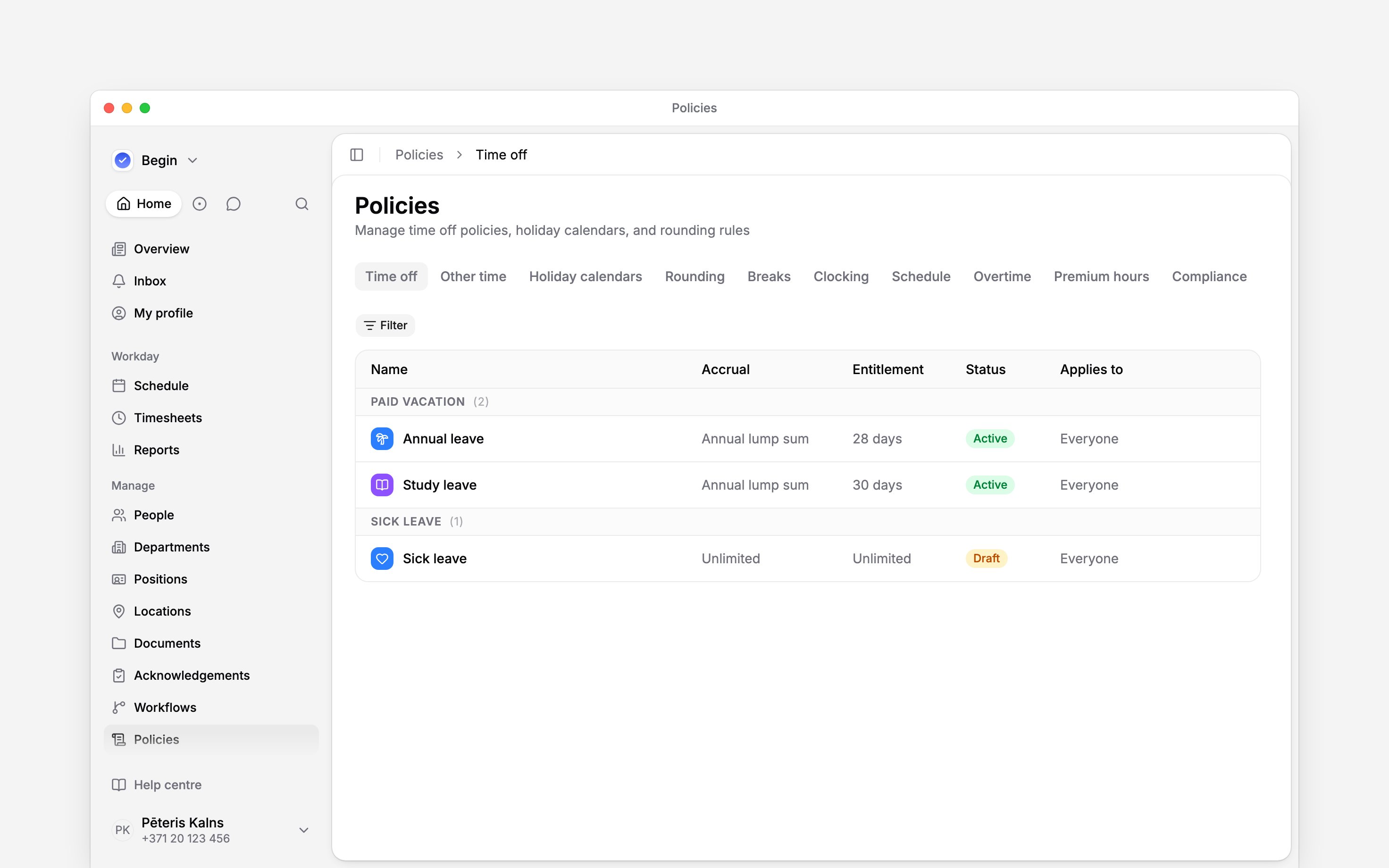
 A time-off policy names a kind of leave and decides who gets it, how much they receive and what a request spends. Every absence on the schedule must use one.
Decide the allowance first
Use Annual lump sum when you need to configure an annual entitlement and its granting timing. Enter the annual amount, then use When entitlement is granted to choose all at once on 1 January or monthly at the start or end of each month. Choose Unlimited when requests should have no finite allowance. Per pay period and On anniversary calculate exactly like Annual lump sum and show the same granting, rounding and Apply from year controls, so the settings that move balances are always visible on the policy they apply to. For example, if your agreed allowance is 24 days per year granted at once, choose Annual lump sum, amount24 and All at once on 1 January. This is an example, not a recommended entitlement. Employment dates and other entitlement settings can change an individual’s result.
Create the policy
1
Start it
Go to Policies → Time off, open Add, then choose Time off policy.
2
Name the leave
Set the name on General. On Entitlement, choose the leave type and whether the time off
is paid. Show the leave type to colleagues, on Requests, is off by default: colleagues
see only that the person is away.
3
Set the entitlement
Choose the accrual method and amount. For any method except Unlimited, choose when it is
granted and whether it rounds to half or whole days. Set Apply from year only if earlier
years should carry no entitlement.
4
Set what spends it
On Entitlement, under Balance reduction, choose Exclude weekends and Exclude
public holidays as needed. Under Carryover and overbooking, enable Allow carryover and
set its limit if unused balance may enter the next year, and enable Allow overbooking only
if requests may take the balance below zero. Its Overbooking limit (days) caps how far below
zero, for example 5 to allow five days in advance; leave it empty for no limit. On Requests,
under Request rules, set the Minimum and Maximum request length and a
Requirement of Not used, Optional or Required, and turn off Allow partial-day
requests if the leave is booked in whole days only.
5
Decide approval
On Requests, set Require approval under Approval. This is separate from the
entitlement amount; an unlimited allowance does not itself decide who approves a request.
6
Decide who can request it
On Requests, Who can request decides who may pick the leave in their own request form:
Everyone it applies to, Selected people (by position, department, role or person) or
Nobody. It does not change Applies to or balances, and managers can still book the leave
for anyone.
7
Target and activate it
On the General tab, choose Applies to. To
leave out contractors, for example, switch it to Custom and add an Employment type that
does not include them. Set Status to Active, then save.
Keep balances accurate
The policy detail shows balances for the people it reaches. Use Adjust balance when you need to bring in an opening balance or make a correction: enter the balance the person should have, and record the reason. The adjustment changes that person’s total without changing the entitlement for everyone else. If Exclude public holidays is on, Begin resolves holidays from the person’s work country. Only holidays marked Paid holiday in the calendar are excluded; an unpaid holiday still spends the balance. The current time-off form has no calendar picker. Request-length limits still count calendar days: Monday to Sunday is seven days even when the weekend does not reduce the balance. Before your team starts booking, check one person’s Time off profile tab. Confirm the entitlement and opening balance, then open a request for a known date range and review which days would spend it. A weekend excluded from the balance is still part of the requested date range. You cannot delete a policy with time off booked against it: archive it instead. Archived policies stop accepting requests but keep balances and history. Deleting a policy removes its members’ balance records.An entitlement change counts from the next balance year. Each year keeps the settings in force on
its 1 January, so a change saved in June leaves this year’s and earlier years’ balances and
carryover as they were. A year that began unlimited has no balance to keep, so the first fixed
entitlement that takes effect that year applies to the whole year, and its unused days carry over
as usual. A change scheduled for a later date, or applicable from a later year, waits. Check the
audience before saving a change to an active policy.
Next
Holidays and calendars
Define the public holidays a leave balance may exclude.
Time off on the schedule
Book leave and read the balance card it produces.
Still need help?
Contact support
Email the Begin team and we’ll get back to you.
Ask Begin AI
Open the AI assistant and get instant answers based on these docs.