


 Labels describe the work a shift or time entry belongs to, such as Deep clean or Stocktake. Create a shared set in Settings → Labels so people use the same terms and you can filter reports consistently.
You need access to Labels settings. Creating, editing and deleting labels and groups also require the corresponding Labels permissions.
Labels describe the work a shift or time entry belongs to, such as Deep clean or Stocktake. Create a shared set in Settings → Labels so people use the same terms and you can filter reports consistently.
You need access to Labels settings. Creating, editing and deleting labels and groups also require the corresponding Labels permissions.
Build your label list
1
Create a group if you need one
Choose Add → Group, enter its name and choose a colour, then save. A group such as
Cleaning keeps related labels together; a label can also have no group.2
Add a label
Choose Add → Label. Give it a distinct name, an optional description and a colour. Select
its group if it belongs to one, then save.
3
Apply it to work
Select the label from Labels on a shift or time entry. In Reports, use the labels filter to
narrow the records to that work. A clocking policy can make a label compulsory at clock-in;
while the workspace has no labels that rule is ignored.
Keep the list consistent
Open a label to edit its name, description, colour or group. Its three-dot menu has Move up and Move down. On desktop, right-click a label for Move to group, including No group. Open a group to rename or recolour it. Use its menu to add a label directly into that group or move the group up or down. Renaming a label changes the name readers see when they look at work already tagged with it. A job type moved over from Begin Classic as a group can itself be picked. In a picker, its row ticks the job type, and the arrow beside it opens its sub job types. Renaming that group renames the job type on work already tagged with it, unless another label already has the new name; then the job type keeps its old name. If each label in a group names a client, Convert to clients in the group’s menu turns the labels into clients and puts each client on the work carrying its label.Beta
Clients are rolling out gradually, so your workspace may not have them yet. Without them, a
group’s menu has no Convert to clients; ask us to turn them on.
Remove a label or group
Choose Delete from the label’s menu and confirm. It disappears from the choices for new work. Existing shifts and time entries keep their historical reference, shown with (deleted) where that label is displayed. Deleting a label does not delete their hours. Deleting a group leaves its labels intact and moves them to No group. If you only want to tidy the list, regroup or rename it first. There is no Archive action for labels in the current interface. Do not delete a label expecting to restore it from an archive later.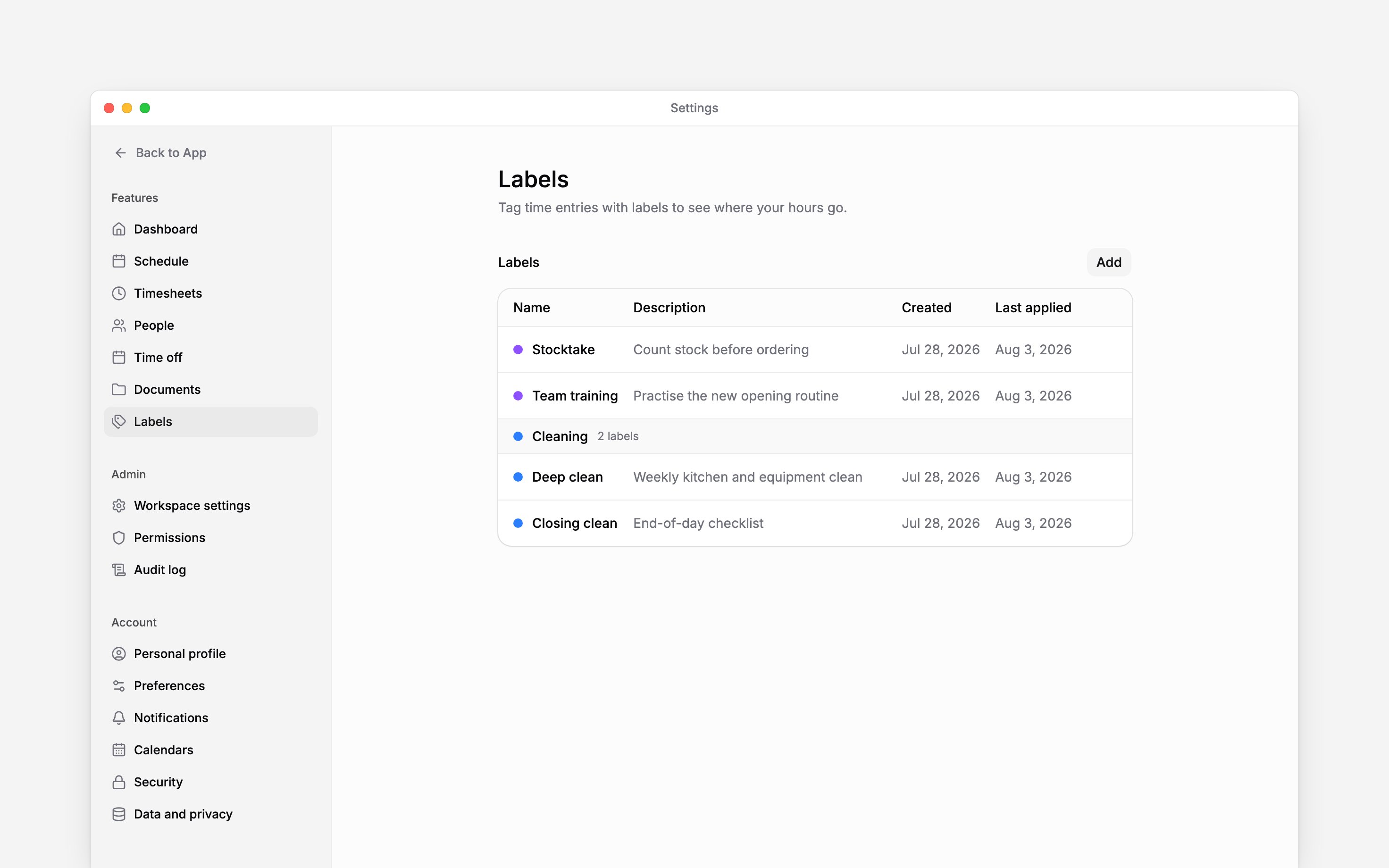
Next
Create shifts
Tag scheduled work with the right labels.
Build a report
Filter worked time to the records you need.
Still need help?
Contact support
Email the Begin team and we’ll get back to you.
Ask Begin AI
Open the AI assistant and get instant answers based on these docs.