


 Open a client from Clients to see what Begin holds about them. Overview has the client’s details and fields, Timeline its notes and history, and Shifts and Time the work tagged with it, which Seeing work by client covers.
Beta
Clients are rolling out gradually, so your workspace may not have them yet. If Clients is
missing from the sidebar, ask us to turn them on.
Read and fill in the details
Details shows the client number, email, phone and address, and Edit changes them. Below it, each field group has a card of its own, and fields outside a group share a card called Custom fields. Fill in a field where it sits. A switch saves as you flip it and a choice as you pick it; text saves when you press Enter or click away. There is no Save button, and the change shows at once. A required field can be changed but not emptied. An archived field appears only on clients that already hold a value for it, marked Archived, and nobody can change it there.Keep notes on the timeline
Timeline lists the notes your team writes about the client together with its history: who added or edited the client, archived or restored it, set one of its fields, or added it to a shift or time entry. The newest is at the top. Write a note in the box above them. Type@ to mention a person, department, position or location, and use Attach file to add files. Each note has its own reply box, so the conversation about it stays in one thread.
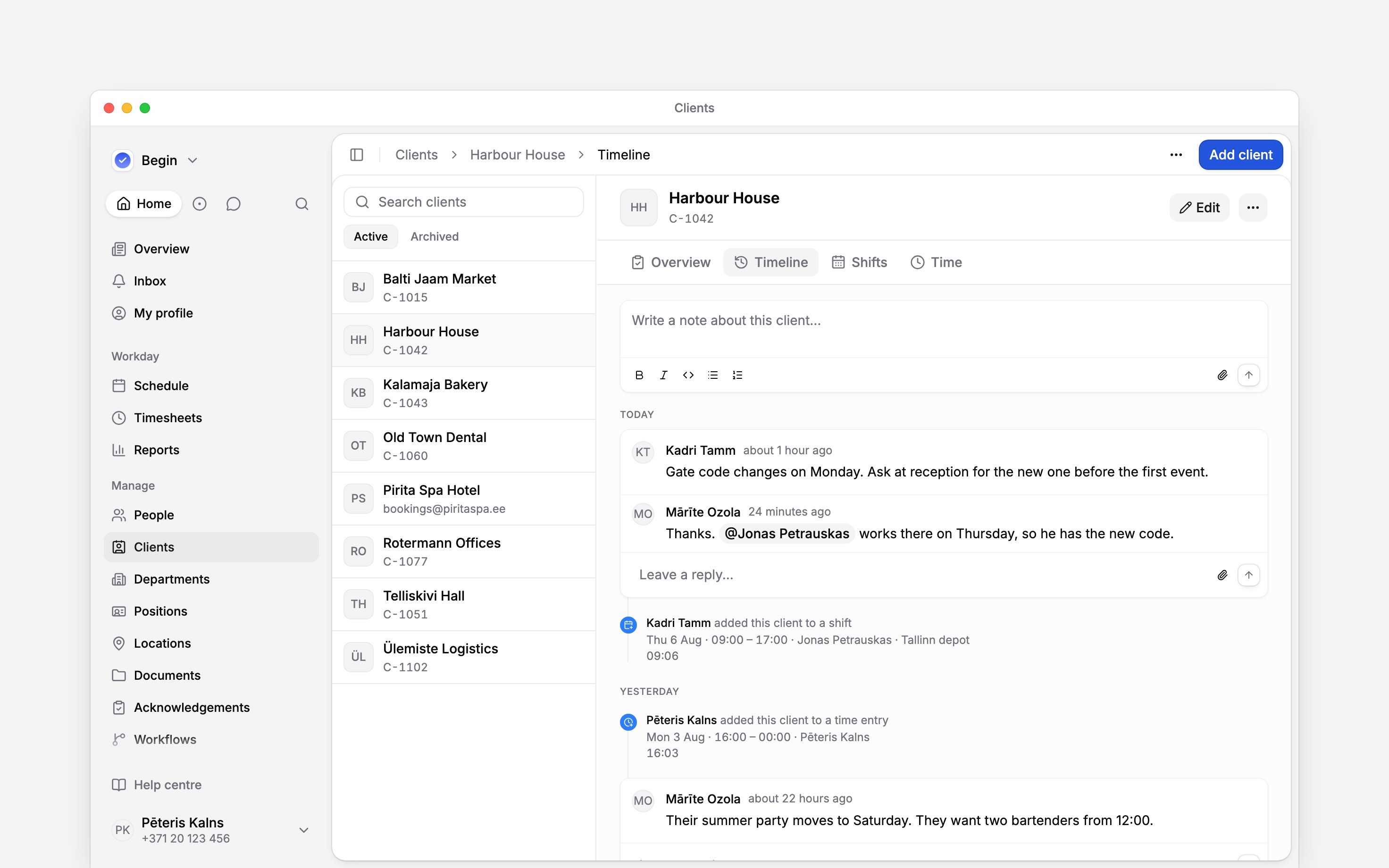
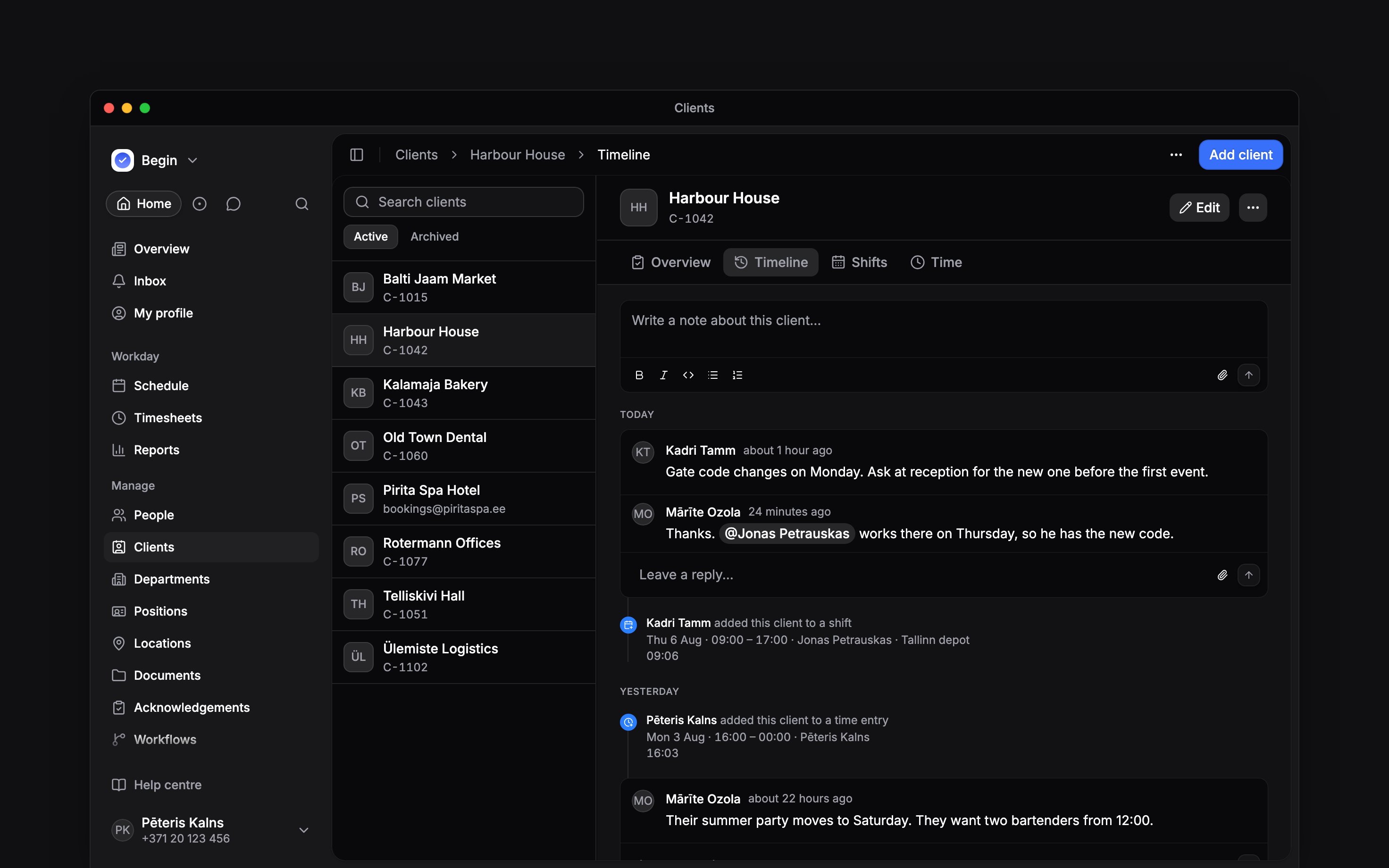
Add a note to Harbour House that the gate code changes on Monday.
History about a shift or time entry you cannot see is left out of your timeline. Two people can
read a different history for the same client, and neither is missing anything they are allowed to
see.
Next
Client fields
Decide which fields every profile has, and how they are grouped.
Seeing work by client
Read the shifts and time a client’s work adds up to.
Still need help?
Contact support
Email the Begin team and we’ll get back to you.
Ask Begin AI
Open the AI assistant and get instant answers based on these docs.