


 Use Settings → Billing and plans to start a self-service Standard upgrade, ask about Pro, or schedule a paid subscription to end. Each path tells you when the change takes effect before you confirm it.
Billing must be available for your workspace. If you see Billing is not yet available, contact
Begin support. You need Manage billing. The Administrator role has it by default. Where custom
roles are available, an administrator can grant it under Settings → Permissions.
Upgrade the plan
1
Open the plans
Open Billing and plans and choose Upgrade.
2
Choose the route
Choose Upgrade to Standard for self-service checkout. Choose Contact sales on Pro and
send the requested company and contact details.
3
Return after checkout
Begin shows Payment successful and updates the plan automatically after the payment is
confirmed.
Schedule a move to Free
Scroll to the bottom of Billing and plans, choose Cancel subscription, review what you will lose, and continue to the reason and confirmation. The workspace stays on its paid plan until the current billing period ends, then moves to Free. Existing people and data remain, but Free limits and feature access apply after that date. The Messages and Posts add-on ends with the subscription. Purchased Begin AI tokens and e-signature credits stay in the workspace. Check the active-employee count before the end date. If the workspace exceeds Free after the change, Begin asks you to suspend people until the count fits: follow Fit the Free employee limit. Begin may show a stay offer before the confirmation when the subscription is eligible. Accepting it keeps the subscription active. If no offer is available, the ordinary confirmation still opens.Resume before the end date
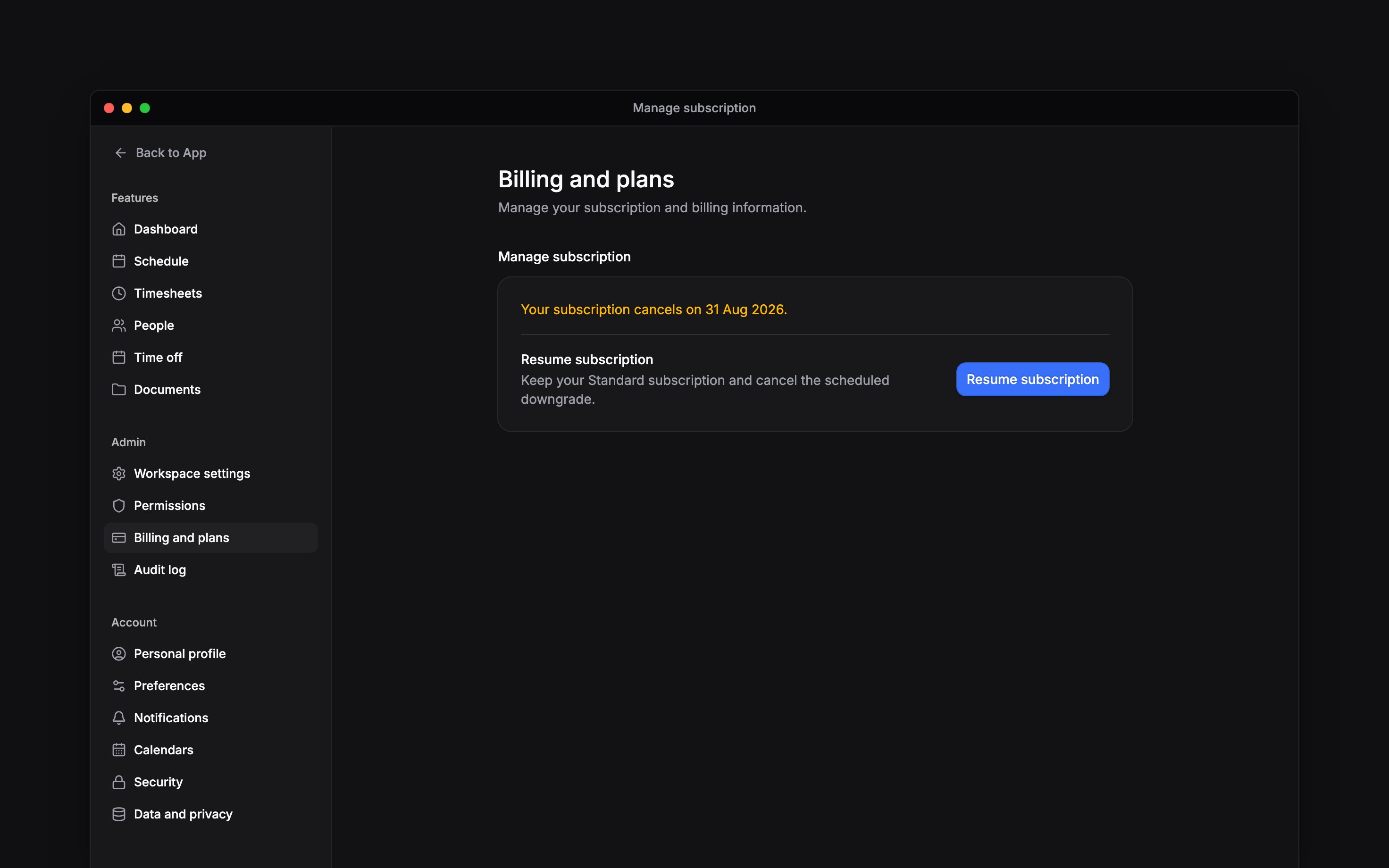
Once cancellation is scheduled, Manage subscription shows the cancellation date and replaces the cancel control with Resume subscription. Choose it to cancel the scheduled move to Free. Check that the cancellation notice disappears and Cancel subscription returns before leaving the page.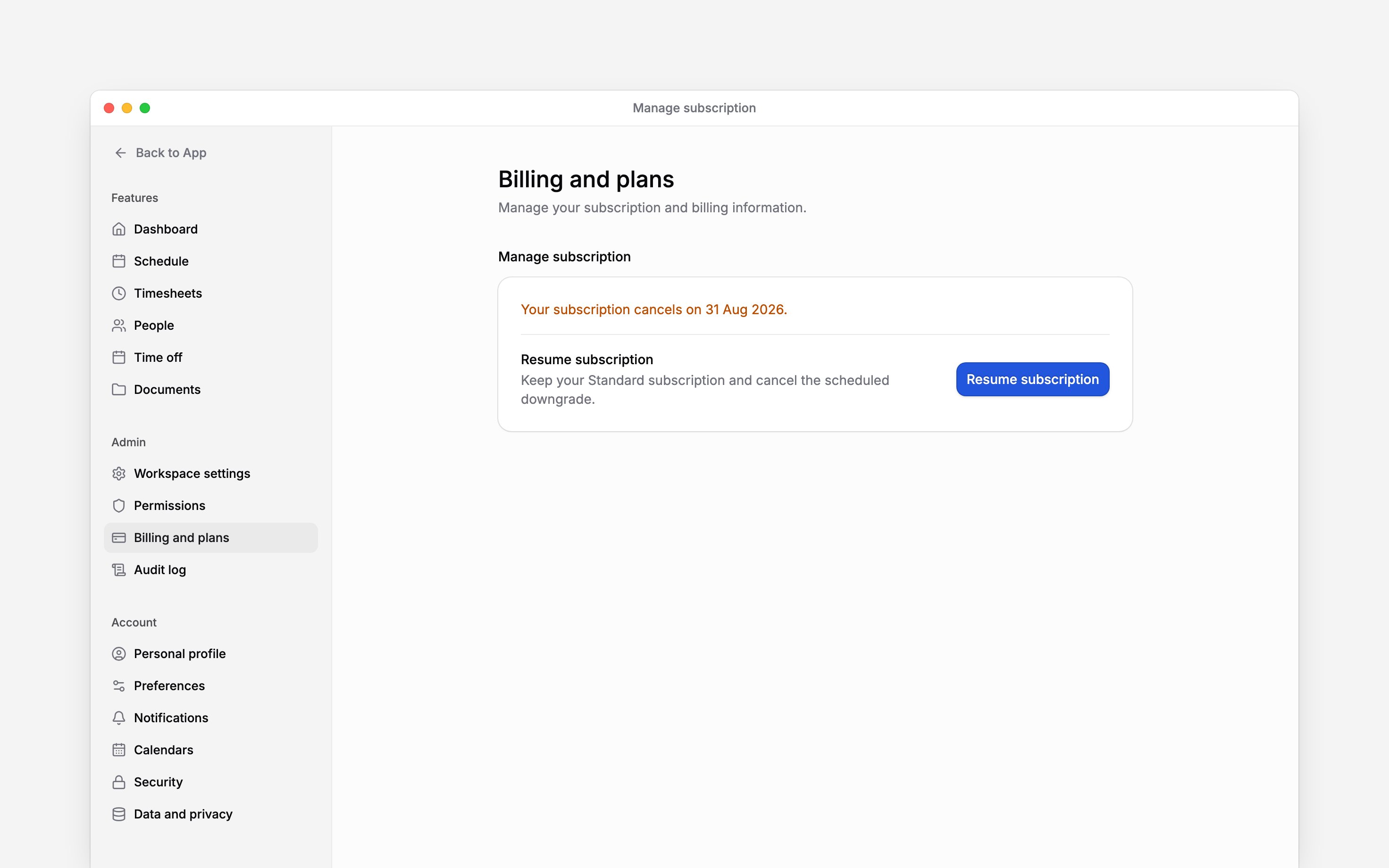
Next
Managing payment details
Update the payment details used by the subscription and check invoices.
Recovering a failed payment
The separate path when Stripe has stopped collecting on the subscription.
Still need help?
Contact support
Email the Begin team and we’ll get back to you.
Ask Begin AI
Open the AI assistant and get instant answers based on these docs.