


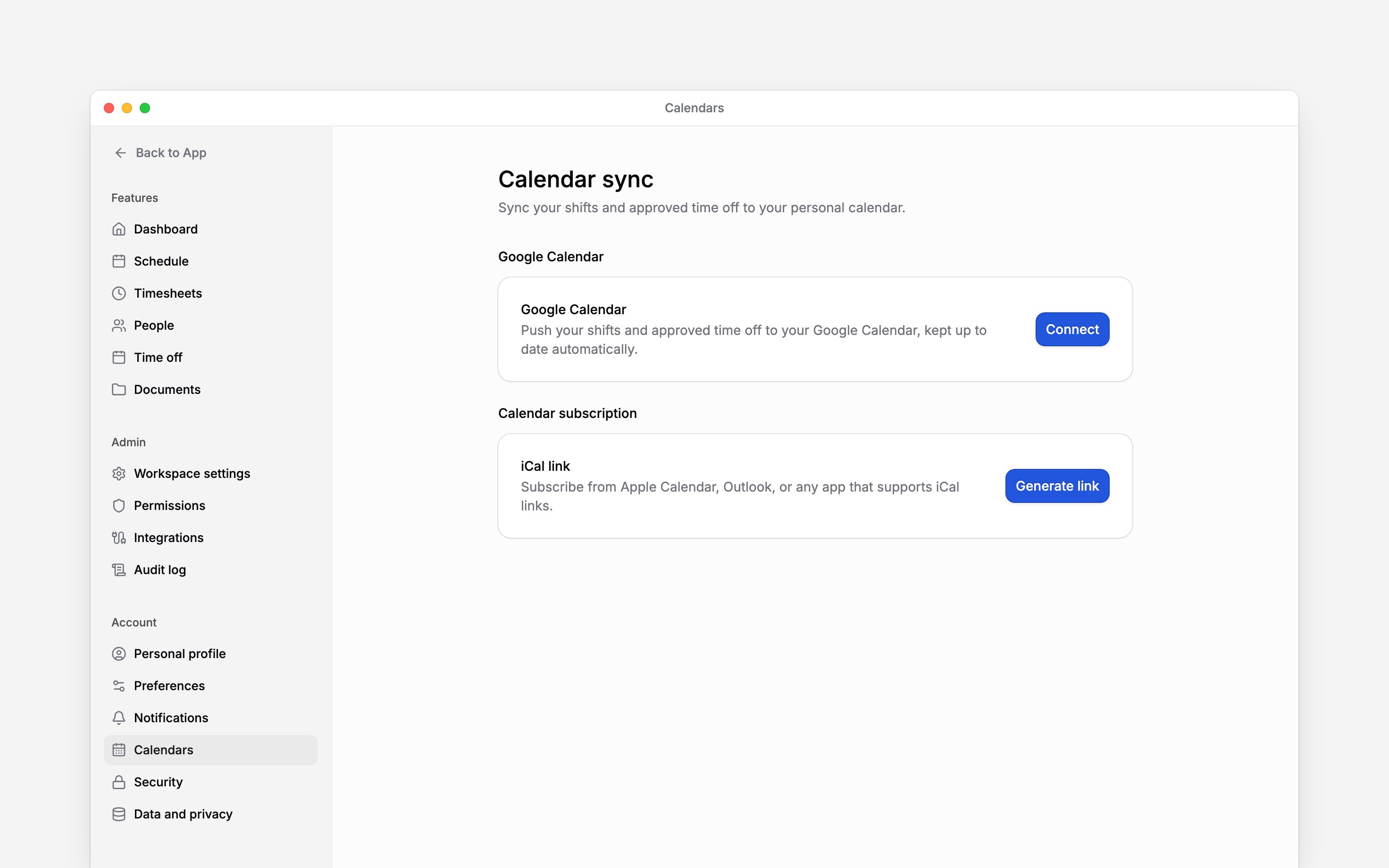
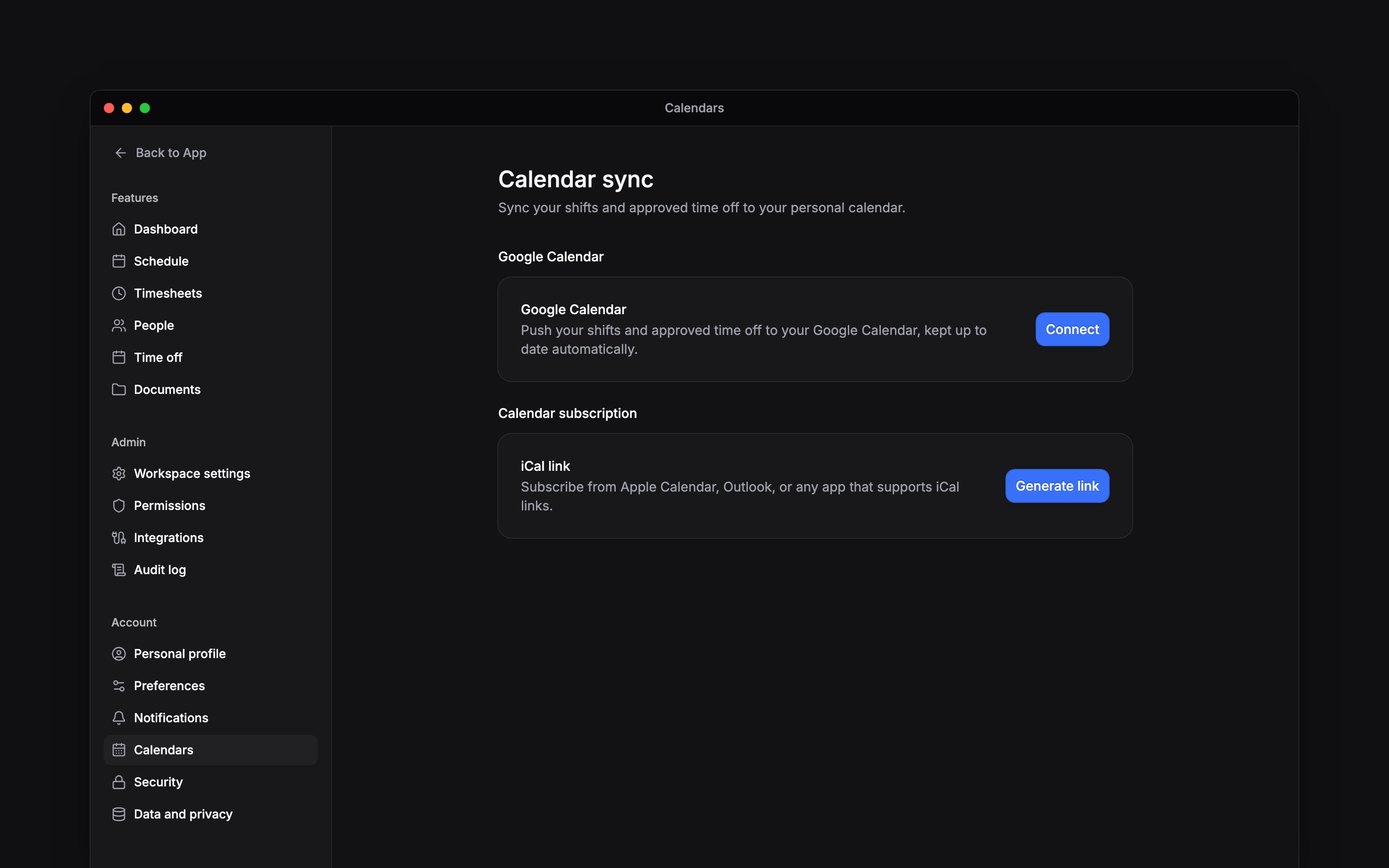
 Show your own published shifts and approved time off in another calendar. Open Settings → Calendars in Begin. The connection belongs to you in the active workspace; it does not export the whole team’s schedule.
Connect Google Calendar
1
Choose Google Calendar
In Settings → Calendars, choose Connect under Google Calendar.
2
Approve access
Sign in to the Google account you want to use and approve the connection.
3
Check the connection
Back in Begin, check the connected account and last-sync status. Your published shifts and
approved time off are sent automatically.
Subscribe from another calendar
For a calendar that accepts an iCal subscription, such as Apple Calendar or Outlook, choose Generate link under Calendar subscription, then Copy link. In your calendar app, add a calendar subscription using that URL. Subscribe to the link rather than importing it once if you want later changes. Your calendar app decides how often it refreshes the subscription, so updates may appear later than they do in Begin.Know what updates
Both methods include recent history and the coming year: 30 days back and 365 days ahead. Draft shifts and time off still awaiting approval are excluded. Editing an event in the other calendar does not change Begin. Choose Disconnect to stop Google updates. Events already added to Google stay there. Remove stops the subscription link; Regenerate invalidates the old URL. Begin AI can disconnect Google and create, regenerate or remove the link for the person asking, never for someone else, and it never shows the link in the chat.Next
Begin MCP
Ask an AI client about your own Begin data.
Integrations overview
Choose the connection you need.
Still need help?
Contact support
Email the Begin team and we’ll get back to you.
Ask Begin AI
Open the AI assistant and get instant answers based on these docs.