


 The free trial starts when the workspace is created, lasts seven days and gives your workspace Standard limits until the end date shown in Begin. A workspace moved to Begin from Heybegin starts its trial at the move instead, and it lasts until the date the next Heybegin invoice was due. A workspace moved from Begin Classic gets a 30-day Pro trial instead, starting when Begin prepares the move. The Current plan card and sidebar count down to its end date. What happens next depends on whether the subscription has a payment method.
Billing must be available for your workspace. If you see Billing is not yet available, contact
Begin support. You need Manage billing to add a payment method or choose Continue on Free.
The Administrator role has that permission by default.
Keep your plan after the trial
1
Open Billing and plans
Go to Settings → Billing and plans before the date shown on the trial card.
2
Add a payment method
Choose Add payment method. Begin opens the secure payment setup so you can save the method
used for the subscription.
3
Return to Begin
Payment method added confirms the setup. The subscription continues automatically when the
trial ends.
Fit the Free employee limit
Compare your active-employee count with the Free limit shown in Begin. If more are active when the trial ends, Begin keeps every person and asks you to reduce the active count. Open Billing and plans, find Downgrade to Free, and choose Choose employees to suspend. Suspended employees keep their data but cannot access the workspace.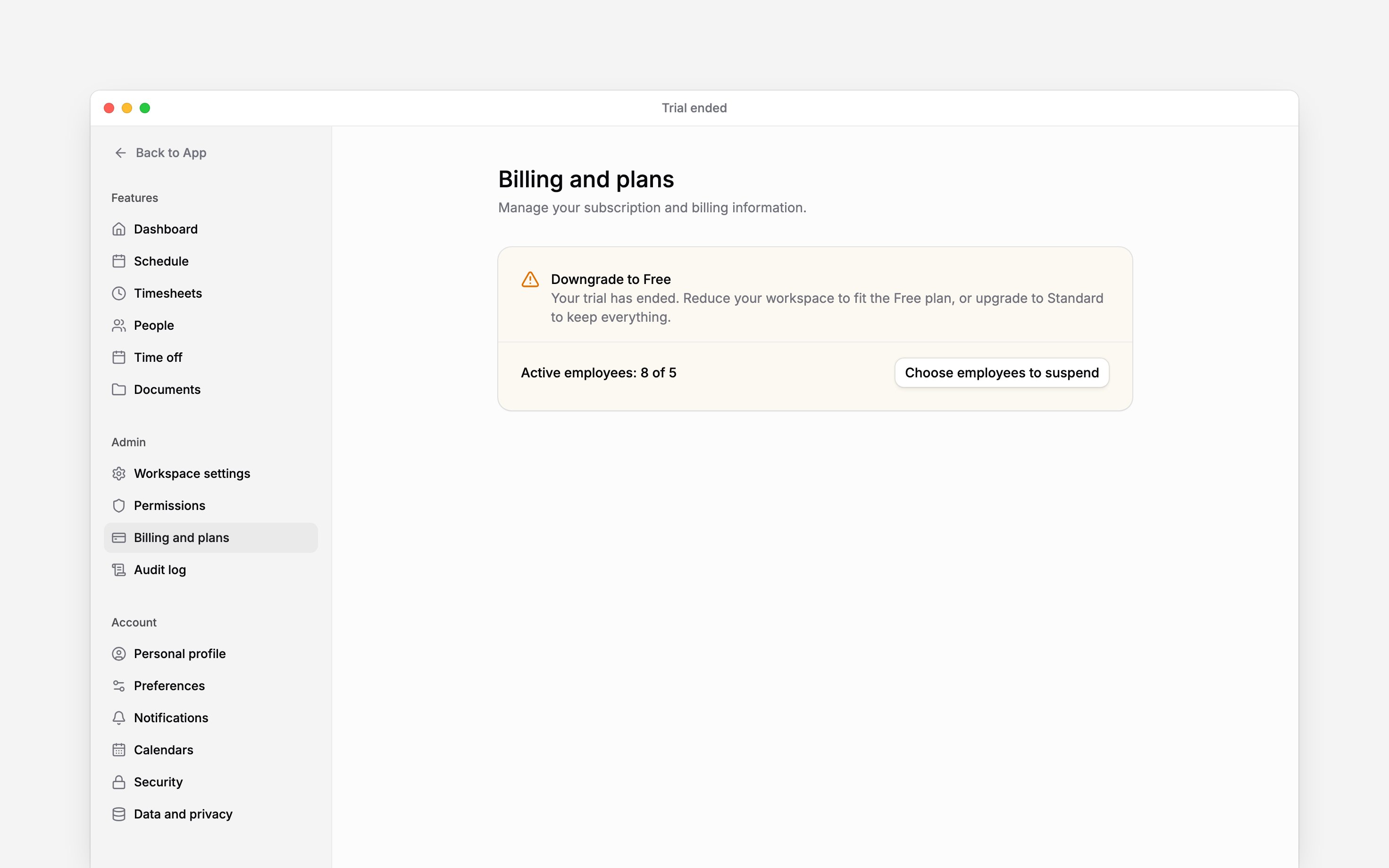
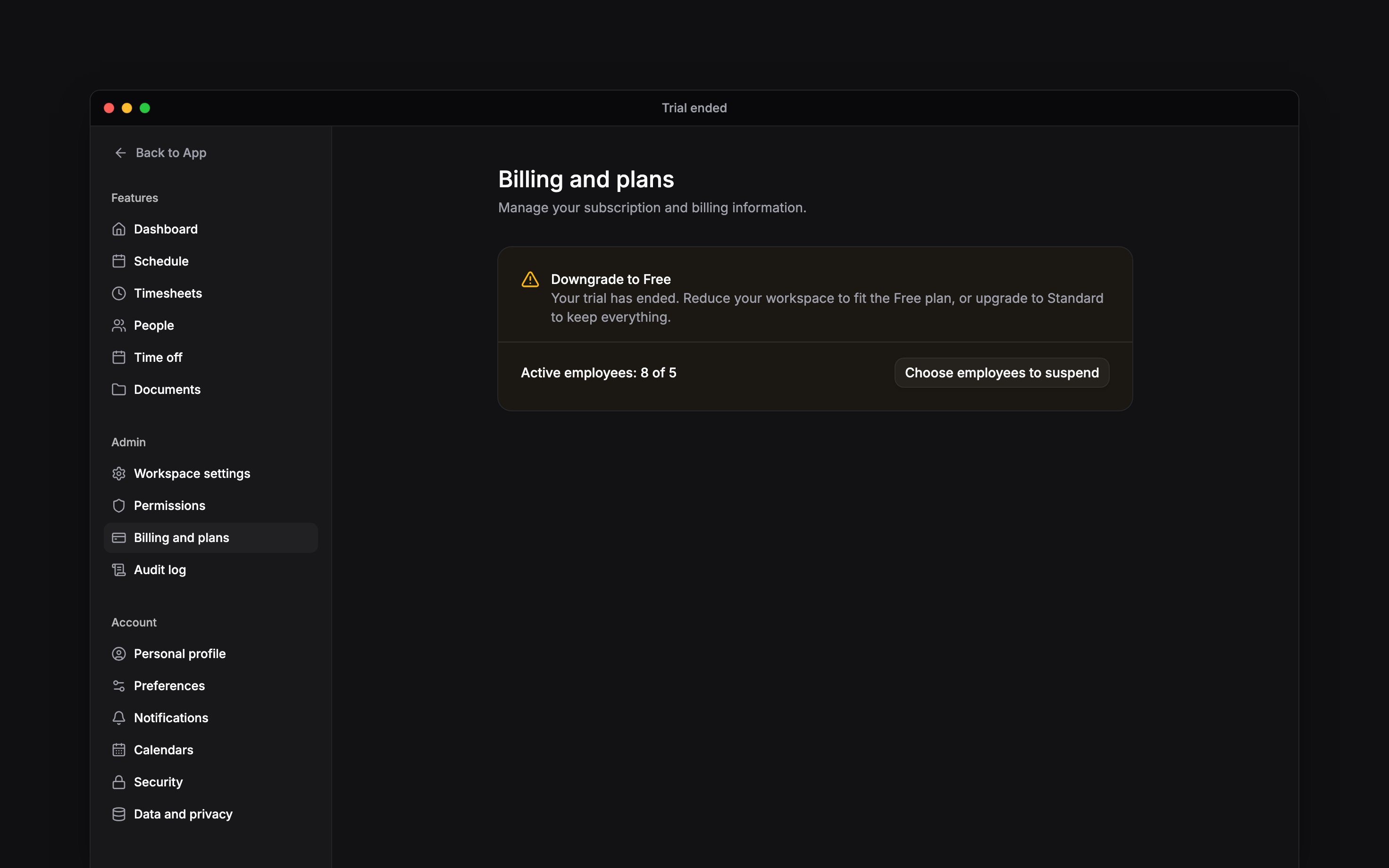
The downgrade checklist stays until the active-employee count fits Free
Continue on Free dismisses the trial-ended prompt. It does not remove people or raise the Free
limits, so capped actions remain blocked until the workspace fits or you upgrade.
Next
Choosing a plan
Compare the limits before keeping Standard or moving to another plan.
Managing payment details
Check the payment method that carries the subscription forward.
Still need help?
Contact support
Email the Begin team and we’ll get back to you.
Ask Begin AI
Open the AI assistant and get instant answers based on these docs.