


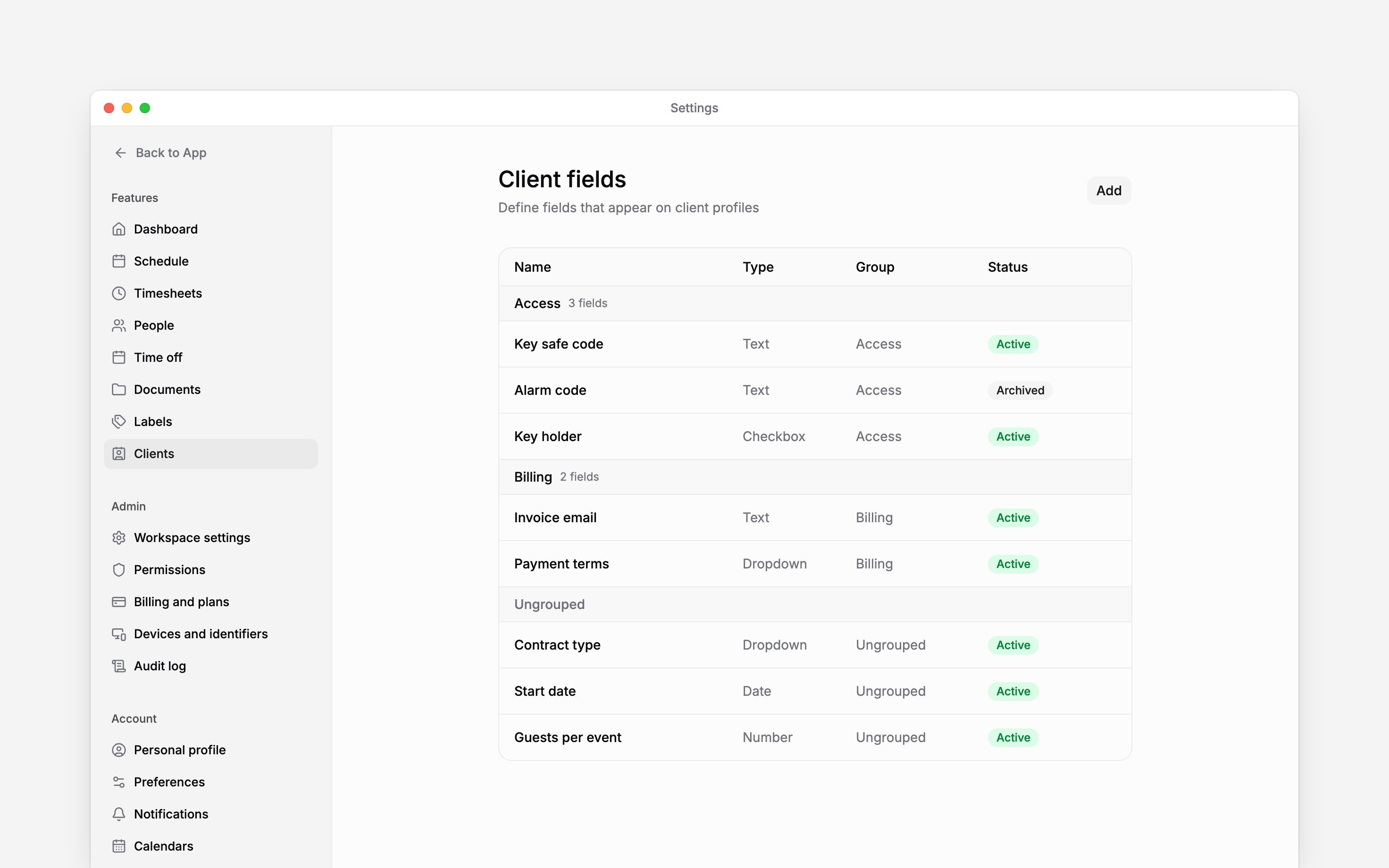
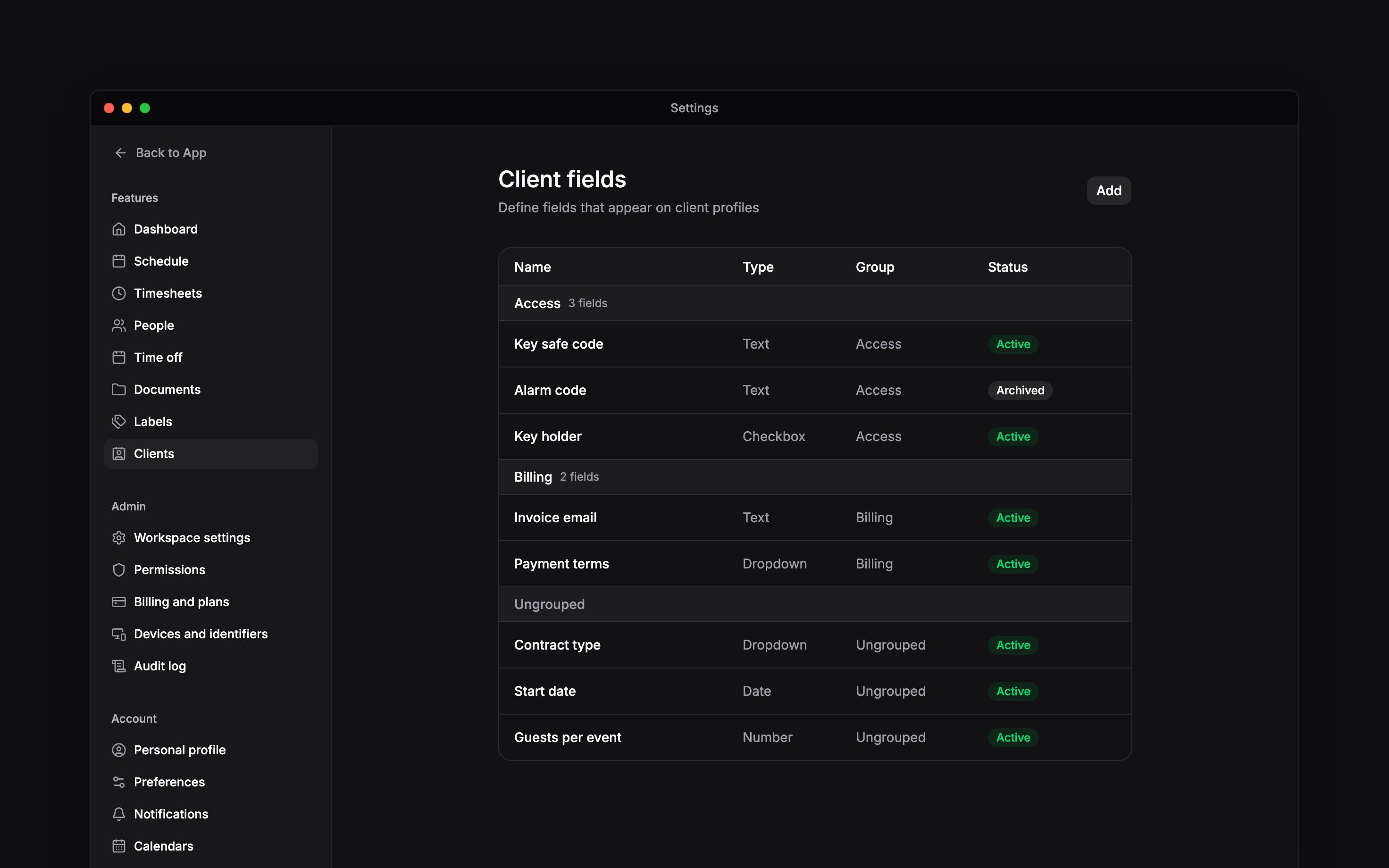
 Client fields are what your workspace records about every client beyond its name and contact details: a contract type, a key safe code, the day you visit. You define them once in Settings → Clients, and every client profile shows them.
Beta
Clients are rolling out gradually, so your workspace may not have them yet. If Settings has no
Clients, check that your role can manage client settings, then ask us to turn clients on.
Add a field
1
Open Client fields
Go to Settings → Clients. On the Clients page, Client fields in the three-dot More
actions menu goes to the same place.
2
Start a field
Select Add, then Field.
3
Name it and pick its type
Give it a name, then choose Text, Number, Date, Dropdown, Multi-select or
Checkbox. A dropdown or multi-select needs at least one option. Pick the type with care: it
cannot be changed later.
4
Decide how it behaves
Turn on Required or Searchable where you need them, and put the field in a Group if
you have one.
5
Save it
Select Add field. Every client profile now shows it, in its group’s card or under Custom
fields.
Add a dropdown client field called Service type with the options Cleaning, Care and Maintenance.
Required and searchable
A checkbox can be marked searchable, but its value is never found.
Keep the list tidy
A group gathers its fields into a card of their own on each profile, such as Access or Billing. Add one with Add → Group, then move a field into it with Change group in the field’s menu. Move up and Move down set the order within a group. Deleting a group keeps its fields: they become ungrouped. Archive a field you no longer use. Its answers are kept and still show, read-only, on the clients that have one, but nobody is asked for it and Search stops finding it. Unarchive brings it back. Delete works only for a field no client has answered.Next
Adding clients
Where required fields are asked for.
Client profiles
Fill the fields in for each client.
Still need help?
Contact support
Email the Begin team and we’ll get back to you.
Ask Begin AI
Open the AI assistant and get instant answers based on these docs.