


 Use the workspace controls to decide whether your team can use Begin AI and receive early features. Both choices apply to the current workspace, including other members.
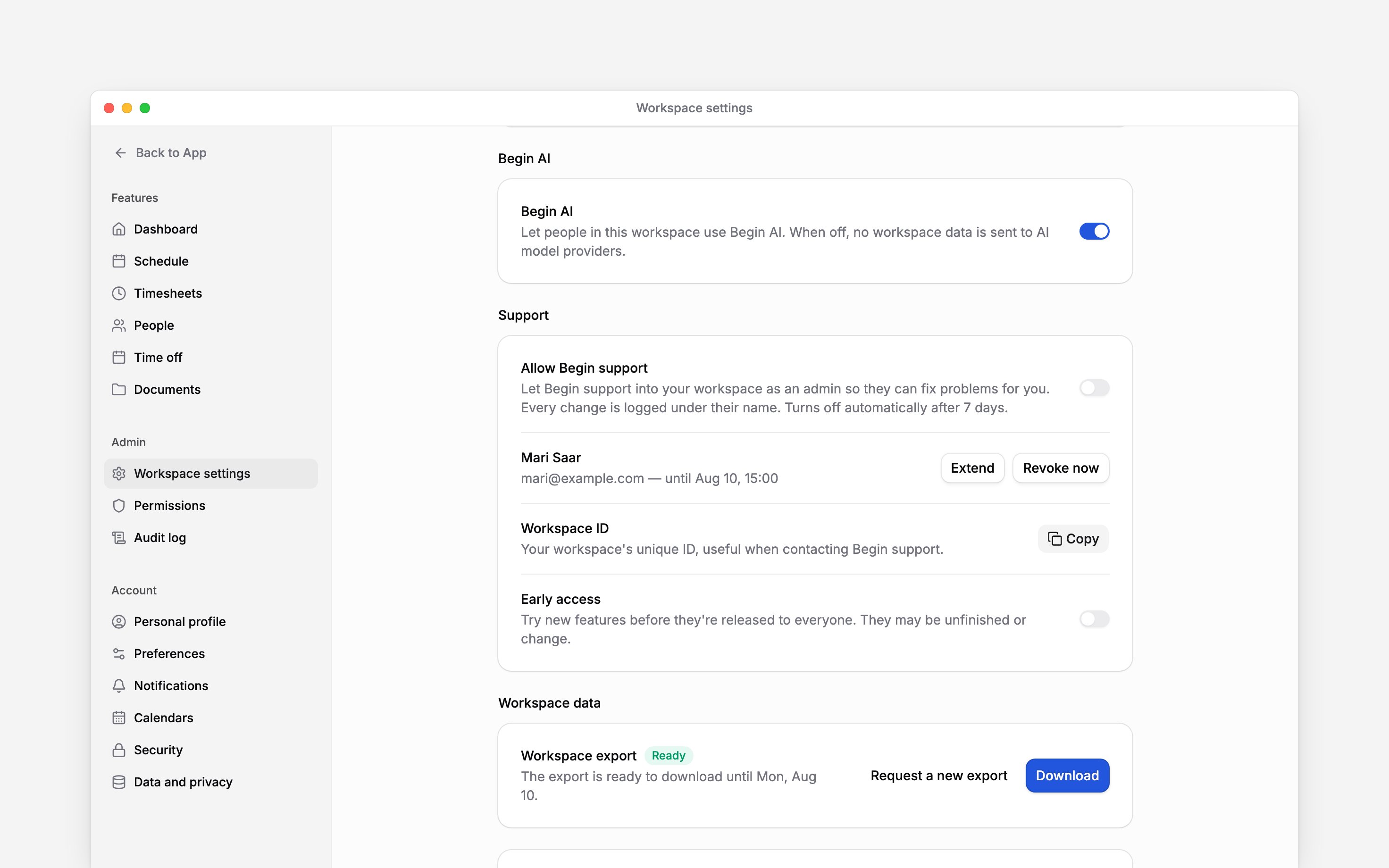
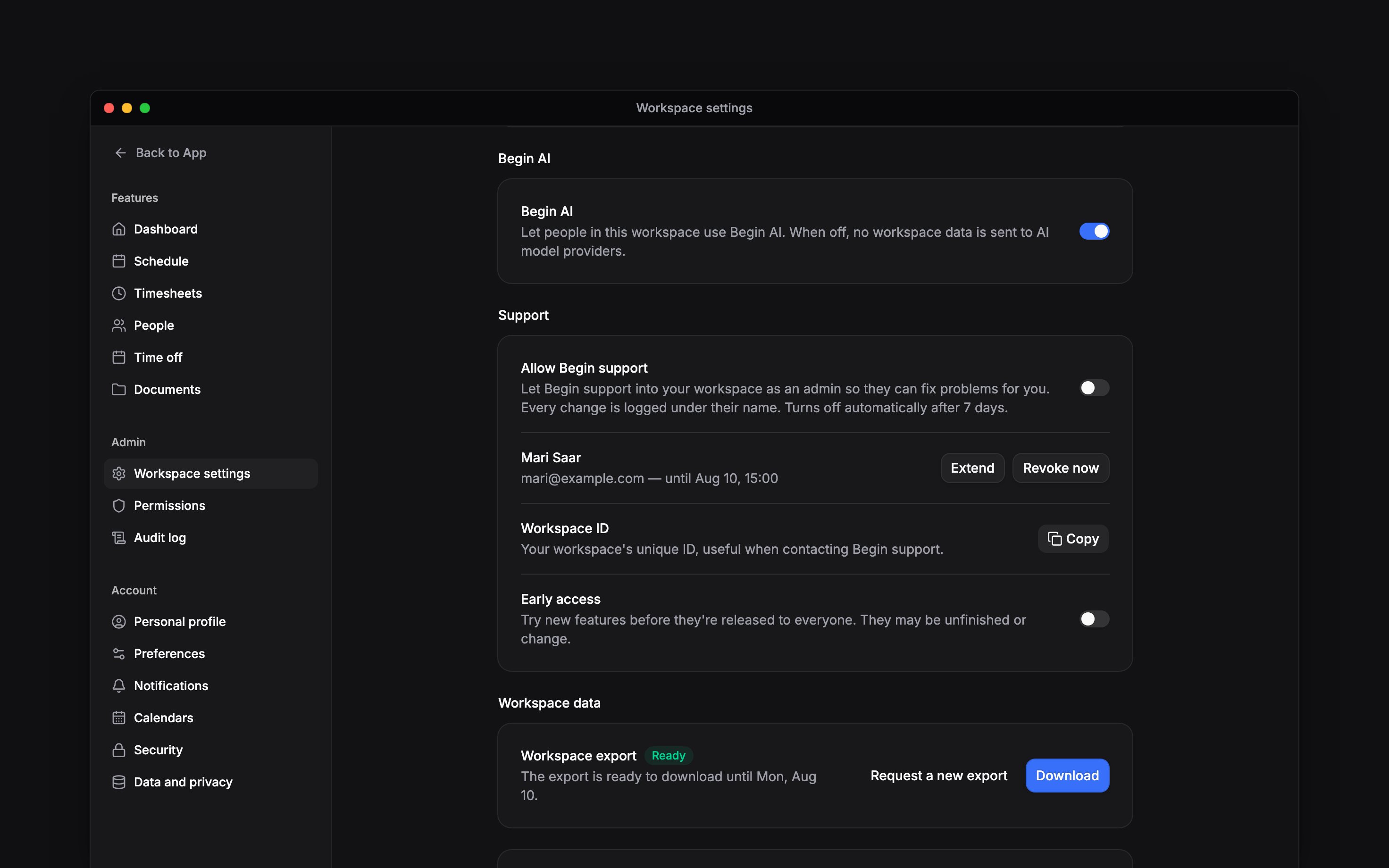
You need Manage workspace settings to change these controls.
Choose whether your team can use AI
1
Open the workspace controls
Go to Settings → Workspace settings and find Begin AI below Time & region.
2
Set Begin AI
Turn the switch on to allow people in this workspace to use Begin AI, or off to stop workspace
AI access.
3
Check the confirmation
Wait for Begin AI turned on or Begin AI turned off. The change applies to everyone in
this workspace.
Choose whether to try early features
In the Support group on the same page, use Early access. Turn it on if your team wants to try features before they are released to everyone. Turn it off to stop opting into early access. Early features may be unfinished or change. Tell colleagues before changing this shared preference so that new or changed controls do not surprise them.Early access is a preference, not a guarantee that every unreleased feature appears. Individual
features can still depend on availability, permissions and your plan. Check the feature’s own
guide when a control is missing.
Next
Personal preferences
Adjust your own interface.
Billing and plans
Check workspace allowances.
Still need help?
Contact support
Email the Begin team and we’ll get back to you.
Ask Begin AI
Open the AI assistant and get instant answers based on these docs.