


 The dashboard has two ways to read the day. Manager gathers team highlights around the post feed. Employee keeps the feed but puts your own time tracking, shifts, time off and public holidays first.
The Manager / Employee switch appears only when your role can view other people’s time entries
or manage other people’s shifts. Without either permission, Overview opens in the employee view
and shows no switch.
Choose the view for the job
Open Overview, then use the switch in the page header.- Choose Manager to check the team before acting on posts or today’s schedule.
- Choose Employee to clock time or check your own next shift and time off.
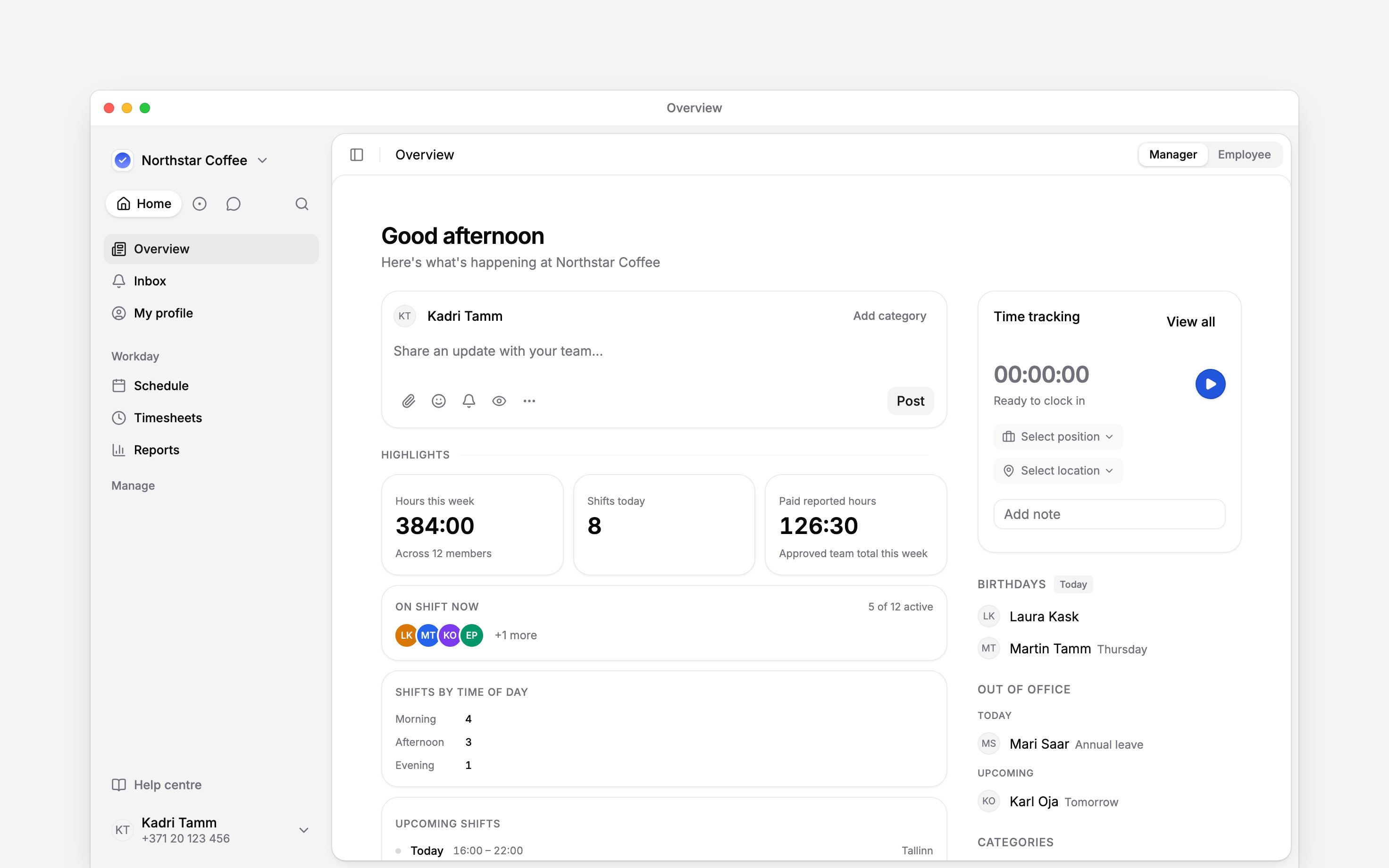
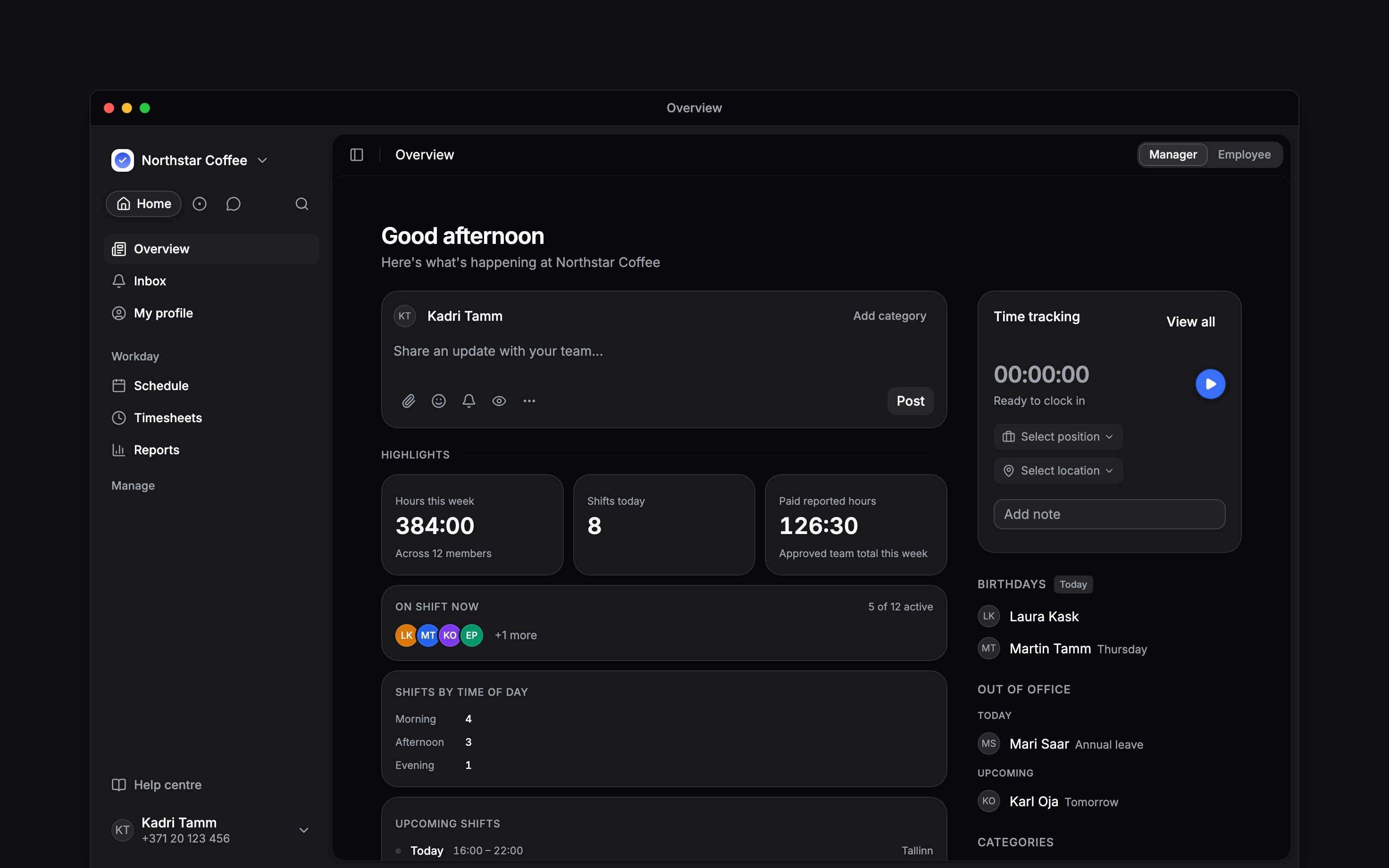
Manager selected over Highlights cards built from the team's current work
Use the cards as shortcuts
Manager highlights can include Hours this week, Paid reported hours, Shifts today, On shift now, Shifts by time of day and Upcoming shifts. A missing group usually means your role cannot read the source data. These are current facts, not staffing targets: the time-of-day card counts shifts and does not judge whether staffing is sufficient. A small amber refresh mark beside an hour figure means Begin has not managed to count a recent change yet. The figure shown is the last one calculated. If no figure was ever calculated, the mark sits beside a dash instead, and the dash is not a zero. Begin keeps trying, and the figure updates by itself once the change is counted. In Employee view, Time tracking stays above the collapsible Overview group so closing the group never hides the clock. Upcoming shifts opens a shift, while its main action goes to the schedule. Upcoming time off can start a request or open your profile’s time-off tab. Public holidays lists dates from the workspace calendar; select one to open the schedule on that date, in the layout and with the filters you last used there. Birthdays and Out of office stay beside the main column on a wide screen and move below it when space is tight.Next
Publishing a post
Share the update that belongs beside the daily cards.
Schedule overview
Open the full plan when a dashboard count needs action.
Still need help?
Contact support
Email the Begin team and we’ll get back to you.
Ask Begin AI
Open the AI assistant and get instant answers based on these docs.