


 A break policy decides which breaks people may report and whether Begin adds a break automatically. Paid breaks count towards worked time; unpaid breaks are deducted from it.
Choose the break rules
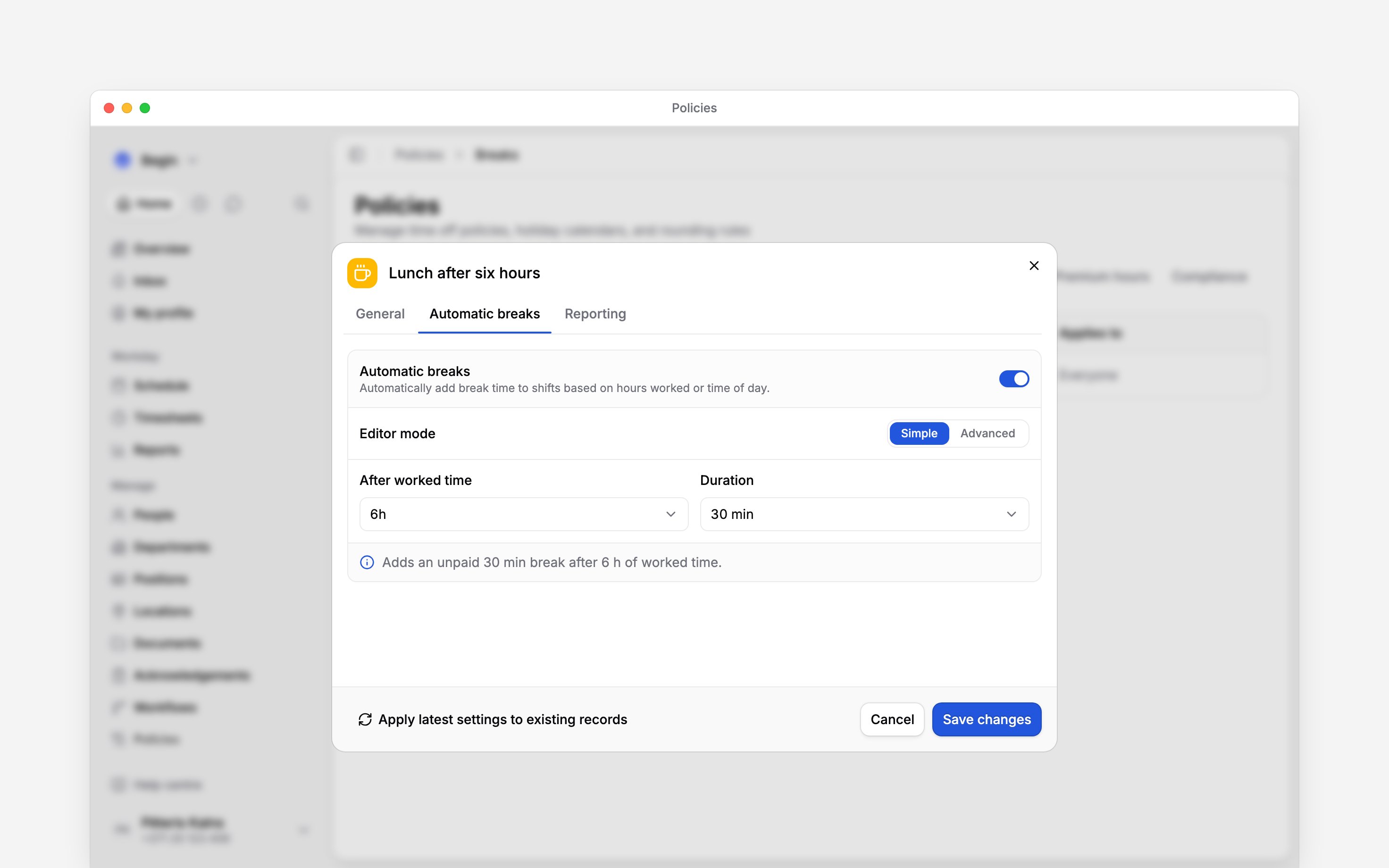
Turn on Paid break reporting or Unpaid break reporting for the kinds people may add themselves. With no matching break policy, break reporting is off, so deleting the last policy that reaches someone turns their break reporting off. For one automatic break, use the simple setup: choose how long someone must work before the break applies, then set its duration. For example, for a 30-minute unpaid break after six hours, set After worked time to6 hours and Duration to 30 minutes. Check that Automatic break preview describes an unpaid 30-minute break after six hours. These are example values; use your own agreed break rule.
Use the advanced setup for these decisions:
- Time of day places a break at a fixed clock time within the shift, regardless of hours already worked.
- Multiple breaks and Repeat every add further breaks after more worked time.
- Paid makes the automatic break count as worked time.
- Count nearby shifts together, below the rule, joins shifts for the trigger. Set Join shifts within for the gap and Maximum shift length for the total grouping window.
Switching an advanced automatic break back to the simple setup replaces the advanced settings.
Begin asks you to confirm first.
Create the policy
1
Start it
Go to Policies → Breaks, open Add, then choose Break policy.
2
Allow reported breaks
On the Reporting tab, choose whether paid breaks, unpaid breaks or both may be reported.
3
Add an automatic break
On Automatic breaks, turn on Automatic break, then set when it triggers and how long it
lasts. Switch to Advanced for a paid break.
4
Target and activate it
On the General tab, choose Applies to and
set Status to Active, then save.
Ask Begin AI
Begin AI (Cmd / Ctrl + J) can create, change or delete a break policy, including its icon and colour, and apply its latest automatic break to existing records. On Manually approve it shows the change on a card and saves nothing until you confirm. On Automatically approve a new policy or a change applies at once, and archiving, deleting or applying the policy to existing records still waits for you. See approval modes.Apply the warehouse break policy's latest automatic break to 1 to 14 October
Apply a change to existing records
Recalculation needs permission to manage other people’s timesheets and edit their schedules, as well as edit the policy. Both permissions to manage other people have to be unrestricted. Recalculation rewrites every entry and shift the policy reaches rather than a row you pick, so a grant limited to one location, position or part of the team is refused instead of being applied to the part it covers. Ask your administrator to run it, or to lift the limit. Policy changes apply to new calculations. To update existing entries, open the policy and choose Apply latest settings to existing records. In Apply latest automatic break settings, preview the date range and audience, then choose Apply latest settings. Begin reports which entries changed and which it skipped. Begin skips approved entries, manually overridden breaks, breaks with a manual duration, ineligible entries, entries governed by another policy and entries in a closed period. The applied policy snapshot remains on each entry, so the change is traceable. Check a matching entry long enough to contain the full break. With a six-hour trigger, a shift ending exactly at six hours has no room for the break; one ending 15 minutes later can contain only 15 minutes. Existing manually reported breaks can also suppress automatic breaks. Review the entry’s breaks and warnings before treating an unexpected total as a rounding issue.Next
Settings and policies
See where break results appear on a time entry.
Rounding time
Set the separate rules that adjust punches and totals.
Still need help?
Contact support
Email the Begin team and we’ll get back to you.
Ask Begin AI
Open the AI assistant and get instant answers based on these docs.