


 An entry rarely reaches you as it was punched: a policy may have moved the times, added a break or flagged it, and a setting may have closed it hours after the person left. This page says which surface made each decision.
Settings → Timesheets needs Manage timesheet settings, which administrators and managers
hold. Each policy page carries its own permission.
Where each decision lives
A policy targets people, so two people on the same shift can have different rules.
Approve time entries automatically
Turn on Auto-approve timesheets in Settings → Timesheets when you only want to review exceptions. New time entries are then approved as soon as they finish, both clock-outs and entries added by hand, and the person gets no approval notification. It is off by default and does not change entries already waiting. Some entries still wait for a person:- An entry outside the expected location, or one flagged at clock-in or clock-out.
- A timer auto-stopped by Begin, including one that recorded no hours.
- An entry added by hand when the person’s clocking policy has an active approval workflow that routes manual entries. Other workflows still run, and can still move an approved entry to review.
Close a timer nobody stopped
Automatically stop timers in Settings → Timesheets ends a run that has gone past Maximum timer duration, which you set in whole hours between 1 and 24. Auto clock-out behaviour decides what the entry is left holding, and this is a real choice:
A new workspace already does this, at sixteen hours, recording no hours, because a guess written into an entry is a guess somebody gets paid for. Whichever behaviour you pick, the entry lands in Needs review.
An entry left with no hours adds nothing to reports or payroll, even once approved, until someone enters its real clock-out. Neither a workflow nor approving its shift approves one, so it waits in Needs review for a person. If the clock-in created its own shift because nobody was rostered, that shift comes off the schedule too.
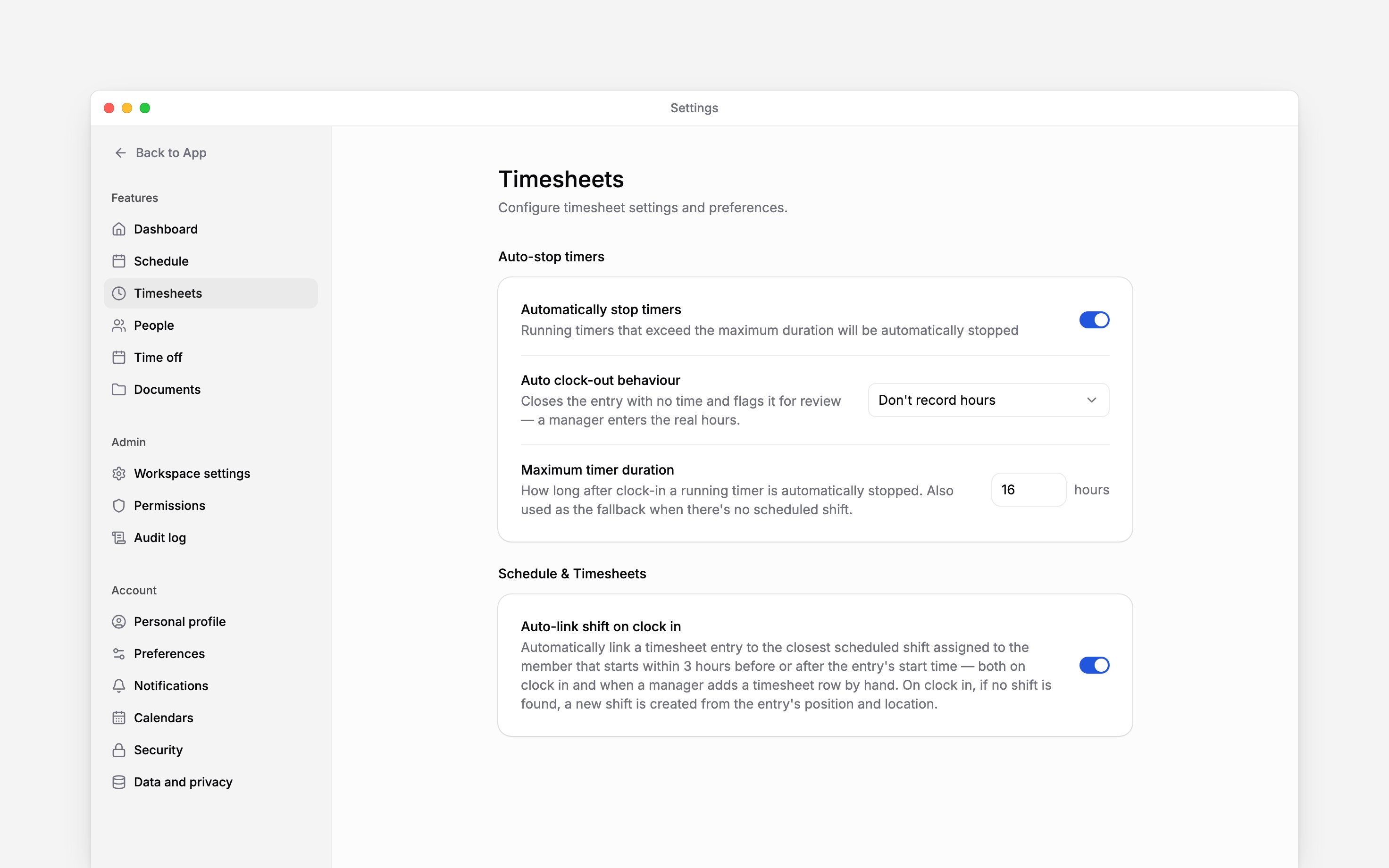
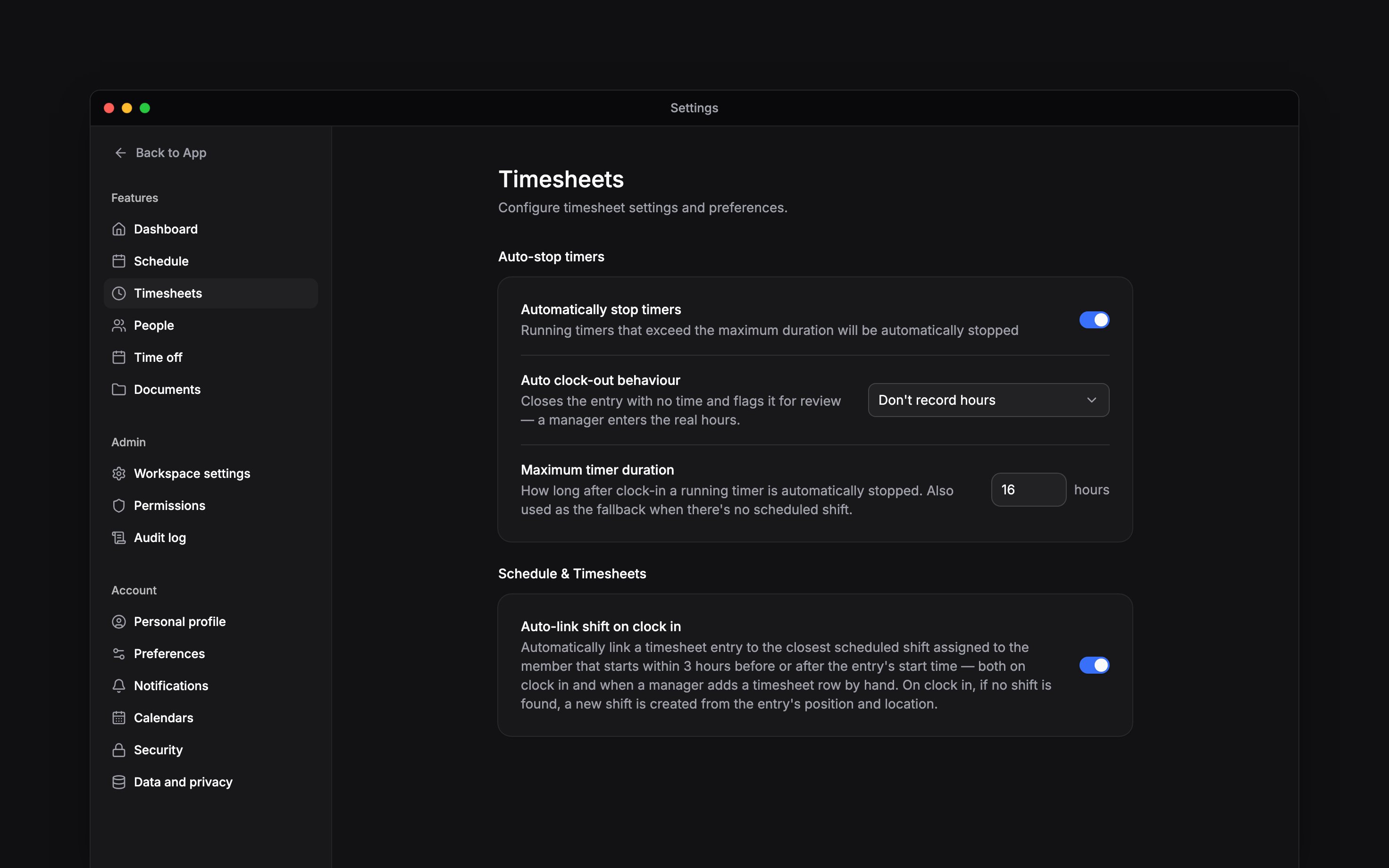
The auto-stop and linking switches, as a new workspace has them
Keep an entry and its shift in step
Settings → Schedule → Timesheet linking holds six switches that decide how far a clock record and a planned shift follow each other. Auto-link shift on clock in is the one worth understanding. It attaches an entry to the nearest shift assigned to that person starting within three hours either side, whether they clocked in or you typed the row in by hand. On a clock-in with no shift in that window, it creates one from the entry’s own position and location, which is why shifts sometimes appear that nobody rostered. Linking also moves the shift, so an entry links only to a shift whose hours you may manage, and a colleague’s entry links to a shift, or gets one created from it, only when your role may also change their shifts on the schedule. If your role covers some locations, a row you add links to the nearest shift at those locations within the window, or stays unlinked when there is none, and Link shift refuses a shift at a location outside your role, as does a shift with no location at all. Clock in from schedule starts a shift. Auto-update shift status marks it In progress, then Completed. Auto-sync shift times and Auto-sync breaks copy timing. Auto-sync linked statuses mirrors Approved, Rejected and Cancelled both ways. Shifts update linked entries; entries update a shift only when all match. Cancellation can replace any status. Approval or rejection cannot replace Planned or In progress, but can replace Cancelled. It keeps clock times and running timers. Enabling sync, relinking, undo and bulk revert do not reconcile statuses.What a policy changes before you see it
Rounding is the usual answer to “that is not the time they clocked in”. A policy rounds the clock-in and the clock-out separately, each either to an interval, with a direction of Nearest, Up or Down, or by snapping to the linked shift within an early and a late window. Totals rounding is separate again and rounds the period total rather than the punches. Wherever a policy has moved something, the entry’s own activity trail names the policy and keeps the original time beside it. Breaks decides whether breaks exist at all. Until a break policy covers somebody there is nothing to record, and deleting the last policy that reaches a person turns their break reporting off again. A policy can also add breaks by itself, triggered by worked time or by a fixed clock time. Paid breaks stay in the worked hours; unpaid ones come out of them. Clocking governs the punch itself: whether GPS is captured at all, the allowed radius around a location, what happens outside it, and which of Terminal, Web and App they may clock from. A new policy only records the position; blocking or flagging needs Pro, as does automatic clocking, where the phone punches at the workplace boundary. Workspaces moved from Heybegin keep blocking and flagging on their current plan. Leave Pro and a saved block or flag rule stops acting until you return; the setting is kept. Overtime and Premium hours are the two policy tabs that change nothing here. They shape calculated figures such as norm hours and overtime, which live in the hour columns on a report rather than on a timesheet.Next
Workflows
Make Begin act on an entry the moment something happens to it.
Tracking time
What these rules look like to the person clocking in.
Still need help?
Contact support
Email the Begin team and we’ll get back to you.
Ask Begin AI
Open the AI assistant and get instant answers based on these docs.