


 Open Begin AI and ask in plain language. Workspace answers use your data as it is now, limited to what your role can see. Product guidance comes from Begin’s official help articles. Select Begin AI in the sidebar ribbon, or press Cmd+J (Ctrl+J on Windows) to ask from the side panel.
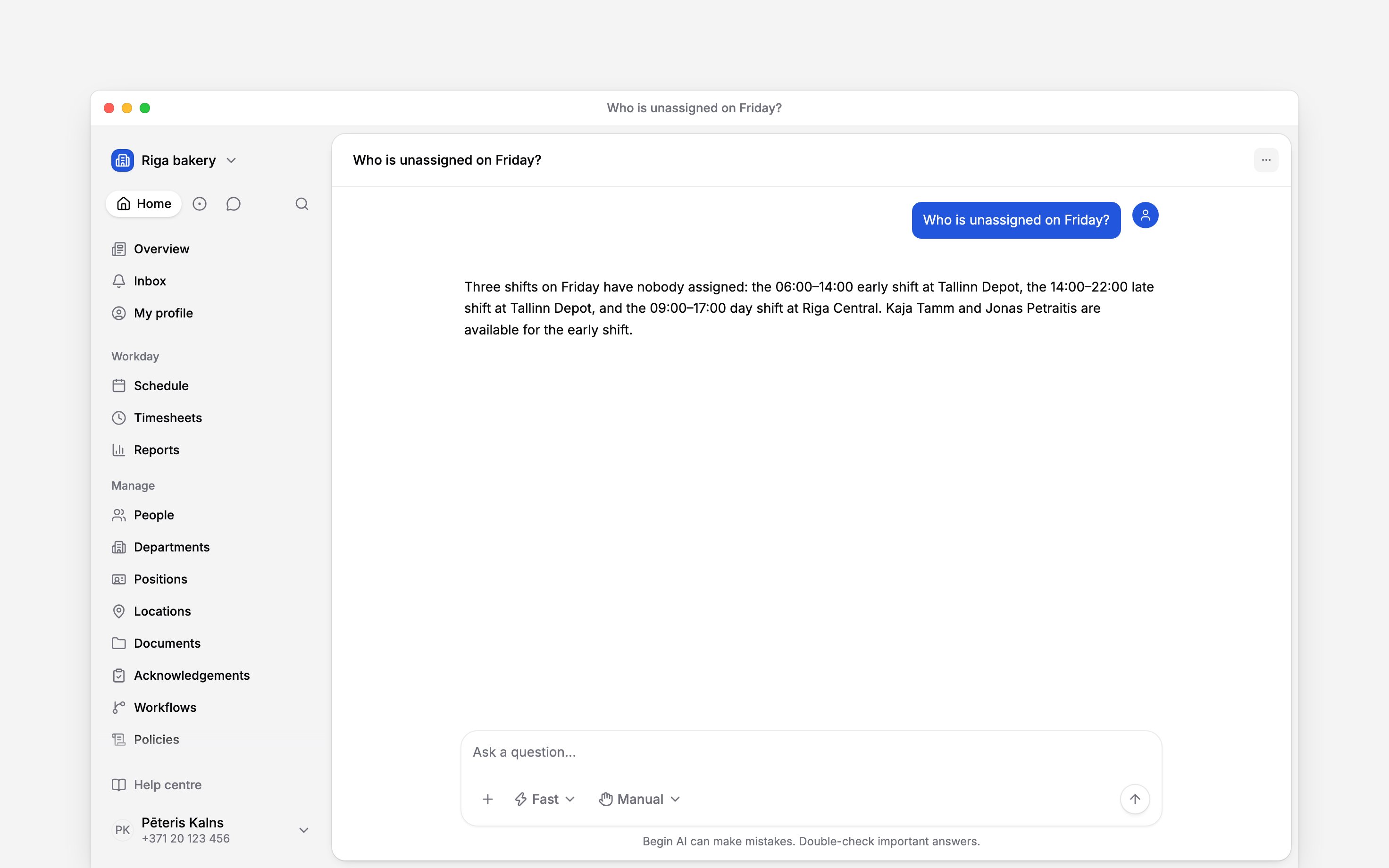
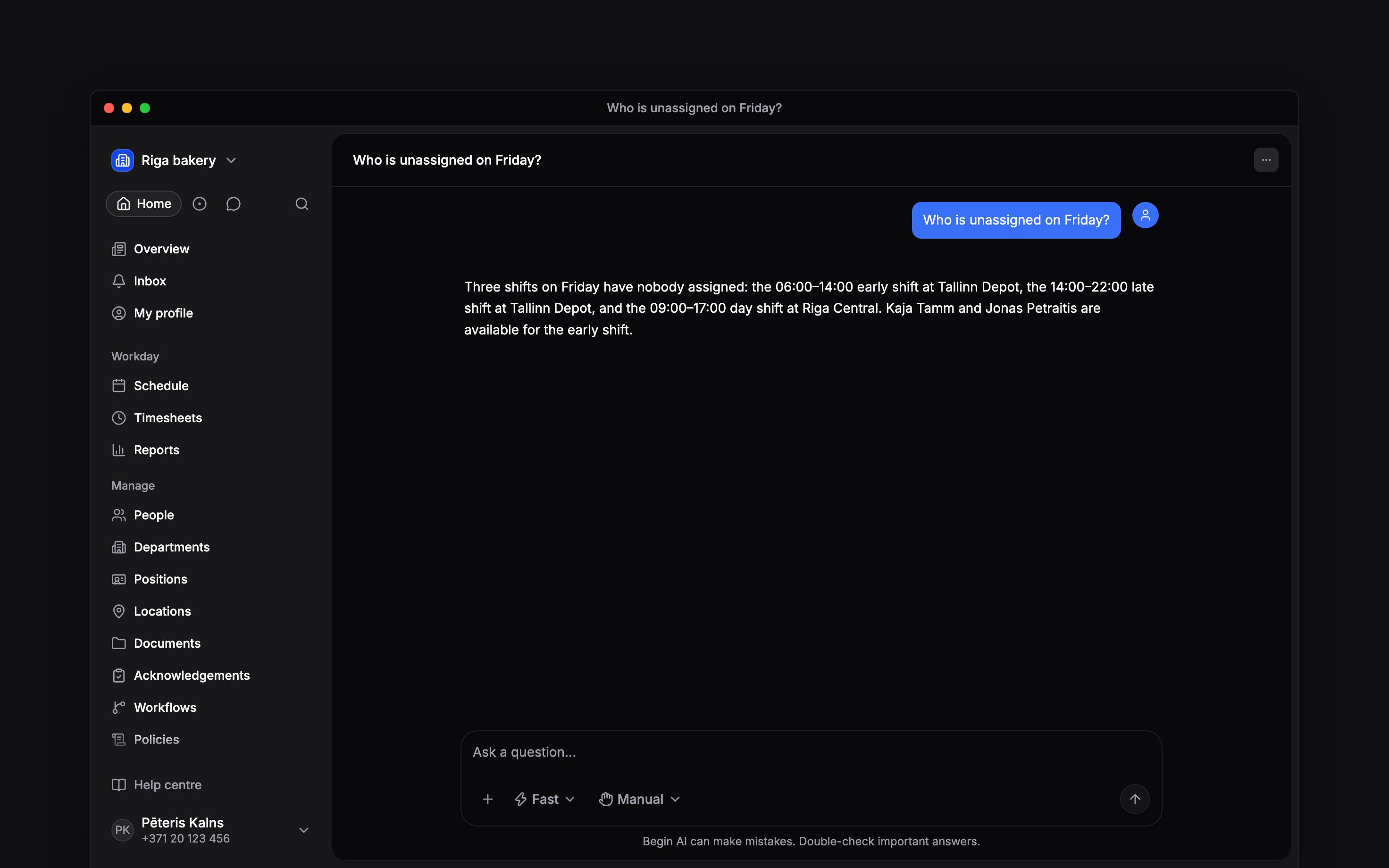
Begin AI keeps your question and its answer together in the chat.
Ask one clear question
Name the period and the figure you need. Add the person, position or location when the answer should cover only part of the workspace.How many hours is each person scheduled for this week?
How many hours did each person work last month, using approved timesheet hours?
Get help using Begin
Ask how to publish a schedule or why a control is missing. Begin AI searches the help centre, reads relevant articles and links to its sources. Open those links for the full instructions. Official help remains available with Web access off. An article can describe a feature your workspace has not enabled. Your role and workspace settings still decide what you can use. If Begin AI cannot find or read the help it needs, it says what it could not verify.Choose the hours you mean
Hours come from the roster unless you say otherwise. Ask for approved timesheet hours when you mean hours somebody worked, or for Paid / scheduled hours when you want the figure shown on the schedule page. Hours split by person, position or location come back as hours. A result split by day or by kind of block comes back as counts. If an answer is not the measure you expected, name the source and grouping in your next message. For hours by client, name the Hours by client report. Begin AI reads it as it stands: approved time entries this month.Using the Hours by client report, which clients had the most paid hours this month?
Beta
Clients are rolling out gradually, so your workspace may not have them yet. Where they are off,
Begin AI says clients are not enabled in your workspace.
Count working days
Ask how many working days or hours a person should work in a period. Begin AI counts them from that person’s working week and their country’s public holidays, and names the days it counted. Mention days to leave out, such as a business trip, and it gives what is left.How many working days does Anna have in November if she is on a business trip from 3 to 8 November?
Begin AI uses your workspace’s monthly AI allowance. If it says you are out, an administrator can
buy more AI tokens under Settings → Billing and
plans.
Next
Using skills in a chat
Attach saved instructions before you send a request.
Taking actions
Let Begin AI change the workspace.
Still need help?
Contact support
Email the Begin team and we’ll get back to you.
Ask Begin AI
Open the AI assistant and get instant answers based on these docs.