


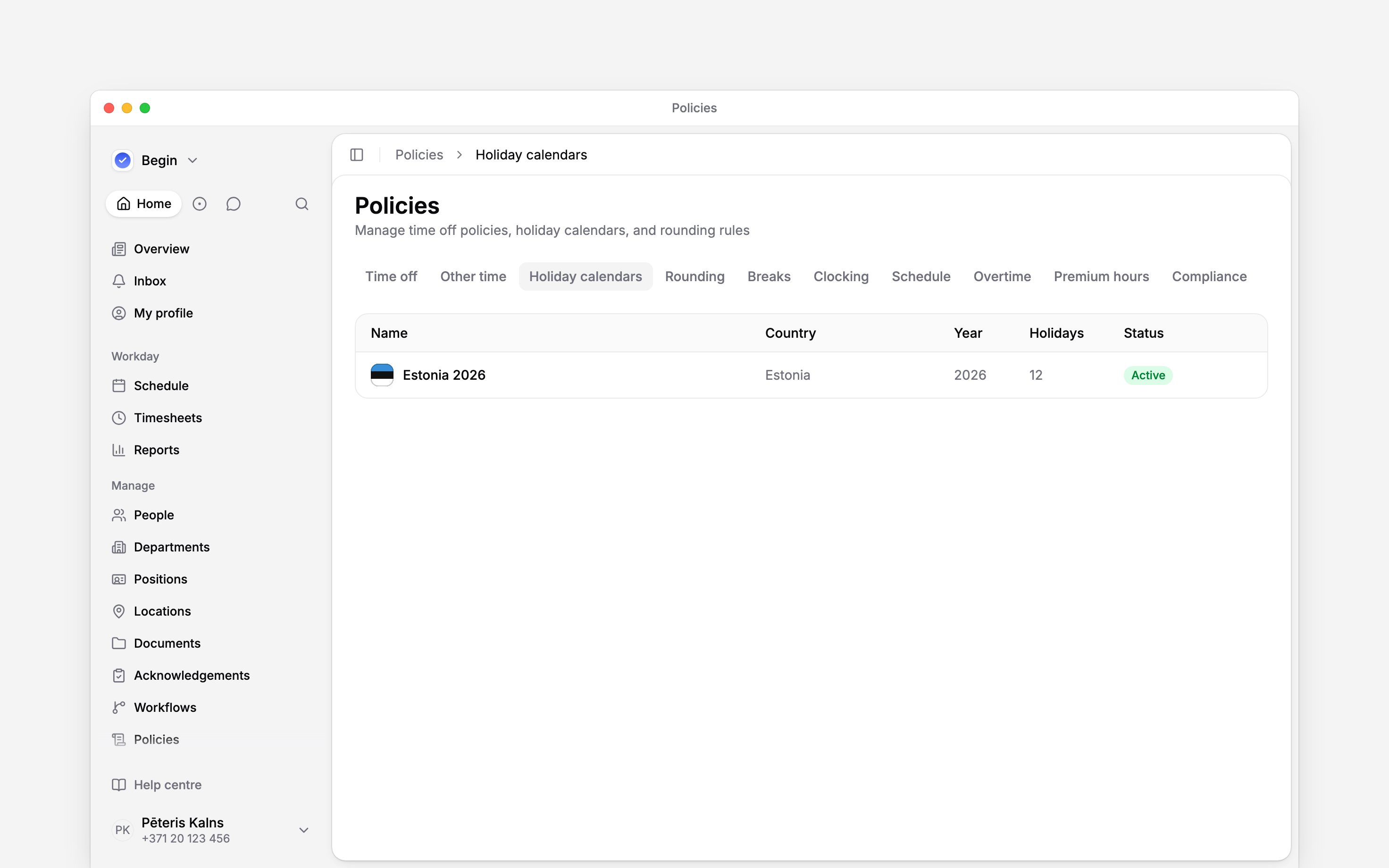
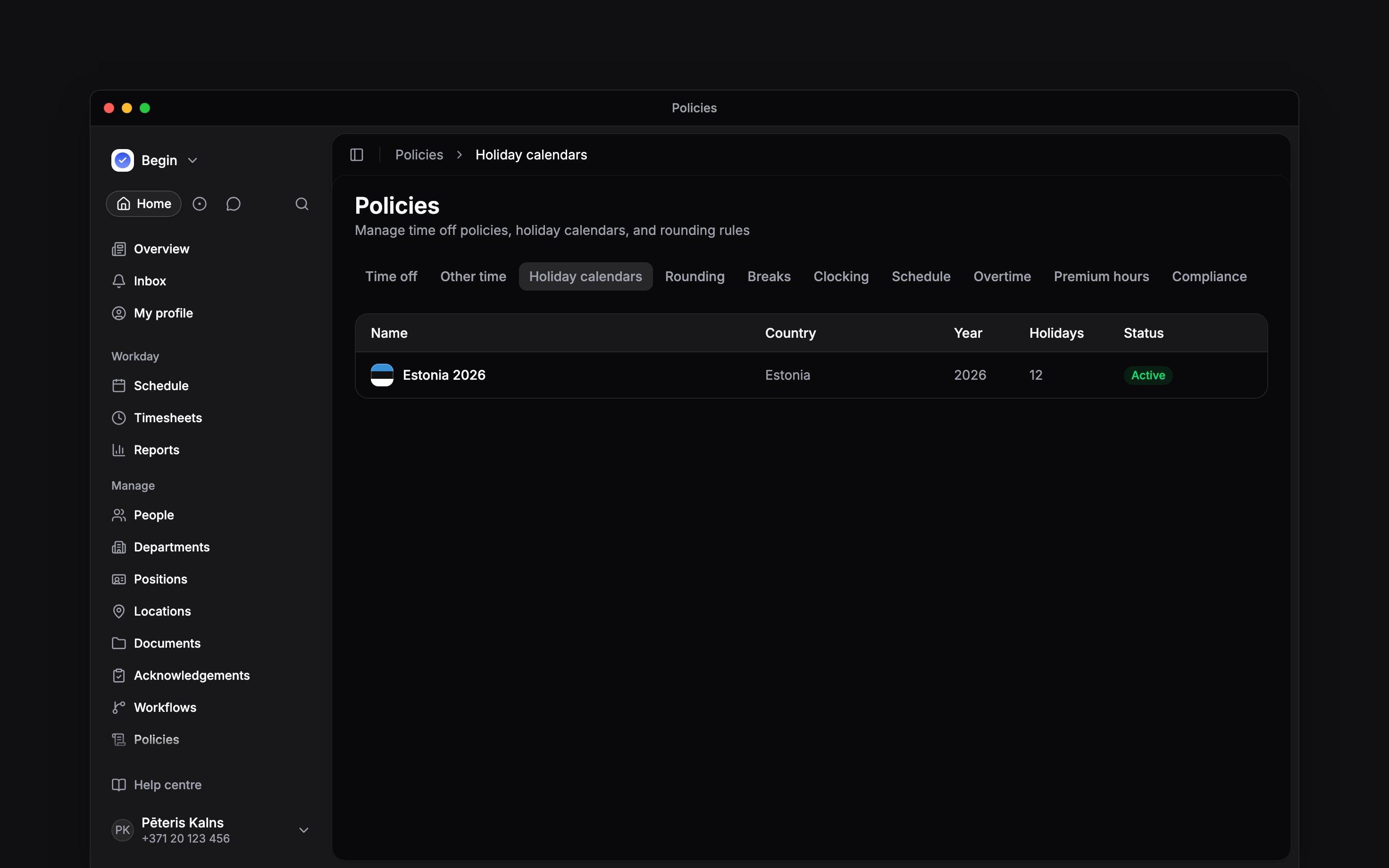
 A holiday calendar groups the public holidays, company days off and shortened days for one country and year. Time-off policies and hour calculations use it when holidays should change the result.
Create a calendar
1
Start it
Go to Policies → Holiday calendars, open Add, then choose Holiday calendar.
2
Set its year and country
On General, name the calendar and set Status to Active. On Holidays, choose its
country and year.
3
Add the country holidays
On Holidays, turn on Auto-populate public holidays when creating it, or choose
Auto-populate on a saved calendar. Either way the dates arrive when you save.
4
Check the list
Add, edit or delete individual dates so the calendar matches the days your organisation
observes, then choose Save. Nothing is written until you do, and Cancel discards the
edits. Deleting a calendar removes all its holidays and cannot be undone.
Check which holidays are used
Check the calendar’s country, year and Active status before adding dates. A calendar for this year does not supply next year’s dates; several active calendars for one country and year are combined. Review the next year separately before people book leave across it. A holiday’s Paid holiday switch decides whether that date is excluded from leave balances. For time off, turn on Exclude public holidays in the leave policy and check the person’s work country. The current leave-policy form resolves holidays by country and does not offer a calendar picker. Review a person’s balance and a request covering a known holiday to check the result.Add a shortened day
Open a calendar, choose Add → Shortened day, set the date, link it to the public holiday it comes before, then save the calendar. The calendar’s Shortened day reduction decides how many hours are cut from that workday; leaving it blank uses the country default. A shortened day is not a paid or unpaid holiday. It changes the expected workday before the linked holiday. For a shift pattern with Follow working time and holidays on, Begin skips public holidays and applies shortened-day reductions after the person’s working-time hours. An 8-hour day with a 3-hour reduction allows 5 paid hours; a 4-hour shift stays 4 hours. The reduction follows the calendar’s country and workload rules. Changing a calendar does not redraw shifts already planned. Regenerate the rota to apply it to existing shifts.Next
Time off and entitlements
Exclude public holidays from a leave balance.
Premium hours
Define the evening and night buckets shown beside holiday hours.
Still need help?
Contact support
Email the Begin team and we’ll get back to you.
Ask Begin AI
Open the AI assistant and get instant answers based on these docs.