


 Assign a location to a person to record where they work. You can assign more than one location when someone works across sites.
Add or remove a location
1
Open the person's profile
Go to People, select the person and open Overview.
2
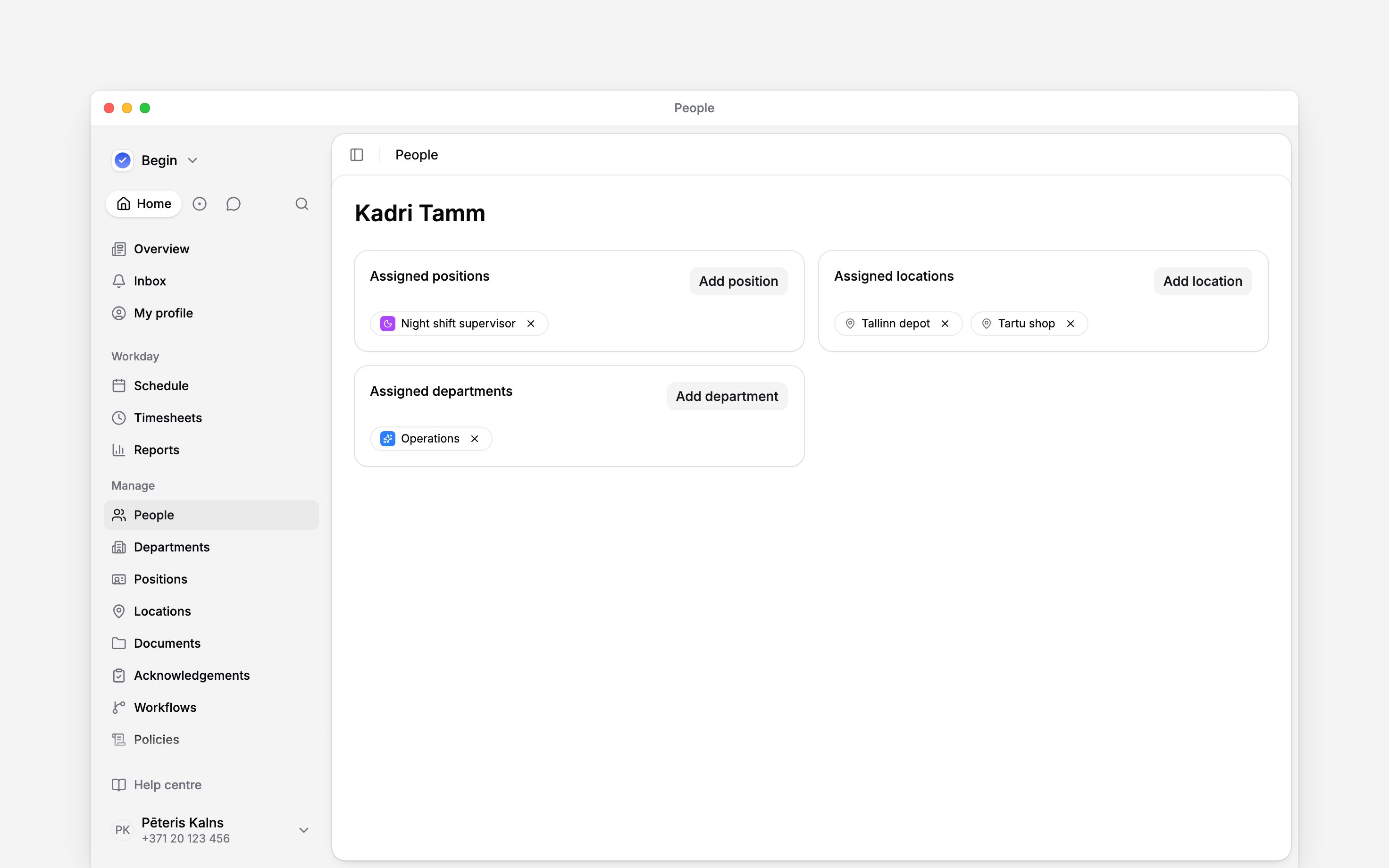
Find Assigned locations
Click Add location and choose the site. Repeat for any other places they work.
3
Check the assigned sites
The location appears in Assigned locations. To remove it later, use the remove control on
its chip.
Check everyone at a site
Open Locations, then use the site’s row menu and choose See people. People opens with that location as a filter, so you can check its team without opening each profile. If someone moves between sites, add the new location and remove the old assignment when they stop working there. Keep both when they still work at both. Policies can target a location. Adding or removing a site changes which clocking, break and leave rules apply to that person, from then on.Keep assignments separate from shifts
Changing a person’s locations does not move or rewrite their existing shifts. Check the Location on the shifts that need to change, using Scheduling by location. For the site’s conversation, see Location channels.Next
Scheduling by location
Plan shifts at the assigned sites.
Location channels
Keep the site’s conversation in step with its team.
Still need help?
Contact support
Email the Begin team and we’ll get back to you.
Ask Begin AI
Open the AI assistant and get instant answers based on these docs.