


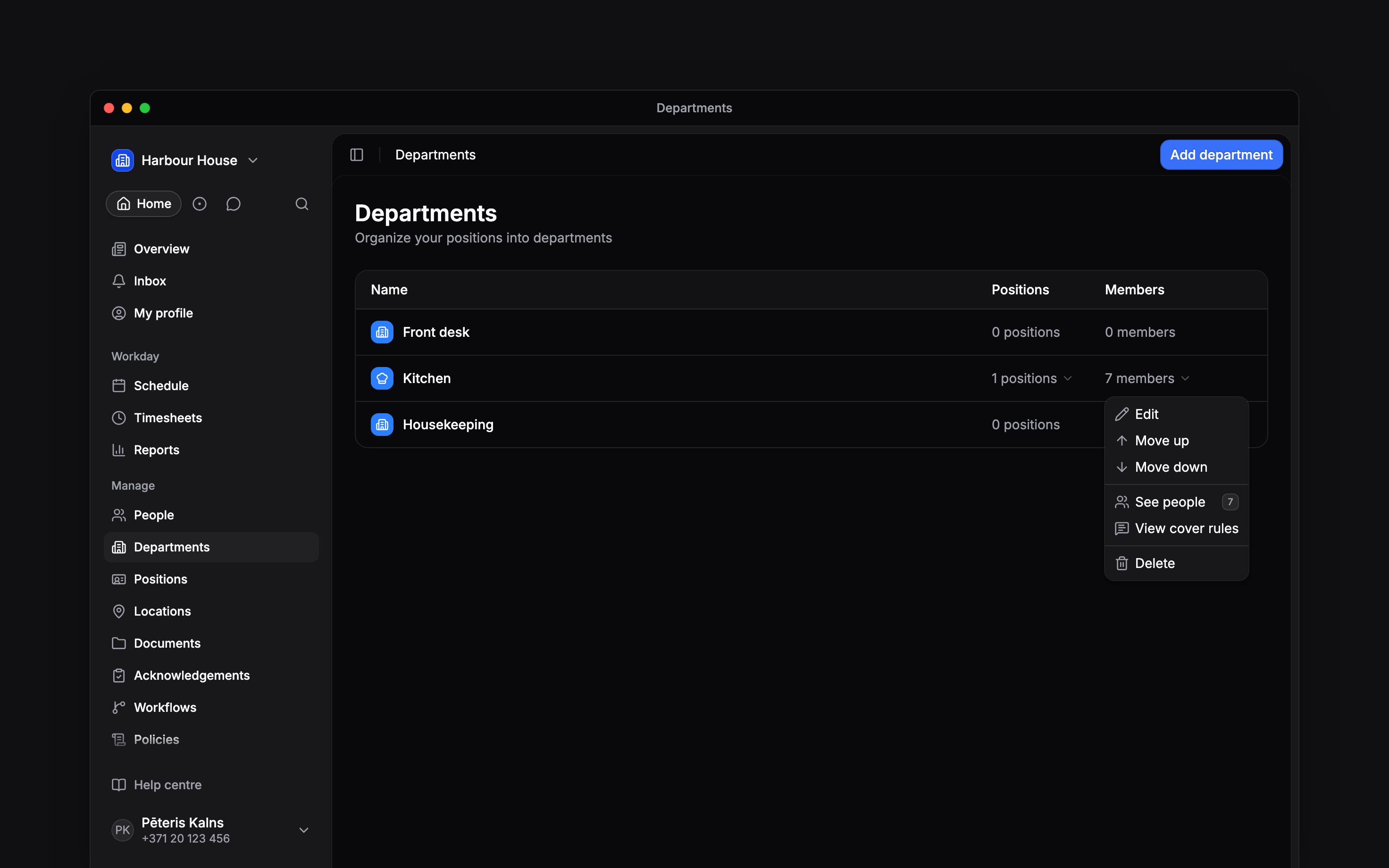
 Use the department’s row menu to change its details, move it in the list or delete it. Open Departments and use the three-dot menu on the row you want.
Change details or order
Choose Edit, make your changes and click Save changes. You can change the name, icon, colour, linked positions and Payroll export code. Choose Move up or Move down to change the department’s order. The first department cannot move up, and the last cannot move down. Moving one does not change its members or positions.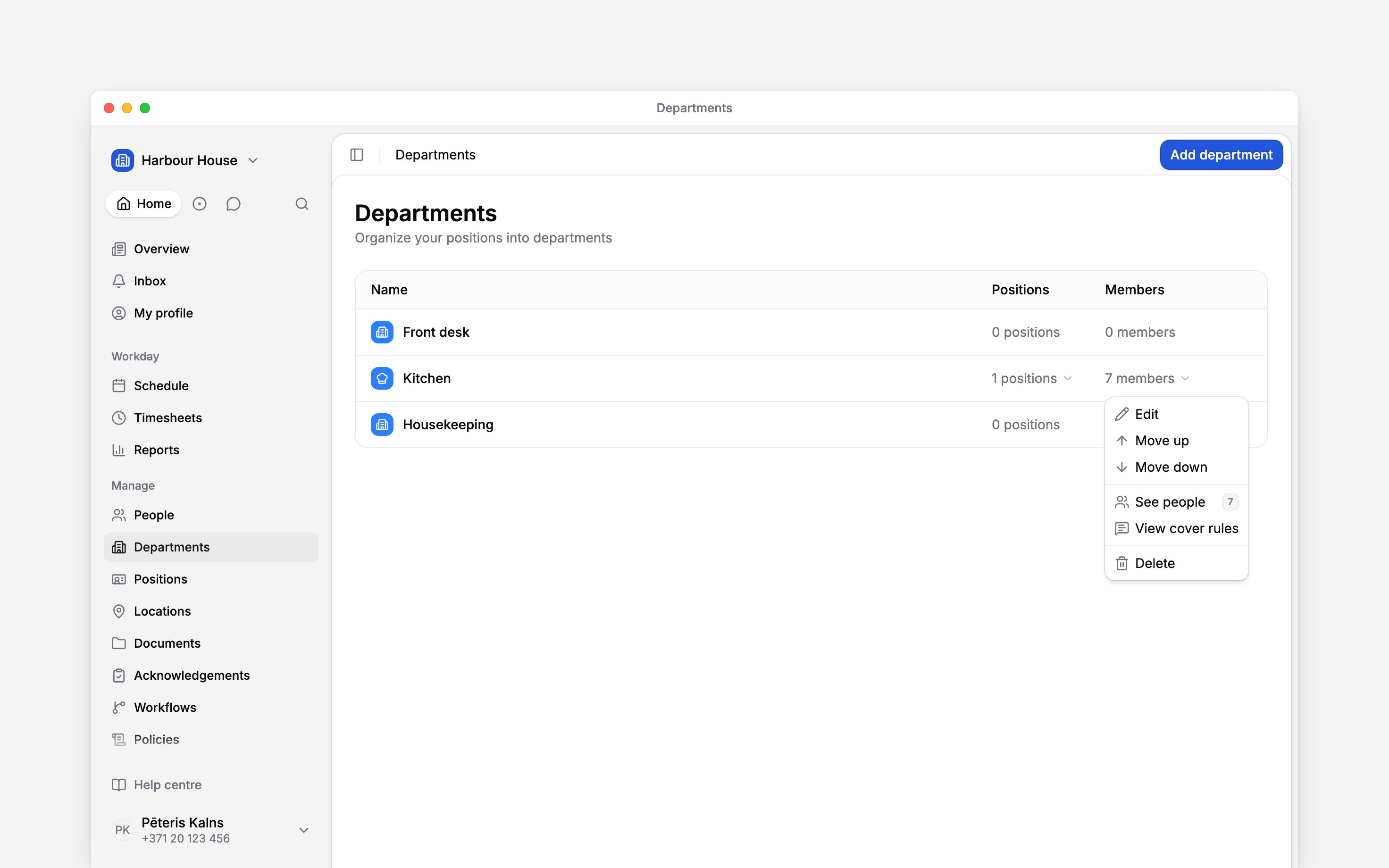
Remove a department
1
Check its assignments
Review its positions and use See people to check who belongs to it. Assign another
department first if those people still need one.
2
Delete the department
Choose Delete in the row menu, then Delete department in the confirmation dialog.
Check cover rules
If your row menu has no View cover rules, your role does not have access to policies. View cover rules opens Policies filtered to the department. Use it to find the department’s rules; the department editor does not contain those rules.Next
Assigning people and positions
Choose who belongs to the department.
Department reporting
Choose the right filter for people or their work.
Still need help?
Contact support
Email the Begin team and we’ll get back to you.
Ask Begin AI
Open the AI assistant and get instant answers based on these docs.