


 Start with the terminal’s Health badge and Last seen caption. They separate a connection problem from an identifier that did not reach an otherwise connected terminal.
Devices must be enabled for your workspace, and your role needs access. If it is missing from
the sidebar, ask an administrator to check your role or contact Begin support about availability.
Read the health badge
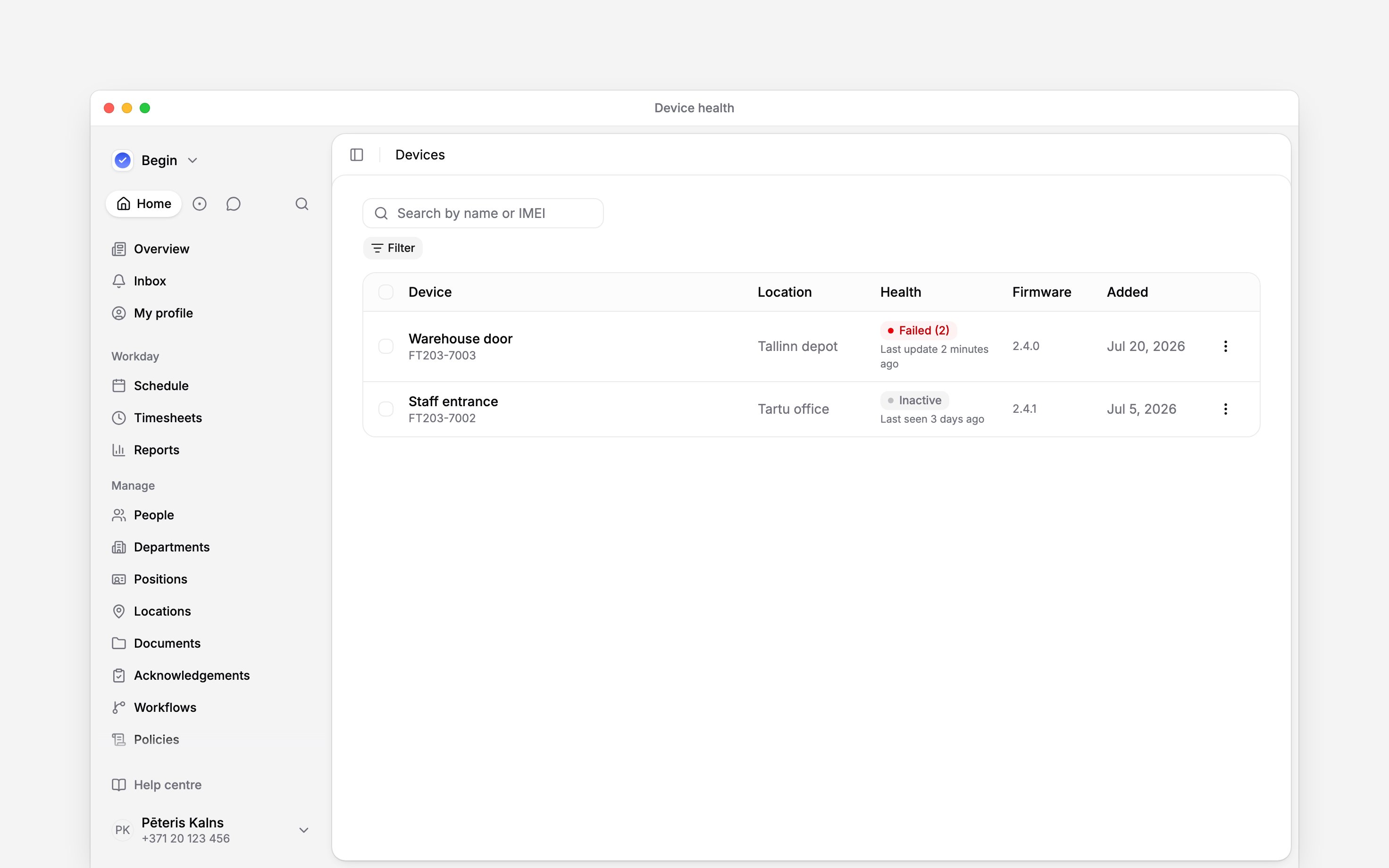
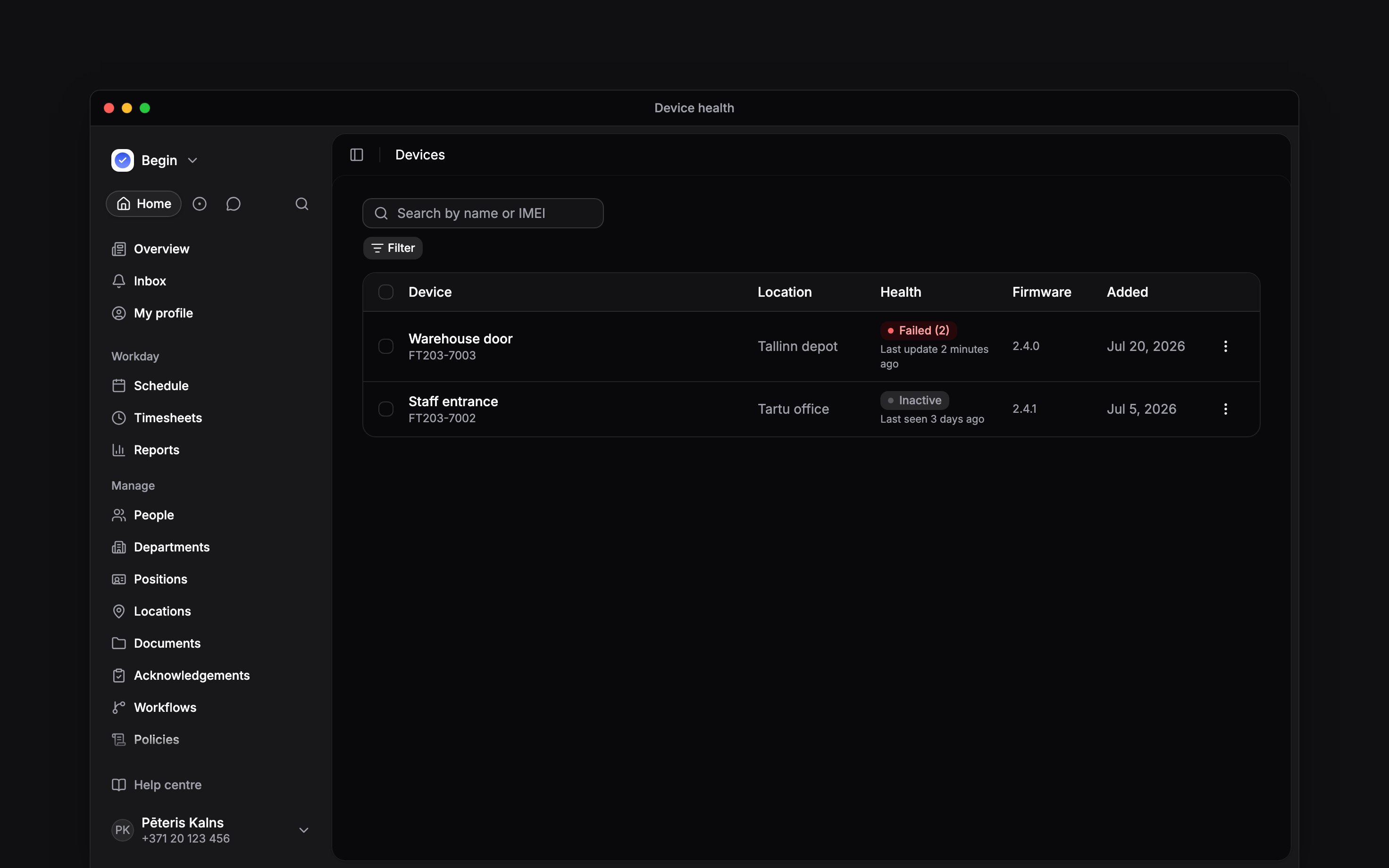
A failed sync takes priority over connection health, while a long-silent terminal reads Inactive
Check a refused punch
1
Find the person in Identifiers
Search by member, identifier ID, type or device. An Unclaimed capture must be linked to the
person first.
2
Check the device badge
Pending is waiting to reach the terminal. Failed needs Begin support. Removing means
the terminal is dropping that identifier.
3
Check the person's status and open entry
A suspended or departed person is refused. So is a second clock-in, a clock-out with no open
entry, or a break the policy does not allow; check Timesheets for the open entry.
4
Check the owner and policy
Use Reassign if the capture belongs to the wrong person. For a PIN, open their People →
Identifiers tab and follow the warning if PIN clock-in is off.
5
Give support the exact row
Send the terminal’s display name, IMEI, location, Health badge and Last seen time. For
one failed person, include the identifier type and template ID.
Re-sync, reboot, reset passcode, enable and disable are Begin support actions. A customer role
cannot send them from the device row.
Next
Managing identifiers
Fix an unclaimed capture, wrong owner or manual device assignment.
Replacing or removing a terminal
Move to replacement hardware and retire the old terminal safely.
Still need help?
Contact support
Email the Begin team and we’ll get back to you.
Ask Begin AI
Open the AI assistant and get instant answers based on these docs.