


 Sharing a report gives someone access to its saved configuration and current results. It does not freeze the figures or grant access to records they could not otherwise see.
You need Edit reports permission and edit access to the report to change its sharing. Presets
are read-only; duplicate one first.
Choose who can open it
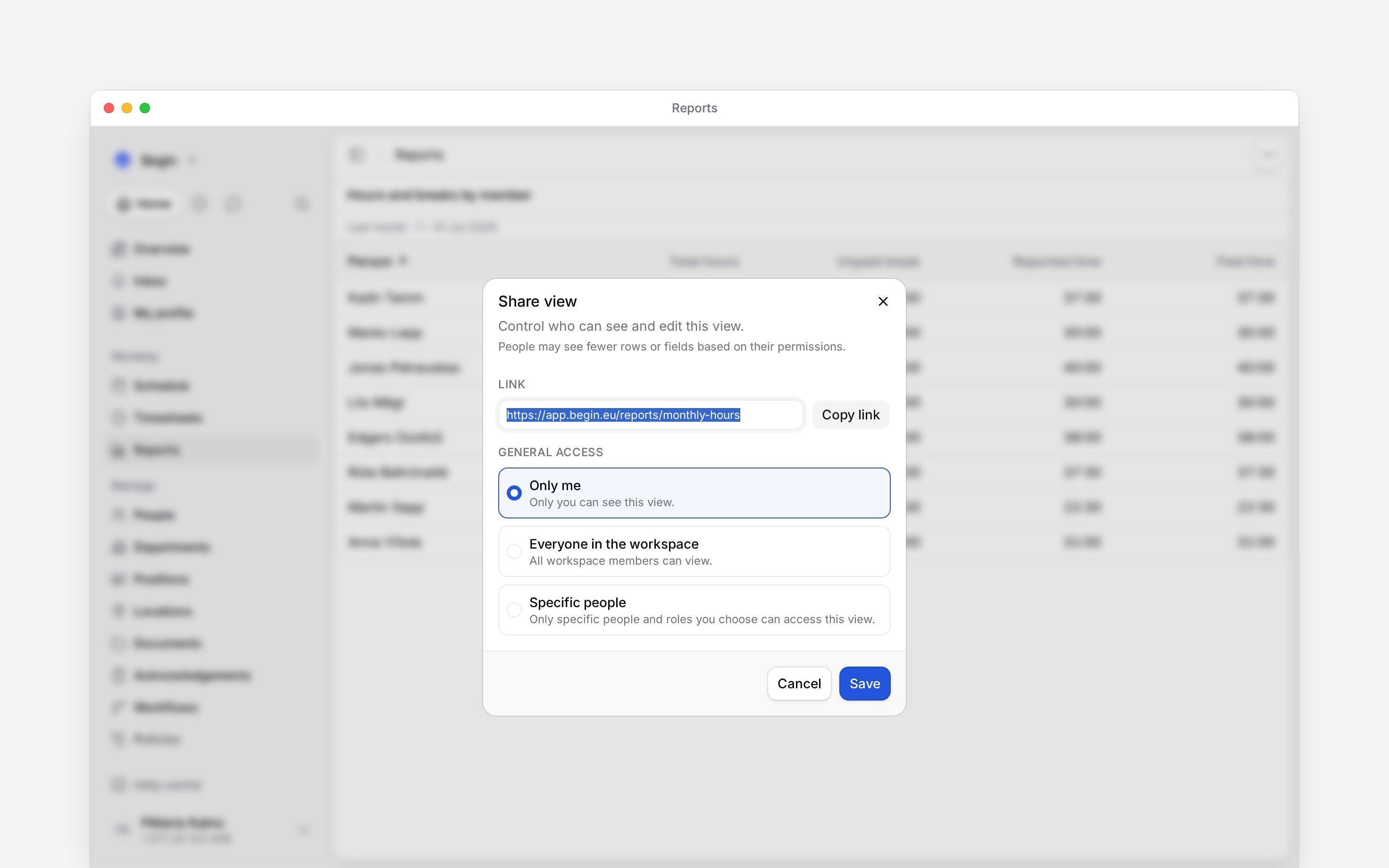
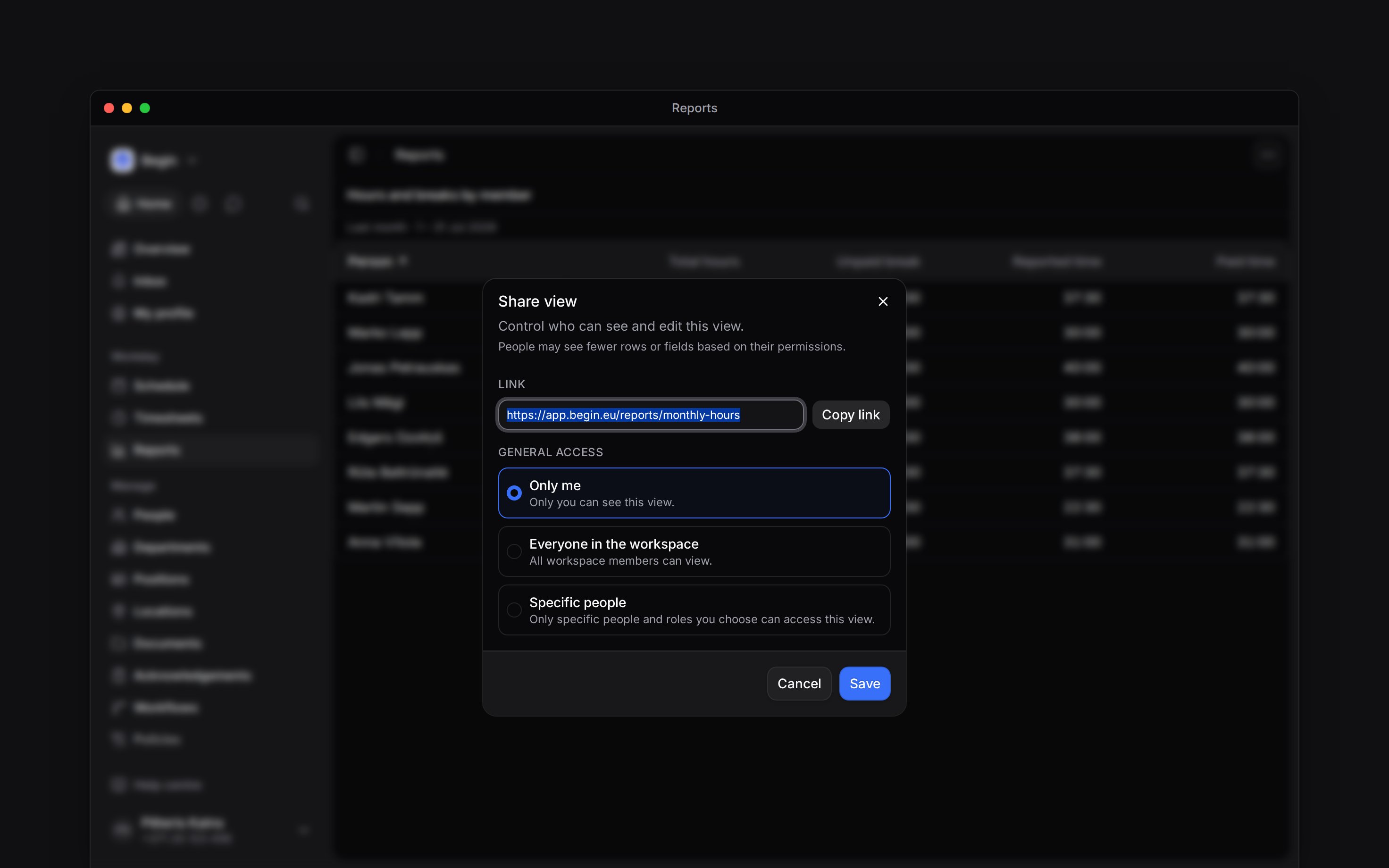
Open your report’s menu and choose Share view. Under General access, choose the audience:
Recipients still need Reports data access through their role. Choosing the whole workspace does not turn on Reports for an employee whose role has no report permissions.
Assigning a report to a client keeps these sharing settings. A colleague needs access to both the client profile and the report to see it on the client’s Reports tab.
Give named people access
1
Choose Specific people
Select it under General access.
2
Add a person or role
Use Add people or roles. Add at least one recipient.
3
Set their access
Choose Can view to let them read the report or Can edit to let them change it, subject
to their role permissions.
4
Save
Select Save to apply the access changes.
Understand what others see
Everyone opens the report against current data. Their data permissions still control which people, records and figures they can read, so a colleague may see fewer rows, unavailable figures or different totals than you.Can edit lets someone change the shared report, affecting the configuration others open too.
If they need a different set of columns or filters of their own, they can duplicate the report
instead, provided their role allows creating reports.
Next
Presets
Make a separate copy when someone needs a different setup.
Downloading a report
Send a file containing the figures at export time.
Still need help?
Contact support
Email the Begin team and we’ll get back to you.
Ask Begin AI
Open the AI assistant and get instant answers based on these docs.