


 Begin support registers replacement hardware and removes a terminal from your workspace. Before the old terminal is retired, check that the replacement is online, at the right location and ready for the same people.
Devices must be enabled for your workspace, and your role needs access. If it is missing from
the sidebar, ask an administrator to check your role or contact Begin support about availability.
Replace it without losing access
1
Identify the old terminal
Open Devices → Devices and note its display name, IMEI and location. Give those details to
Begin support.
2
Wait for the replacement row
Begin support installs and registers the replacement. Do not use the old terminal’s Inactive
state alone as proof that the new one is ready.
3
Check the replacement location and health
Set Change location if needed. Confirm the replacement shows Online and a recent last
update.
4
Verify its identifiers
Open the replacement row’s Actions menu and choose View identifiers. For a manual
terminal, add the identifiers it needs under Manage devices.
5
Ask support to remove the old terminal
Once punches work on the replacement, Begin support removes the old device. Its row disappears
and it can no longer connect or sync.
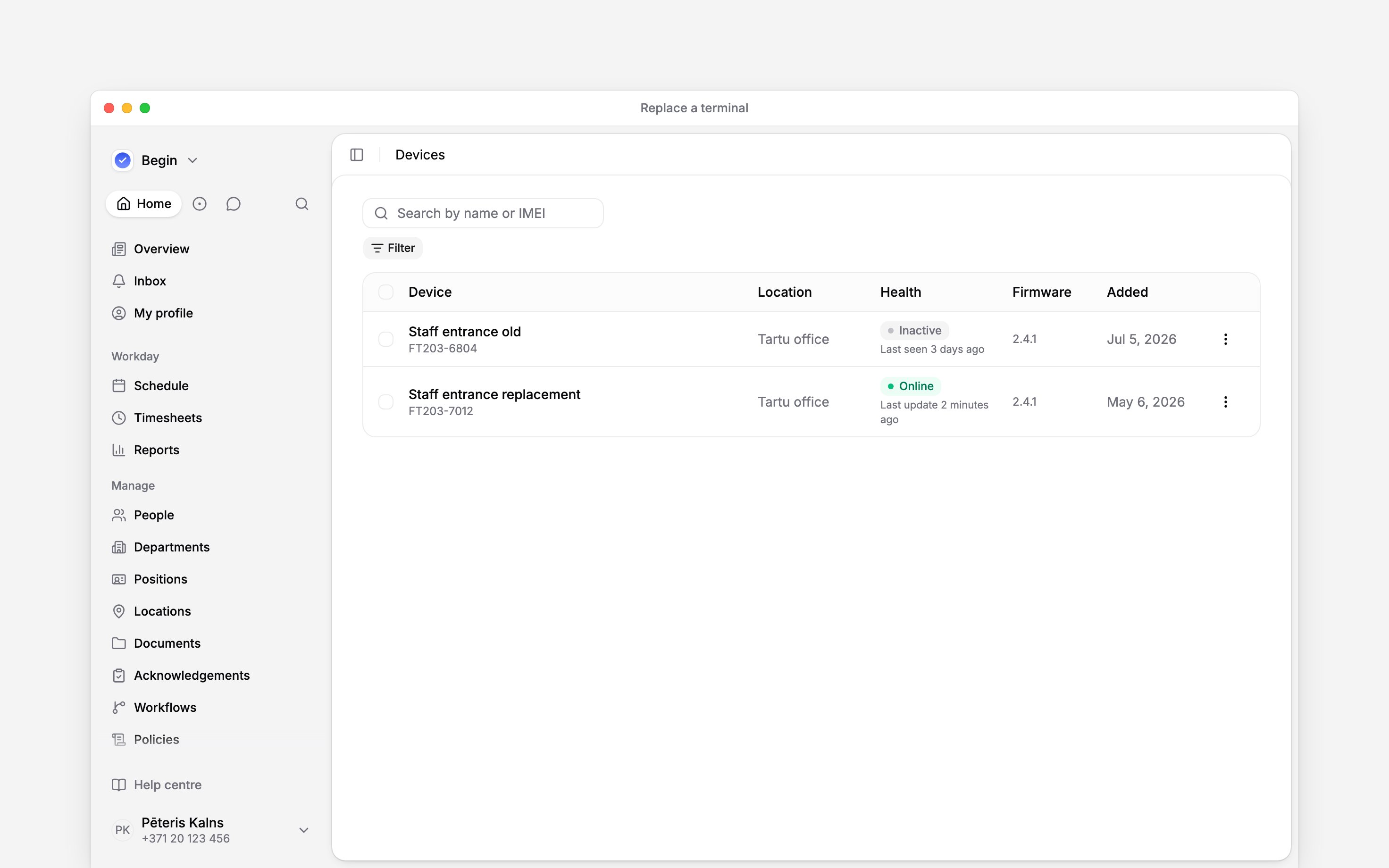
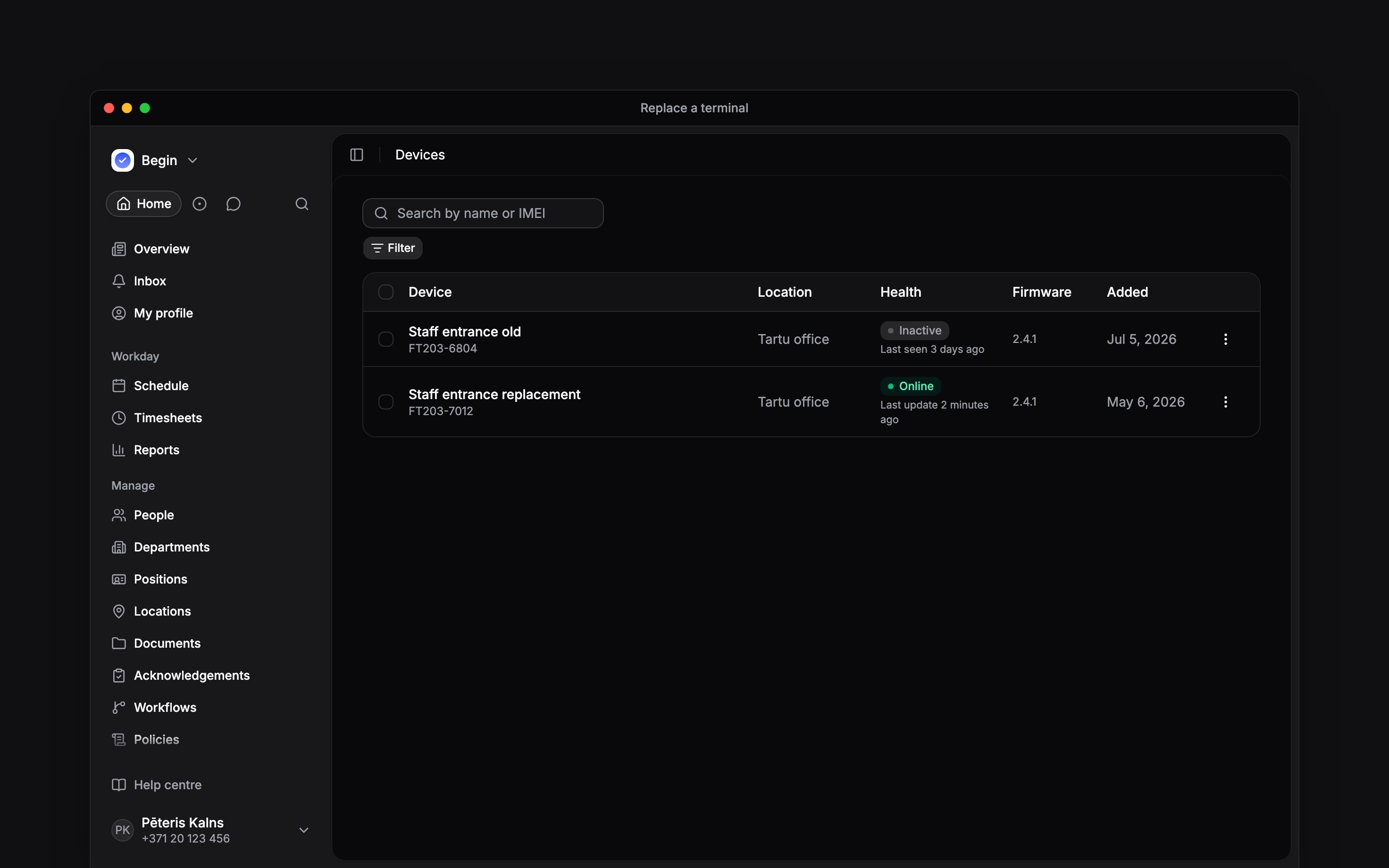
Keep both rows visible until the replacement is online and has the right location
Remove hardware you will not replace
Give Begin support the terminal’s display name and IMEI. Removal stops its access to Begin, but it is not a physical wipe. Keep the terminal secure and follow the return or disposal instructions from Begin support.Next
Setting up a terminal
Register the replacement through Begin support and set its location.
Troubleshooting a terminal
Read connection and sync states before deciding to replace hardware.
Still need help?
Contact support
Email the Begin team and we’ll get back to you.
Ask Begin AI
Open the AI assistant and get instant answers based on these docs.