


 Use Settings → People to collect information your workspace needs beyond the standard profile fields. For example, add a uniform size that new hires can provide before their first day.
You need People settings for your role. Creating custom fields and groups, and enabling Ask
new hires, require the Pro plan. If Begin offers an upgrade, ask someone with billing access to
review the workspace’s plan.
Create the field
1
Choose a name and type
Under Custom fields, choose Add → Custom field. Enter a clear name and choose Text,
Number, Date, Dropdown, Multi-select or Checkbox.
2
Provide the choices
For Dropdown or Multi-select, add at least one non-empty option. Use Dropdown for one
answer, such as a uniform size, and Multi-select when several answers can apply.
3
Choose its scope
Select a group if needed and set the visibility, search and collection switches below. Save the
field.
4
Check a profile
Open a person in People and find the field on their profile. Enter a value to check that the
type and instructions fit the information you need.
Decide who supplies and sees the answer
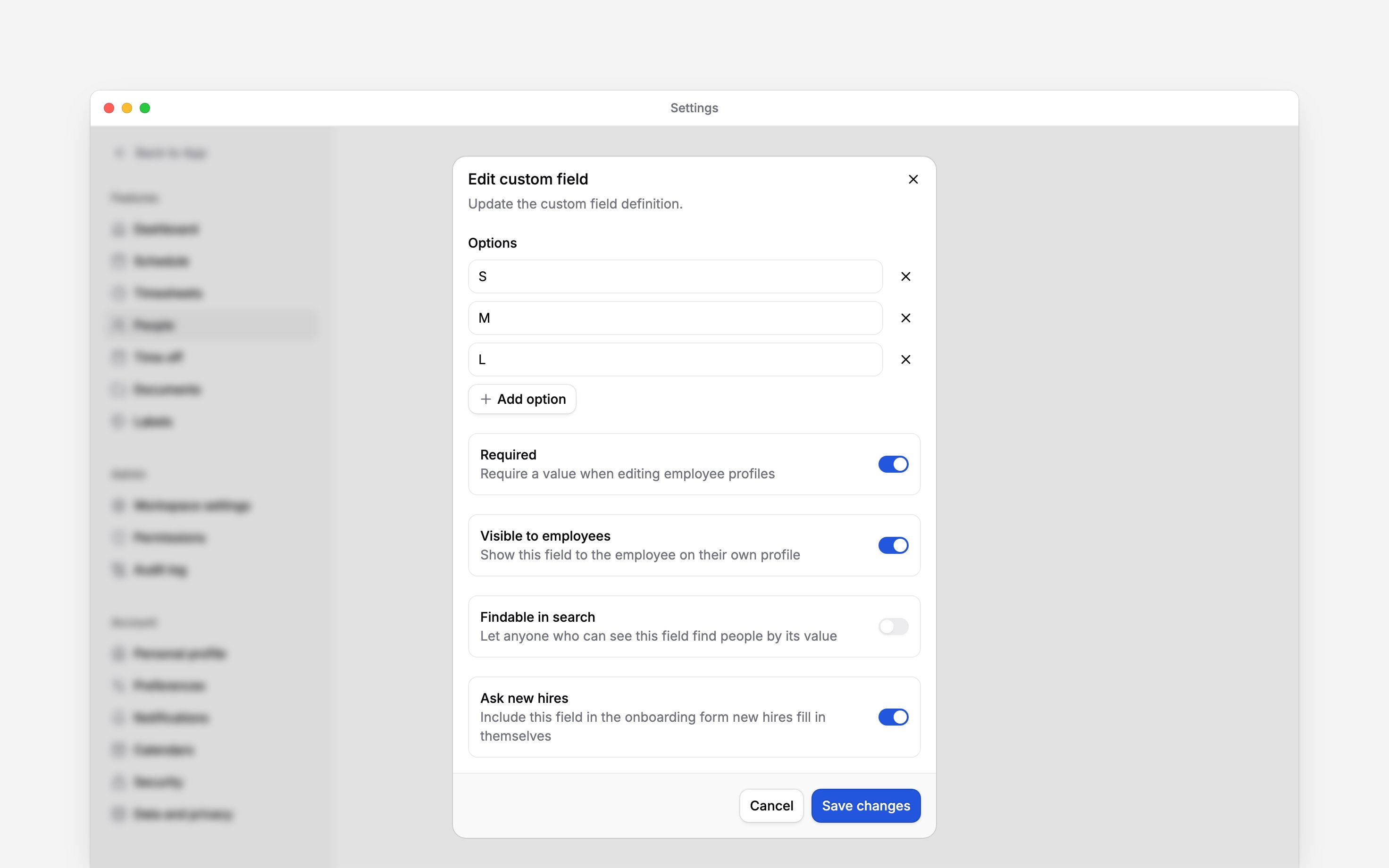
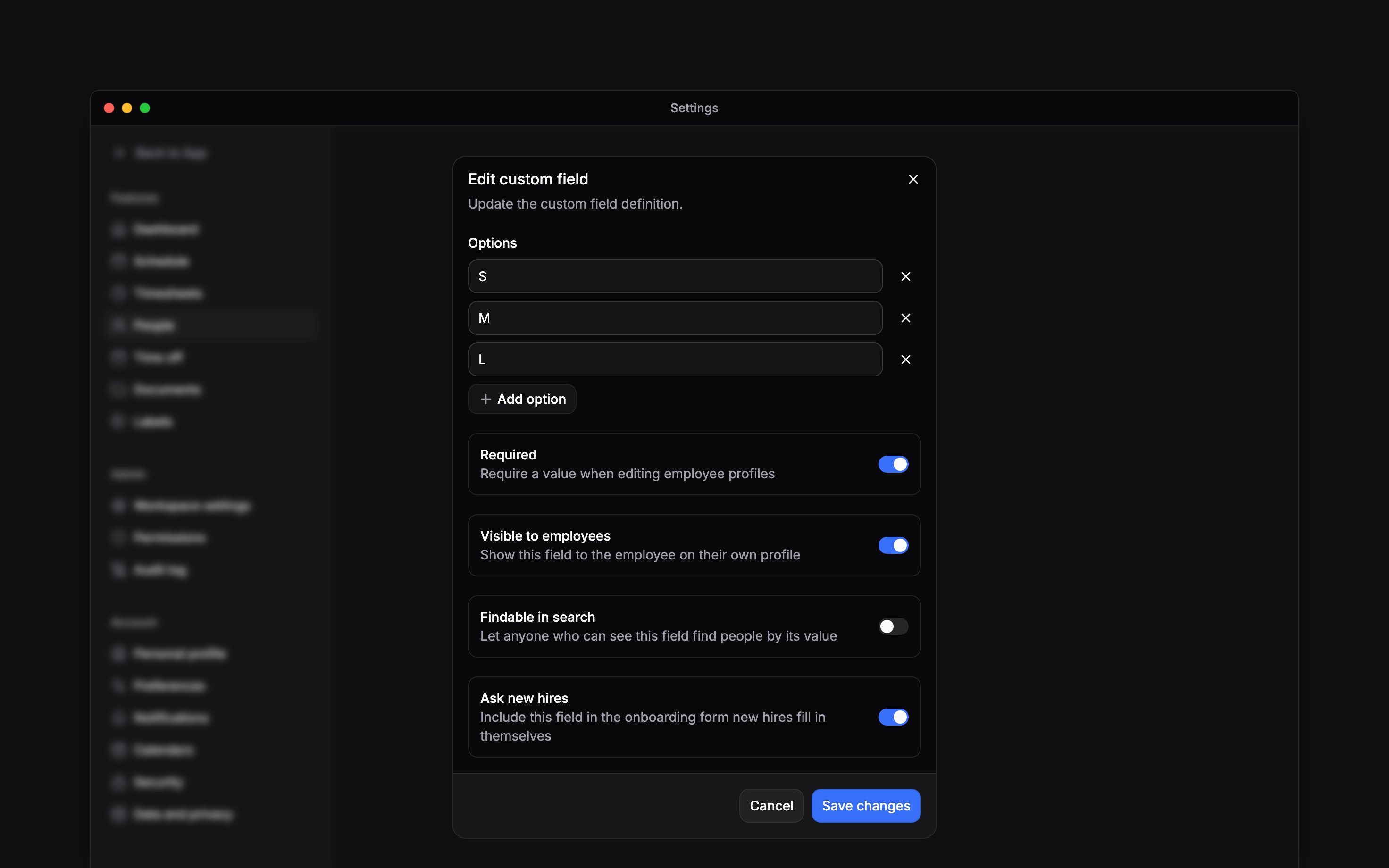
For the uniform-size example, use Dropdown, provide your actual sizes and enable Visible to employees and Ask new hires. Enable Required if the new hire must supply the answer before completing onboarding. Turning visibility off also removes the field from what you ask new hires.
Required does not stop managers saving blank values on existing People profiles, and does not fill earlier gaps automatically.
In the field editor, scroll below the options to find all four switches:
Organise or retire fields
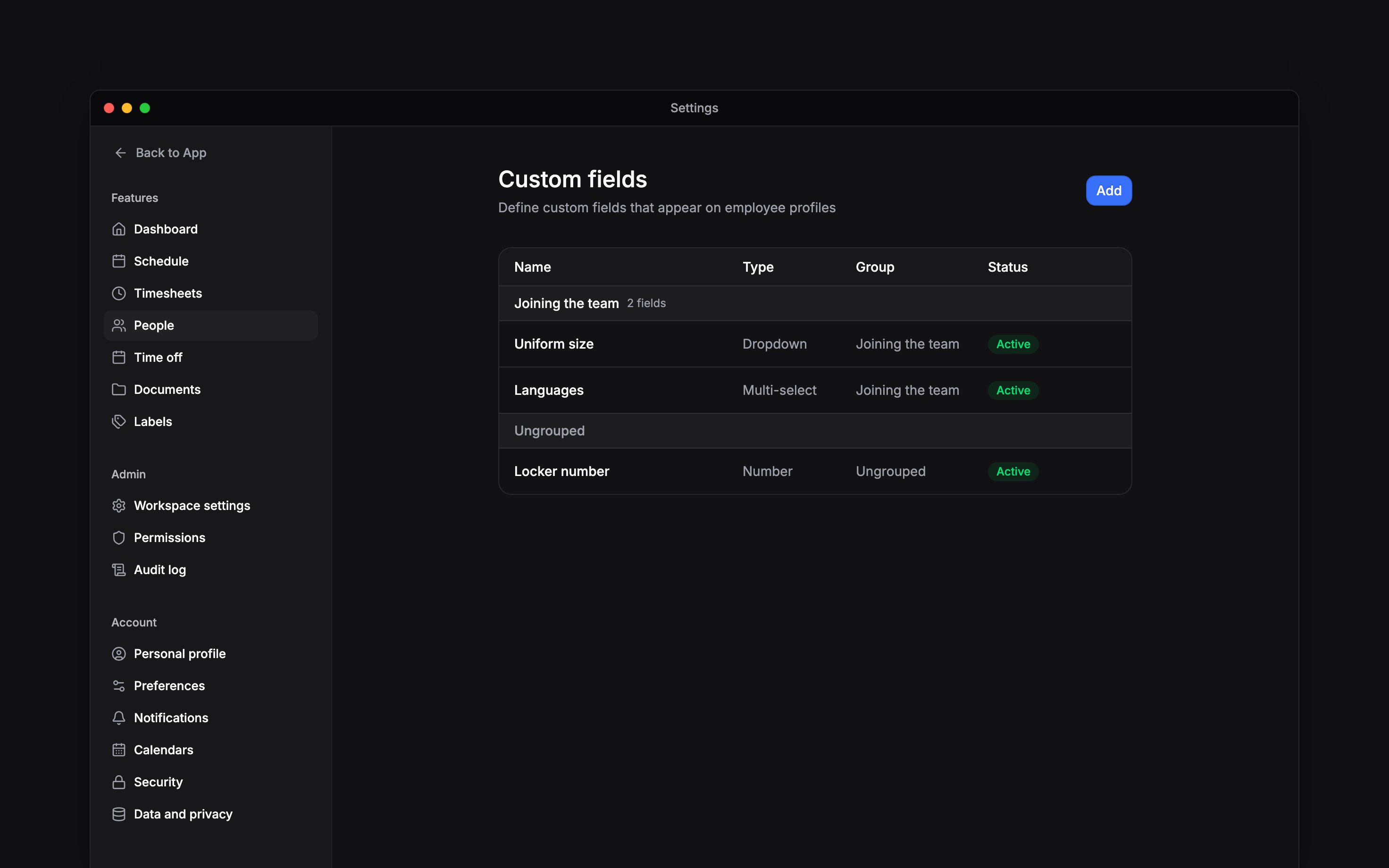
Choose Add → Group to create a section. Use a field’s menu to edit it, move it up or down, or change its group. Group menus also let you change the section order. You can also ask Begin AI to move a field or group one place; its card names the field and the one it swaps with. Deleting a group leaves its fields ungrouped. Use Archive when you no longer need to collect a field but want to keep its data. Archived fields keep their values but nobody can enter new ones. You can Unarchive it later. Deletion is refused if the field has stored data; archive it instead. Treat changes to a field’s type or choices carefully after people have answered. For a different kind of information, create a separate field so its purpose remains clear.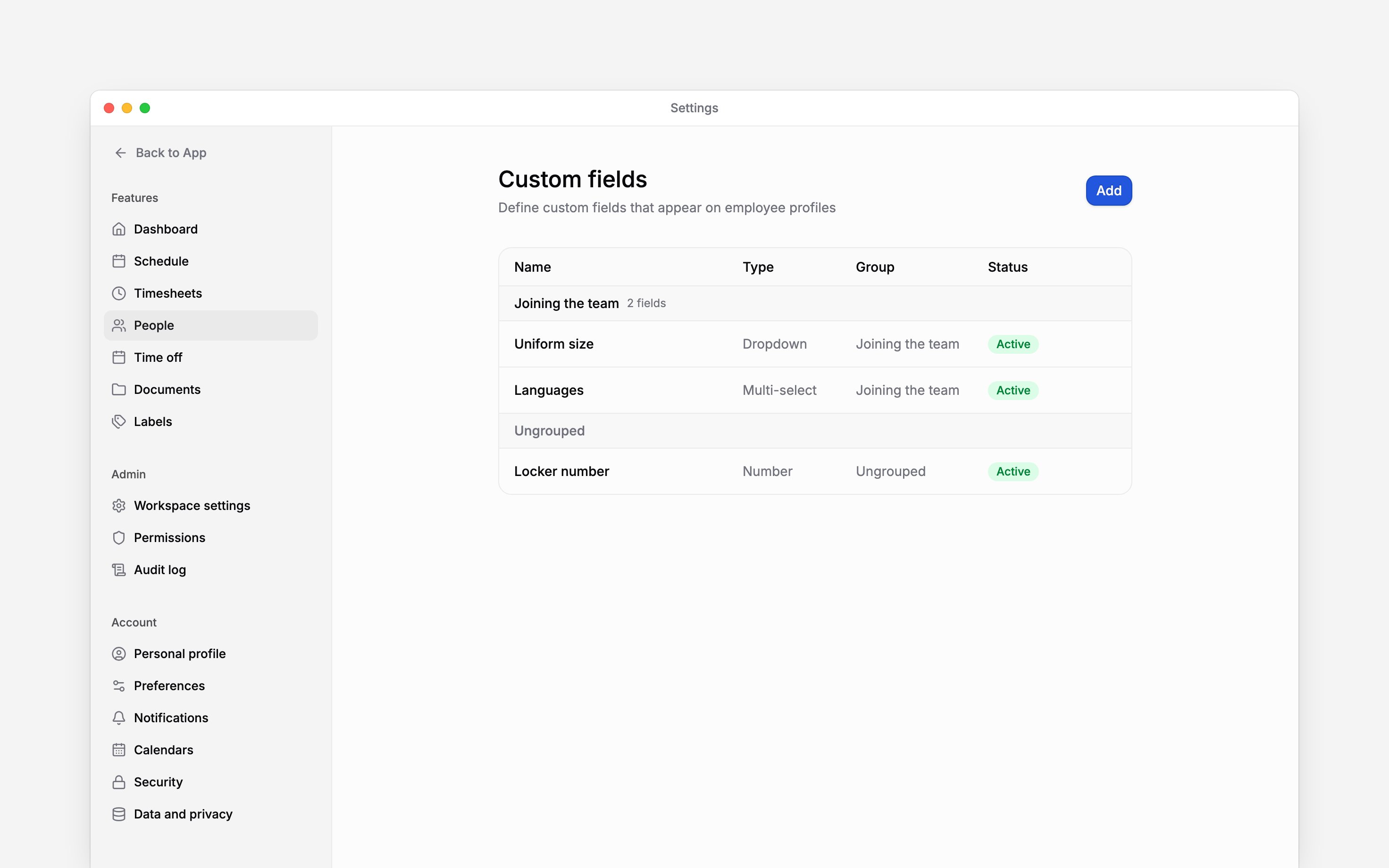
Next
Member profiles
Read and update a person’s information.
Set up onboarding
Choose what new hires complete before joining.
Still need help?
Contact support
Email the Begin team and we’ll get back to you.
Ask Begin AI
Open the AI assistant and get instant answers based on these docs.