


 Clocking policies decide which people may use a terminal and whether they may identify themselves with a PIN. The rule can apply to everyone or to selected people, positions, departments and locations.
Devices must be enabled for your workspace, and your role needs access. If it is missing from
the sidebar, ask an administrator to check your role or contact Begin support about availability.
Your role also needs access to Policies. If Open clocking policies is unavailable under
Settings → Devices, ask an administrator to open the policy for you.
Allow the terminal method
With no clocking policy, everyone may use a terminal and type a PIN. Add a policy only to restrict who may, or to block PINs.1
Open the clocking policies
Go to Settings → Devices and choose Open clocking policies, or open Policies →
Clocking.
2
Open or add the policy
Open the policy that targets the people who will use the terminal, or add one.
3
Set Clocking methods
Choose Restrict, then tick Terminal and every other surface these people may use.
Don’t restrict leaves every method available unless another policy restricts it.
4
Set PIN clock-in
Choose Allowed when people may type their PIN, or Blocked when the terminal must accept
only face, fingerprint and card.
5
Save the policy
The rule applies to its selected people and groups. A policy targeted at a location uses the
location assigned to the terminal.
Check the saved rule
Reopen the policy and check that Terminal appears under Clocking methods. A PIN restriction appears beneath the method. If there is no PIN note, this policy does not add a restriction. Terminals enforce the terminal method and PIN rule. Required position, location and client selections and GPS checks shown elsewhere in the policy apply to app and web clocking, not terminal punches.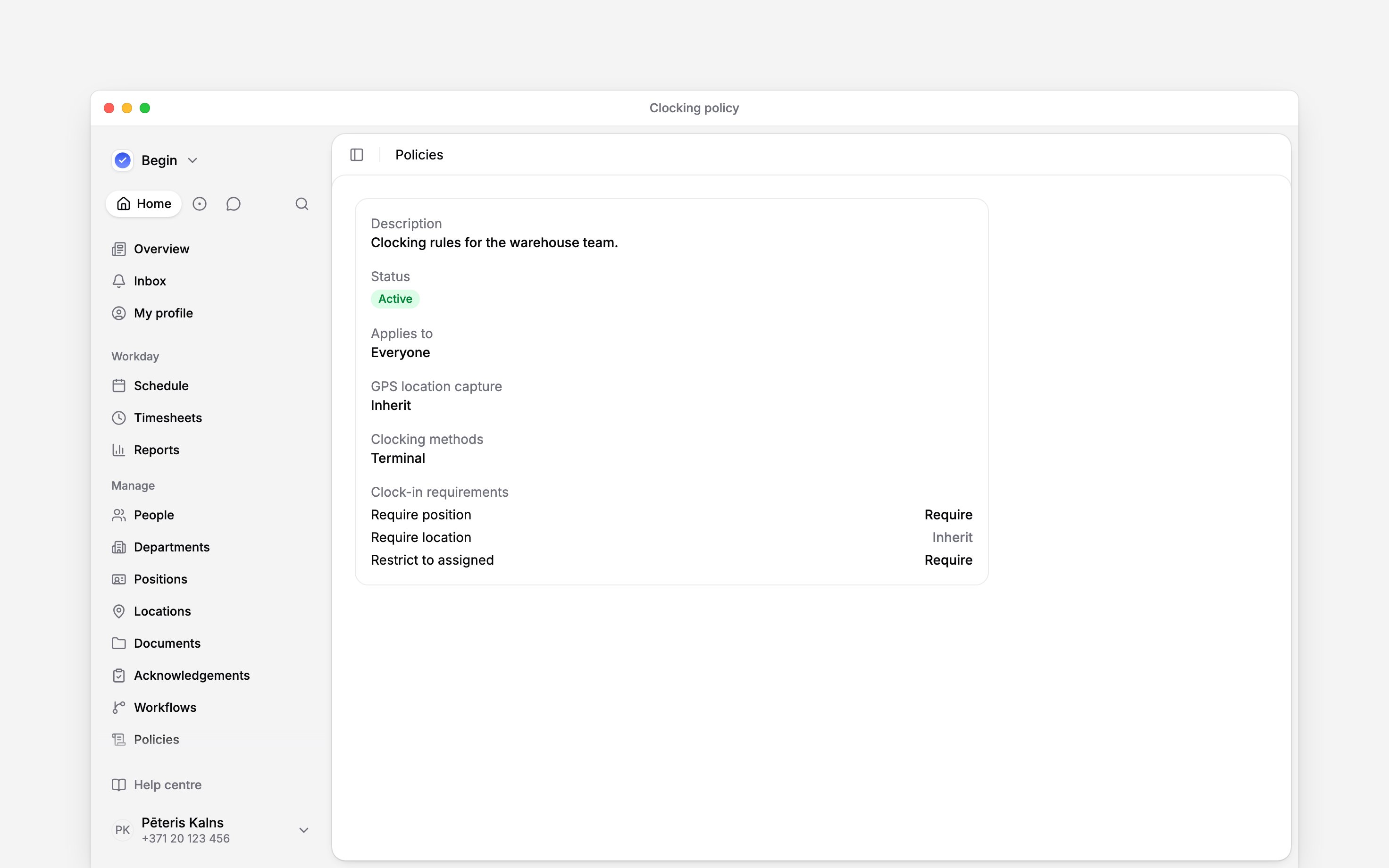
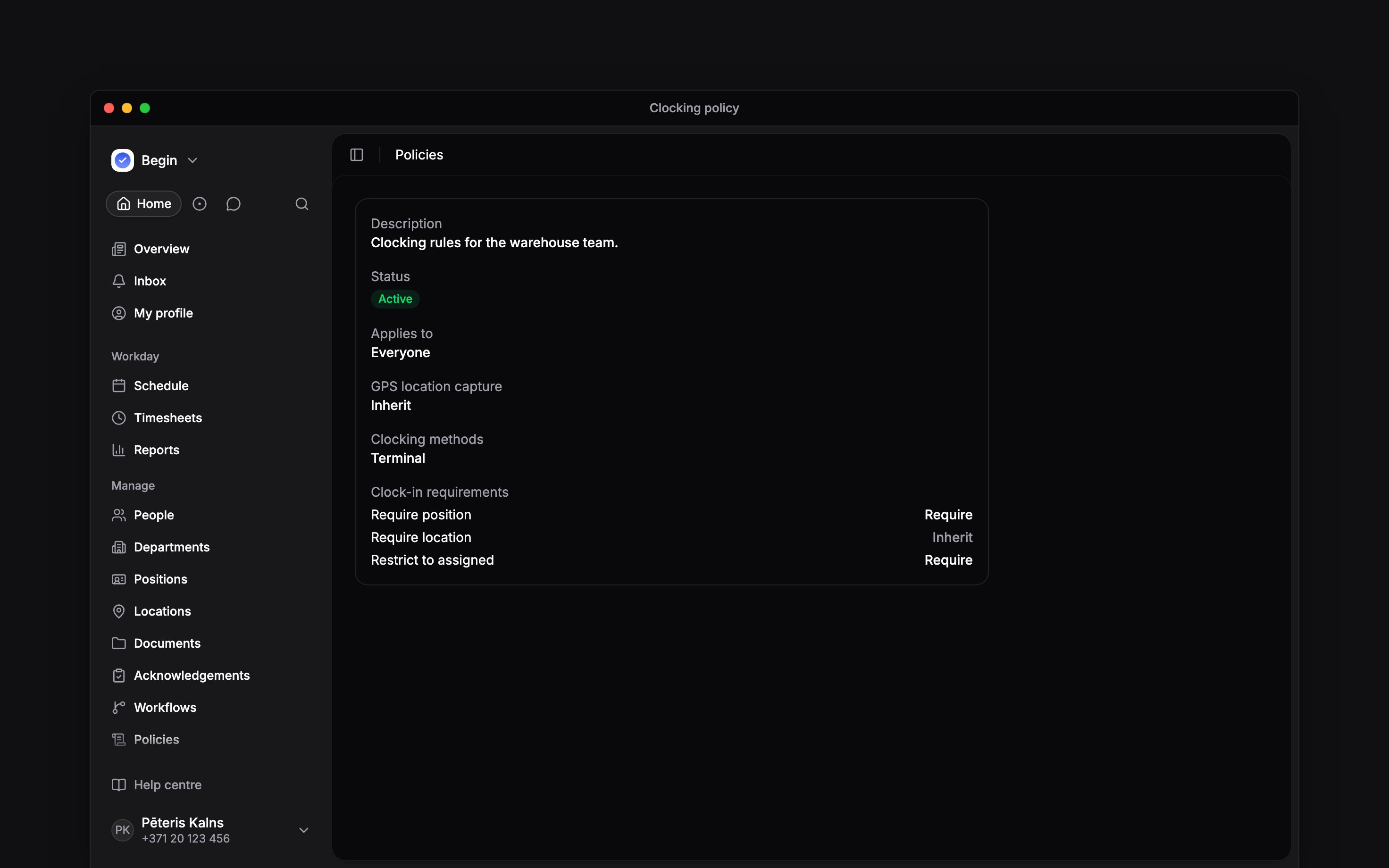
Terminal is enabled; the displayed position-selection rule applies to app and web clocking
Next
Managing identifiers
Find someone’s PIN or link the face, fingerprint or card that proves who is clocking.
Clocking restrictions
Choose who can clock in by terminal and which checks apply.
Still need help?
Contact support
Email the Begin team and we’ll get back to you.
Ask Begin AI
Open the AI assistant and get instant answers based on these docs.