


 A compliance policy checks the schedule against a limit you configure. It can warn, block with an override, or block with no override. It is a scheduling control, not a statement that the schedule complies with the law.
Start from a template or a blank rule
The template library can install a set of rules for Estonia, Latvia, Lithuania or the EU baseline. Review every installed rule before you activate it. Templates are a starting point and may not cover contracts, agreements or later legal changes. Choose a blank rule when you already know the measure, condition and time window you need. Use At most for a ceiling, such as the most worked hours allowed, and At least for a floor, such as the required rest. Per decides what is counted together: a day, week, rolling period, shift or rest after a shift. A rest rule takes Only shifts longer than (hours), so short shifts do not trigger it, and any rule can be limited with Only shifts matching. For a company rule that warns above 10 scheduled worked hours in a day, choose Worked hours, At most, value10, Per set to Day, and Warn. This illustrates the controls; it is not a legal limit. A weekly ceiling needs Per set to Week instead of multiplying a daily rule.
Create and activate rules
1
Open Compliance
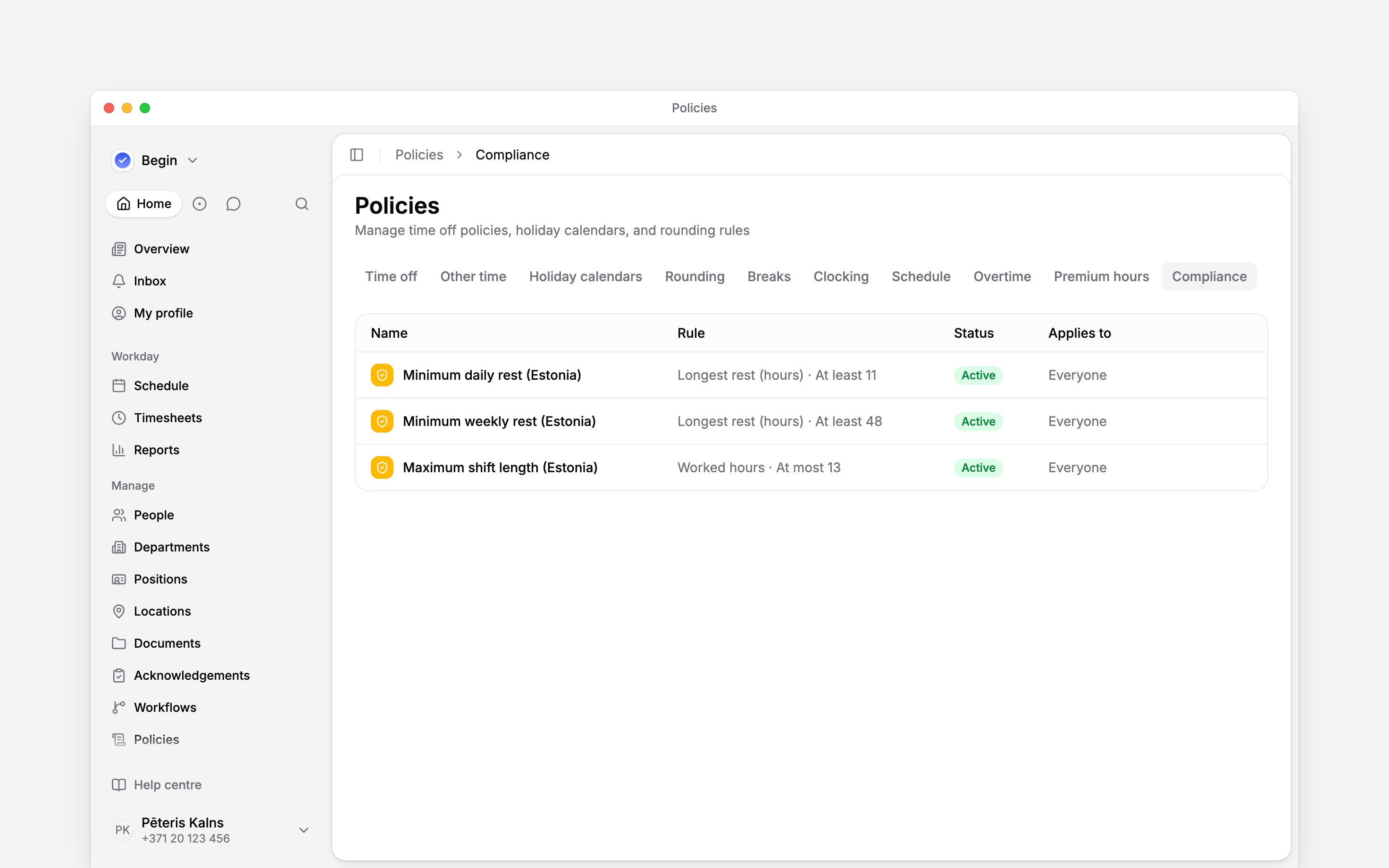
Go to Policies → Compliance, open Add, then choose Compliance policy. In New
compliance policy, pick a country template or Start from scratch, then choose Create.
2
Define the check
For a blank rule, choose the measure, condition, value and Per window.
3
Choose the response
Under When breached, use Warn, Block or Block — no override.
4
Set the audience
On the General tab, use Applies to to choose
people, positions or departments, set Status to Active, then save.
Check the rule on a schedule
Use Policy tester to confirm the intended person receives the rule. The tester lists matching compliance rules; test the actual limit while editing a relevant shift on the schedule. For the example above, compare a day below the cap with a day above it and check the warning before keeping the change. A compliance rule has no shift location target: it measures a person’s whole period, and the working-time limits it encodes count every hour they work, wherever they work it. To reach the people assigned to a site, add a Person’s location to Applies to. To count one site’s shifts only, add a Locations filter to the rule itself under Only shifts matching. A change to a rule counts from the day it takes effect. Earlier shifts are still judged by the rule they were worked under, and a change scheduled for a later date judges shifts from that date on. A day, week or rest period is judged by the rule in force on its first day, so a week that spans a change is judged whole by the rule it began under.Respond to a schedule message
Warn lets the editor keep the shift. Block asks them to confirm Keep anyway. Block — no override requires the schedule to change before the shift can be saved. A block also answers somebody taking an open shift. The rules are checked against that person’s week, and either kind of block refuses them outright: they are told to ask you, and get no Keep anyway. Assign them the shift yourself where you judge the breach acceptable. When a template has a newer version, Begin can install the new rule as a draft. Review it separately; installing it does not silently replace a customised active rule.Next
Schedule warnings and conflicts
Handle the warning or block while editing a shift.
Schedule requirements
Require fields that every matching shift must contain.
Still need help?
Contact support
Email the Begin team and we’ll get back to you.
Ask Begin AI
Open the AI assistant and get instant answers based on these docs.