


 Add a client once and it is ready to pick on every shift and time entry. Only the name is required. A client number is optional, and it is the quickest way to find a client again. To add many at once, import them from a spreadsheet.
Beta
Clients are rolling out gradually, so your workspace may not have them yet. If Clients is
missing from the sidebar, ask us to turn them on.
Add a client
1
Open the form
Go to Clients and select Add client, or search for Add client in the command palette
(Cmd / Ctrl + K).
2
Name the client
Name is the only field you must fill in. Add a Client number if your team uses one: no
two clients can share a number, archived clients included.
3
Add contact details
Email, Phone and Address appear on the client’s profile, where the email and phone
number open your mail app and dialler.
4
Answer the required details
Any field your workspace marks as required is listed under Required details and needs an
answer. Client fields explains them.
5
Save it
Select Add client. The client’s profile opens, and the client is ready to pick on shifts and
time entries.
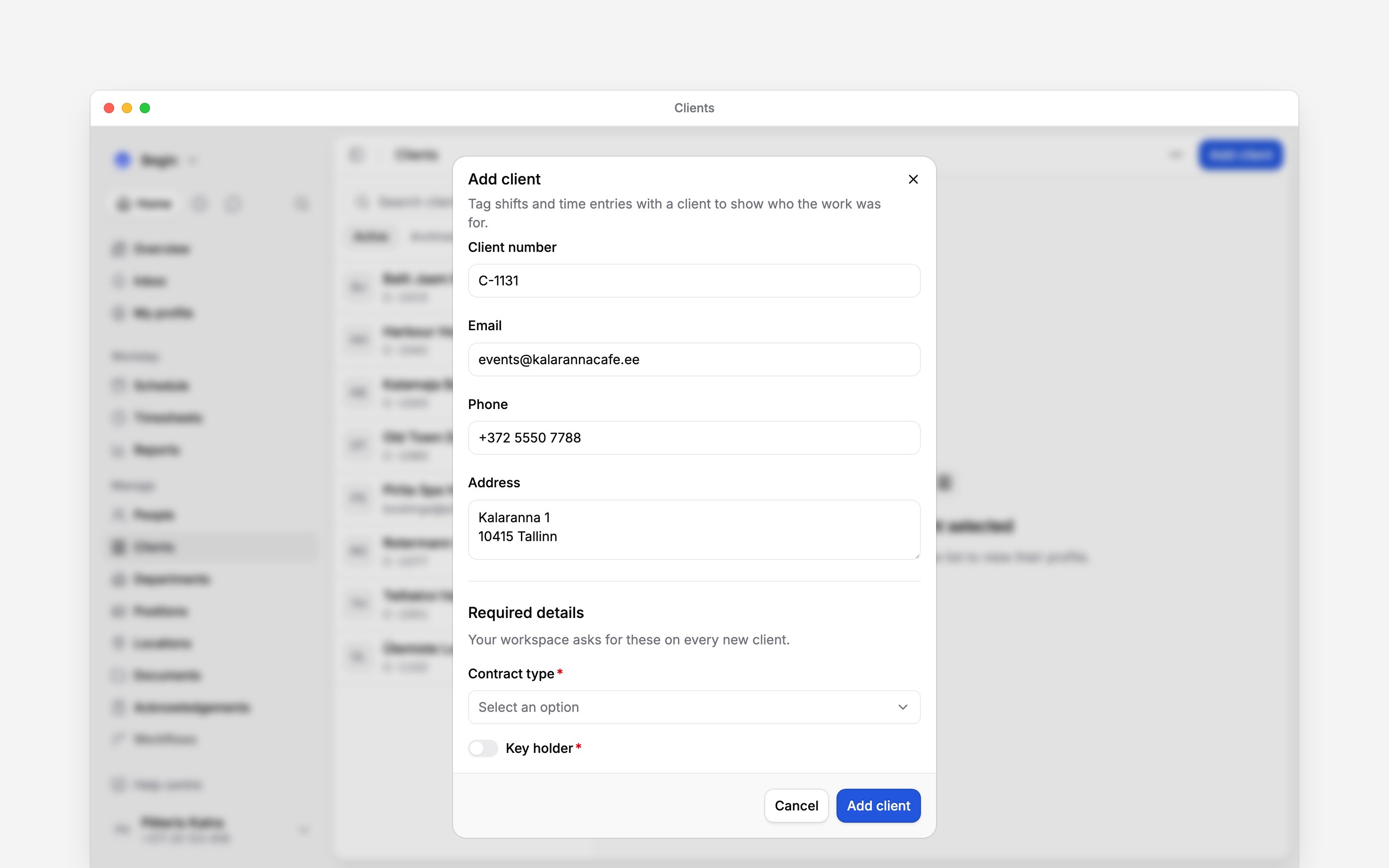
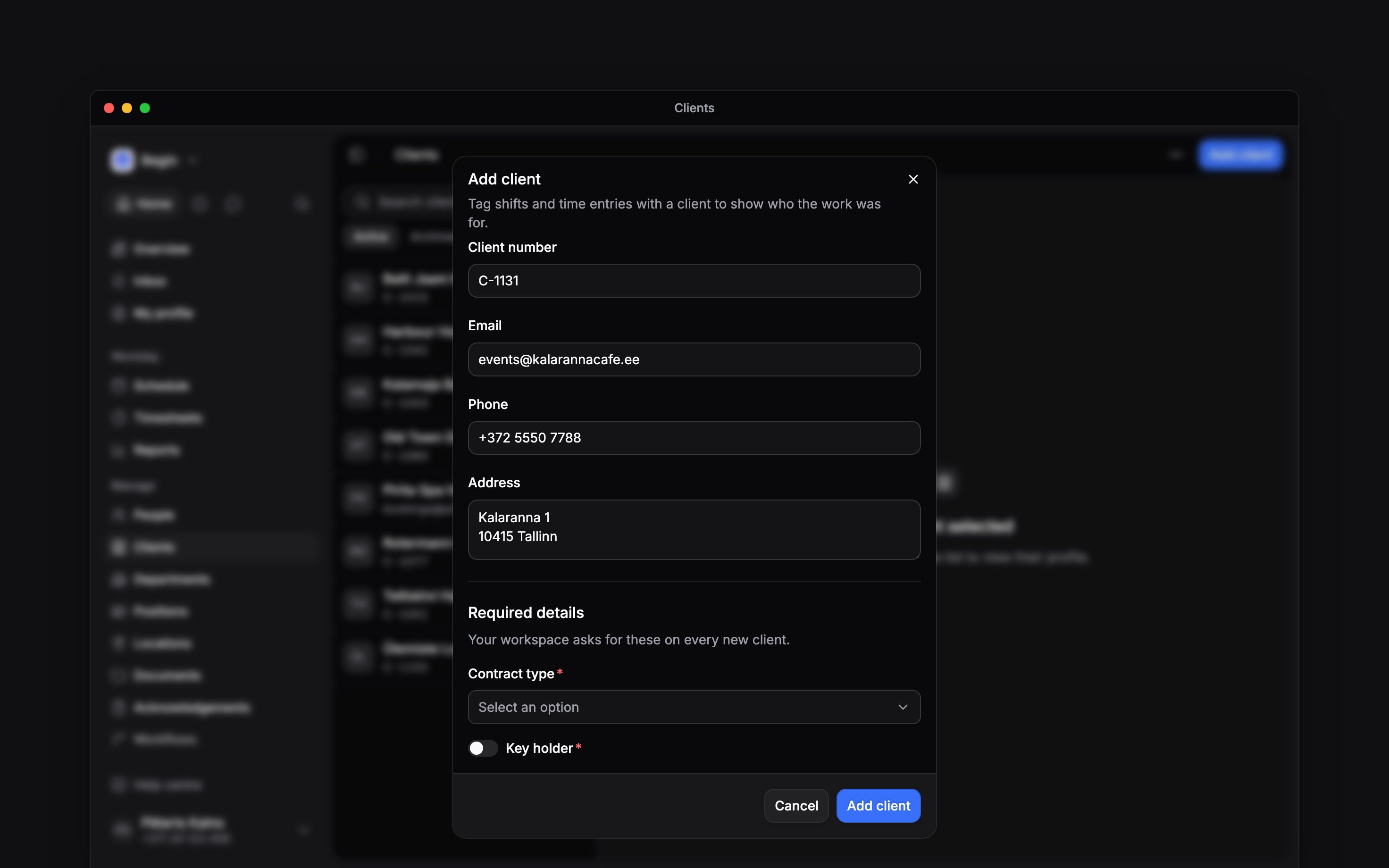
Add a client called Harbour House with client number C-1042.
Add one while you tag work
You do not have to leave the shift or time entry you are filling in. Type the client’s name in its Clients field, and when no client has that name, choose Create client with that name at the foot of the list. The same form opens with the name filled in, and the new client goes straight onto the shift or entry.Find a client again
The search above the list matches the start of any word in a client’s name or number:1042 finds C-1042, and harb finds Harbour House. It looks only in the tab you are on, Active or Archived.
To find a client from anywhere in Begin, use the command palette. It finds archived clients too, and finds a client by the value of any client field marked Searchable.
Change a client’s details
Open the client and select Edit to change its name, number or contact details. The change shows wherever the client is tagged. Its other fields are filled in on the profile itself (Client profiles).Next
Client profiles
Fill in a client’s fields and keep notes about them.
Tagging work with clients
Put the client on shifts and time entries.
Still need help?
Contact support
Email the Begin team and we’ll get back to you.
Ask Begin AI
Open the AI assistant and get instant answers based on these docs.