


 Time off sits on the schedule next to the shifts, on the person’s own row. You book it the way you create a shift, and the requests your team files land on the same grid for you to decide on.
Every absence is booked against a , because the policy is what the days come out of. Nothing books one without it: the form will not save, and Change type → Time off books the policy the form would open on. Until your workspace has a time-off policy, that choice reads Add a time-off policy first and does nothing.
Book an absence
1
Add it
Open Add on the schedule toolbar and choose Time off. On a day that already has a shift,
right-click the shift (press and hold it on a phone) and choose Add → Time off: the form
opens on that person and day.
2
Say who, and under what
Pick the person and the policy. The balance card appears once both are set.
3
Set the dates
The card updates as you pick: what they have left, and what this range would spend.
4
Save
Where the policy has Require approval on, the absence lands as Needs review, and
deciding it is a separate step. Where it does not, it saves as Approved. If your role can
change a status, you can set Approved yourself as you book.
What the balance card is telling you
Remaining balance is what is left for the year, and This request is what these dates would spend. Where the policy excludes weekends or public holidays, the card names the exclusion and leaves those days out of the count, so a fortnight off can spend ten days rather than fourteen. Under it, a Normal hours line shows what the absence takes off the person’s contracted hours. Open How this is worked out for the day-by-day working.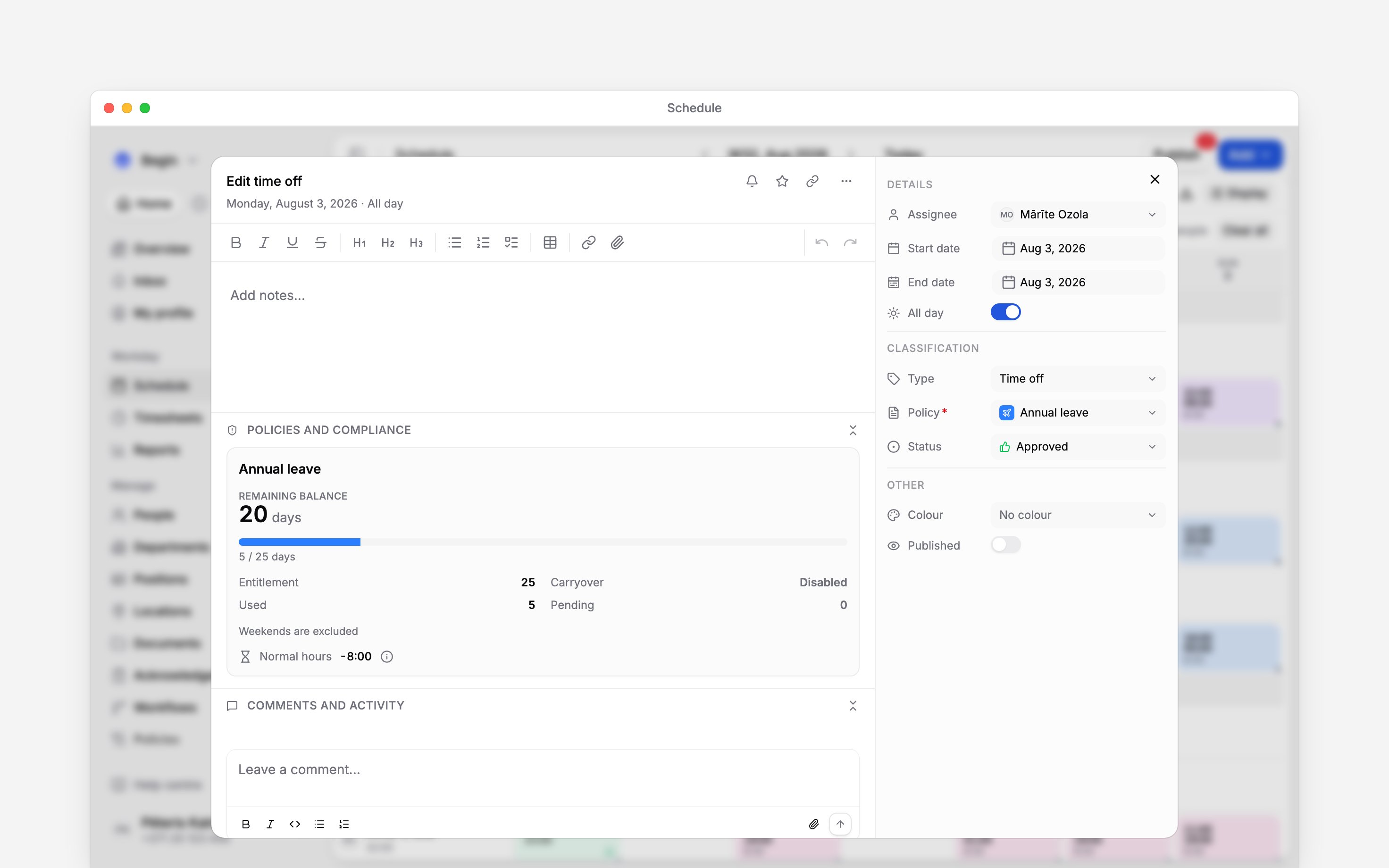
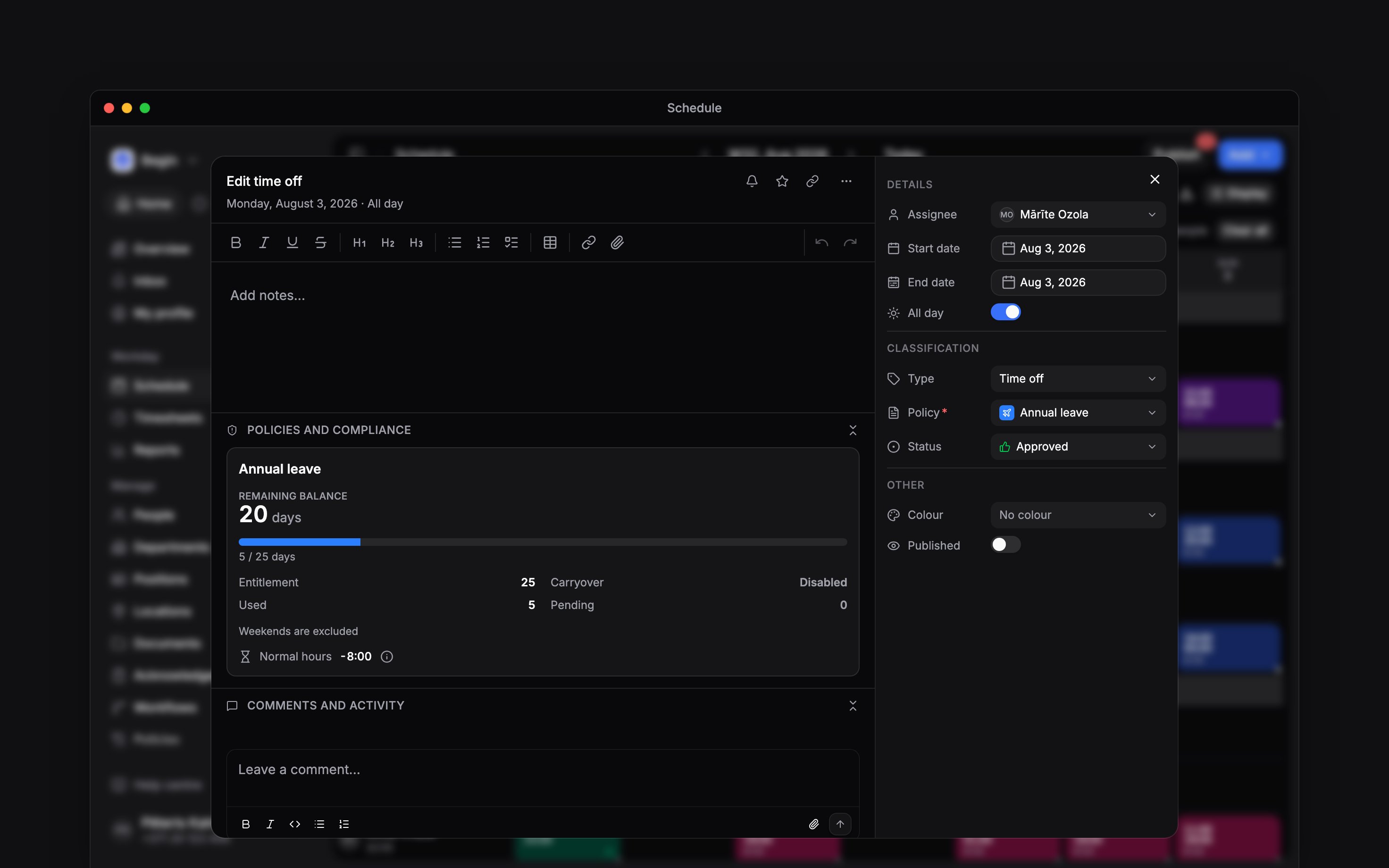
The balance card on a booked absence: what is left for the year, and what the year has already spent
A block that runs all day, or across days, spends a whole day of the balance for every counted
day. One that sits inside a single day spends a fraction of it, measured against that person’s own
working day: four hours of an eight-hour day is half a day. That full day is your workspace’s own,
the same length the Normal hours line beside the balance is measured against, and a part-timer’s
is shorter in proportion to their contract. However long the hours run, one day never costs more
than one day of balance. A policy with Allow partial-day requests off books whole days only,
so the form shows no All day switch for it.
Book the same days for everyone
A company shutdown is one absence for many people, so book it once. In the time-off form, open the Assignee row and choose Everyone in the workspace, or add the people, departments, jobs or sites it covers, then pick the policy and dates as usual. Every absence lands Approved with no request card, so this needs Approve or deny time-off requests as well as Add & edit shifts, both without a limit to certain people or sites. Time off booked lists who was booked and who was skipped: someone already off on those dates, or someone the policy would not take past their balance. Each person spends the same days from their own balance. The list shows a colleague’s balance only if you can read policies and hold View others’ time-off details for that person; you always see your own. Each absence carries a banner naming the booking. Remove from all gives the dates back to everyone and needs the same unlimited rights; deleting one absence alone leaves the rest.Decide the ones your team asks for
A request under a policy that requires approval arrives twice: as a block on that person’s row, and as an item in your Inbox. Open either one and use Approve or Reject on the card inside. It is the same decision in both places. Or ask Begin AI (Cmd / Ctrl + J):Approve Eva Kask's pending time-off request.
Beta
Naming a substitute to cover an absence is rolling out gradually, so your workspace may not have
it yet. If you cannot see it, ask us to turn it on.
Where is it decided whether weekends count against the balance?
Where is it decided whether weekends count against the balance?
On the time-off policy, in Policies → Time off. Exclude weekends leaves Saturdays and
Sundays out of the count, and Exclude public holidays leaves out the holidays of the
person’s contract country.
Will Begin warn me when too many people are off at once?
Will Begin warn me when too many people are off at once?
Only if a cover rule is set up in Policies → Time off. A booking that breaks it is flagged
to the approver and marked on the schedule, and is never refused.
Next
Open shifts
Roster the shift the absence has left unfilled.
Warnings and conflicts
What Begin says when a shift lands on an absence.
Still need help?
Contact support
Email the Begin team and we’ll get back to you.
Ask Begin AI
Open the AI assistant and get instant answers based on these docs.