


 The timesheets page shows one period at a time. Three controls decide what you are looking at: the period itself, how the rows are stacked, and the filters narrowing them. Get those right and the question you came with usually answers itself.
Pick the period
Day, Week and Month are under Display, and 1, 2 and 3 switch between them. A new workspace opens on the month. The arrows either side of the date move a period at a time and Today brings you back. In the day and week views a strip of seven cells sits under the toolbar, one per day with the period’s Total at the end. Click a day to narrow to it. The period you land on is remembered, so the page opens where you left it.Stack the rows the way you are checking
Group by is the setting that changes the page most, and there are ten options. You need three of them.
Among the others: Position and Location for one job or one site, Linked shift for entries nobody matched to a shift, Source (the Clocking mode column) for how people are clocking in, GPS for where they were standing.
Unless you group by Day, where the day heads each group, every row shows its day in a Date column before Clock in, so one person’s month reads day by day. On a phone the day sits under the name.
Rows inside a group run by time, latest first, and that is the only order offered. The table loads more as you scroll rather than all at once, so sorting by name or by longest day would put the window in the wrong order and is deliberately not there.
What the totals at the top count
Four cards sit above the table, and two of them count something narrower than the rows underneath.
So the hour cards and the entry count answer different questions by design: the cards leave out every entry nobody has approved, including cancelled entries, and the count includes them. Cancelling keeps the row, its raw duration and its audit history visible. Approve what is pending and the hour cards rise to cover it. Where a filter puts the figures beyond what the calculator can produce, the card says Not calculated for this filter rather than showing a misleading zero. When a recent change has not been recalculated yet, the card keeps the last total and says Not up to date under it, so wait for the note to clear before you rely on the figure.
In the rows themselves, Reported is the clock time with every break taken out, Paid time adds the paid breaks back, and Difference compares that against the shift the entry is linked to. Difference stays empty rather than showing zero when there is no linked shift to compare with.
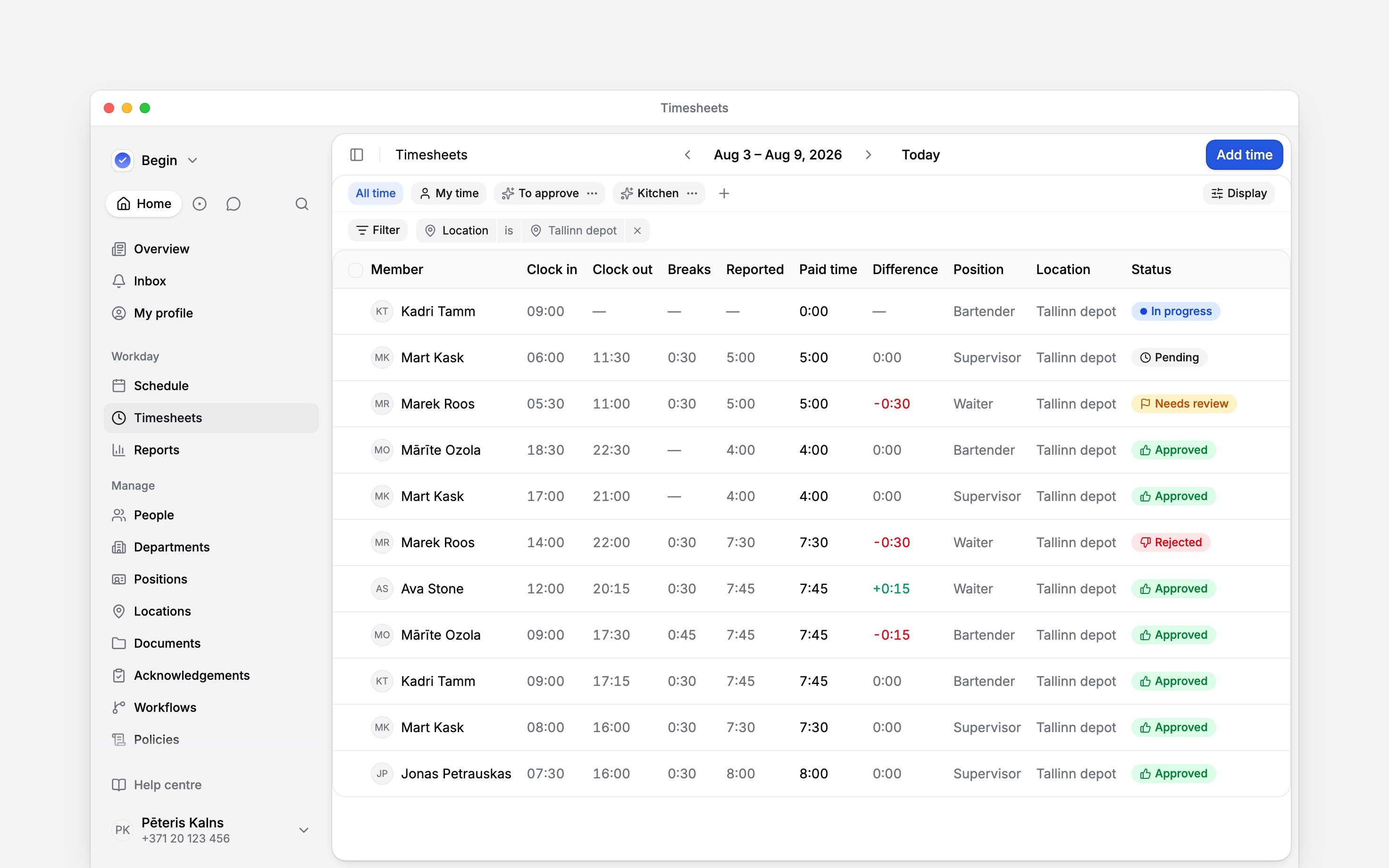
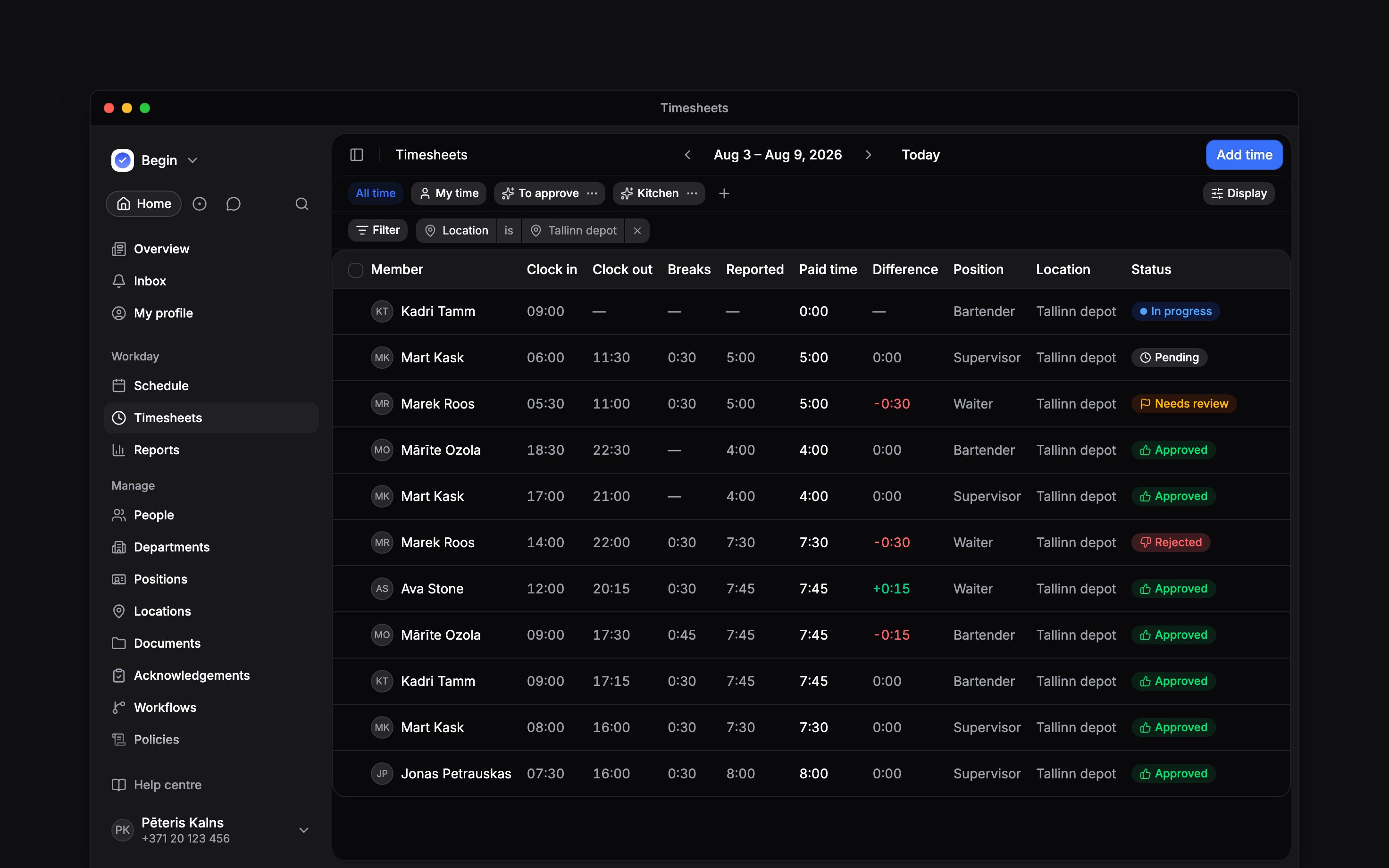
Period, view pills, an applied filter and the columns, over one week of records
Narrow it, and keep the setup
Filter by member, position, location, department, status, source, GPS, labels, clients or whether an entry has a linked shift. Department keeps the entries logged on the department’s linked positions, whoever logged them, the same way Reports reads it. Only the filters your role can honour are offered, so a role that cannot see locations is not shown a location filter.Beta
My time is already a filter on one person, so picking someone in the member filter keeps your choice and drops the pill back to All time rather than asking for two people at once. When the filters leave nothing to show, the table says the filters are hiding the rows and offers Clear filters, which drops the chips and My time but leaves a saved view’s own filters in place.
When a set of filters is one you come back to, save it as a view: the pills in the toolbar hold All time, My time and whichever views you add, and each carries its own period and grouping. Copy link on a view shares exactly what you are looking at.
Nothing on this page downloads. Hours leave Begin through Reports, which exports the same records as CSV with the columns and the decimal format payroll needs.
Labels and clients are rolling out gradually, so your workspace may not have them yet. If the
filter list has no Labels or Clients, ask us to turn them on.
Next
Approving timesheets
Turning pending rows into hours that count.
The hour columns
What each hour figure means once the hours reach a report.
Still need help?
Contact support
Email the Begin team and we’ll get back to you.
Ask Begin AI
Open the AI assistant and get instant answers based on these docs.